

Stop losing Castle Battle rally slots to clunky mouse drags. Master the best Whiteout Survival PC keybinds and sensitivity layout for instant rally joins.
Timing makes or breaks Castle Battle. When five-minute war marches launch against Sunfire Castle or a rival fortress, mouse dragging costs critical seconds. You sweep across the tundra, hunt the pop-up icon, fumble over the troop slider, and hit confirm just as the rally caps. Your alliance marches without you.
Playing on PC provides a clear view, but mouse-only controls throw away the advantage. Moving a cursor from the notification tray to squad presets and finally to dispatch burns upwards of 800 milliseconds in physical hand travel. A dedicated one-hand keyboard layout collapses that sequence down to two keystrokes.
Here is how to configure your emulator keymapping, lock in raw mouse sensitivity, and tune squad presets for sub-second rally reactions.
Why Mouse-Only Clicking Fails in Sunfire Castle
Default emulator configurations treat your mouse like an artificial finger. Joining a rally requires six separate travel paths: alliance tab, war menu, target march, join button, squad selection, and final dispatch. Drift off target by three pixels during a chaotic fight and you click empty tundra, resetting the sequence.
Default Mouse Method:
[Alliance Tab] -> [War Menu] -> [Find Rally] -> [Join] -> [Select Preset] -> [Confirm]
Total time: ~1.2 to 2.5 seconds (High miss-click rate under pressure)

Optimized Keyboard Layout:
[Key: Z (Rally Tab)] -> [Key: 1 (Select Join)] -> [Key: Q (Preset 1)] -> [Space (March)]
Total time: ~0.3 seconds (Muscle-memory execution)
During Foundry Battle or Sunfire Castle, dozens of alliance members compete for limited capacity in the rally leader's Command Center. Full queues form in two seconds. Keybinds eliminate the visual hunt. Your left hand executes the roll while your right hand keeps the cursor pinned on map coordinates.

99 Frost Star
 99 Frost StarUSD 1.05Buy Now
299 Frost Star
299 Frost StarUSD 2.80Buy Now499 Frost Star
499 Frost StarUSD 4.65Buy Now999 Frost Star
999 Frost StarUSD 9.27Buy Now1999 Frost Star
1999 Frost StarUSD 18.49Buy Now4999 Frost Star
4999 Frost StarUSD 46.11Buy Now7499 Frost Star
7499 Frost StarUSD 69.19Buy Now9999 Frost Star
9999 Frost StarUSD 92.23Buy Now18495 Frost Star
18495 Frost StarUSD 168.71Buy Now
Core Emulator Keymapping Architecture for Fast Rallies
Cluster your active rally controls around the left-hand home zone (Q, W, E, R, A, S, D, F, Space). Keep your right hand on the mouse for targeting.
Use this one-hand bind profile for competitive play:
Z(Alliance War Tab): Opens the active rally list directly, skipping the alliance lobby.1/2/3(Rally Row Selection): Hits the top three "Join" buttons.1grabs the newest call at the top of the queue.Q(Squad Preset 1 - Offensive Jessie): Selects the first squad preset on the march prep menu.W(Squad Preset 2 - Defensive Tank): Selects the second squad preset.E(Squad Preset 3 - Speed/Cav): Selects the third squad preset.Spacebar(Deploy / March Confirmation): Fires the final orange "March" trigger in the lower right corner.Esc(Menu Cancel / Clear): Closes overlays, resets troop sliders, or returns to settlement view.C(City/Map Toggle): Switches between settlement view and the world map.
Joining the latest rally becomes a rapid four-key roll: Z -> 1 -> Q -> Space. The input takes under 300 milliseconds. Your eyes stay on the map, and your mouse never leaves position.
Step-by-Step Mouse Sensitivity and Pointer Setup
Keyboard speed falls apart if your crosshair skips across the screen while reading coordinates. Map panning requires true 1-to-1 tracking.
The Golden Settings Profile
- Windows Pointer Speed: 6/11 (Locks the OS multiplier to 1.0x raw input).
- Enhance Pointer Precision: Disabled (Removes software curve acceleration).
- Mouse Hardware DPI: 800 to 1200 DPI.
- Emulator In-Game Drag Sensitivity: Low to Moderate (20% to 35%).
How to Configure Your Tracking Stack
- Disable Windows Pointer Acceleration: Open Run (
Win + R), launchmain.cpl, click the Pointer Options tab, and uncheck Enhance pointer precision. Moving the mouse three inches will now travel the exact same pixel distance every swipe. - Calibrate Hardware DPI: Set your sensor to 800 or 1200 DPI in your mouse utility. Sensor rates past 3200 DPI cause erratic overshooting when clicking small UI elements under pressure.
- Adjust Emulator Map Panning: Open emulator controls. If you use directional panning, drop scroll speed to avoid overshooting coordinates.
- Hold Spacebar with Mouse Drag for Rapid Sweeps: Bind an emulator anchor to hold spacebar while dragging. This pulls the camera across coordinate grids twice as fast as screen-edge bumping.
Running a 34-inch ultrawide or 4K panel? Bump hardware DPI to 1600. Higher pixel counts demand more physical sweep, and the slight DPI lift prevents wrist strain.
Squad Presets and the First-Slot Joiner Rule
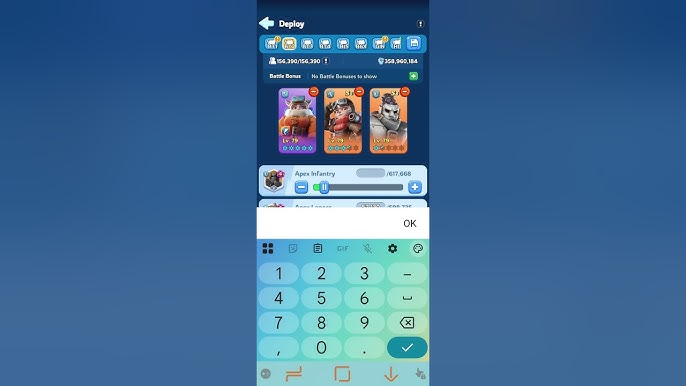
Never touch troop sliders during live combat. Setting ratios or swapping commanders inside an active deployment screen burns time you do not have. Configure formations in the troop menu beforehand.
Reaching VIP 5 unlocks additional squad slots for offense, defense, and gathering. If you are upgrading your settlement, purchasing Whiteout Survival Frost Stars to hit VIP tiers secures these lineup slots permanently.
The First Hero Slot Mechanic
When you start an attack as the rally leader, all three hero expedition skills fire. When you enter as a rally joiner, the mechanic shifts completely: only the top-right expedition skill of your first hero (marked by the blue flag icon) activates.
Heroes in your second and third slots contribute raw troop stats, but their expedition skills remain dormant.
This makes slot order decisive:
- The Jessie Priority: Jessie remains the strongest offensive rally joiner. Reina's buff affects only basic attacks, but Jessie's expedition skill boosts total damage across all sources: normal hits, combat hero skills, and offensive pet triggers. Older test logs report a 25% baseline increase, while stacked buff states calculate up to 75%. In either scenario, Jessie produces superior total damage output.
- First-Generation Rally Leaders: For early-generation battlefields, leader priority changes. Jeronimo grants a flat 15% troop attack bonus, while Natalia adds 15% lethality to the entire march.
Standard Rally Formations
Whether your alliance tracks heroes by troop type or tactical role, competitive marches run on a 50-30-20 distribution:
| Troop Type | Recommended Rally Share | Tactical Combat Function |
|---|---|---|
| Infantry | 50% | Forms the front defensive wall to absorb incoming damage and prevent backline wipes. |
| Marksmen | 30% | Primary ranged backline damage dealers; benefits most from total damage buffs. |
| Lancers | 20% | Flank support units designed to break enemy lines and hit backline formations. |
Takeaway: Save this 50-30-20 formation as Preset 1 with Jessie in the primary flag slot for single-key dispatch.
Rally capacity scales directly with the host's Command Center level and alliance Regimental Expansion tech. Weak Command Centers bottleneck available slots. Rally callers often buy discounted Frost Stars packs to finish building upgrades before Castle Battle starts.
Emulator Benchmark: System Memory and Multi-Instance Load
War shot-callers frequently operate scout alts and reinforcement accounts simultaneously. Multi-instance setups demand sufficient system RAM and active CPU virtualization (VT-x for Intel, AMD-V for AMD).
An 8 GB PC caps out at one or two active instances before input lag degrades rally reactions. Upgrading to 16 GB provides the headroom needed to run three or four accounts alongside Discord voice channels.
Resource benchmarks across major Android emulators:
| Emulator Platform | Memory Footprint (Per Instance) | Performance Profile & Keymapping Capabilities |
|---|---|---|
| BlueStacks 5 | 2.5 - 3.0 GB RAM | Best-in-class keyboard overlay customizer; superior multi-instance synchronization tools for war rallies. |
| LDPlayer 9 | ~2.0 GB RAM | Highly optimized lightweight footprint; runs 4 to 5 instances efficiently on mid-spec 16 GB rigs. |
| MEmu Player | ~2.5 GB RAM | Decent secondary alternative; keymapping tools are reliable but instance manager carries higher CPU overhead. |
| MuMu Player | ~2.5 GB RAM | Stable Android environment with solid visual fidelity, though hotkey customization requires manual macro coordinates. |
Takeaway: BlueStacks 5 offers the most versatile overlay controls for rally keybinds, while LDPlayer 9 handles multiple instances on tighter RAM budgets.
Google Play Games Desktop vs Dedicated Emulators
Century Games supports Whiteout Survival through the official Google Play Games PC client. The native desktop build runs smoothly, but it strips away custom layout tools. Third-party emulators require more memory but grant full keybinding control.
| Feature | Google Play Games on PC | Android Emulators (BlueStacks / LDPlayer) |
|---|---|---|
| Minimum System Baseline | Quad-core CPU, 8 GB RAM, Intel UHD 630, 10 GB SSD | 4 physical cores, 4 GB RAM, 10 GB free disk space |
| Keymapping Customization | Locked/Default controls with minimal layout editing | Full one-to-one custom key positioning anywhere on the screen |
| Multi-Instance Support | No (Single account access only) | Yes (Sync instances, run 3 to 5 farm/war accounts) |
| Input Response Latency | Low / Native Windows execution | Low to Moderate (Depends heavily on virtualization settings) |
| Mouse Acceleration Toggle | Dependent on Windows settings | Emulator-level independent sensitivity adjustments |
Takeaway: Google Play Games on PC works for casual solo play. For alliance warfare with custom rally hotkeys and alts, stick to BlueStacks 5 or LDPlayer 9.
Ban Risks: One-to-One Keybinds vs Macro Automation
Century Games actively monitors botting and input scripting. You need to distinguish legitimate emulator keymapping from ban-worthy automation.
- Allowed (One-to-One Key Mapping): Assigning key
Qto hit the squad preset button, orSpaceto tap march. One physical keypress produces one touch event. This mirrors manual display input and complies with game rules. - Prohibited (Multi-Action Automation Macros): Scripting a single keystroke to execute a chain: open rally -> select squad -> set troop count -> delay -> click march. Chained macros violate Terms of Service and trigger automated account suspensions.
Keep all binds strictly one-to-one. Muscle memory handles the four-key roll fast enough without risking your account.
Bear Hunt and War Rally Speed Routines
The 30-minute Bear Hunt timer rewards speed more than any other event. Maximizing alliance point milestones requires cycling attacks with zero queue downtime.
Set your Bear Hunt hotkeys to your highest damage presets. Keep stamina stockpiled; pick up Frost Stars top ups if you need reserves during high-tempo events. Rapidly cycling through Z -> 1 -> Q -> Space as marches return extracts the highest possible damage from the 30-minute window.
Frequently Asked Questions
Which hero should I place in my first slot when joining an attack rally?
Place Jessie in your first slot for offensive rallies. Joiner bonuses only activate the first hero's top-right expedition skill, and Jessie's total damage boost increases all outgoing troop, hero, and pet damage across the entire rally.
Why do my rally join clicks miss fast 5-minute war calls on PC?
Manual mouse navigation introduces latency when hunting across menus and clicking tiny interface buttons. Binding dedicated emulator keys to the alliance rally tab, squad preset buttons, and the march confirmation trigger eliminates cursor travel time.
Are keyboard macros allowed in Whiteout Survival?
One-to-one keybinds that map a single key to a single screen tap are standard and safe. Chaining multi-action automated macro loops violates the Century Games Terms of Service and risks permanent account bans.
How do squad presets help in fast PC rally joining?
Squad presets pre-assign your heroes and troop ratios under your profile menu. This lets you select your entire composition with a single hotkey press rather than dragging troop sliders while a rally fills.
What mouse DPI setting is recommended for strategy game UI on PC?
A setting between 800 and 1200 DPI is recommended for balanced interface speed and precision. Ensure Windows pointer precision acceleration is disabled so your cursor speed remains consistent across quick clicks.
Can I run Whiteout Survival on PC without a third-party emulator?
Yes, you can install the official Windows release directly through Google Play Games on PC. However, dedicated Android emulators like BlueStacks offer deeper keymapping customization for combat hotkeys and rally overlays.
How much computer RAM is needed to run multiple accounts during war rallies?
A 16 GB PC is recommended to run three to four emulator instances simultaneously. An 8 GB system will generally experience lag or dropped inputs when opening more than one instance alongside voice chat tools.
Tactical Verdict
Default mouse dragging leaves you seconds behind during alliance warfare. When Sunfire Castle opens, split seconds decide who lands in the rally and who stays behind.
Disable Windows pointer acceleration, lock tracking to 6/11, and set sensor DPI between 800 and 1200. Map your primary rally actions to the Z -> 1 -> Q -> Space roll, and place Jessie in your lead slot. It takes five minutes to configure and completely changes how fast you deploy.






Comments