


For stable 60 FPS combat in Bleach: Soul Resonance, turn particle effects down to low, turn off motion blur and post-processing, and lock the frame output to match your display refresh rate. On mobile devices running Android 13 or later, applying system frame throttling cuts GPU power consumption by up to 50% and system power by 20%, which curbs thermal throttling during extended hack-and-slash encounters without smearing character models.
The Recommended Combat Settings Profile
Bleach: Soul Resonance relies on rapid evasion, parries, and visual telegraphs from enemies. Leaving post-processing features on introduces visual noise and frame pacing spikes when multiple Soul Reaper skills trigger simultaneously.
Apply these adjustments in order to stabilize frame rates without compromising telegraph cues:
- Set Frame Rate to 60 FPS (or high-refresh mode if your hardware supports it).
- Lower Particle Effects to "Low" to prevent skill bursts from obscuring telegraph cues.
- Turn off Motion Blur to eliminate sample-and-hold smear during rapid camera pans.
- Turn off Film Grain and unnecessary Post-Processing to clean up artifacting.
- Align display refresh rates to eliminate stutter and tearing.
| Setting Target | Recommended Value | Visual & Frame Impact | Visual Reference |
|---|---|---|---|
| Particle Effects | Low | Reduces visual clutter from explosive skill sequences and prevents severe frame stutters (Crate Entertainment Forums). | 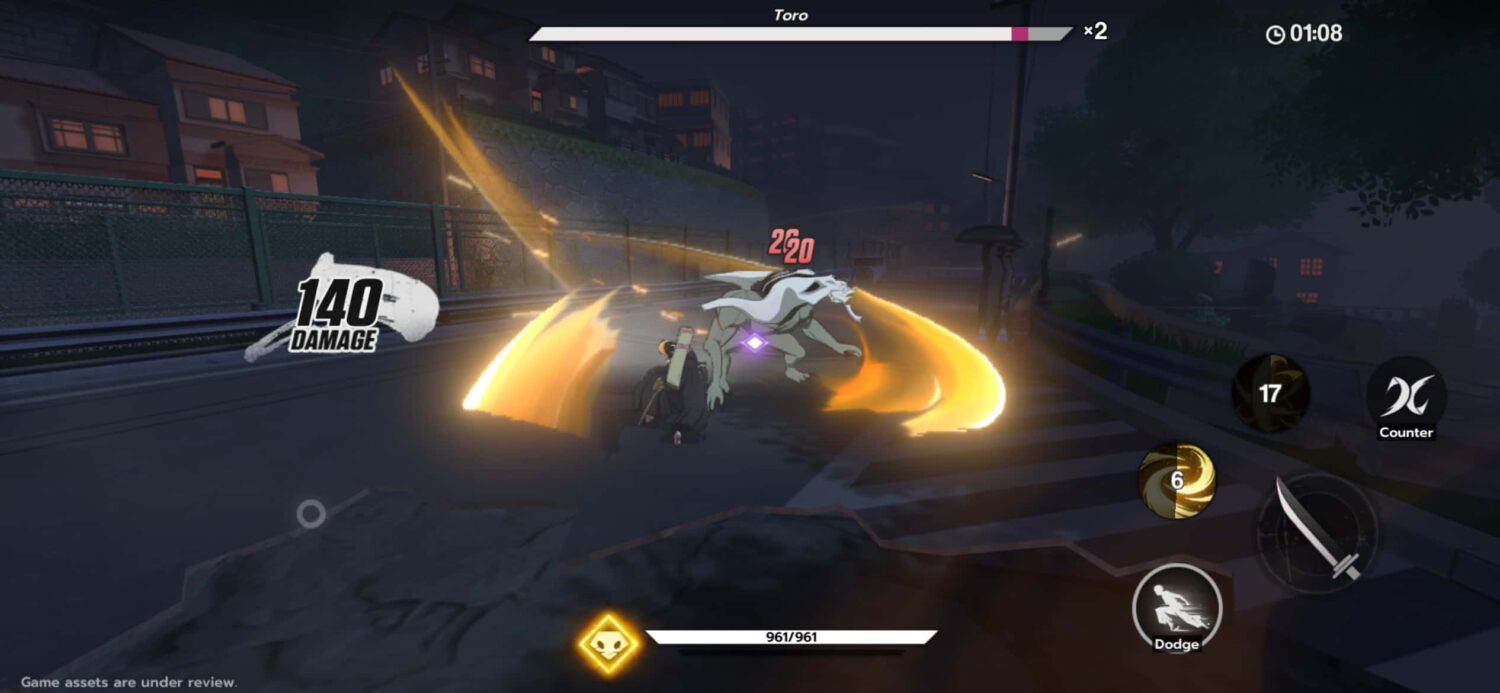 |
| Motion Blur | Disabled | Removes rotation smearing, clarifying enemy attack animations during rapid camera movement (KTC Play). | 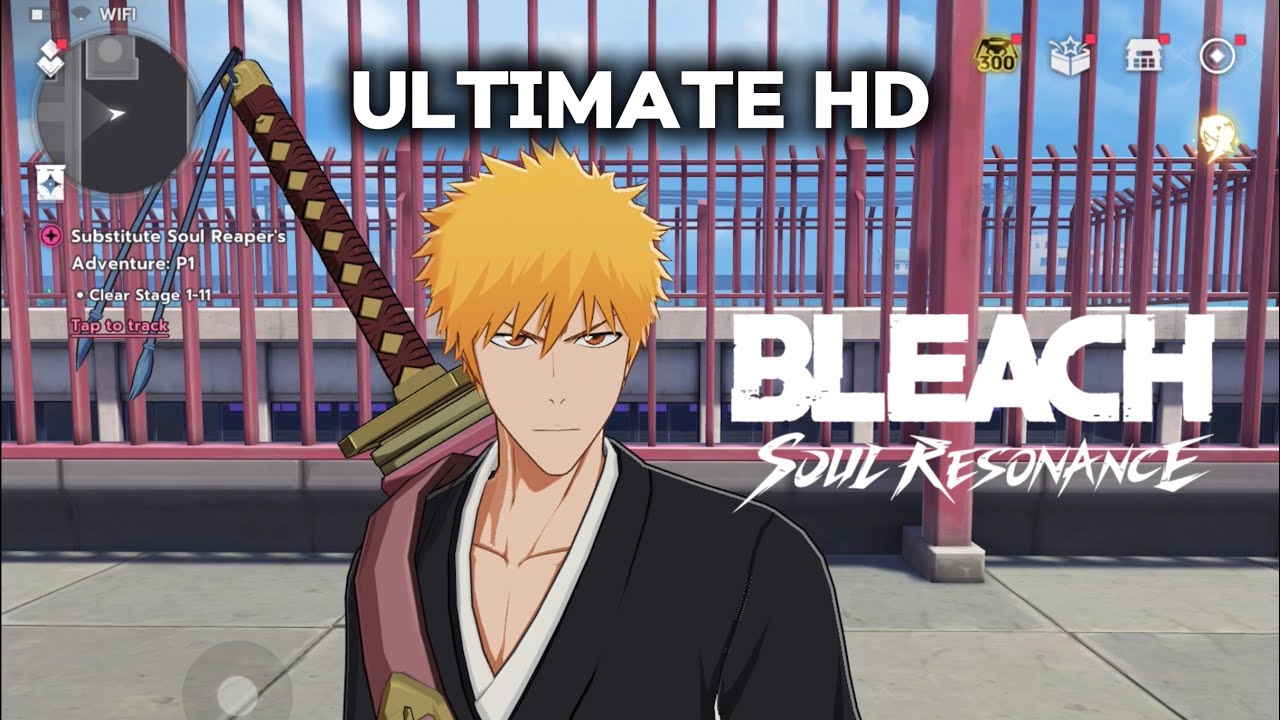 |
| Post-Processing | Disabled / Minimum | Strips out unnecessary rendering overhead and visual grain, stabilizing combat frame pacing (KTC Play). |  |
| Target Frame Rate | 60 FPS / High FPS | Caps or unlocks frame targets to prevent thermal spikes while preserving quick input response. | 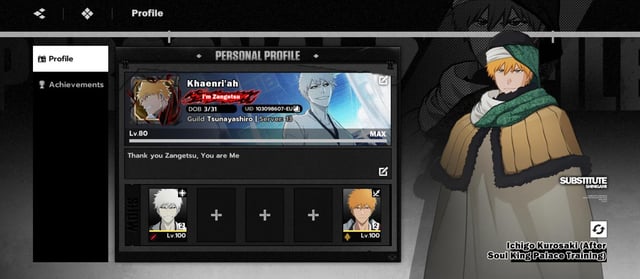 |
Lowering particles preserves combat readability. When boss encounters trigger multi-layered area-of-effect spells, heavy particle density tanks GPU throughput and hides the red floor warnings you need to dodge.
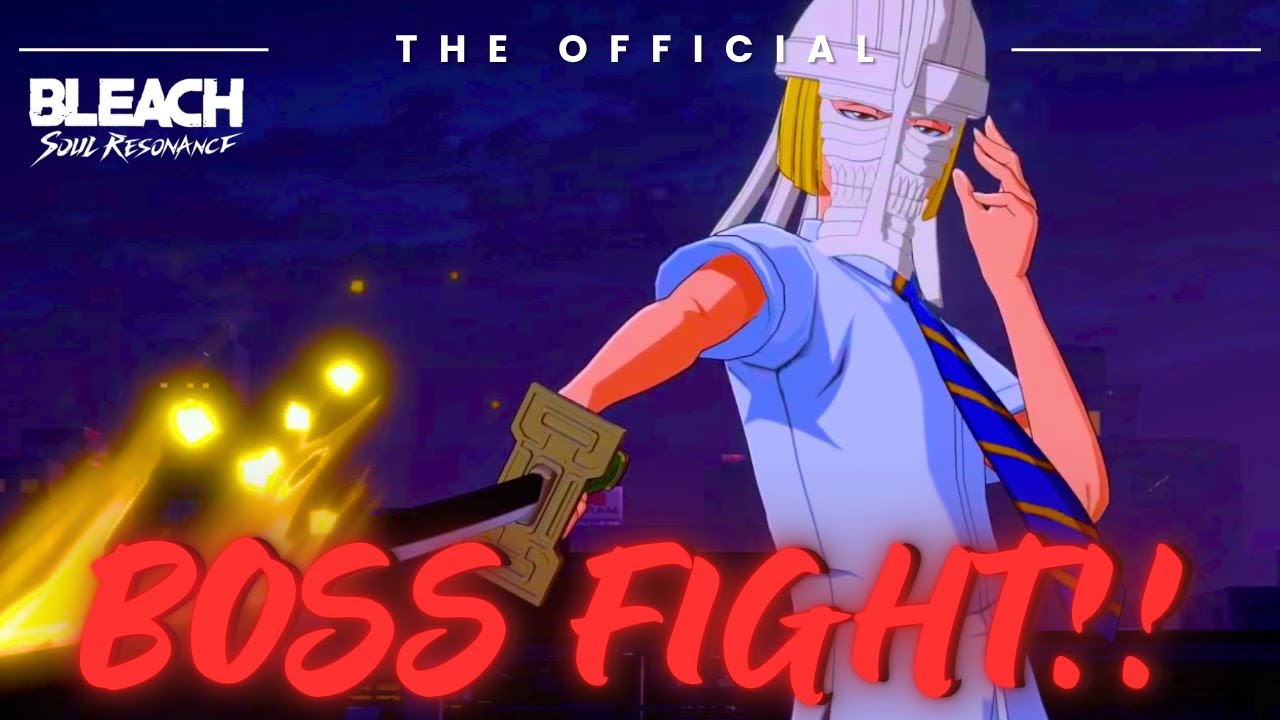
Cutting Battery Drain and Overheating on Mobile
Mobile devices face an immediate challenge in 3D action titles: heat. When a phone overheats, the operating system throttles the processor, turning a smooth 60 FPS stream into an unplayable slideshow.
Android Developers documentation for Game Mode interventions on Android 13 and later notes that capping frame rates at divisors of the screen refresh rate curbs frame-time variance. This FPS throttling intervention cuts GPU power consumption by up to 50% and system power by 20% (Android Developers), reducing heat buildup during extended sessions before thermal throttling triggers.
If you want to uncap frame rates on newer operating systems, Android 15 introduced a specific developer workaround. On Pixel devices, users can head to System > Developer options and enable the Disable default frame rate for games toggle. This setting overrides the standard 0Hz operating system cap, allowing games to run at the screen's native peak refresh rate (9to5Google).
Before tweaking frame rates, confirm your device meets the minimum operating system requirement:
- Operating System: Bleach: Soul Resonance requires Android 8.0 or higher (Uptodown). Devices running older versions cannot launch the client.
Display Refresh Rates and Motion Clarity
Visual clarity in intense sword fights is dictated heavily by display persistence. Monitor analysis by KTC Play reveals that display motion blur on modern sample-and-hold panels stems directly from frame persistence. At 0Hz, each frame is held on the screen for roughly 16.7 ms. Raising the refresh rate to 0Hz drops that hold time to 8.3 ms (KTC Play).
| Display Refresh Rate | Frame Hold Time (Persistence) | Perceived Motion Clarity Impact | Primary Benefit in Combat |
|---|---|---|---|
| 0Hz | ~16.7 ms | Baseline clarity; mild smearing during sudden camera shifts | Reliable power savings and stable thermal control on mobile (Android Developers) |
| 0Hz | ~8.3 ms | 50% reduction in hold time; crisp character movement | Tracking fast dodge animations and telegraph indicators (KTC Play) |
Disabling artificial blur and post-processing filters removes synthetic smear, keeping enemy models and telegraph markers sharp during quick camera adjustments.

PC and Emulator Configuration for Lag-Free Combat
There is a contradiction across sources regarding native PC availability. Uptodown and general game listings note Bleach: Soul Resonance as a mobile-only title, whereas some PC spec sheets list standalone requirements, and emulator platforms provide dedicated installation procedures. For most players on PC, running the game via Android emulation remains the primary setup method.
Running combat smoothly through an emulator requires configuring both your host system and the emulator's rendering pipeline.
Enable hardware Virtualization Technology (VT) in your computer's BIOS or UEFI settings. MuMuPlayer highlights VT as an essential step: without VT active, the emulator cannot allocate host CPU virtualization extensions, triggering severe stuttering, input delays, and mid-battle freezes (MuMuPlayer).
Configure internal emulator graphics settings to match vendor-recommended baselines:
| Emulator Configuration Element | Documented Requirement / Recommendation | Source Documentation |
|---|---|---|
| Graphics Renderer Mode | Vulkan mode | Recommended by MuMuPlayer for performance (MuMuPlayer) |
| Core Allocation Preset | 2 Cores CPU, 2GB Memory minimum | MuMuPlayer base preset (MuMuPlayer) |
| Host PC RAM | 8GB or higher recommended (4GB minimum) | MuMuPlayer (MuMuPlayer), BlueStacks minimum 4GB (BlueStacks) |
| Host PC GPU | NVIDIA GeForce GTX 1650 SUPER 4G or better | Recommended by MuMuPlayer (MuMuPlayer) |
| High FPS Mode | Supports output up to 240 FPS | Feature documented by MuMuPlayer (MuMuPlayer) |
Verify Windows display properties if using a high-refresh monitor. On the Fatshark technical forums, troubleshooting showed that when Windows Display Settings remains set to the default 0Hz, games and emulators cap output at 60 FPS even if monitors support 0Hz or higher (Fatshark Forums). Right-click your desktop, select Display Settings > Advanced Display, and confirm the refresh rate matches your panel's capability.
When using phone-to-PC screen mirroring rather than emulation, hardware connection quality dictates input response. OSLink specifies using a USB 3.0 or higher cable.

Optimizing your visual toggles and frame caps keeps combat responsive whether you are clearing story chapters or spending Spiritual Jade on summons. Players looking to top up their account balance can review options on Bleach: Soul Resonance.
Frequently Asked Questions
How do I unlock 120 FPS on Android if the game is locked to 60 FPS?
On Android 15 devices such as the Google Pixel series, open Settings > System > Developer options and enable Disable default frame rate for games. This overrides the system-level 0Hz limit and permits apps to use the panel's maximum refresh rate (9to5Google).
Which graphics renderer runs best on PC emulators?
MuMuPlayer recommends selecting Vulkan mode under its graphics settings for Bleach: Soul Resonance, providing greater rendering stability and reduced combat stutter compared to older rendering pipelines (MuMuPlayer).
Why does Bleach: Soul Resonance freeze or stutter on an emulator despite good PC specs?
If Virtualization Technology (VT) is disabled in your PC BIOS/UEFI, the emulator cannot allocate hardware resources efficiently. Enabling VT resolves deep frame pacing stutters and input lag (MuMuPlayer).






Comments