

Tired of silent flanks? Learn how to hear footsteps better in Arena Breakout with targeted EQ profiles, slider tuning, and hardware fixes to catch every enemy.
Getting dropped by a silent bush camper or an operator sprinting through a corridor behind you is infuriating. Most players assume they just need to crank their master volume until their ears ring. That is a mistake. Blasting uncalibrated volume only amplifies ear-splitting gunfire and grenade concussions, deafening you right when subtle positional audio matters most.
Tactical audio demands clean signal routing, strategic frequency isolation, and disciplined in-game slider limits. Whether you are running raids on mobile or playing Arena Breakout Infinite on PC, setting up your audio chain properly will keep you alive when visual contact fails.
Auditory Masking and Tactical Acoustic Mechanics
Auditory masking occurs when a loud sound covers up a softer sound occurring at or near the same frequency band. In Arena Breakout, the soundscape is hostile by design. Caliber cracks, atmospheric winds, thunder on Valley, and shattering glass will overpower subtle movement cues unless you manage dynamic ranges deliberately.
In acoustic engineering hierarchies, core sound effects sit between -20 dB and -10 dB. Background music and ambient textures, meanwhile, belong at -20 dB or lower to avoid cluttering the dynamic ceiling. When an uncompressed grenade goes off, its lingering acoustic decay envelope can mask creeping footsteps for several seconds. If the sound cue decay tail is too long, the reverb drowns out the distinct scuff of combat boots on wood, concrete, or gravel.
To hear footsteps clearly, you must suppress irrelevant frequency bands that trigger auditory masking while boosting the specific sonic signatures of boots shuffling, gear rustling, and floorboards groaning.

60 + 6 Bonds
 60 + 6 BondsUSD 0.70Buy Now
Monthly Advanced Battle Pass
Monthly Advanced Battle PassUSD 0.83Buy NowBeginner Select Pack
Beginner Select PackUSD 0.64Buy NowBulletproof Case Access
Bulletproof Case AccessUSD 1.92Buy NowMonthly Premium Battle Pass
Monthly Premium Battle PassUSD 3.33Buy Now310 + 25 Bonds
310 + 25 BondsUSD 3.54Buy NowComposite Case Access
Composite Case AccessUSD 5.79Buy Now630 + 45 Bonds
630 + 45 BondsUSD 7.08Buy NowQuarterly Premium Battle Pass
Quarterly Premium Battle PassUSD 10.01Buy Now1580 + 110 Bonds
1580 + 110 BondsUSD 17.70Buy Now3200 + 200 Bonds
3200 + 200 BondsUSD 35.45Buy Now6500 + 320 Bonds
6500 + 320 BondsUSD 70.80Buy Now
Competitive Equalizer Profile for Crystal-Clear Steps
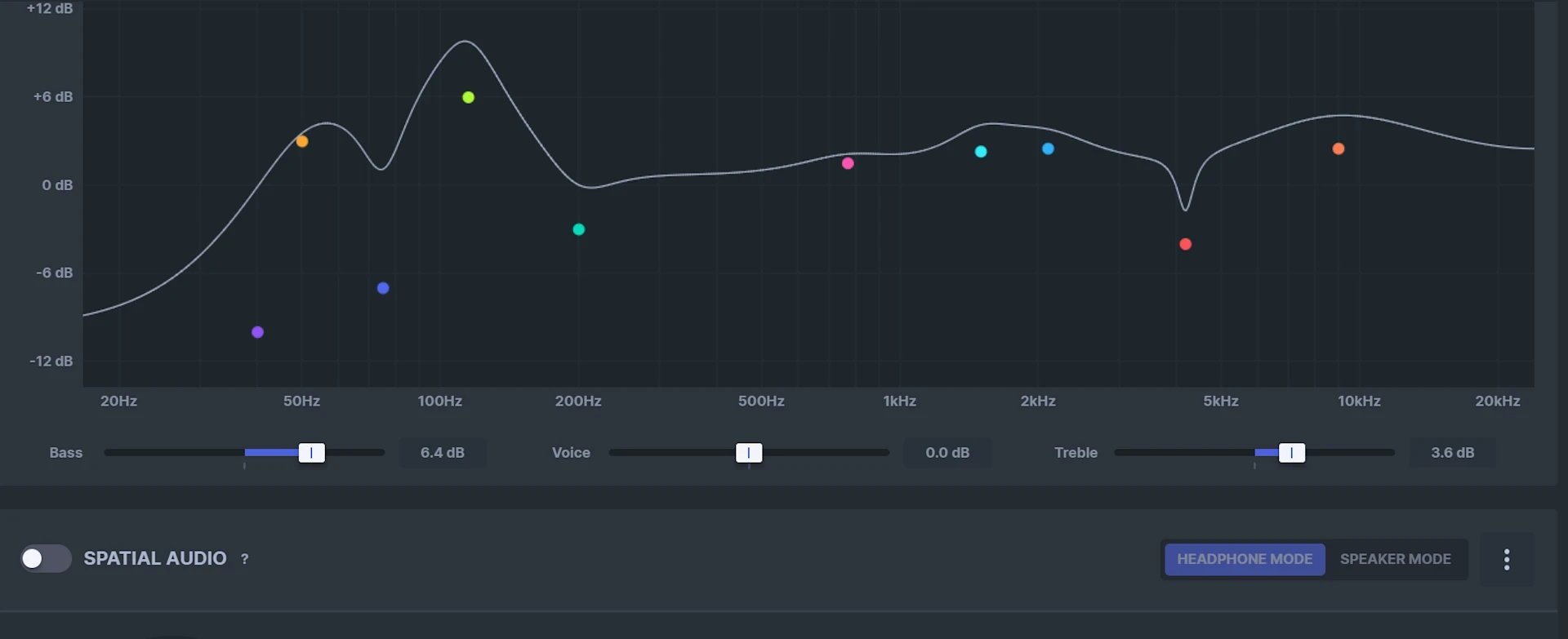
Equalization is your most effective tool for gaining an auditory edge. Tactical shooter footsteps do not register as heavy bass; they live almost entirely in the mid and upper-mid frequencies. Sub-bass from heavy machinery and rumbling mortar strikes adds zero tactical value—it only fatigues your eardrums.
Cut lower bass ranges aggressively while building a targeted peak in the 2 kHz region. Below 125 Hz, attenuate sound heavily to clear acoustic headroom. Then, lift the frequencies between 1 kHz and 4 kHz to push shoe impacts and body-turn rustles directly into the foreground.
The following target equalizer values show precisely where to attenuate muddiness and where to boost movement acoustics.
| Frequency Band | Adjustment | Tactical Acoustic Role |
|---|---|---|
| 31 Hz | -6 dB | Sub-bass attenuation to eliminate heavy mechanical and low-end rumble |
| 62 Hz | -4 dB | Low-bass reduction to stop distant explosion muddiness |
| 125 Hz | -2 dB | Upper-bass trim to clarify the lower dynamic range |
| 250 Hz | 0 dB | Neutral mid-bass baseline for standard environmental depth |
| 500 Hz | +2 dB | Lower midrange lift to highlight body movement rustle |
| 1 kHz | +4 dB | Mid-frequency boost targeting hard-surface shoe impacts |
| 2 kHz | +6 dB | Peak clarity frequency for directional footstep grit and gravel |
| 4 kHz | +4 dB | Upper mid-frequency boost for foliage rustling and gear rattle |
Takeaway: Carving out the sub-bass while boosting the 1 kHz to 4 kHz range isolates friction transients from weapon fire.
Applying this EQ curve immediately transforms the sound mix. Creeping enemies on concrete produce a crisp click, while heavy sprint footsteps on wooden floors cut cleanly through ambient room tone. To prevent sudden rifle bursts from causing physical discomfort, combine this frequency profile with dynamic range compression or system-level loudness equalization. Dynamic compression lifts low-decibel footsteps closer to peak levels while clamping the highest transients, sparing your hearing without sacrificing quiet auditory intelligence.
In-Game Audio Sliders: Step-by-Step Configuration
An equalizer cannot fix an unbalanced internal mixer. Arena Breakout routes sound through distinct channels, meaning poor slider values compromise your audio before it ever hits Windows or your mobile DAC.
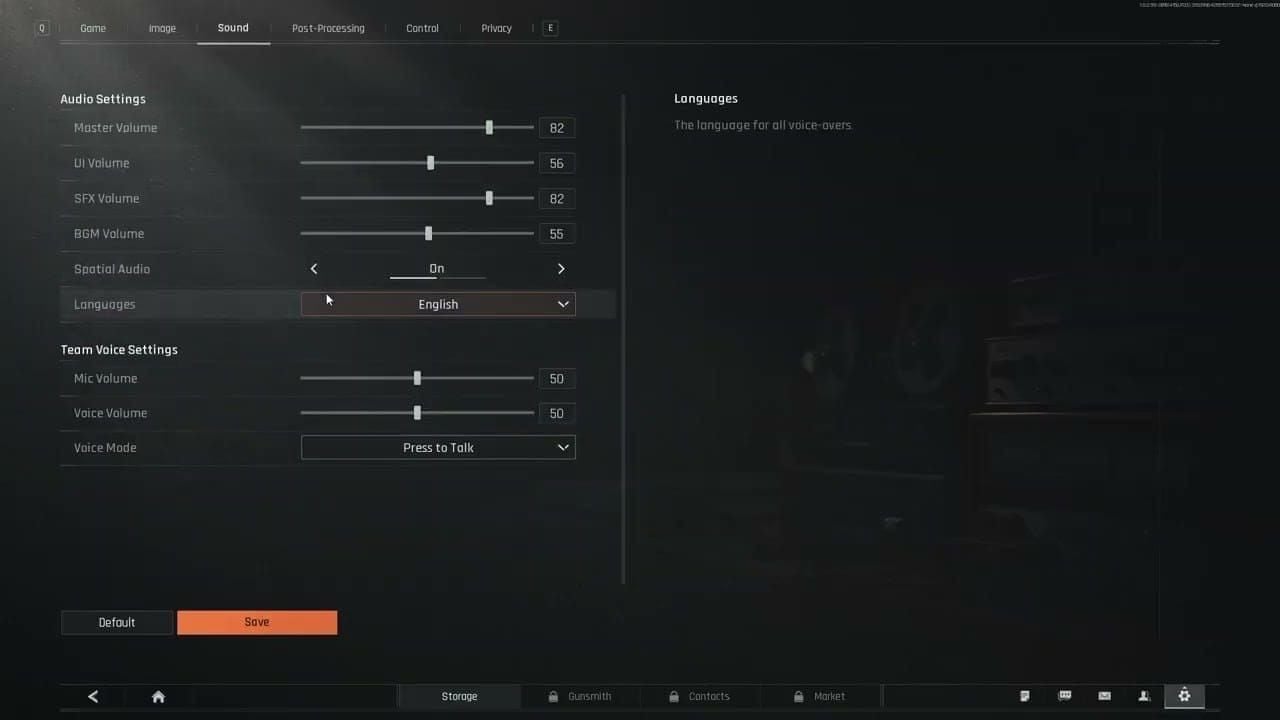
Follow these sequential steps in your game settings to establish a clean acoustic hierarchy:
- Set Master Volume to 100%. Keeping the primary engine output at maximum preserves the complete dynamic range before digital downscaling.
- Adjust Sound Effects (SFX) Volume to 100%. All movement, reload cues, and surface impacts live on this channel. Never throttle it.
- Drop Music Volume to 0%. In-raid music provides zero competitive utility. It introduces acoustic clutter that masks ambient cues during high-stress extractions.
- Lower UI Sound Volume to 30% or lower. Looting sounds, inventory management clicks, and pop-up notifications will drown out nearby players pushing your position while you search crates.
- Calibrate Voice Chat Volume to 60%. Squad communication is essential, but teammates screaming over their microphones will mask quiet audio cues. Force team audio lower than core sound effects.
- Keep Ambient Noise Reduction Audio toggles active if supported by your device profile to shave off background environmental noise.
Raiding high-tier zones without adequate provisions is a fast way to lose gear. If you need to secure containers, tactical keys, or armory reserves, you can top up Arena Breakout bonds to prepare your loadout before stepping into the field.
Deviate from these baseline numbers only if your squad relies heavily on external voice apps like Discord. In that scenario, mute the in-game voice slider entirely to eliminate voice-processing overhead and prevent double-talk echo.
Audio Quality High vs Low: Presets and Engine Trade-offs
Selecting "High" or "Ultra" audio quality feels like the intuitive competitive choice. In Arena Breakout, it is often a handicap.
The arena breakout audio quality high vs low tradeoff pits environmental immersion against raw spatial clarity. High audio quality presets introduce richer reverberation, longer cue decay envelopes, and complex acoustic reflections. While this creates an immersive atmosphere, long decay tails cause gunshots and explosions to bounce around concrete rooms, masking quiet footsteps in adjacent hallways.
Lower audio quality presets truncate acoustic decay envelopes. Shortening cue decay envelopes prevents overlapping sound tails from masking enemy movement. Footsteps become dry, isolated audio transients rather than reverberant echoes. If you struggle to identify whether an enemy is in your building or across the street, switching your audio profile to Low or Medium can remove superfluous environmental reflections, leaving behind dry, highly readable directional footsteps.
Keep your playback chain configured to 24-bit, 48,000 Hz (48 kHz). The 48 kHz sample rate cleanly reproduces audio up to the 24 kHz Nyquist limit, fully covering human hearing thresholds without triggering digital aliasing. Running 96 kHz or 192 kHz introduces unnecessary CPU resampling load and offers no perceptible benefit in tactical scenarios.
Stereo Panning Versus Spatial Sound: The Positional Dispute
Peripheral manufacturers routinely market 7.1 virtual surround sound as an unfair tactical advantage. In competitive shooters, it is usually a trap.
Platform APIs, such as the native Spatializer introduced in Android 13 (API level 33), support multi-channel spatialization pipelines. When configured properly, an audio engine routes quad or 5.1 channel outputs encoded in 16-bit PCM to simulate three-dimensional acoustics. However, stacking third-party virtual surround software (like generic 7.1 virtualizers or peripheral brand suites) on top of a game's native stereo engine results in phase cancellation. Directional footsteps become muddy, hollow, and diffuse, making it nearly impossible to determine if a target is at ten meters or thirty meters.
[Game Audio Engine]
        │ (Stereo Panning / Quad 16-bit PCM)
        ▼
[OS Audio Stack]
        │ (Spatial Enhancements: OFF / Passthrough)
        ▼
[DAC / Headset Driver]
        │ (Clean Stereo Separation)
        ▼
[Crisp Directional Cue]
Unless an audio engine natively renders an object-based binaural soundfield, running a clean stereo signal with hardware-level driver separation is vastly superior. Pure stereo panning provides razor-sharp left-to-right acoustic transitions. By turning your crosshair slightly left or right, you can use stereo volume differentiation to pinpoint an approaching enemy's exact corridor angle.
Mobile Tuning: Android and iOS Sound Configurations
Mobile operating systems prioritize phone calls and battery preservation over tactical fidelity, frequently crushing your dynamic range behind the scenes.
On Android, media playback volume is isolated from notification channels. If your media slider is dialed back and your master hardware volume is compensating, your dynamic range compresses. Always maximize Android Media volume directly in system settings before launching the game. On Android 13 and above, inspect your system sound settings to confirm that spatial audio is not double-processing game streams. If your device allows audio engine adjustments, verify channel masks support 16-bit PCM playback.
On iOS, you can dramatically boost quiet environmental cues using accessibility features. Navigate to Settings > Accessibility > Audio & Visual > Headphone Accommodations (available on iOS 14 and later). Toggle Headphone Accommodations on, switch the tuning profile to "Vocal Range" or "Balanced Tone," and set the soft sound slider to "Moderate" or "Strong." This amplifies low-decibel footsteps on supported headsets like AirPods and Beats without touching overall device limits.
If you use AirPods Pro or Max, inspect your Transparency settings. Leaving Conversation Boost or Custom Transparency Mode active can inject physical ambient room noise into your ear cups. Set your hardware to complete Active Noise Cancellation (ANC) to ensure your ears receive only raw game audio data.
To keep your mobile raid loadouts well-supplied with elite equipment and keys, consider securing an Arena Breakout battle pass purchase to maintain a steady stream of tactical supplies between deployments.
Arena Breakout features visual sound indicator settings on the HUD that display small sound waves when movement occurs nearby. While useful, sound indicators suffer from built-in range limits and latency. Relying solely on visual sound rings will leave you vulnerable to slow-walking opponents who step just under the indicator's movement threshold. Your ears will always register quiet scuffs several meters before the visual HUD ring alerts you.
PC and Peripheral Optimization for Arena Breakout Infinite
On PC, audio rendering threads sync directly with frame timing and peripheral polling rates. When the game received Hotfix 2, the default frame rate ceiling was established at 144 FPS for new installations, and map access requirements shifted significantly—the unlock level for Lockdown Zone and Forbidden Zone on Farm and Valley dropped from Level 14 to Level 8, with weekly missions opening at Level 8 instead of Level 18. Maintaining high, stable framerates ensures audio events sync with physical hitboxes and movement animations.
Eliminating Windows-level audio interference is critical. Windows Audio Enhancements and Exclusive Mode permissions often cause sudden micro-stutters and device cutouts during explosive firefights. If another background process requests exclusive hardware rights, game audio can drop out for several seconds.
Peripheral software suites like Razer Synapse, Logitech G Hub, or SteelSeries GG can also induce audio crackling and micro-stutters due to aggressive background audio virtualization layers. Terminate unnecessary peripheral audio suites and manage your USB bus topology to keep latency low.
Applying correct operating system flags prevents sudden audio buffer drops during chaotic firefights.
| Setting / Component | Recommended State | Technical Rationale |
|---|---|---|
| Windows Audio Enhancements | Disabled | Prevents driver-level DSP distortion and latency spikes |
| Exclusive Mode Privileges | Disabled | Stops background apps from hijacking audio endpoints |
| USB Root Hub Power Saving | Disabled | Prevents Windows from putting USB DACs to sleep |
| Windows Audio Endpoint Builder | Running (Restart if broken) | Restores dropped endpoints without full system reboots |
| Peripheral Suites (e.g., Synapse) | Closed / Passthrough | Eliminates virtual buffer conflicts and crackle |
| Audio Format | 24-bit, 48000 Hz | Standardizes playback to eliminate real-time resampling |
Takeaway: Stripping away background software overhead and power-saving triggers guarantees steady 48 kHz stream delivery to your headset.
If your headset suddenly disconnects during intense raids, open Device Manager, expand Universal Serial Bus controllers, right-click your USB Root Hubs, open Properties, and uncheck "Allow the computer to turn off this device to save power" under Power Management. If an audio endpoint drops mid-game, press Win + R, type services.msc, locate "Windows Audio" and "Windows Audio Endpoint Builder," and restart both services to restore sound without killing your game process.
Platform Audio Execution: PC vs Android vs iOS
Desktop rigs grant granular parametric EQ sculpting at the risk of driver conflicts, whereas mobile platforms lock down customization behind battery management and OS accessibility layers.
| Feature / Metric | Arena Breakout Infinite (PC) | Arena Breakout (Android) | Arena Breakout (iOS / iPadOS) |
|---|---|---|---|
| Primary EQ Method | System-level Parametric EQ (Equalizer APO) | OEM System EQ (Dolby/SoundAlive) | Headphone Accommodations (iOS 14+) |
| Native Sample Rate | 24-bit, 48 kHz standard | 16-bit, 48 kHz stream | 16-bit / 24-bit dynamic AAC/PCM |
| Spatial Processing | Raw stereo via physical drivers | Android 13 API 33 Spatializer checks | CoreAudio spatial rendering (AirPods) |
| Common Audio Trap | Peripheral background suites (crackle) | Separate media/notification volume sliders | Ambient bleed via Transparency Mode |
| Footstep Isolation Approach | -6 dB bass cut / +6 dB 2 kHz boost | Media max / Disable virtual surround | Vocal Range tuning / Boost quiet sounds |
Takeaway: PC provides granular frequency sculpting, while mobile platforms require explicit system-level adjustments to stop notification ducking and forced virtual surround.
On PC, you have unrestricted freedom to apply precise parametric EQ cuts and install lightweight virtual compressors. On mobile, you are bound by operating system accessibility profiles or OEM sound layers. However, applying these targeted adjustments on any system eliminates the muddy audio fog that gets casual players killed.
Before loading your squad into high-risk Lockdown zones or braving Forbidden raids, check your inventory readiness. You can stock up through the Arena Breakout top up store to secure the keys, protective gear, and weapons needed to dominate contested extractions.
FAQ
What equalizer frequencies should I boost to hear footsteps better in Arena Breakout?
Target the mid to upper-mid range between 1 kHz and 4 kHz, placing your highest boost of +6 dB at 2 kHz. At the same time, cut low frequencies below 125 Hz to stop heavy explosions and environmental rumbles from masking movement.
Should I enable virtual surround sound or stick to stereo?
Stick to clean, uncompressed stereo. Virtual surround processing introduces phase distortion and blurs the crisp directional separation needed to locate enemy positions through walls.
Why does my headset audio cut out or stutter during intense firefights?
This issue typically stems from Windows USB selective suspend turning off your headset port, or background peripheral apps like Razer Synapse suffering from buffer underruns. Turn off USB power saving in Device Manager and exit unnecessary background management software.
How can I make footsteps louder without blowing out my ears from gunshots?
Enable dynamic range compression or system-level loudness equalization. This boosts quiet, low-decibel footsteps while clamping loud gunfire transients to a safe, comfortable volume ceiling.
What sample rate should I set in Windows for Arena Breakout?
Set your playback device to 24-bit, 48,000 Hz (48 kHz) in the Windows Sound control panel. This matches standard tactical audio production assets and completely avoids digital resampling latency.
Can mobile players customize EQ settings on iOS or Android?
Yes. iOS players can use Headphone Accommodations under Accessibility settings to amplify quiet sounds, while Android users can configure OEM equalizer profiles. Always keep media volume sliders maxed independently from notification channels.
Final Call: Calibrate Before Deploying
Sharp positional audio comes from disciplined calibration, not deafening volume. Cranking your master gain without frequency filtering only guarantees that the first close-range spray down will mask every flank.
Attenuate the sub-bass mud below 125 Hz. Boost 2 kHz to capture sole-on-surface friction. Mute virtual surround processing, eliminate conflicting peripheral suites, and lock your playback format to 48 kHz. With masking frequencies suppressed, footsteps cut through the gunfire cleanly.






Comments