

Learn how to map keys in Jujutsu Kaisen Phantom Parade for PC play. Set up custom keyboard shortcuts, gamepad profiles, and speed toggles for easy turns.
Tapping across an emulator window with a mouse cursor gets old fast. Jujutsu Kaisen: Phantom Parade requires you to assemble squads of sorcerers, cast cursed techniques, and spend Cubes on banners to defeat cursed spirits. Because turns resolve only after you lock in every active command, dragging a cursor between four character panels and target cards slows your farming.
Keybinds eliminate that friction. Once you configure tap points in an Android emulator or layer a controller profile over your window, full turns take seconds. Here is how to set up your PC controls.
Why Mouse Clicking Fails in High-Level Combat
Combat speed hinges on execution order. In this battle system, total squad Combat Power (CP) determines turn order before commands execute. If your CP outmatches the enemy wave, your party acts first. Because you must queue all active skills across four sorcerers before the round begins, mouse control forces you to sweep back and forth across the screen.
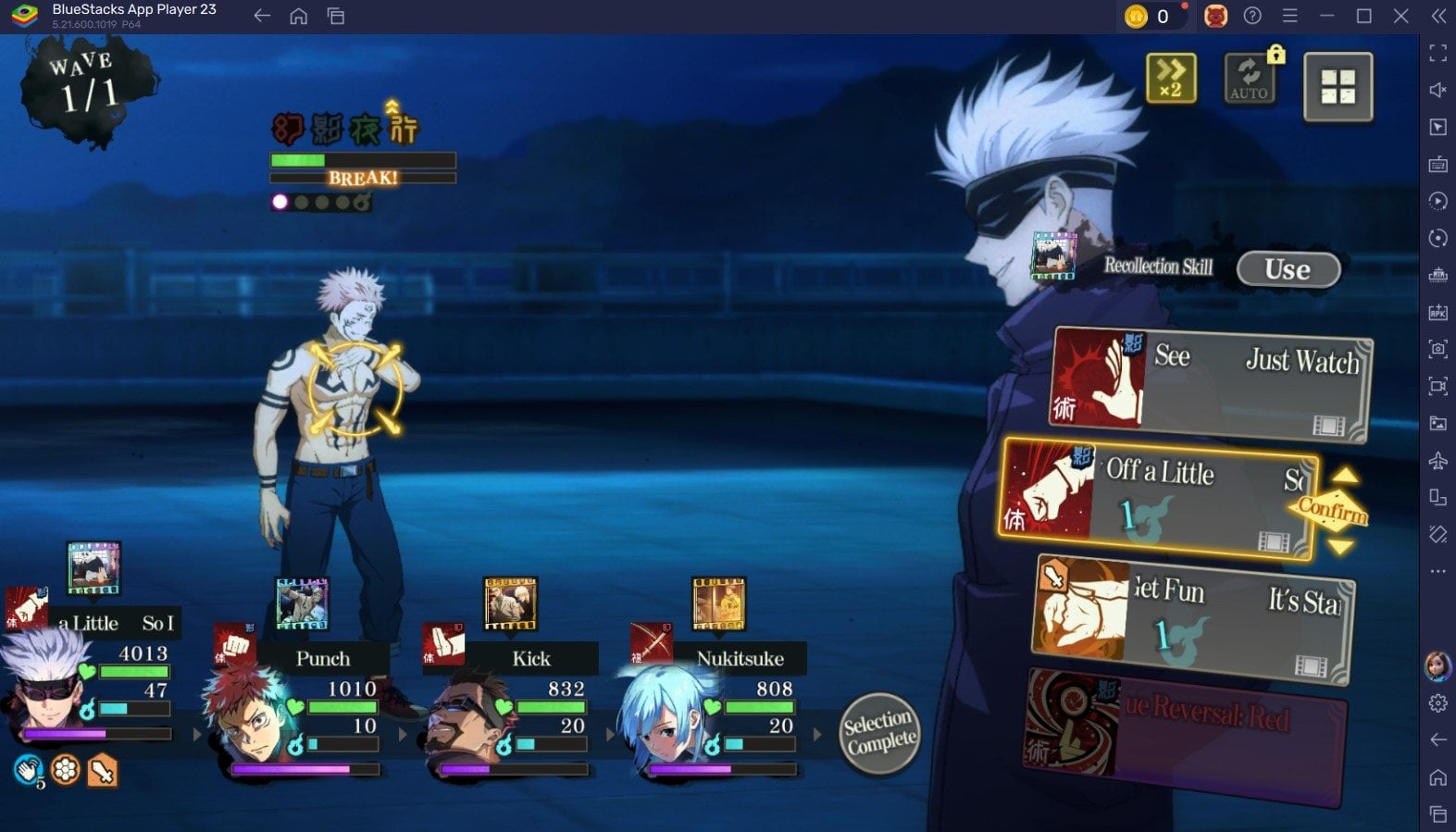
Passives fire automatically, but active skills demand input every round. Juggling six roles—Attackers, Defenders (Tanks), Enhancers, Debuffers, Interferers, and Healers—means constantly shifting between single-target buffs, barriers, and area-of-effect attacks. Misclicking an icon during a boss stage can drop a shield and wipe your run. Dedicated keys build muscle memory that mouse tracking cannot match.

140 Paid Cubes
 140 Paid CubesUSD 1.05Buy Now
Starter Favorable Pack
Starter Favorable PackUSD 1.05Buy NowWeekly Pass
Weekly PassUSD 1.05Buy NowSatoru Gojo Celebration Pack A
Satoru Gojo Celebration Pack AUSD 0.83Buy Now430 Paid Cubes
430 Paid CubesUSD 3.18Buy NowMonthly Pass
Monthly PassUSD 3.18Buy NowStarter Gift Cube Pack A
Starter Gift Cube Pack AUSD 3.18Buy NowSatoru Gojo Celebration Pack B
Satoru Gojo Celebration Pack BUSD 2.49Buy Now930 Paid Cubes
930 Paid CubesUSD 8.57Buy NowCube & Premium Pass Bundle
Cube & Premium Pass BundleUSD 6.86Buy NowSatoru Gojo Celebration Pack C
Satoru Gojo Celebration Pack CUSD 6.73Buy Now1430 Paid Cubes
1430 Paid CubesUSD 12.37Buy NowStarter Gacha Pack
Starter Gacha PackUSD 12.37Buy Now3000 Paid Cubes
3000 Paid CubesUSD 26.31Buy Now5000 Paid Cubes
5000 Paid CubesUSD 44.06Buy NowCrystal of Rec. Bits SSR Pack
Crystal of Rec. Bits SSR PackUSD 44.06Buy NowCube & Chaotic Crystal Pack
Cube & Chaotic Crystal PackUSD 44.06Buy NowMonthly Favorable Cube Pack
Monthly Favorable Cube PackUSD 44.06Buy NowResonant Soul Shard SSR Pack
Resonant Soul Shard SSR PackUSD 44.06Buy NowStarter Gift Cube Pack B
Starter Gift Cube Pack BUSD 44.06Buy NowJujutsu 10,000 G
Jujutsu 10,000 GUSD 85.25Buy NowStarter Gift Cube Pack C
Starter Gift Cube Pack CUSD 85.25Buy Now
Combat Archetypes and Elemental Targets
Every button binding needs to reflect what each screen coordinate triggers. Squad building revolves around a rock-paper-scissors wheel: Blue beats Red, Red beats Green, Green beats Blue, and Yellow sits outside as a neutral affinity.
Sorcerers fill six combat roles, each dictating how often you interact with their skills:
| Tactical Archetype | Primary Battle Function | Manual Skill Frequency |
|---|---|---|
| Attacker | Heavy direct cursed damage | High (Every turn) |
| Defender (Tank) | Taunts and squad damage mitigation | High (Buff upkeep) |
| Enhancer | Attack and critical rate stat buffs | Moderate (Wave start) |
| Debuffer | Enemy defense and speed reductions | High (Boss stages) |
| Interferer | Turn delay and crowd disruption | Situational |
| Healer | HP restoration and cleanse effects | Reactive |
The table above outlines the six character archetypes in Jujutsu Kaisen: Phantom Parade and how often their active skills require manual input.
Anchor your key layout around these roles. Put primary Attackers in slots one and two, then slot your buffer and healer into slots three and four. That way, your opening buff rotation always uses the exact same finger sequence.
Step-by-Step Emulator Keymapping Setup
Building shortcuts in BlueStacks or LDPlayer requires dropping tap points onto on-screen buttons. Ensure your 64-bit emulator instance runs at least Android 8.0, which the client requires to boot.
Here is the step-by-step setup:
- Open the Game Screen: Launch your emulator, boot the game, and load any standard story stage or resource quest to bring up the battle HUD.
- Activate the Keymapping Overlay: Press your emulator's editor hotkey (Ctrl + Shift + A in BlueStacks, or the keyboard icon on LDPlayer's toolbar).
- Map Skill Slots: Pick the "Tap Spot" tool. Click each of the active skill icons on the lower screen. Assign
1,2,3, and4to the active unit's skills from left to right. - Map Member Selection: If your interface shows portrait tabs for switching units manually, drop tap spots on each portrait and assign
Z,X,C, andV. - Map Target Selection: Place tap spots over the enemy target boxes in the upper middle area. Assign
Q,W,E, andRfrom left to right. - Set Combat Speed and Auto-Battle Toggles: Drop a tap spot on the 2x speed button and bind it to
Spacebar. Bind the Auto-Battle toggle toTab. - Save and Test Profile: Save the layout, turn off Auto-Battle, and play through a manual round using keyboard inputs only.
+-------------------------------------------------------------------------+
| [Esc] Pause           [Q] Target 1   [W] Target 2   [E] Target 3       |
|                                                                         |
|                     << ENEMY WAVE / ACTIVE COMBAT >>                    |
|                                                                         |
| [Tab] Auto    [Space] 2x Speed                                          |
|-------------------------------------------------------------------------|
| [Z] Unit 1        [X] Unit 2            [C] Unit 3        [V] Unit 4    |
| [1][2][3][4]      [1][2][3][4]          [1][2][3][4]      [1][2][3][4]  |
+-------------------------------------------------------------------------+
This grid keeps your hand centered: left fingers pick targets (Q-E) and units (Z-V), while your index and middle fingers trigger abilities (1-4).
Best Keymapping Profiles for BlueStacks and LDPlayer
Each emulator handles input differently. LDPlayer's multi-instance sync mirrors mouse actions across multiple game windows cleanly, but keyboard focus drops if an instance desyncs. BlueStacks handles single-window keyboard profiles with lower input overhead.
Use this standard binding scheme for repeatable manual farming:
| Game Function | Screen Position | Recommended Keybind | Functional Purpose |
|---|---|---|---|
| Skill Slot 1 | Bottom-left skill panel | 1 | Basic attack / low-cost strike |
| Skill Slot 2 | Center-left skill panel | 2 | Secondary utility / guard |
| Skill Slot 3 | Center-right skill panel | 3 | Signature cursed technique |
| Ultimate / Domain | Far-right glowing icon | 4 | High-damage ultimate execution |
| Enemy Target Left | Primary stage position | Q | Primary boss focus |
| Enemy Target Mid | Secondary stage position | W | Priority minion focus |
| Enemy Target Right | Third stage position | E | Backup target |
| Speed Acceleration | Top-right HUD | Space | Toggles between 1x and 2x speed |
| Auto-Battle | Top-right HUD | Tab | Hands control to CPU logic |
| Menu Confirm | Bottom-right prompt | Enter | Accepts turn action phase |
Use these exact coordinates and inputs to minimize hand movement across combat rounds.
If you burn through stamina and summons while building your squad, you can refill your balance directly. A Jujutsu Kaisen: Phantom Parade Top Up provides the Cubes needed to pull rate-up sorcerers without interrupting your farming rhythm.
Setting Up Gamepad and Controller Support
Physical controllers work well for turn-based combat once you map analog inputs to cursor emulation. Mobile clients do not offer native pad support, but emulator controller overlays let you run battles from a handheld PC or console pad.
Set your controller bindings as follows:
- Cursor Motion: Bind the Right Analog Stick to virtual cursor movement. Set sensitivity high enough to sweep across 1080p without lag.
- Selection Clicks: Map left-click to Right Bumper (
RB). This matches standard trigger-style confirmation. - Cancel / Back: Map right-click to Right Trigger (
RT) to clear selections or close sub-menus. - Rear Modifiers: If your pad features back paddles (
M1/M2), assign them to toggle combat speed. - Face Buttons: Map
A,B,X, andYdirectly to skill slots 1 through 4. - D-Pad: Bind directional buttons to cycle through enemy target slots.
Run an easy stage first to confirm your right stick sensitivity does not overshoot target boxes.
Native PC Client vs Android Emulator Performance
Players frequently debate whether emulators remain necessary given the existence of an official PC version. BILIBILI HK LIMITED published an official PC client on August 29 with cross-progression support. Release documentation varies by regional storefront:
Some listings track the initial mobile release on November 7, 2024, followed by the August 29 PC launch. Regional Japanese storefront listings record a December 7, 2024 launch that requires a VPN. The BILIBILI HK LIMITED PC client, however, operates globally.
| Feature Parameter | Native PC Client | Android Emulator (LDPlayer / BlueStacks) | Mobile Client (iOS / Android) |
|---|---|---|---|
| Official Developer | BILIBILI HK LIMITED | Third-party VM running Android build | Sumzap / BILIBILI HK LIMITED |
| OS Version Baseline | Windows 10 / 11 (64-bit) | Android 8.0+ instance profile | iOS 12.0+ / Android 8.0+ |
| Base Download Size | Standard desktop installation | Variable VM overhead | ~407.6 MB base client (iOS) |
| Keybind Method | Built-in launcher interface / external mapper | Native emulator overlay tool | Touchscreen only |
| Purchase Incentives | 5% Paid Cube bonus on PC packs | Standard regional storefront rates | Base storefront pricing |
| Multi-Instance Sync | Not supported natively | Fully supported for rerolling | Not supported |
Comparing platform characteristics helps you choose between native desktop performance and emulator customization.
Emulators remain mandatory if you plan to reroll using multi-instance synchronization. For pure performance and an extra 5% Paid Cube bonus on select purchases, the native PC build is the better choice.
Launch Rewards, Free Summons, and Active Codes
Optimized controls shine brightest when commanding a stacked roster. New accounts receive a guaranteed SSR selector ticket immediately after completing the tutorial. Units like Satoru Gojo provide both high-tier frontline offense and damage immunity.

The desktop release window included 10 free gacha pulls on the limited The Inside of Limitless Satoru Gojo banner during its first week. For players looking to hit pity thresholds faster, a Phantom Parade Cubes purchase supplies reserve pulls directly.
Clear the introductory tutorial to unlock the menu, then redeem these active codes for currency and upgrade items:
| Promotional Gift Code | In-Game Reward | Functional Benefit |
|---|---|---|
| CullingGame | 1,000 Cubes | Summons for rate-up character banners |
| JJKS3 | 50 Impure Jujutsu Crystals | Character level ascension material |
| JJKPP20260520 | 300 Cubes | Gacha currency replenishment |
| JJKshimetsu | 1 Chaotic Jujutsu Crystal | Rare limit-breaking growth component |
These active redemption codes supply immediate currency and growth items once the prologue is finished.
Claim your rewards from the in-game gift box after submission. Invest your Jujutsu Crystals into Attackers right away to boost squad CP and secure the first turn.
Troubleshooting Common Keymapping and Performance Glitches
If inputs drop or animations lag during domain expansions, resolve the issue with these fixes:
- Lock Resolution to Avoid Scaling Drift: Switching from windowed mode to fullscreen causes tap points to drift off-target. Lock your emulator to 1920x1080 in system settings and map buttons strictly in that aspect ratio.
- Verify 64-bit Android 8.0+ Instance: The game crashes or refuses to install on older builds. If your instance runs an Android 7 kernel, export your data, create a 64-bit Android 9 or 11 instance, and reinstall.
- Disable Conflicting Overlays: Discord, GeForce Experience, or screen recording hotkeys can intercept numerical keys
1through4. Disable overlapping shortcuts or rebind them. - Realign Coordinates Post-Update: Patches occasionally shift UI button coordinates by a few pixels. If key
3activates skill2, clear the tap point and reposition it over the updated icon. - Allocate Additional System Resources: Particle-heavy cursed techniques cause framerate dips on default settings. Set emulator resources to 4 CPU cores and 4096 MB RAM to eliminate input delay at 2x speed.
When high-tier character ascensions exhaust your supplies, topping up through a Jujutsu Kaisen: Phantom Parade recharge keeps your progression on schedule.
Frequently Asked Questions
Can you map keyboard keys to skills in Jujutsu Kaisen Phantom Parade on PC?
Yes, you can configure custom keybinds using the keymapping overlay tools inside Android emulators like LDPlayer or BlueStacks. You simply drop tap spots directly over the four character skill positions and assign them to numerical keys 1 through 4.
What is the best layout for turn-based combat actions?
Assign individual character skill slots to keys 1, 2, 3, and 4, and map target selection to Q, W, E, and R. Setting utility toggles like 2x speed acceleration to the Spacebar and Auto-Battle to Tab provides complete control without lifting your hand.
Can I play Jujutsu Kaisen Phantom Parade with a gamepad controller?
Yes, you can map controller buttons through your emulator's built-in gamepad profile or desktop remapping utilities. Map your right analog stick to cursor movement, set right bumper (RB) to left click, and bind face buttons to your primary cursed techniques.
Does Jujutsu Kaisen Phantom Parade have an official native PC client?
Yes, BILIBILI HK LIMITED published an official PC client featuring full cross-progression between mobile and desktop accounts. The PC version includes dedicated client performance perks and awarded bonus summon tickets during its initial release window.
How do you redeem active gift codes on PC?
Finish the mandatory prologue combat tutorial to unlock the main game interface. Navigate to the Menu screen, select the Code redemption tab, input your text string, and collect your Cubes from your in-game mailbox.
What system version does an emulator need to run the game?
Your emulator instance must run on an Android 8.0 or higher 64-bit environment. Running an older operating system profile causes game crashes or launcher incompatibilities during installation.
Final Verdict on PC Controls
Keyboard controls outperform mouse clicking in every combat scenario. Binding skills to 1-4 and targets to Q-E cuts turn execution down to seconds, eliminating misclicks during difficult boss encounters. Controllers work well for casual grinding, but a tight keyboard scheme is the best way to handle endgame content.






Comments