

Struggling with video freeze and audio desync during imo broadcasts? Learn how to reduce imo lag on Android with proven network, audio, and OS tweaks.
Few things ruin a live conversation faster than watching someone's mouth move three seconds before their voice arrives. If you host live rooms or talk in large group calls on imo, you already know the symptoms: your phone turns into a pocket furnace, frame rates plummet to single digits, voices garble into robotic noise, and the broadcast freezes entirely.
Most users blame their carrier or assume their handset is simply too old. Usually, the real culprits are unmanaged background sync, network bufferbloat, or thermal throttling. When Android balances background cloud sync requests while encoding live video, performance drops fast. Targeted operating system settings, specific Bluetooth audio changes, and clean in-app management will stabilize the connection and stop dropped frames.
The Core Causes of Stutter and Latency in imo
To eliminate latency, you have to identify where the pipeline breaks. imo delivers free voice calls, video calls, live broadcasting, and text messaging across varying hardware tiers. While lighter than enterprise video suites, real-time media encoding is unforgiving. Three distinct bottlenecks dictate your call quality: network routing, memory contention, and thermal throttling.
+-------------------------------------------------------------------+
|                     PRIMARY BOTTLENECKS                           |
+-------------------------------------------------------------------+
| 1. NETWORK OVERHEAD: Packet loss, high ping, bufferbloat          |
| 2. RAM CONTENTION:   Background apps competing for system memory  |
| 3. THERMAL LOAD:     CPU downclocking due to heat accumulation    |
+-------------------------------------------------------------------+
Network instability is the most visible breakdown. Dropped packets force imo to cut stream resolution or stall audio frames. Bandwidth alone will not save a call; high-speed connections still stutter if background apps saturate the upload pipe. Cloud backups, social sync, and automated app updates constantly contend for the exact transmission windows your call requires.
Hardware resources present a separate barrier. Opening an imo video stream triggers hardware encoders to compress local camera input and decoders to render incoming feeds. On devices with limited RAM, background apps force the kernel to swap memory pages, introducing micro-stutters. After ten minutes of continuous streaming, heat accumulation triggers kernel-level thermal throttling, cutting CPU and GPU clocks and slashing frame rates in half.


Audio Desync: Bluetooth Codecs vs Wired Connections
Lip-sync lag is rarely an imo server issue. When a friend laughs and their audio lands a quarter-second late, wireless audio transmission pipelines are almost always responsible.
Standard Bluetooth transmission introduces between 100 and 250 milliseconds of latency. The digital signal must be compressed by an encoder, broadcast over a 2.4 GHz radio frequency, caught by your earbuds, and decoded back into analog sound. Human ears detect audio-visual mismatches at delays as short as 40 to 60 milliseconds. Defaulting to a high-latency wireless codec guarantees noticeable desync.
The table below details how various Bluetooth codecs compare against standard physical connections when streaming real-time voice and video.
| Audio Transmission Standard | Typical Latency Range | Practical Impact on imo Calls & Streams |
|---|---|---|
| aptX Low Latency (LL) | 40-80 ms | Lowest wireless latency; ideal for live video streaming and synchronous dialogue. |
| aptX Adaptive | 80-150 ms | Dynamically scales latency and stability depending on RF interference. |
| aptX Standard | 120-180 ms | Moderate delay; noticeable lip-sync mismatch during interactive video calls. |
| AAC | 150-250 ms | High audio fidelity but prone to perceptible audio-visual desync. |
| SBC | 200-250 ms | Default baseline Android codec; causes noticeable audio lag on streams. |
| 3.5mm Wired Connection | ~0 ms | Completely eliminates wireless transmission latency and packet drift. |
Selecting low-latency Bluetooth codecs significantly reduces audio-visual desync, but hardware matching is essential for consistent results.
Headsets supporting aptX Low Latency drop transmission delay to 40-80 milliseconds, bringing speech well within natural conversational thresholds. aptX Adaptive sits at an acceptable 80-150 milliseconds. Default Android connections, however, routinely fall back to SBC or AAC. SBC pushes delay up to 200-250 milliseconds, making rapid discussions difficult to follow.
A physical 3.5mm connection bypasses wireless encoding and radio transmission completely. Wired earbuds send analog signals straight from your phone's DAC to the speaker drivers without transmission overhead. For live broadcasts and group discussions, an inexpensive wired headset consistently outperforms high-end wireless earbuds.
Android System Tweaks in Developer Options
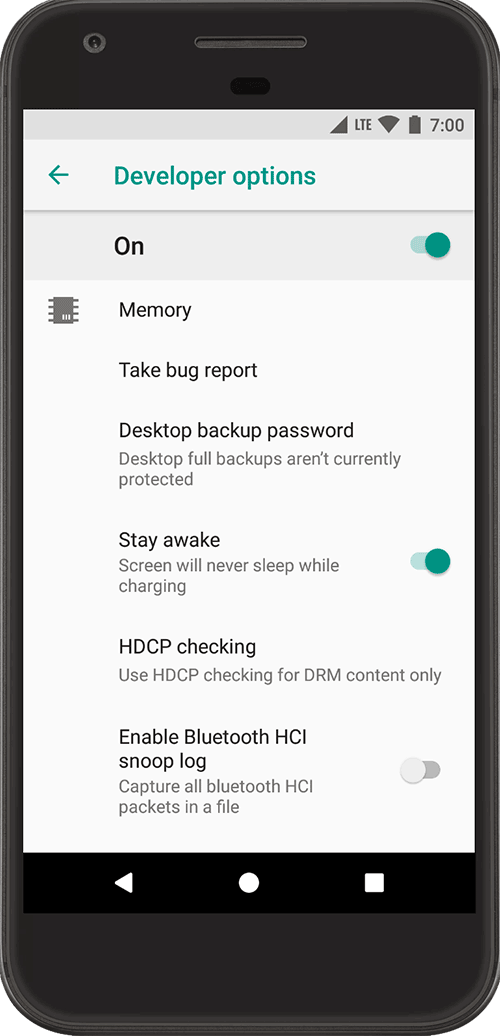
Android hides administrative controls that let you extract better performance from mid-range silicon. If you need to fix imo video call stutter, targeted adjustments inside Developer Options yield immediate returns.
To unlock Developer Options, go to Settings > About Phone, locate Build Number, and tap it 7 times in rapid succession. A confirmation notification will appear. Return to Settings > System and select the newly unlocked Developer Options menu.
Focus on UI rendering overhead and background memory limits.
[ Settings ] -> [ About Phone ] -> Tap 'Build Number' 7 times
      |
      v
[ Developer Options ]
      |---> Window Animation Scale       -> Set to 0.5x
      |---> Transition Animation Scale   -> Set to 0.5x
      |---> Animator Duration Scale      -> Set to 0.5x
      |---> Background Process Limit     -> Set to 3-4 processes
      `---> Bluetooth Audio Codec        -> Switch to aptX Adaptive / aptX LL
Scroll to Drawing and find Window animation scale, Transition animation scale, and Animator duration scale. Android defaults each to 1.0x. Lowering all three to 0.5x reduces the GPU cycles spent rendering decorative transitions, freeing hardware power for real-time video encoding.
Next, scroll down to Apps and tap Background process limit. By default, Android keeps dozens of dormant apps cached in system memory. Capping the limit at 3-4 processes forces the OS to clear background tasks from RAM when you open imo, ensuring dedicated memory and processor cycles for the stream.
Under Networking, you can also force Android to prioritize aptX or aptX Adaptive instead of falling back to latency-heavy SBC defaults when paired with supported Bluetooth hardware.
Network Optimization: Managing Bandwidth, imo HD, and the VPN Dilemma
Call clarity relies directly on network consistency. When connection quality drops, switching between Wi-Fi and mobile data is officially recommended to restore stability. Routing paths, however, matter just as much as raw speed.
+-------------------------------------------------------------+
|                   NETWORK CONNECTION PATH                   |
+-------------------------------------------------------------+
| Standard Path:  Phone ===> Local ISP Gateway ===> imo Server|
| VPN Path:       Phone ===> VPN Hop ===> ISP ===> imo Server |
|                           (Adds 40-120ms Latency)           |
+-------------------------------------------------------------+
Virtual Private Networks present a common trap. Official imo documentation warns that active VPNs induce severe latency or outright disconnect calls. Rerouting traffic through remote servers adds intermediate hops that delay packet delivery and trigger frame drops across UDP media streams.
Some community forums advise using VPNs to evade ISP throttling or regional Voice-over-IP filters. The practical rule is simple: leave the VPN disabled unless your network actively blocks the imo protocol. Encrypting and rerouting traffic typically introduces 50 to 150 milliseconds of pure network lag that local phone optimizations cannot correct.
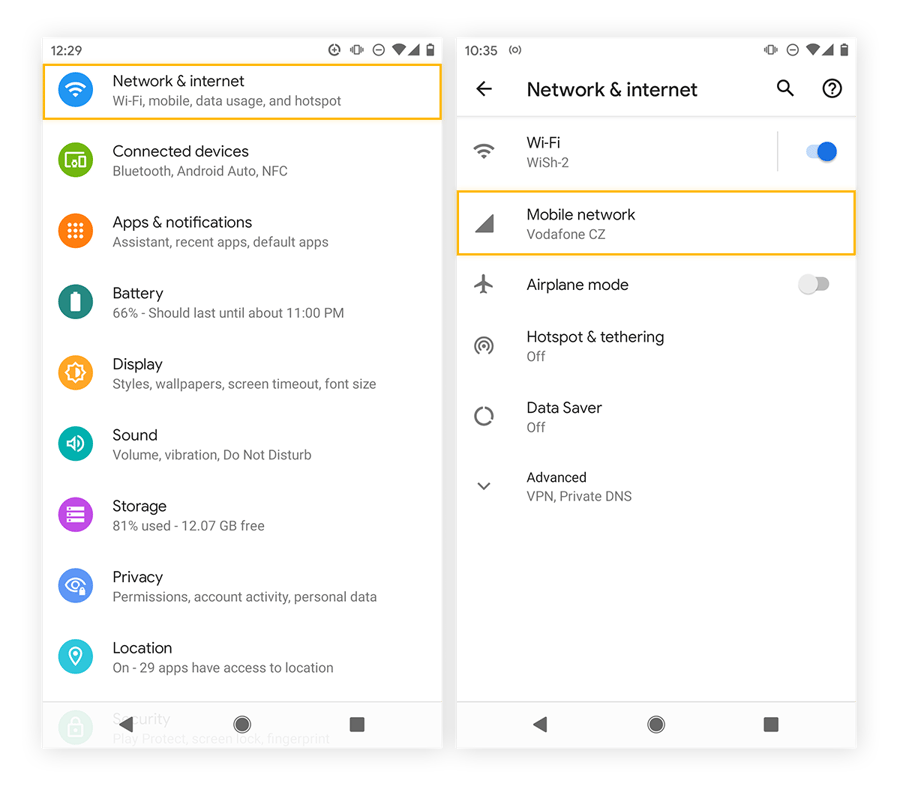
Controlling background data on mobile networks prevents other apps from cannibalizing upload bandwidth. Go to Settings > Apps, pick resource-heavy social and media apps, tap Mobile data & Wi-Fi, and turn off Background data. This guarantees your upload pipe remains fully dedicated to the live video stream.
Peak evening traffic on residential ISPs often degrades streaming stability. During congested windows, lowering outgoing resolution or disabling local video monitoring protects throughput. Broadcasters managing room gifts can top up IMO Diamonds ahead of time to keep billing calls from interrupting an active broadcast.
Thermal Management: How to Stop imo Overheating Android Phone
Thermal throttling ruins video calls after a few minutes of smooth operation. The handset gets hot, and incoming video turns into a choppy slideshow as internal hardware downclocks to protect silicon components from heat damage.
Running high-framerate camera capture alongside live video decoding places intense sustained stress on the CPU and GPU. Once internal sensors detect critical temperature thresholds, the kernel drops processor clock speeds, making it impossible to decode video at full frame rates.
To manage heat during extended sessions, start with physical cases. Silicone, leather, and heavy shockproof armor act as thermal blankets. Stripping off thick phone cases before long broadcasts allows heat to radiate off the chassis naturally.
Display brightness is another primary heat source. Lowering the brightness slider to 50% or below significantly cuts panel temperatures and reduces battery drain during lengthy video sessions.
+---------------------------------------------------------------+
|                   HEAT MITIGATION PROTOCOL                    |
+---------------------------------------------------------------+
| [x] Remove thick protective rubber or leather phone case      |
| [x] Set display brightness to 50% or lower                    |
| [x] Maintain battery state of charge between 20% and 80%      |
| [x] Never engage in live broadcasting while fast-charging     |
| [x] Ensure adequate ambient airflow around the handset        |
+---------------------------------------------------------------+
Radio transceivers also generate heat under poor signal conditions. When connection bars drop on mobile data or Wi-Fi, the modem draws extra power to maintain contact, accelerating thermal buildup. Moving closer to the Wi-Fi access point or switching to a stronger cellular band mitigates this drain.
Finally, monitor power delivery. Streaming while connected to a fast charger pumps electrical heat straight into the battery pack, triggering thermal downclocking within minutes. Keep the charge level between 20% and 80%, and avoid high-wattage charging during broadcasts.
imo Standard vs imo HD Performance Profiles
Choosing the right app package depends heavily on your handset's specifications and regional connection speeds.
imo HD is specifically designed for constrained mobile connections. Serving over 200 million users worldwide, imo HD maintains functional, low-latency calls over 2G and 3G networks by applying aggressive video compression that prioritizes stream continuity over absolute pixel clarity.
The following table outlines the architectural and performance differences between standard imo and imo HD.
| Operating Metric | Standard imo Client | imo HD Edition |
|---|---|---|
| Network Target | Broadband, 4G, 5G, Stable Wi-Fi | Low-bandwidth, 2G, 3G, Fluctuating Connections |
| Global User Base | Global Standard Suite | Over 200 million users |
| Video Compression | Standard H.264/AV1 balancing fidelity | Heavy compression favoring frame continuity |
| Hardware Footprint | Moderate RAM & GPU utilization | Minimal RAM requirement; lightweight APK |
| Peak Usage Handling | Stable on high-bandwidth networks | Video quality drops during peak usage windows |
| Primary Feature Focus | Full social hub, calls, live rooms | Streamlined calling across degraded cellular links |
Selecting the right edition depends on your primary network environment and local cellular infrastructure.
On modern mid-range or flagship devices connected to high-speed fiber Wi-Fi or fast 5G networks, the standard client offers full access to interactive rooms, media sharing, and high-fidelity stickers. On budget devices with limited RAM or unstable 3G/4G connectivity, imo HD is the practical choice; it removes non-essential interface assets to keep voice and video synced over constrained bandwidth.
Recommended Android Settings Profile for imo
Balancing thermal safety, background data availability, and rendering speed requires a coordinated settings profile.
+---------------------------------------------------------------+
|             OPTIMAL ANDROID PROFILE CONFIGURATION             |
+---------------------------------------------------------------+
| Battery Optimization:  UNRESTRICTED (For imo application)     |
| Background Data:       UNRESTRICTED (For imo application)     |
| Background Apps Data:  RESTRICTED (For non-essential apps)    |
| Window Animation:      0.5x Scale                             |
| Process Limit:         Standard or Maximum 4 Processes        |
| Screen Brightness:     35% - 50%                              |
+---------------------------------------------------------------+
Apply these steps inside Android Settings to optimize performance:
- Open Android Settings and tap Apps.
- Tap See all apps and select imo.
- Open Battery (or App battery usage) and change the setting to Unrestricted. This stops the OS from suspending the app or killing incoming streams when the display turns off.
- Return to the app info screen, select Mobile data & Wi-Fi, and enable both Unrestricted data usage and Background data.
- Return to main Settings and open Developer Options.
- Under Drawing, set Window animation scale, Transition animation scale, and Animator duration scale each to 0.5x.
- Under Apps, set Background process limit to At most 3 processes (recommended for phones with 4GB of RAM or less).
- Set the Bluetooth Audio Codec to aptX Adaptive or aptX LL, or plug in a 3.5mm wired headset.
The table below details how to configure this profile depending on whether you prioritize video resolution or absolute frame stability.
| Setting Parameter | High-Stability Profile (Recommended) | High-Fidelity Profile (Broadband Only) |
|---|---|---|
| imo App Battery Mode | Unrestricted | Optimized |
| System Animation Scale | 0.5x | 1.0x (Default) |
| Background Process Cap | At most 3-4 processes | Standard Limit |
| Bluetooth Audio Codec | aptX Adaptive or 3.5mm Wired | AAC or SBC |
| Display Brightness | Fixed at 40% | Adaptive / Auto-Brightness |
| Background Data (Other Apps) | Restricted | Enabled |
This profile channels system resources into active calls, curbing audio latency and preventing sudden visual stutter.
In-App Maintenance: Cache Purging and Media Storage Hygiene
Internal file bloat will degrade call stability over time even on optimized operating systems. Every broadcast view, voice note, and custom sticker writes temporary cache data to local flash storage. When thousands of fragmented files accumulate, read and write latencies increase.
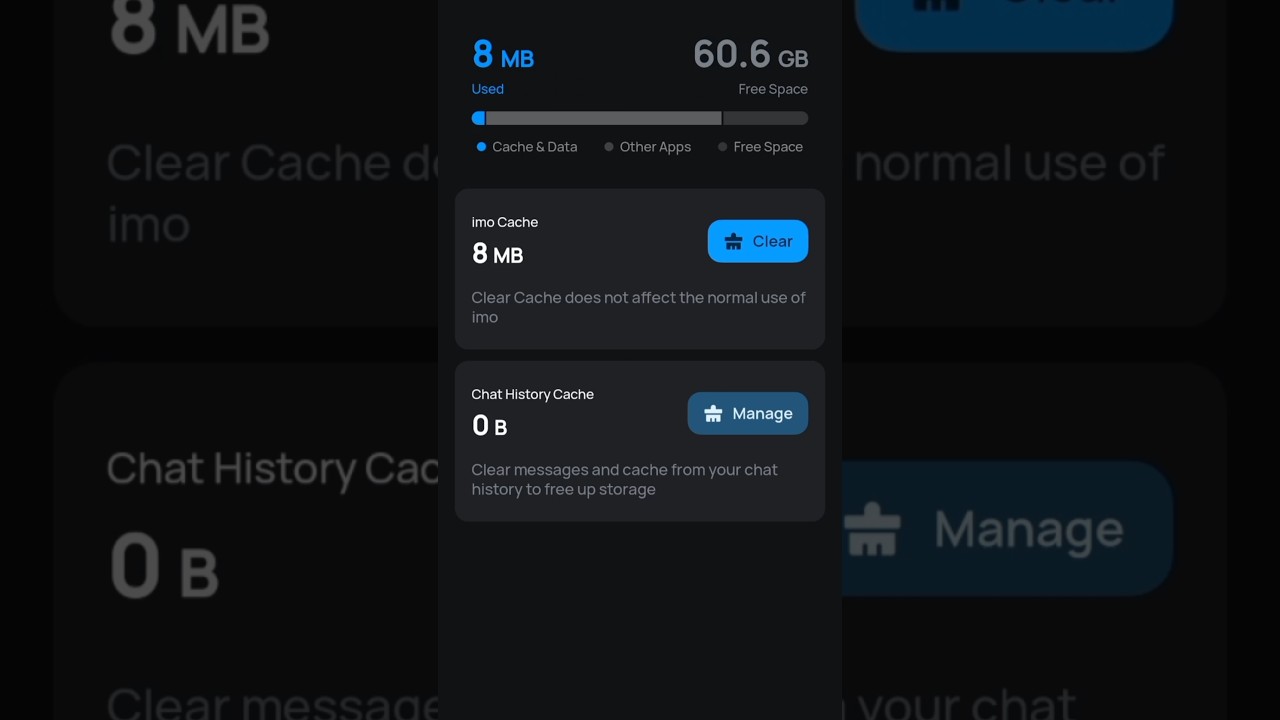
Clearing the app cache wipes away broken render data and cached media without removing chat logs or personal accounts.
To clear cache at the system level:
- Open Android Settings.
- Tap Apps and choose imo.
- Tap Storage & cache.
- Tap Clear Cache.
[ Android Settings ] -> [ Apps ] -> [ imo ] -> [ Storage & Cache ]
                                                      |
                                                      +--> [ Clear Cache ] (SAFE)
                                                      `--> [ Clear Storage ] (WIPES DATA)
Do not tap "Clear Storage" or "Clear Data" unless you intend to wipe your account login and local chat history.
In-app media accumulation also requires routine maintenance. Shared media collections and downloaded sticker packs eat storage quickly. When free disk space drops below 10%, flash storage write speeds degrade, contributing directly to frame drops and sluggish menus.
Open imo, access profile settings, tap Storage, and purge unnecessary clips and sticker sets. Maintaining free storage provides the temporary buffer headroom the client needs to stream video cleanly.
Broadcasters preparing live rooms should clear administrative requirements early by getting an IMO Diamonds recharge at xptopup. Completing transactions before going live leaves system resources entirely dedicated to encoding steady, high-framerate video.
Frequently Asked Questions
Why does imo lag or stutter during group video calls on Android?
Lag typically stems from weak network throughput, background apps hogging CPU and RAM, or accumulated cache files. Switching to a stable Wi-Fi network and closing background processes restores streaming performance. Purging your app cache in Android Settings also removes corrupt temporary files that cause frame drops.
How do I fix audio-video desync when using Bluetooth headphones on imo?
Switch to a low-latency codec like aptX Adaptive or aptX LL inside Android Developer Options, or use a 3.5mm wired connection. Standard Bluetooth codecs introduce up to 250ms of delay that causes speech to lag behind video. A wired headset bypasses digital radio conversion entirely to eliminate lip-sync drift.
Why does my Android phone overheat when streaming or calling on imo?
Continuous camera usage, hardware video decoding, and maximum screen brightness exert sustained strain on the processor. Lower your screen brightness, take off bulky phone cases, and refrain from calling while fast charging. Maintaining your battery between 20% and 80% also reduces internal electrical stress.
Does using a VPN cause lag and dropped calls on imo?
Yes, VPNs add extra routing hops and packet overhead that frequently cause call drops and buffering. Official imo troubleshooting recommends disabling all active VPNs when making calls. The extra encryption wrapper increases latency and can disrupt real-time video packet delivery.
How do I clear the cache for imo on Android?
Open Android Settings, select Apps, choose imo, tap Storage, and select Clear Cache. This purges obsolete temporary data without deleting your chat messages or login account. It is a safe maintenance step that should be performed whenever the app feels sluggish.
How can Android Developer Options reduce imo interface stutter?
Setting Window, Transition, and Animator Duration scales to 0.5x reduces visual rendering delays across the OS. You can also cap background processes to 3-4 apps to free memory for imo. These tweaks liberate CPU cycles so the system can focus on real-time video processing.
Can battery saver modes interfere with imo live stream performance?
Yes, aggressive battery saver profiles throttle CPU speed and restrict background data delivery. Set imo's battery settings to Unrestricted to guarantee steady video transmission. This stops the Android operating system from halting your broadcast when the screen turns off.
Final Verdict on Smooth imo Streaming
Fixing lag on imo does not require buying a brand-new flagship phone. Poor stream stability and stuttering video calls usually trace back to preventable bottlenecks: background data sync, system animation delays, Bluetooth transmission latency, or thermal downclocking.
For the quickest performance improvement, make two immediate changes: connect a 3.5mm wired headset to eliminate audio desync, and set animation scales to 0.5x in Developer Options. Follow up by removing thick phone cases, lowering screen brightness to around 40%, and setting imo's battery usage to Unrestricted.
Purging accumulated app cache and shutting off background data for non-essential apps completes the cleanup. With system bloat cleared away, calls remain synchronized, frame rates stay stable, and devices run cool across hours of active broadcasting.






Comments