


To reduce Kwai lag and stutter on Android, clear the application cache to eliminate I/O read bottlenecks, switch your cellular connection from 5G to 4G LTE or Wi-Fi to stop excess radio heat, and free up your internal storage so it stays above a 10% to 20% free space buffer. Android's silent thermal throttling frequently drops frame rates from 60 FPS to 30 FPS when chassis heat builds up, meaning resolving thermal strain directly fixes video stutter.
Why Kwai Stutters: The Thermal Throttling Trap
Most video stutter in Kwai looks like network buffering or an app bug, but hardware thermal management is frequently the underlying cause.
According to KryoZon's thermal research, Android cuts CPU and GPU clock speeds in steps long before showing any thermal warning on screen. Phone makers routinely configure silent throttling to keep chassis surface temperatures under 45°C, while processor junction thresholds engage at 95–105°C.
When thermal limits trigger, the operating system can slash rendering performance from 60 FPS down to 30 FPS. If you are watching long live streams or scrolling dynamic video feeds, the resulting frame drops look identical to poor internet connectivity.
Sustained heat also permanently damages battery capacity. Exposing lithium-ion cells to continuous temperatures above 40°C (104°F) accelerates degradation, according to KryoZon. Managing device heat protects both real-time playback smoothness and battery longevity.
| Hardware Metric | Safe / Baseline Target | Throttling / Danger Zone | Direct Impact on Kwai | Visual Guide |
|---|---|---|---|---|
| Battery Surface Heat | Below 40°C (104°F) | Sustained >40°C (104°F) (KryoZon) | Permanent battery degradation; system downclocks frame rate | 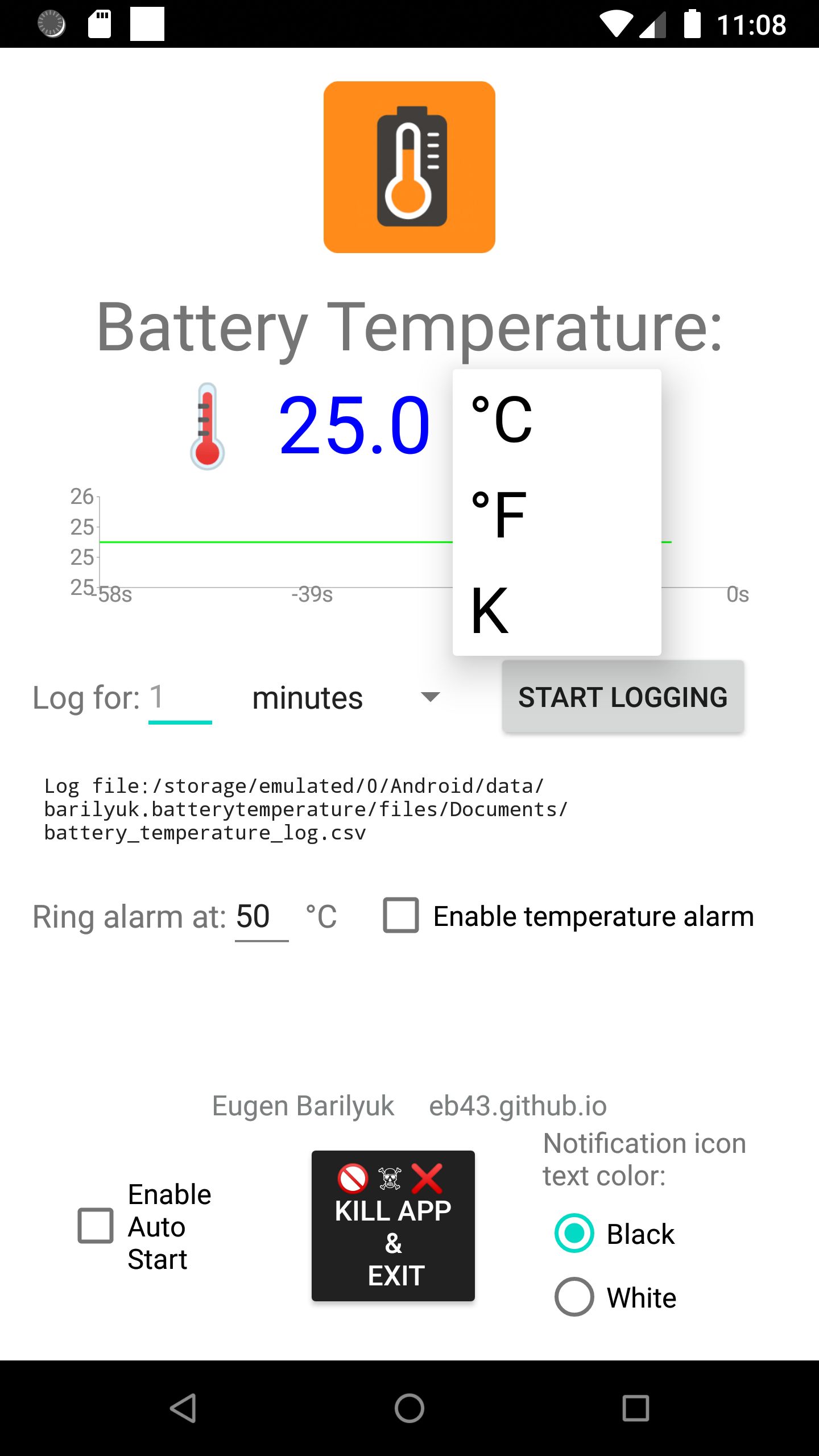 |
| Chassis Surface Limit | Cool to the touch (<40°C) | 45°C to 50°C (KryoZon) | Slits frame rates from 60 FPS down to 30 FPS | 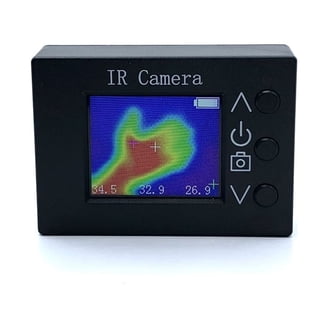 |
| Processor Core Temp | Variable dynamic load | 95°C to 105°C junction (KryoZon) | Severe CPU/GPU downclocking; video decoding stutters | 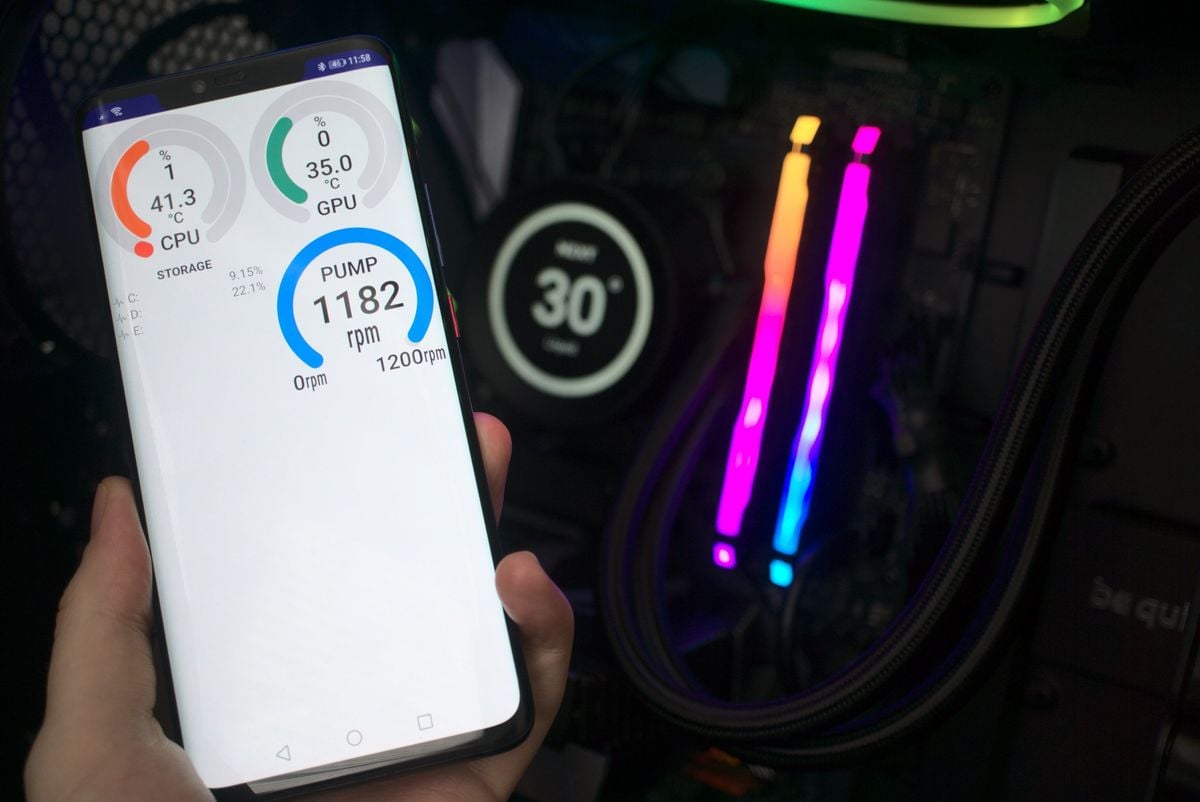 |
| Free Storage Space | Minimum 10% to 20% free (DreamWorks Direct) | Over 90% capacity utilized | Delayed touch input, swap stalls, buffer hangs | 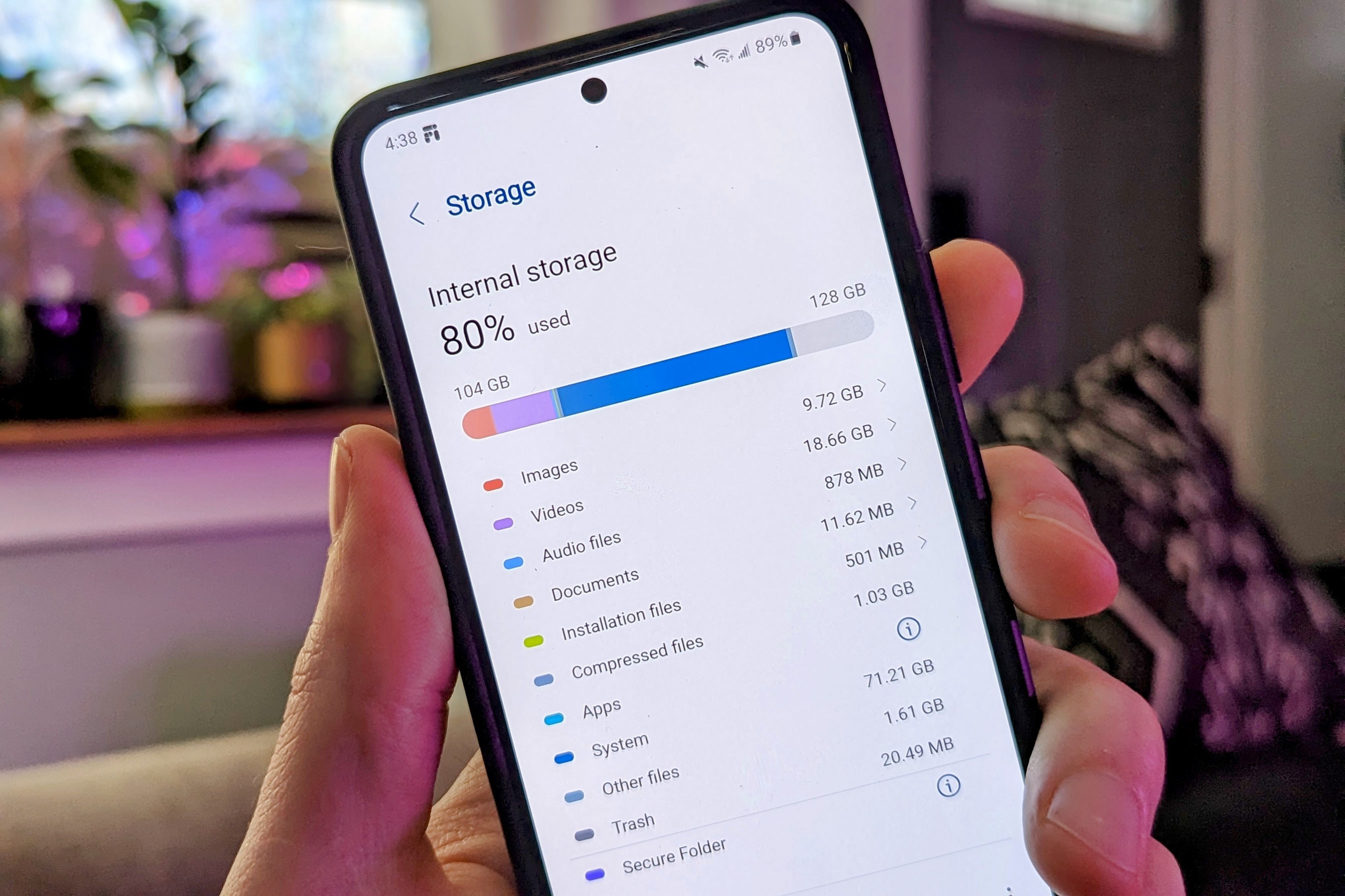 |

Kwai - Kwai*100
 Kwai - Kwai*100USD 0.97Buy Now
Kwai - Kwai*500
Kwai - Kwai*500USD 4.83Buy NowKwai - Kwai*1000
Kwai - Kwai*1000USD 9.66Buy NowKwai - Kwai*2000
Kwai - Kwai*2000USD 19.31Buy NowKwai - Kwai*5000
Kwai - Kwai*5000USD 48.28Buy NowKwai - Kwai*10000
Kwai - Kwai*10000USD 96.57Buy NowKwai - Kwai*15000
Kwai - Kwai*15000USD 144.85Buy NowKwai - Kwai*20000
Kwai - Kwai*20000USD 193.13Buy NowKwai - Kwai*25000
Kwai - Kwai*25000USD 241.42Buy Now
Clear the Kwai Cache Safely
Short-video platforms fill storage fast. Kwai caches clips, creator avatars, and dynamic previews so feeds load smoothly, but stale or fragmented media caches create input lag and feed hitching.
Flushing the app cache removes this bloated index without wiping your account credentials. As detailed by Blackview, clearing an app's cache removes temporary scratch files while leaving logins, personal configurations, and settings intact. Do not tap Clear Data or Clear Storage unless you are prepared to sign back into your profile.
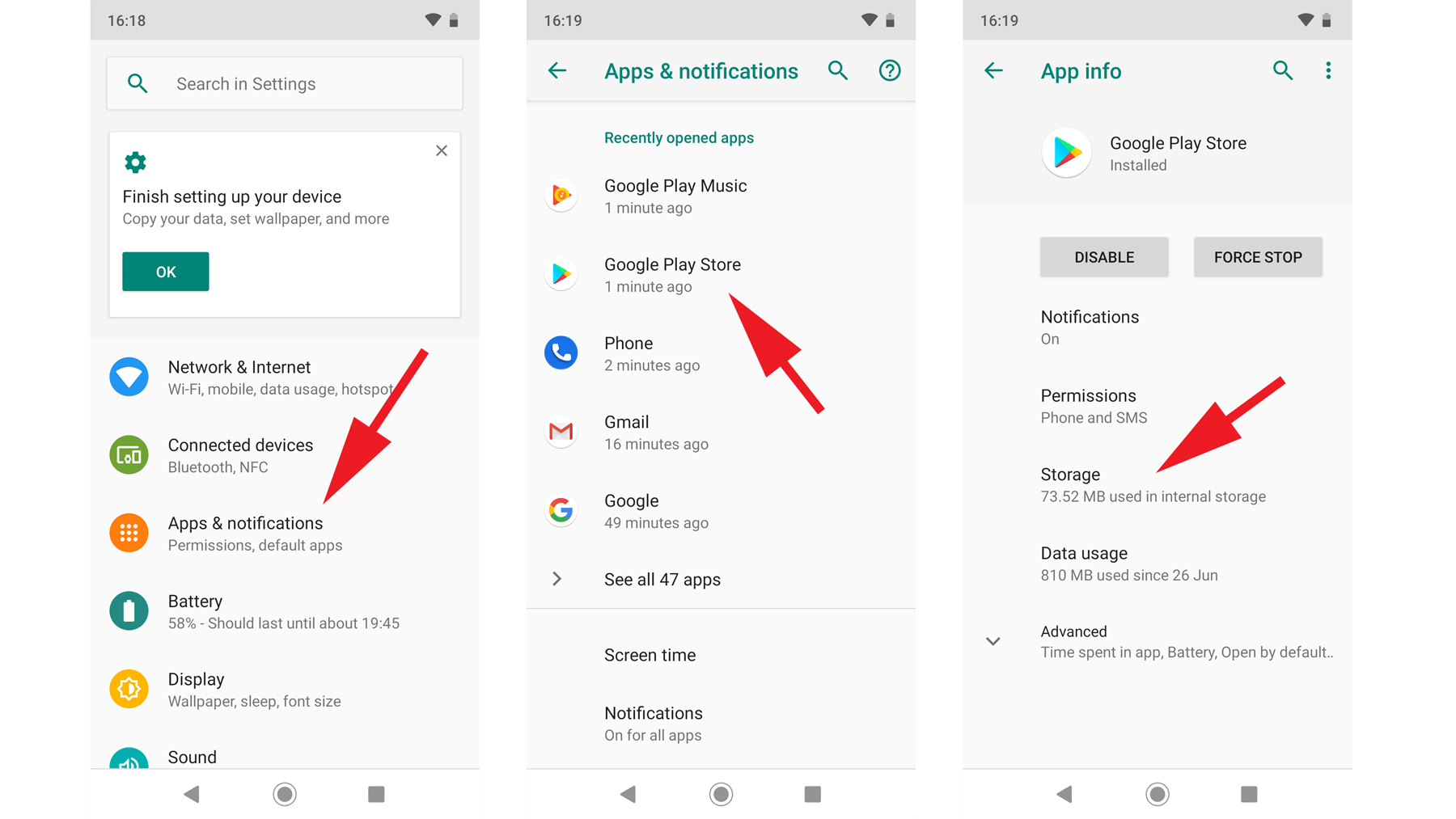
- Open your phone's system Settings.
- Tap Apps (or Apps & Notifications).
- Scroll down and select Kwai.
- Tap Storage & cache.
- Tap the Clear Cache button.
Radio and Network Adjustments: Drop 5G for LTE
Streaming high-definition video over a 5G cellular connection is a primary driver of device heat.
Benchmark findings highlighted by KryoZon show that 5G modems draw 20% to 30% more power than LTE modems. If your cellular reception drops by even a couple of bars, the 5G modem boosts transmission power to maintain the link. Combine continuous video decoding, high screen brightness, and an overworked 5G radio, and your device quickly crosses the 45°C mark.
Switching to LTE cuts radio heat immediately:
- Open system Settings > Network & internet (or Connections).
- Tap SIMs or Mobile Network.
- Open Preferred network type.
- Change the selection from 5G / LTE / 3G (auto) to LTE / 3G or 4G only.
If you have access to a stable Wi-Fi network, use it instead of mobile data. Wi-Fi radios generate far less waste heat than cellular modems during extended stream viewing.
System Storage Buffers and Virtual RAM
Android relies on unallocated internal storage as temporary scratch space for incoming media streams and background process swap files.
Analysis from DreamWorks Direct indicates that letting free space drop below 10% to 20%—meaning storage is roughly 90% full—causes system-wide stutter. The OS struggles to write temporary video segments, leading directly to video buffering and unresponsive swipe gestures.
Virtual RAM features introduce an additional performance bottleneck. Manufacturer tools such as RAM Plus, RAM Boost, or Memory Extension allocate internal flash storage as simulated memory, which operates considerably slower than dedicated physical RAM.
Research from MakeUseOf points out that relying on virtual memory causes sluggish app-switching and forced background app reloads. If your Android phone has 8 GB of physical RAM or more, turn off virtual RAM expansion entirely in your device's memory settings to prevent flash I/O lag.
Developer Options: Background Process Tuning
If you use a budget Android device or an older phone running near the official minimum threshold of Android 5.0 (documented by Uptodown), background multi-tasking can overwhelm available hardware.
You can limit background activity using Android's native Developer Options without installing suspicious third-party "cleaner" or "booster" tools:
- Go to Settings > About phone.
- Tap Build number seven consecutive times until you see the confirmation prompt stating you are a developer.
- Return to Settings > System > Developer options.
- Scroll to the Apps category.
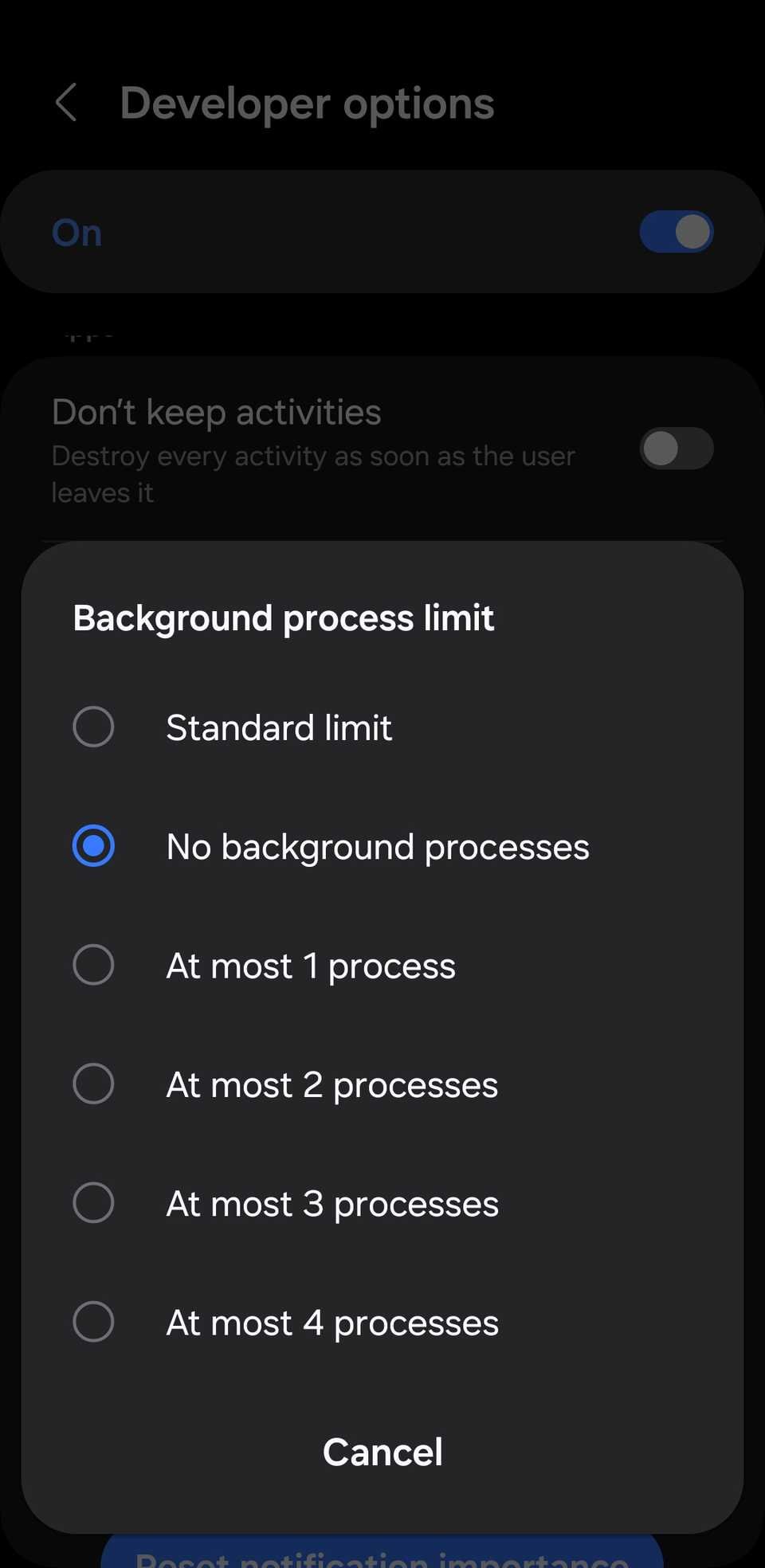
- Tap Background process limit.
- Change the default Standard limit to At most, 2 processes or At most, 3 processes (values between 1 and 4 processes are supported, per MakeUseOf).
Restricting this counter stops dormant apps from waking the CPU, preserving cycles and cooling capacity for Kwai's video decoder.
The Battery Optimization Dilemma
Battery optimization settings create a direct trade-off between background thermal control and foreground streaming performance.
Disabling battery optimization gives Kwai unrestricted access to CPU cycles and open network sockets, preventing dropped frames during live streams. The trade-off is higher power draw, which accelerates thermal throttling.
Conversely, leaving Android's standard battery optimization or Doze mode active prevents background tasks from heating up the phone, but it may prematurely throttle streaming playback or delay chat updates during live broadcasts.
| Setting Configuration | Performance Objective | Primary Benefit | Documented Drawback / Trade-Off |
|---|---|---|---|
| Background Process Limit: 1 to 4 | Reserve active RAM (MakeUseOf) | Shuts down background tasks to stop CPU competition | Background apps reload from scratch when reopened |
| Disable Virtual RAM (RAM Plus) | Eliminate slow flash I/O (MakeUseOf) | Prevents memory transfer bottlenecks on devices with ≥8 GB RAM | Low-spec devices with <4 GB RAM may hold fewer apps in memory |
| Maintain 10%–20% Free Storage | Fluid read/write buffer (DreamWorks Direct) | Eliminates frame drops and write hangs during video caching | Requires deleting large local media files and unneeded apps |
| Force 4G LTE over 5G | Reduce modem power draw (KryoZon) | Cuts radio power consumption by 20% to 30%, stopping thermal climb | Sacrifices peak cellular download speeds |
Recommended Kwai Performance Profile
For balanced daily viewing and live stream participation, apply these steps in order:
- Storage Workspace: Ensure your phone has at least 15% free internal capacity. Clear the Kwai app cache via system settings.
- Network Radio: Lock your mobile network to 4G LTE or connect to Wi-Fi before opening continuous live streams.
- Memory Setup: Disable virtual RAM expansion (such as RAM Plus) if your device possesses 8 GB or more of physical RAM.
- Process Ceiling: If stutter continues on mid-range hardware, set the Developer Options Background Process Limit to 2 or 3.
Deviate from this baseline only when necessary. If you need several background work tools to stay open simultaneously, revert the Background Process Limit back to Standard limit. If you encounter stutter during live stream gifting or interactive broadcasts, confirm whether device heat has built up; when the phone chassis cools down, frame rates consistently rebound.
If you purchase Coins for creator gifting during live streams, verify server compatibility beforehand. Third-party top-up services like XPTopup for Kwai credit the international Kwai Global app; these balances cannot transfer to domestic Chinese Kuaishou accounts.
Frequently Asked Questions
Will clearing the Kwai app cache log me out or delete saved account settings?
No. Selecting Clear Cache only deletes temporary media chunks and cached thumbnails. Your user credentials, account settings, and personal data remain intact. Selecting Clear Data or Clear Storage, however, will reset the app and require you to sign back in, as documented by Blackview.
Why does my Android device lag and drop frames during live streams even when it doesn't feel hot?
Android's thermal management activates silent throttling in steps, reducing CPU and GPU clock speeds before the device reaches critical temperature thresholds like 50°C or triggers a visible warning. As reported by KryoZon, this safety mechanism protects internal hardware from damage while quietly halving stream frame rates.
Can Kwai coins or account profiles from Kwai Global be used on Kuaishou CN?
No. Kwai Global serves international regions and operates on independent servers with distinct wallet systems from the domestic Chinese Kuaishou CN platform; coin top-ups and user IDs cannot be transferred between the two services (XPTopup).






Comments