

The "Failed to initialize DirectX 12" error in Where Winds Meet occurs when your system cannot establish a compatible DirectX 12 rendering pipeline at startup. This issue is triggered by an incompatible GPU lacking Feature Level 12_0 or higher, an outdated Windows build that lacks core API architecture, corrupted graphics drivers, or startup rendering glitches. You can resolve the error by verifying your hardware feature levels in dxdiag, updating Windows and display drivers, testing backend launch arguments, or downloading the official Lite client build.
Check Your GPU Feature Levels in dxdiag
Many players assume their hardware supports the game because the diagnostic tool shows DirectX 12 on the main page. That field only reflects your operating system capabilities, not your physical card. Windows 10 and Windows 11 report DirectX 12 support at the OS layer even when paired with an obsolete GPU, as documented in Microsoft community technical discussions.
To see what your card actually executes:
- Press Windows Key + R, type
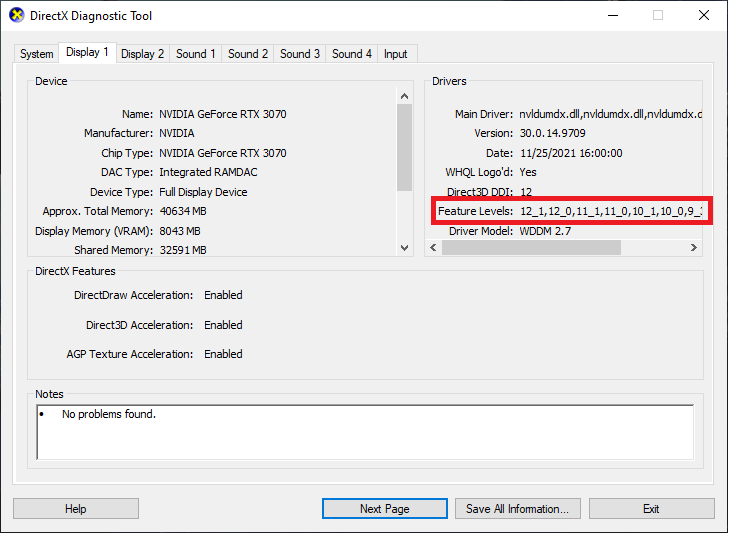
dxdiag, and press Enter. - Click the Display tab (or Display 1 if using multiple monitors).
- Locate the Feature Levels entry under the Drivers column on the right.
| Feature Level | Hardware Capability | Compatibility Status |
|---|---|---|
| 12_2 / 12_Ultimate | Full DirectX 12 Support | Meets modern graphics requirements (Driver Easy) |
| 12_0 / 12_1 | Basic DirectX 12 Support | Standard DX12 execution; may fail titles requiring 12_2 (Driver Easy) |
| 11_1 or lower | Incompatible Hardware | Cannot initialize DirectX 12 natively (Driver Easy) |
If your card reports only 11_1 or below, your graphics card cannot initialize Where Winds Meet natively. Hardware below Feature Level 12_0 will consistently crash during boot.

60 Echo Beads
 60 Echo BeadsUSD 0.96Buy Now
180 Echo Beads
180 Echo BeadsUSD 2.46Buy NowMonthly Pass
Monthly PassUSD 4.12Buy Now300 + 30 Echo Beads
300 + 30 Echo BeadsUSD 4.12Buy Now600 + 68 Echo Beads
600 + 68 Echo BeadsUSD 8.24Buy NowElite Battle Pass
Elite Battle PassUSD 8.24Buy Now900 + 115 Echo Beads
900 + 115 Echo BeadsUSD 12.43Buy NowPremium Battle Pass
Premium Battle PassUSD 16.49Buy Now1800 + 268 Echo Beads
1800 + 268 Echo BeadsUSD 24.87Buy Now3000 + 458 Echo Beads
3000 + 458 Echo BeadsUSD 41.21Buy Now6000 + 1200 Echo Beads
6000 + 1200 Echo BeadsUSD 83.14Buy Now12000 Echo Beads
12000 Echo BeadsUSD 166.13Buy Now
Official GPU Requirements and Hardware Limits
Where Winds Meet officially mandates DirectX 12 support, according to system specification coverage reported by GFuel. Hardware that only runs on DirectX 11 architectures—such as the NVIDIA GeForce GTX 700 series or AMD Radeon R9 200 series—cannot process the game's rendering pipeline.
Official baseline card families include: * NVIDIA: GeForce GTX 900 series and newer * AMD: Radeon RX 400 series and newer * Intel: Arc series desktop GPUs and Xe integrated graphics
There is conflicting documentation regarding the absolute bottom tier of supported hardware. Launch specification tables from early promotional material cited legacy cards like the GTX 750 Ti or RX 550. However, current Steam requirements cite modern baseline cards like the GTX 1060 (6GB) and RX 480 (8GB). If you run older hardware on the margin between architectures, initialization crashes are common.
Force Backend Launch Options in Steam
If your hardware supports Feature Level 12_0 or higher but crashes before reaching the title screen, software driver conflicts might be breaking API communication. You can instruct the executable to alter how it hooks into the graphics pipeline using Steam launch parameters.
- Open your Steam Library.
- Right-click Where Winds Meet and select Properties.
- Under the General tab, scroll to the Launch Options text box.
- Type
-dx11or-dx12into the field. - Close the Properties window and start the game.
-dx11
Technical contradiction to keep in mind: Troubleshooting guides from Wondershare Repairit suggest -dx11 to bypass unstable DirectX 12 driver execution during startup. However, player reports indicate that forcing DirectX 11 can trigger an immediate rejection error because the title is built specifically around the DirectX 12 API. If adding -dx11 causes an instant error window, remove it and try explicitly defining -dx12 instead to reset any corrupted renderer flags.
Update Windows OS Architecture and Display Drivers
DirectX 12 is not distributed as a standalone redistributable download. Its runtime components and DirectX 12 Ultimate libraries are delivered exclusively through native Windows updates, as outlined by Driver Easy. Running an obsolete build of Windows 10 or Windows 11 leaves the operating system without the API architecture needed to bridge your hardware.
Check for operating system updates: 1. Press Windows Key + I to open the Settings menu. 2. Select Windows Update. 3. Click Check for updates and allow any pending cumulative builds to download and install. 4. Restart your computer.
Even with supported hardware and updated OS builds, corrupted display drivers break API communication. A corrupted driver library causes the game engine to query the card, fail handshake protocols, and spit out the "Failed to initialize DirectX 12" prompt. Install clean, current drivers directly from NVIDIA, AMD, or Intel rather than relying on default Windows generic display drivers.
Install the Official Lite Client
For systems equipped with lower-tier graphics cards or constrained VRAM, loading dense graphical assets during boot can cause the 3D graphics system to crash on startup. The game's official launcher provides an alternate client path to bypass this barrier.
- Launch the official Where Winds Meet game launcher.
- Locate the Client Version toggle.
- Select Lite instead of the standard client.
- Confirm your installation directory and select INSTALL.
As noted by Wondershare Repairit, the Lite build uses reduced texture sizes and stripped-down rendering effects. This lowers VRAM consumption, preventing startup initialization crashes on constrained graphics hardware.
Frequently Asked Questions
Why does dxdiag say DirectX 12 is installed if the game crashes?
The dxdiag System tab only shows the maximum DirectX level the Windows operating system can run. Your actual graphics card capability is listed under the Display tab under Feature Levels. If that field displays 11_1 or lower, your card lacks the hardware instructions required by the game (Microsoft Support).
Can Where Winds Meet run on integrated graphics?
Intel Xe integrated graphics support DirectX 12 feature levels and meet the minimum technical requirements, while older Intel HD or UHD architectures do not (GFuel). Performance on integrated graphics remains heavy, making the Lite client build recommended.
Where can I acquire Echo Beads once the game launches?
Players looking to secure cosmetics, battle passes, or banner summons can use a direct UID recharge via Where Winds Meet Top Up to credit Echo Beads straight to their account without opening third-party stores.


Comments