


Tip: Need Lunites for the next Convene? Wuthering Waves top up on XPTopup delivers with User ID + Server only.
Wuthering Waves Best Graphics Settings Chart (July 2026)
Updated on 2026-07-23: Locked the Version 3.5 balance preset for RTX 30-class GPUs, plus the NVIDIA App DLSS Preset L step.
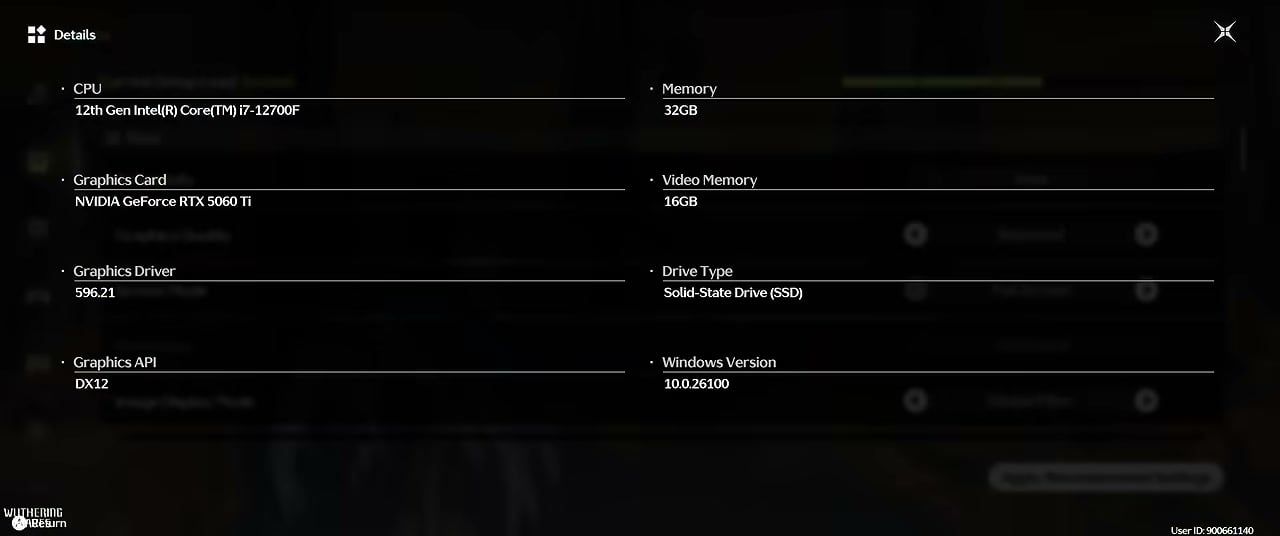
Reference PC (mid-range, DX12):
Component | Spec |
|---|---|
CPU | Intel Core i7-12700F |
GPU | NVIDIA GeForce RTX 3060 Ti |
RAM | 32 GB DDR4-3200 |
Storage | SSD |
Target output | 3440×1440 Full Screen, 120 FPS cap |
On that kit, the preset below holds a Smooth in-game load and lands 100–120 FPS in open fields, forests, and water vistas. Drop to 1440p or 1080p if you want more headroom and lower VRAM use.
Core preset (copy these first)
Setting | Value | Why |
|---|---|---|
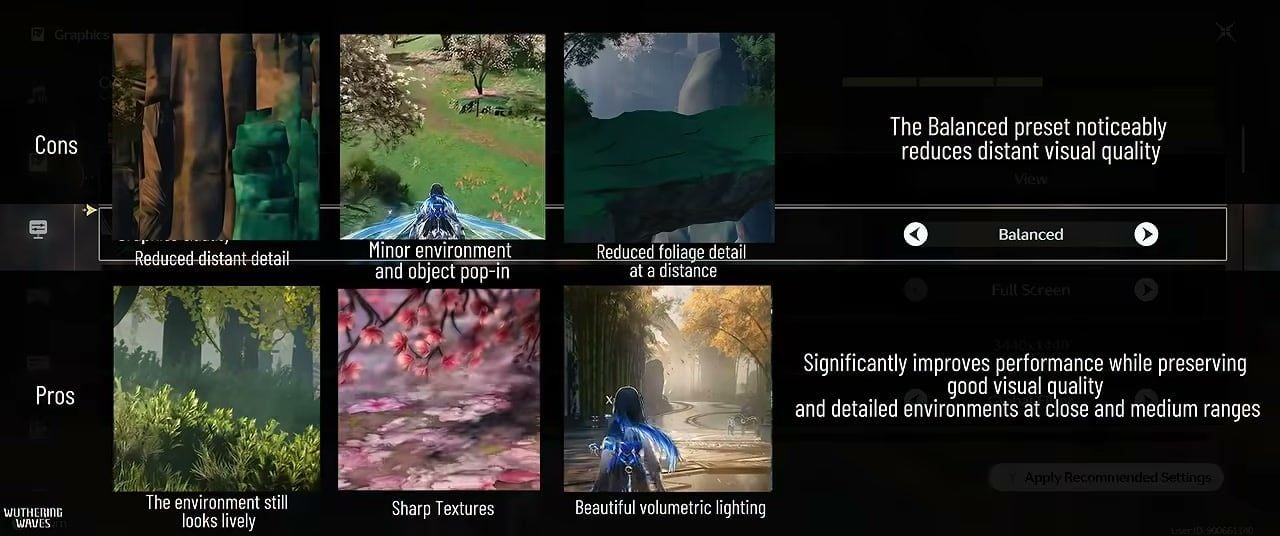
Graphics Quality | Balanced, then Custom | Trades distant LOD for big FPS; near/mid scenery stays clean |
Screen Mode | Full Screen | Exclusive GPU path, less compositor hitch |
Resolution | Native (e.g. 3440×1440) | Match your panel; lower res if VRAM is tight |
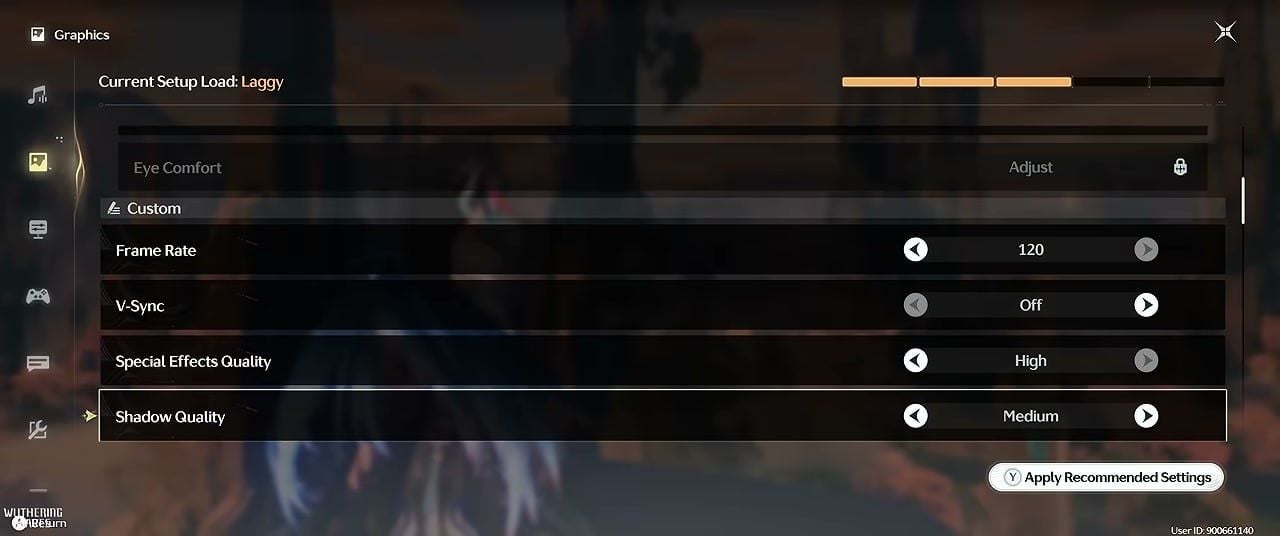
Frame Rate | 120 | Caps load vs uncapped GPU burn |
V-Sync | Off | Cuts input lag; use a frame cap instead |
Special Effects Quality | High | Keeps combat VFX readable |
Shadow Quality | Medium | Big FPS return for a small look hit |
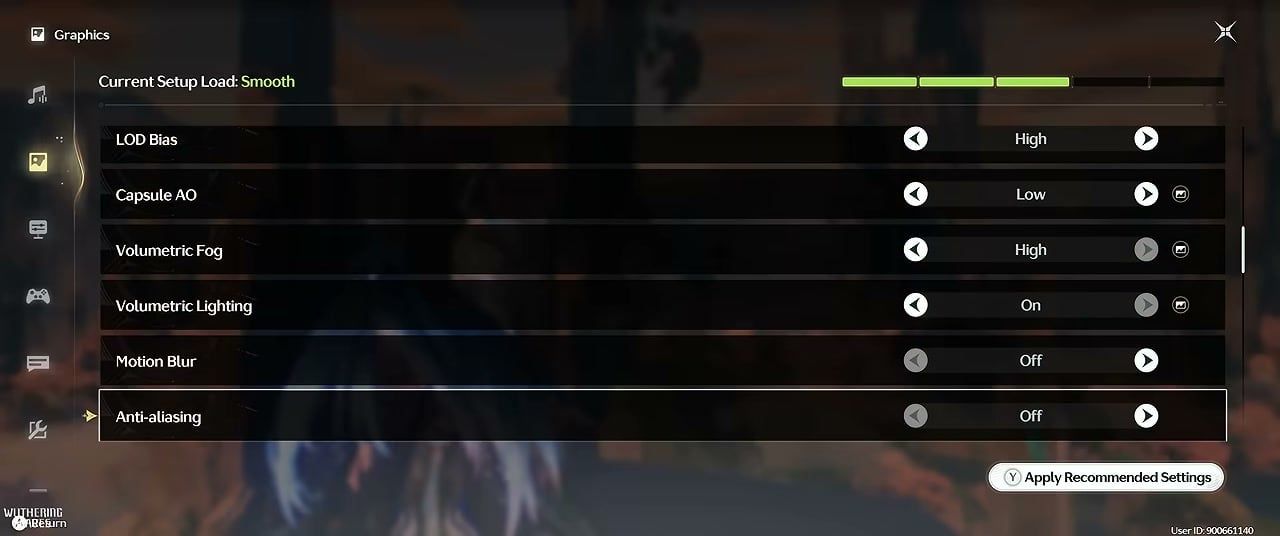
LOD Bias | High (Medium if textures blur; Ultra at 8 GB+ VRAM) | Matches VRAM, not a vanity Ultra |
Capsule AO | Low | Cheap AO cut |
Volumetric Fog | High | Fixes foliage pixel noise when set too low |
Volumetric Lighting | On | Keeps god rays and depth |
Motion Blur | Off | Cleaner motion, free clarity |
Anti-aliasing | Off | Redundant when DLSS is on |
Bloom | On | Soft light without heavy cost |
Crowd Density | Low | Fewer world NPCs; Medium if towns feel empty |
Enemy Hit Flash | On | Combat feedback |
Damage Numbers | Off | Less UI noise in long fights |
Physics-Based Animation | On | Hair/cloth stay alive |
Auto Exposure | On | Outdoor lighting stays stable |
Render Distance | Default | Leave alone unless you still stutter |
Anisotropic Filtering | 1× | Small FPS save; raise later if ground textures smear |
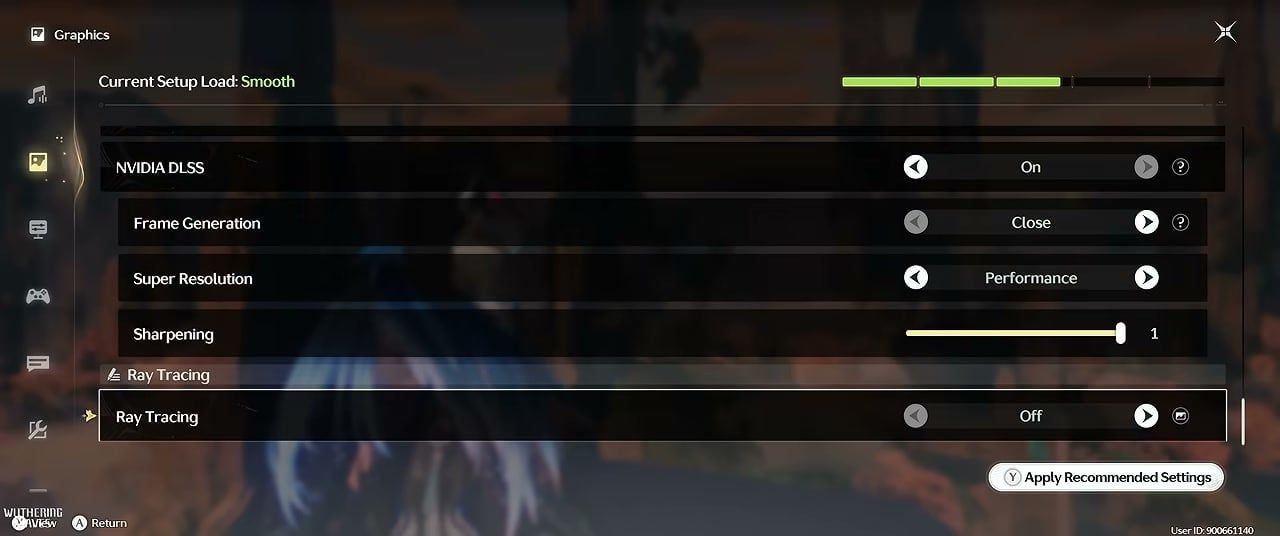
NVIDIA DLSS | On | Main FPS lever on RTX |
Super Resolution | Performance | Pair with Sharpening at 1 |
Frame Generation | Off | Prefer real frames for combat feel |
Ray Tracing | Off | Largest free FPS reclaim on mid GPUs |
What Balanced costs vs keeps
Costs: softer distant cliffs, more pop-in, flatter far foliage
Keeps: sharp close textures, lively mid-range bushes, strong volumetric light shafts
NVIDIA App: DLSS Preset L (outside the game)
Force the newer Super Resolution model in the NVIDIA App:
Open NVIDIA App → Graphics
Select Wuthering Waves (or Global Settings)
Open DLSS Override → Model Presets
Set Super Resolution to Preset L
Apply, then relaunch the game
Use in-game DLSS On → Super Resolution: Performance → Sharpening: 1. Leave Frame Generation closed. On RTX 20/30 cards, Preset L can cost a few frames vs older models; if the Smooth bar flips to Laggy, try Preset K or drop Super Resolution one step.
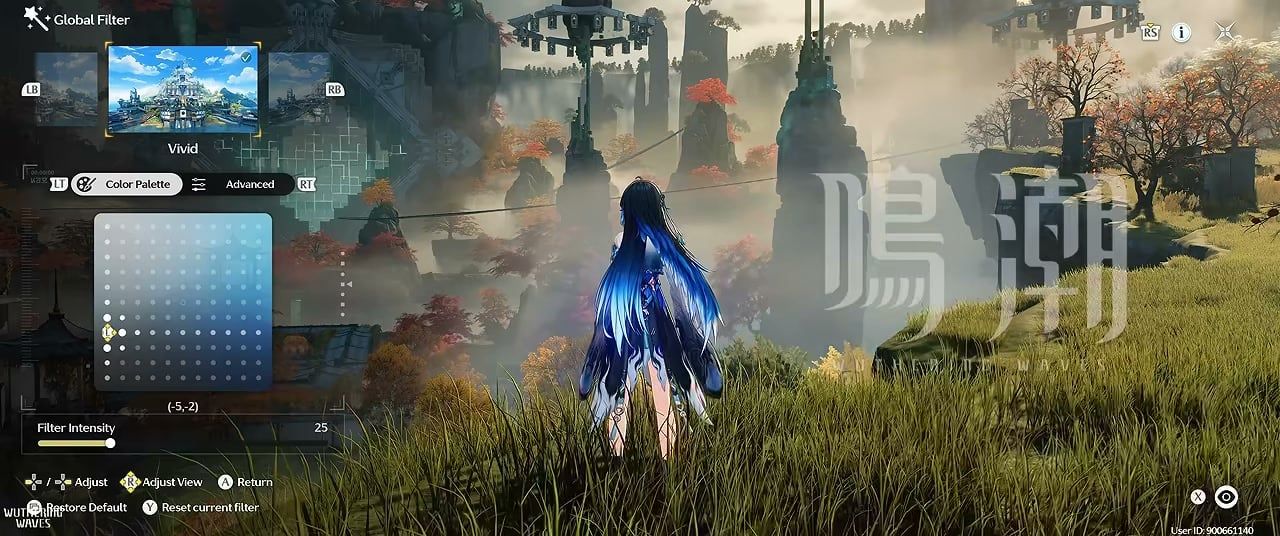
Global Filter (optional color grade)
Apply this after the FPS table, not instead of it:
Control | Value |
|---|---|
Preset | Vivid |
Filter Intensity | 25 |
Shadows | −40 |
Bloom | 10 |
Vignette | 0 |
Film Grain | 0 |
Color Palette | around (−5, −2) |

Wuthering Waves Lunite
60 Lunites
 60 LunitesUSD 0.77Buy Now
300+30 Lunites
300+30 LunitesUSD 4.01Buy Now980+110 Lunites
980+110 LunitesUSD 11.95Buy Now1980+260 Lunites
1980+260 LunitesUSD 23.91Buy Now3280+600 Lunites
3280+600 LunitesUSD 39.85Buy Now6480+1600 Lunites
6480+1600 LunitesUSD 79.47Buy NowLunite Subscription
 Lunite SubscriptionUSD 4.01Buy Now
How to Apply Wuthering Waves Best Graphics Settings
Step 1: Launch WuWa → Settings → Graphics. Set Graphics Quality to Balanced, Screen Mode to Full Screen, then switch the list to Custom.
Step 2: Copy the core table: 120 FPS, V-Sync Off, Shadows Medium, Effects High, Volumetric Fog High, Crowd Density Low, AA Off, Ray Tracing Off.
Step 3: Turn NVIDIA DLSS On, Super Resolution → Performance, Sharpening → 1, Frame Generation → Off.
Step 4: In NVIDIA App, set DLSS Override Model Preset → Super Resolution → Preset L, then restart the game.
Step 5: Walk a busy outdoor route for two minutes. If Current Setup Load stays green (Smooth) and combat feels stable, save. If it flips to Laggy, drop LOD Bias to Medium or Super Resolution one tier before you touch Effects.
What This Preset Looks Like In Motion
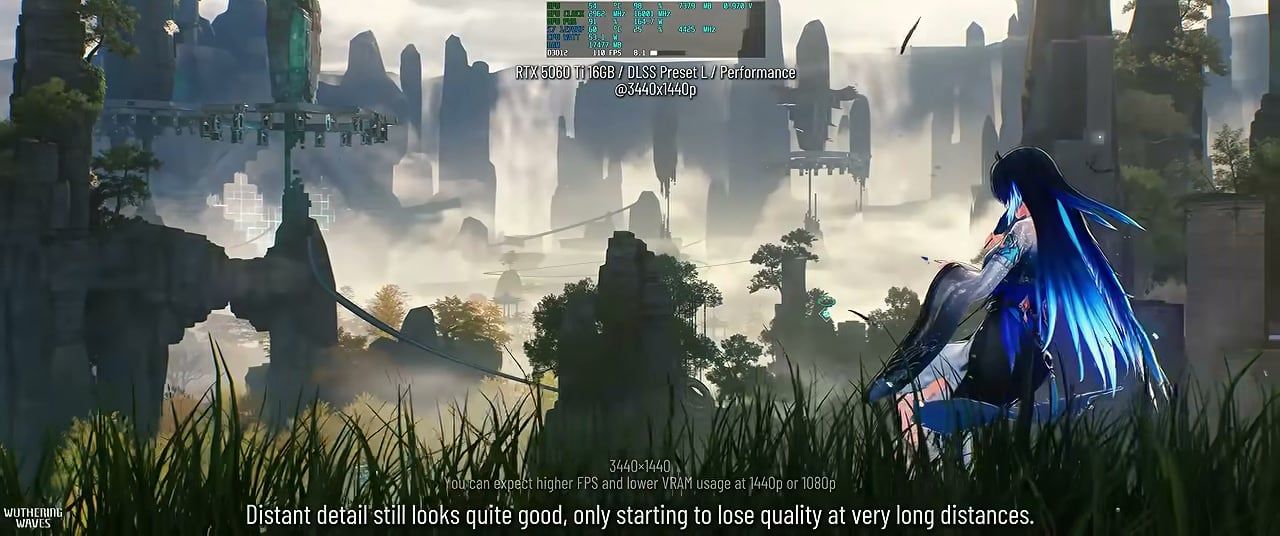
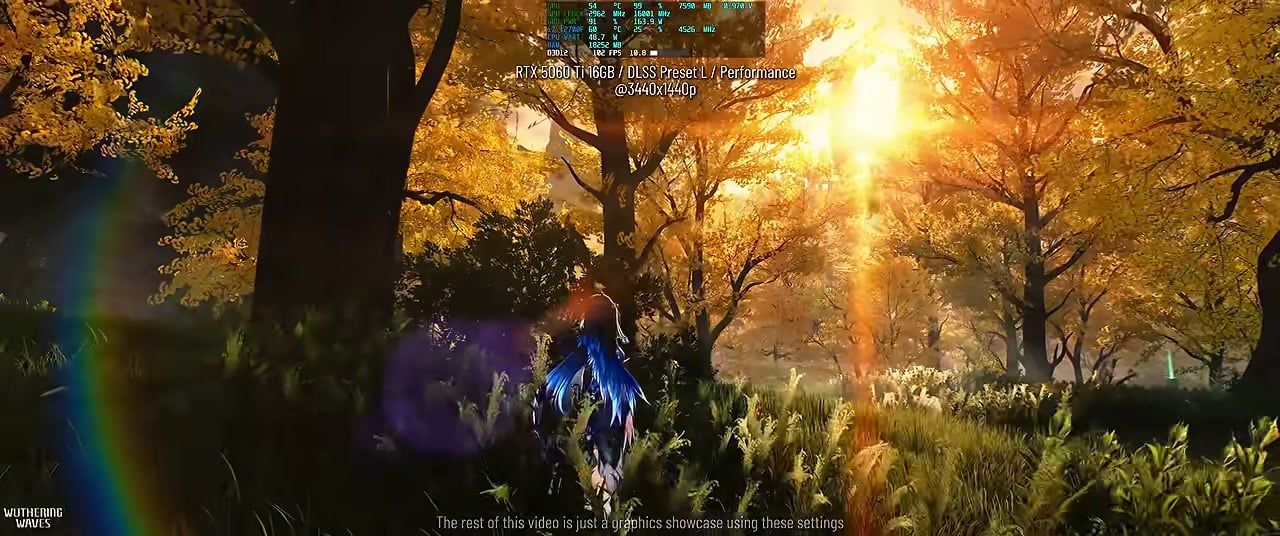
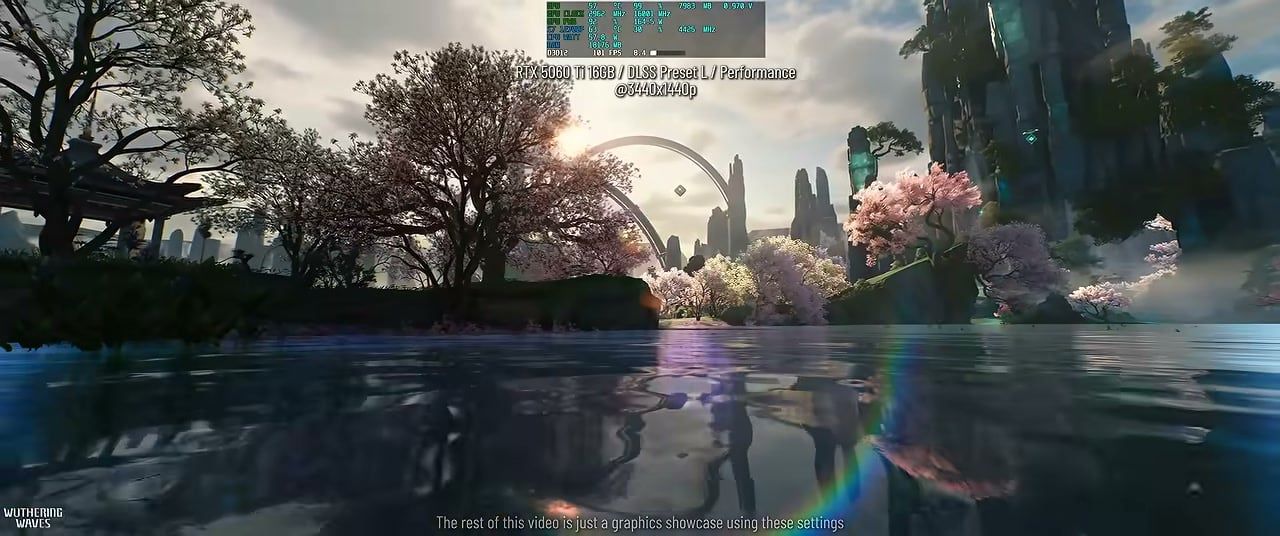
Open-world vistas at 3440×1440 with DLSS Performance + Preset L still read as high-detail at normal play distance. Far rock stacks soften first; grass under your feet and character materials stay crisp. Forest paths keep volumetric sun beams. Water reflections and pink blossom trees hold up at ~100–120 FPS on an RTX 3060 Ti class card.
How to Push FPS Further
Close Chromium piles, overlays, and launchers before you load into dense cities.
Update the Game Ready driver from NVIDIA, not Windows Update alone.
Prefer Full Screen over Borderless when you chase a hard FPS floor.
Cap FPS a few frames under your refresh rate if you see tearing with V-Sync off.
Keep textures/effects high; cut shadows, RT, crowds, and AA first (PC Game Check’s 2026 FPS guide maps the same cost order).
Saving Lunites for a banner week? Grab them on XPTopup Wuthering Waves top up with User ID checkout, then spend playtime on the preset above instead of mall queues.
FAQ
What are the best Wuthering Waves graphics settings for FPS in 2026?
Balanced as the base, then Custom: Shadows Medium, Effects High, Volumetric Fog High, Crowd Density Low, AA Off, Ray Tracing Off, DLSS Performance with Sharpening at 1, Frame Generation Off. Force Preset L in the NVIDIA App. On RTX 30-class cards in Version 3.5, this is the setup that stays Smooth at ultrawide 1440p.
Should I turn on Ray Tracing in Wuthering Waves?
Only if your GPU sits well above the game’s recommended tier and you already hold your target FPS with RT off. On RTX 3060 Ti class cards, RT off is the difference between Smooth and Laggy at ultrawide 1440p.
Does DLSS ruin Wuthering Waves graphics?
Performance mode with Sharpening at 1 and NVIDIA App Preset L keeps close and mid-range detail. You lose stretch only at extreme distance. Quality/Balanced modes look sharper if you already clear 90+ FPS and want less upscaling.
Why set Volumetric Fog to High if I want more FPS?
Low fog can leave foliage looking blocky and noisy. High fog cleans that artifact and still costs less than Ray Tracing or Ultra shadows. Cut Crowd Density and Shadows before you touch fog.
Can I buy Wuthering Waves Lunites without sharing my password?
Yes. XPTopup asks for User ID and Server only. Packs and the Lunite Subscription credit in minutes after payment.
Conclusion
Bookmark this Wuthering Waves best graphics settings page and re-check it after big PC patches. Copy the July 2026 table, force DLSS Preset L, keep Ray Tracing off, and walk an outdoor route until the load bar stays Smooth. When a Convene opens and you need Lunites fast, top up on XPTopup and jump straight back into the fight.



Comments