

Master the best EVE Echoes graphics settings 2026 to fix fleet battle lag, lock 60 FPS on mobile, and stop high thermal drain during long mining ops.
EVE Echoes stresses mobile hardware unlike almost any other sandbox. One minute you are mining an asteroid belt in high-sec; the next, you jump into a null-sec system with two hundred battlecruisers brawling on a citadel grid. Your phone turns into a pocket furnace, the frame rate tanks to single digits, and your battery dumps 10% in fifteen minutes.
Default visual presets chase surface shine at the expense of your device's thermal threshold. Taking manual control of rendering passes, interface brackets, and audio threads lets you hold stable framerates without turning your phone into an iron.
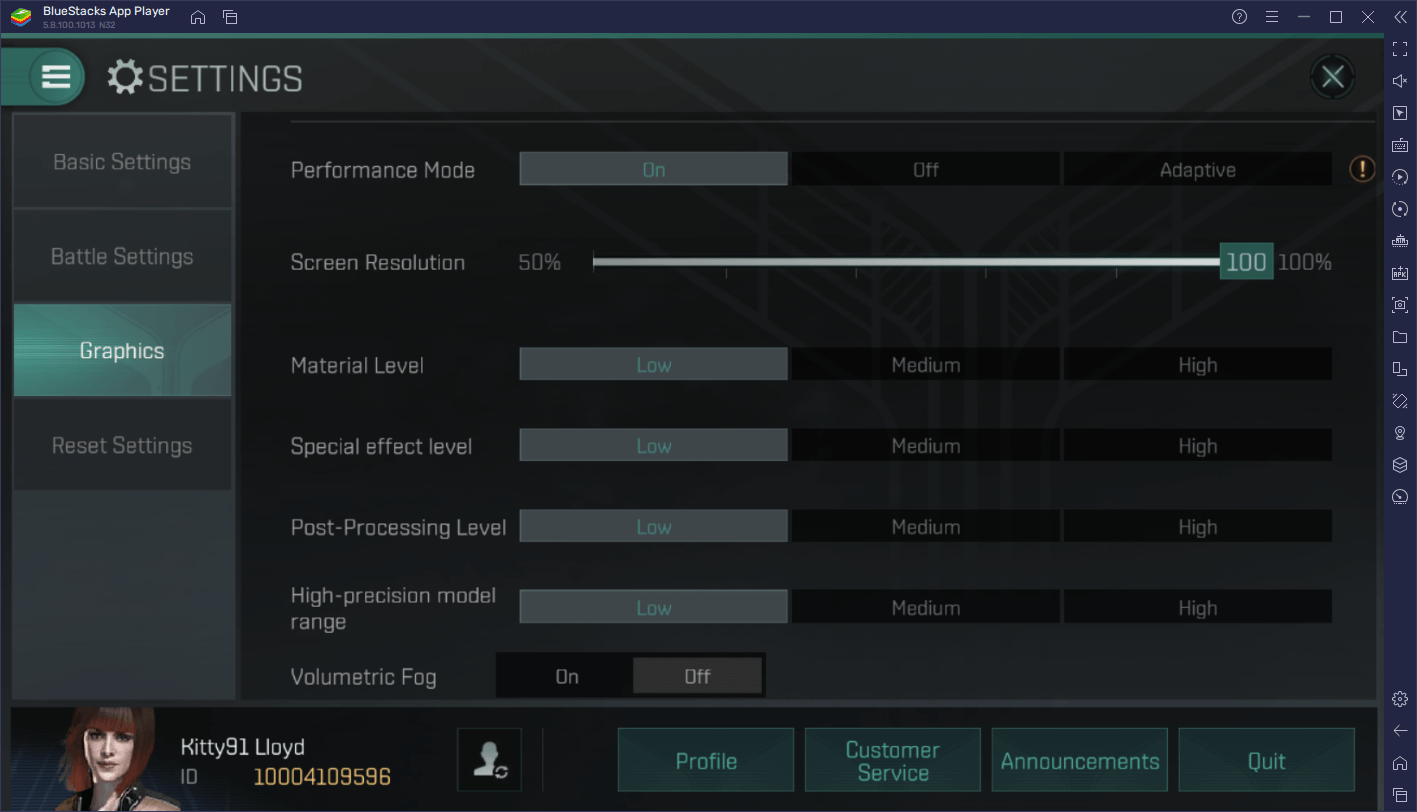
In-Game Graphics Menu and Core Sliders
To access visual configuration, tap your pilot avatar in the top-right corner and select Settings > Graphics. This panel exposes the visual fidelity and frame rate parameters that dictate hardware load.
Every slider in this menu targets a specific hardware bottleneck:
- Frame Rate Cap (30 FPS vs 60 FPS): This is the single largest determinant of power draw. Capping your client at 30 FPS halves the rendering workload, cutting thermal output substantially. A 60 FPS target makes manual piloting crisp and responsive, but doubles GPU cycle consumption.
- Shadows and Reflections: Dynamic shadows on ship hulls and reflections on station structures consume enormous amounts of GPU fill rate. Setting these to low or turning them off yields instant framerate stabilization in crowded scenes without distorting ship geometry.
- Texture Quality: Textures stress memory bandwidth and VRAM rather than pure compute. If texture quality exceeds available memory, the client will stutter whenever new ship models warp onto your grid. Lowering textures eliminates these streaming pauses.
- Post-Processing and Ambient Occlusion: These post-render screen passes disproportionately hammer your minimum frame rates. When laser fire, missile trails, and explosions saturate the screen, heavy post-processing causes sudden dips below 20 FPS. Disabling them stabilizes your 1% lows.
- Shader Complexity: Modifying shader presets requires caution. Shifting presets can inadvertently trigger background lighting and shadow passes, crashing a 200 FPS scene down toward 20 FPS. Whenever you adjust shader complexity, re-check your shadow settings to ensure they remain forced to low.
Before heading into contested null-sec space, pilots often fund your next ship fitting via EVE Echoes AUR on xptopup to secure vital hulls and modules ahead of fleet ops.


Preset Profiles for Battery, Roaming, and Fleet Fights
No single visual preset serves every activity in New Eden. Running maximum fidelity while auto-piloting across thirty star systems wastes battery for zero tactical benefit. Conversely, running an ultra-low configuration during small-gang skirmishes makes manual piloting feel sluggish.
The following profiles outline target configurations for distinct gameplay scenarios.
| Profile Name | Target FPS | Graphics Sliders | Audio & UI Configuration | Primary Target Use Case |
|---|---|---|---|---|
| Battery Saver | 30 FPS | Low Shaders, Shadows Off, Low Effects | Sound Muted, Minimal Overviews | Long-distance hauling, passive mining, and market trading |
| Balanced Roaming | 60 FPS | Medium Textures, Low Shadows, Essential FX | Tactical Audio Only, Standard Brackets | Solo hunting, low-sec PvE encounters, and small-gang roams |
| Fleet Battle Potato | 30 FPS | Lowest Shaders, Shadows Off, No Post-FX | Sound Muted, Filtered Brackets / UI-Only | Massive CTA engagements, station sieges, and heavy TiDi grids |
| PC Emulator Rig | 60 FPS | High Textures, Medium Shadows, Full FX | Full Tactical Audio, Standard Overviews | Multi-instance industrial multiboxing and desktop fleet command |
These profiles trade unnecessary visual flair for raw framerate stability and battery preservation depending on current grid intensity.
For general day-to-day operations, stick with the Balanced Roaming profile. It preserves clean ship textures so you can identify hostile hulls visually while stripping out dynamic shadows that cause frame drops during weapon activation.
Solving Fleet Battle Stutter and O(N^2) Grid Lag
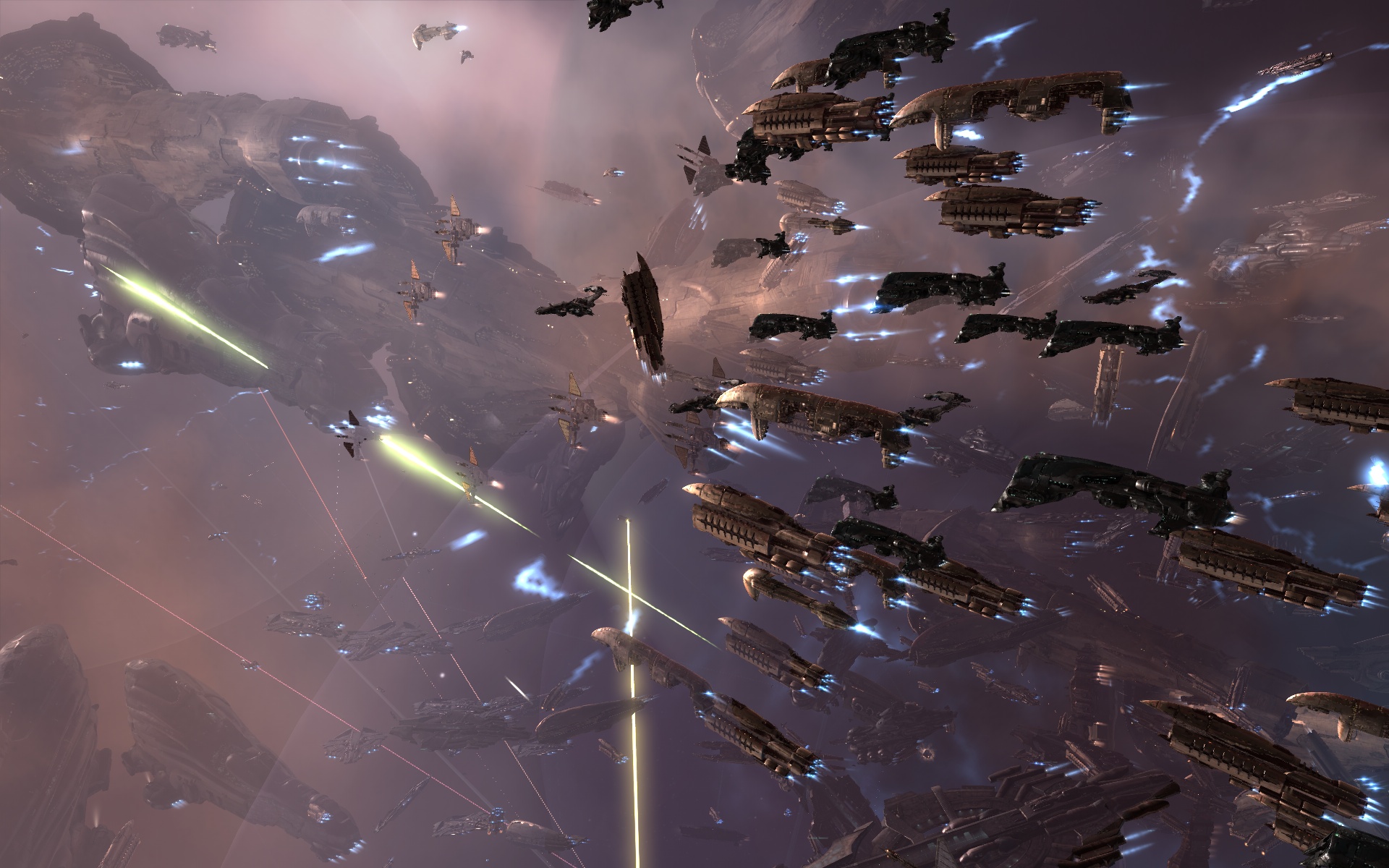
Large fleet combat introduces performance problems that raw mobile hardware cannot simply overpower. Combat calculations scale at O(N^2) complexity relative to the number of active ships on the grid. Every ship added to the fight increases the number of weapon checks, drone targetings, module cycles, and bracket positions that must be calculated and drawn on screen.
When hundreds of capsuleers clash over an outpost, the mobile client chokes on two distinct rendering bottlenecks: tactical brackets and 3D geometry rendering.
Tactical Bracket Filtering
Every object in space—from player ships and starbases to wrecks, drones, and cargo containers—generates an interface bracket. In a 200-pilot engagement, thousands of brackets compete for interface draw calls. Adjust your overview filters to eliminate clutter. Hide friendly fleet members, drones, and wrecks, leaving only hostile targets and primary anchor points visible. Stripping out non-essential brackets recovers massive chunks of lost frame rate instantly.
UI-Only and No-3D View Mode
When a fleet battle reaches extreme density, the most effective tool available is disabling 3D space rendering entirely. Switching to a 2D interface or UI-only view bypasses the entire 3D polygon and shader pipeline. Even on heavily constrained hardware, turning off the 3D space scene can push frame rates above 100 FPS. You pilot strictly by the overview, watch list, and tactical readouts. It does not look pretty, but it guarantees your target locks, warp commands, and module activations register without client-side lag.
Fleet Creation Starmap Setup
Strategic fleet movements rely on the Cosmic Starmap, which renders real-time navigational jump simulations and member positions. Fleet location sharing must be designated at initial fleet formation. Capsuleers can toggle the "Share Member Locations" option exclusively during fleet creation. Enabling this allows you to track fleet member positions and trajectories directly on the map, reducing the need to ask for verbal warp coordinates in comms.
Pilots looking to maintain their tactical edge and keep their clone states updated during sustained null-sec warfare can secure their monthly Omega subscription by buying EVE Echoes AUR through a reliable checkout.
Mobile Thermal Throttling and Battery Degradation Fixes
Framerate drops in EVE Echoes often have nothing to do with software bugs and everything to do with heat. When your phone's processor stays pinned at maximum frequency, internal temperatures rise rapidly. Once the processor reaches its thermal ceiling, the operating system forcibly throttles clock speeds to prevent hardware damage, resulting in sudden, aggressive stuttering.
Standard mobile lithium-ion batteries are rated to retain roughly 80% capacity at 500 complete charge cycles. However, sustained high-temperature discharge accelerates degradation significantly, pushing battery health decline up to nearly 2% monthly. Gaming while plugged into a high-wattage fast charger compounds this problem, producing severe heat spikes that trigger instant thermal throttling.
The table below illustrates how different configuration choices impact power draw, heat generation, and client stability.
| Configuration Setup | Thermal Generation | Relative Power Draw | Battery Health Impact | Framerate Stability |
|---|---|---|---|---|
| Uncapped 60 FPS + Max Settings | Extreme (Throttles in ~15m) | High (~25-35% per hour) | Accelerated (~2% loss/mo) | High variance; severe drops to 15 FPS |
| Balanced 60 FPS (Optimized) | Moderate (Stable outdoors) | Moderate (~18-22% per hour) | Standard baseline | Consistent 60 FPS with minor dips |
| Locked 30 FPS + Low Shaders | Minimal (Cool to touch) | Low (~10-14% per hour) | Minimal thermal wear | Rock-solid 30 FPS across all PvE |
| UI-Only Mode (Fleet Engagements) | Very Low (CPU-only load) | Very Low (~8-10% per hour) | Negligible thermal strain | 60-100+ FPS interface response |
Selecting realistic framerate and shader limits prevents device throttling and extends battery longevity over long play sessions.
To prevent aggressive heat build-up, apply these system-level habits:
- Never play intense combat sessions while connected to a fast charger. If you must charge while playing, use a slow 5W charger or charge the device before your fleet departs.
- Remove thick protective phone cases during extended play sessions to allow heat to radiate away from the chassis.
- Disable operating system background tasks such as Background App Refresh and Location Services on iOS and Android.
- Cap your frame rate at 30 FPS whenever you are not actively engaged in PvP combat.
Audio and System Cache Optimization for Long Roams
Visuals are not the only strain on your device. Audio processing consumes substantial processor cycles during active space combat. Every laser discharge, shield impact, explosion, and ambient engine hum requires CPU cycles to mix and output.
Muting ambient and background audio channels while retaining only critical tactical warnings yields immediate framerate gains. In massive fleet battles, muting game sound entirely frees up CPU headroom for processing bracket updates and incoming network packets.
Starmap and Travel Cache Management
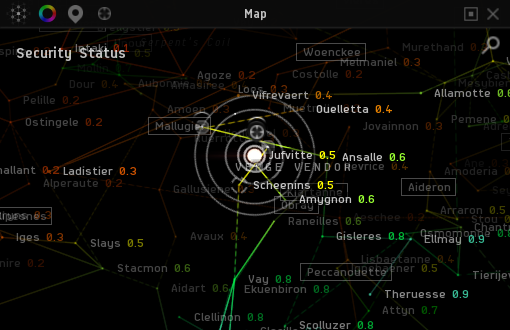
Long-distance travel across New Eden presents a unique performance drain. The updated Cosmic Starmap provides geostatistical visual rendering, improved loading speeds, and smart jump simulations based on your ship's configuration and fuel load. However, continuously warping through dozens of star systems accumulates data cache strain.
Traveling through 100 systems accumulates client memory overhead if continuous logging remains active. System event logs, local chat records, and transient texture assets fill your device's RAM over time, leading to gradual frame degradation. If you are completing long logistical hauling routes, clear your chat channels and disable system event logging in client settings to prevent memory bloat.
Step-by-Step Troubleshooting for Frame Drops
If your EVE Echoes client begins stuttering, dropping frames, or freezing during gameplay, follow these sequential steps to diagnose and correct the bottleneck.
- Drop Framerate Target to 30 FPS: Open Settings > Graphics via your pilot avatar. Immediately toggle the frame rate cap from 60 to 30 FPS. This instantly reduces GPU load by half and stops active thermal throttling.
- Force Shadow Quality to Off/Low: Move the shadow quality slider to its lowest setting. If you recently modified shader complexity, toggle shadows up and down once to ensure the client clears any elevated shadow render passes.
- Filter Your Tactical Overview: Open your overview settings on screen and hide all friendly ships, drone swarms, and wrecks. Reduce on-screen tactical brackets strictly to hostile targets and fleet broadcast anchors.
- Mute Non-Critical Audio: Navigate to Settings > Audio and mute ambient soundscapes, engine audio, and music. Keep only interface and shield warning alerts active.
- Purge Client Cache and Close Background Apps: Exit EVE Echoes, swipe away all background applications on your phone (especially social media and video streaming apps), and relaunch the client to clear saturated system memory.
- Engage UI-Only Mode if Trapped in TiDi: If you jump into an extreme fleet battle with heavy Time Dilation and unplayable stutter, toggle UI-Only (No-3D) view mode to bypass 3D asset rendering entirely.
Android vs iOS vs PC Emulator Platform Comparison
Optimizing EVE Echoes depends heavily on the operating platform. While mobile devices face severe thermal constraints, PC emulators offer high raw computing power but introduce distinct multi-instance and core allocation challenges.
Running multiple accounts simultaneously allows multiboxing across different starter factions, but each active instance reserves extra memory and CPU resources linearly. If you fail to configure your emulator settings correctly, running two or three clients will crash your desktop framerates.
| Setting / Parameter | Android Mobile | Apple iOS | PC Emulator (e.g., BlueStacks) |
|---|---|---|---|
| Optimal FPS Target | 30 FPS (Mining/PvE) / 60 FPS (PvP) | 30 FPS (Battery) / 60 FPS (Combat) | 60 FPS Locked |
| Recommended Core Allocation | System Managed (Dynamic) | System Managed (Dynamic) | 4 Dedicated CPU Cores per instance |
| Recommended RAM Allocation | 4GB+ Device Minimum | 3GB+ Device Minimum | 4GB Dedicated RAM per instance |
| Thermal Throttling Risk | High on thin chassis devices | High on metal/glass frames | None (Desktop active cooling) |
| Multiboxing Support | Limited (Split-screen apps) | Not Supported natively | Full (Instance Manager / Ctrl+Shift+8) |
| OS Optimizations | Disable Background Apps | Disable Background App Refresh | Set Mode to "High Performance" |
Desktop emulators allow higher graphics ceilings and multi-client setups, whereas mobile platforms require strict thermal management.
On PC emulators, allocate at least 4 CPU cores and 4GB of RAM per client instance. Set the engine performance mode to High Performance and match the internal FPS slider to 60. When managing multiple accounts with instance management tools (such as Ctrl+Shift+8), ensure your total allocated cores and memory do not exceed your host machine's physical limits.
Whether managing multiple accounts on desktop or flying a single combat hull on mobile, pilots can stay supplied via EVE Echoes AUR top-ups to keep clone states and hangars ready.
FAQ
What are the best EVE Echoes graphics settings to save battery life?
Lower your frame rate cap to 30 FPS and set shadows, shaders, and visual effects to their lowest values. Disabling non-essential game audio and background operating system services like Background App Refresh will further reduce power consumption.
How can I stop my phone from overheating while playing EVE Echoes?
Cap your framerate to 30 FPS and avoid charging your phone with high-wattage fast chargers while playing. Lowering shader quality, removing thick cases, and keeping the device in a well-ventilated area prevents severe thermal throttling.
Why does EVE Echoes lag heavily during massive fleet battles?
Fleet engagements scale computational complexity at an O(N^2) rate with every ship on grid, overwhelming mobile processors with bracket draw calls and combat checks. Switching to potato mode, filtering overview brackets, or disabling 3D space rendering significantly improves combat responsiveness.
Does lowering texture quality improve frame rates in EVE Echoes?
Lowering texture quality primarily reduces VRAM and memory bandwidth pressure rather than raw GPU compute cycles. This prevents sudden stuttering and micro-freezes when warping into asset-dense star systems or crowded trade hubs.
Should I play EVE Echoes at 30 FPS or 60 FPS?
Use 60 FPS for active PvP combat and manual piloting where fast input response is critical to lock targets and align. Switch to 30 FPS during routine mining, long auto-piloting, and trading to preserve battery life and minimize device heat.
How do I optimize BlueStacks emulator settings for EVE Echoes?
Allocate at least 4 CPU cores and 4GB of RAM in the performance settings tab for each active instance. Set the performance profile to High Performance and set the internal FPS slider to 60 for smooth rendering.
Final Flight Check
Pushing maximum graphics settings in EVE Echoes is a trap. Space is empty, but ship encounters, drone clouds, and tactical overlays will quickly push mobile hardware past its thermal limits. For routine mining, hauling, and planetary management, lock your client to 30 FPS with shadows turned off. Reserve 60 FPS exclusively for small-gang roaming and manual PvP where input responsiveness matters. When massive fleet calls pull you into a 200-pilot fight, filter your brackets aggressively or drop into UI-only mode. Your phone will run cooler, your battery will last for the entire fleet roam, and you will never lose a ship to a thermal frame drop.






Comments