

Learn how to change controller keybinds in Zenless Zone Zero, fix mapping limits, and set up the best gamepad layout for fluid combat on PC and mobile.
Zenless Zone Zero demands quick reaction times. Dodging an Elite Ethereal, swapping in a support agent, and triggering a Chain Attack happens in fractions of a second. If your layout forces your right thumb off the camera stick at the wrong time, you lose visual tracking and drop combo opportunities.
Setting up your button layout early avoids muscle-memory issues on PC. While the PC client natively supports modern gamepads, its in-game menu and binding restrictions require a few specific workarounds.
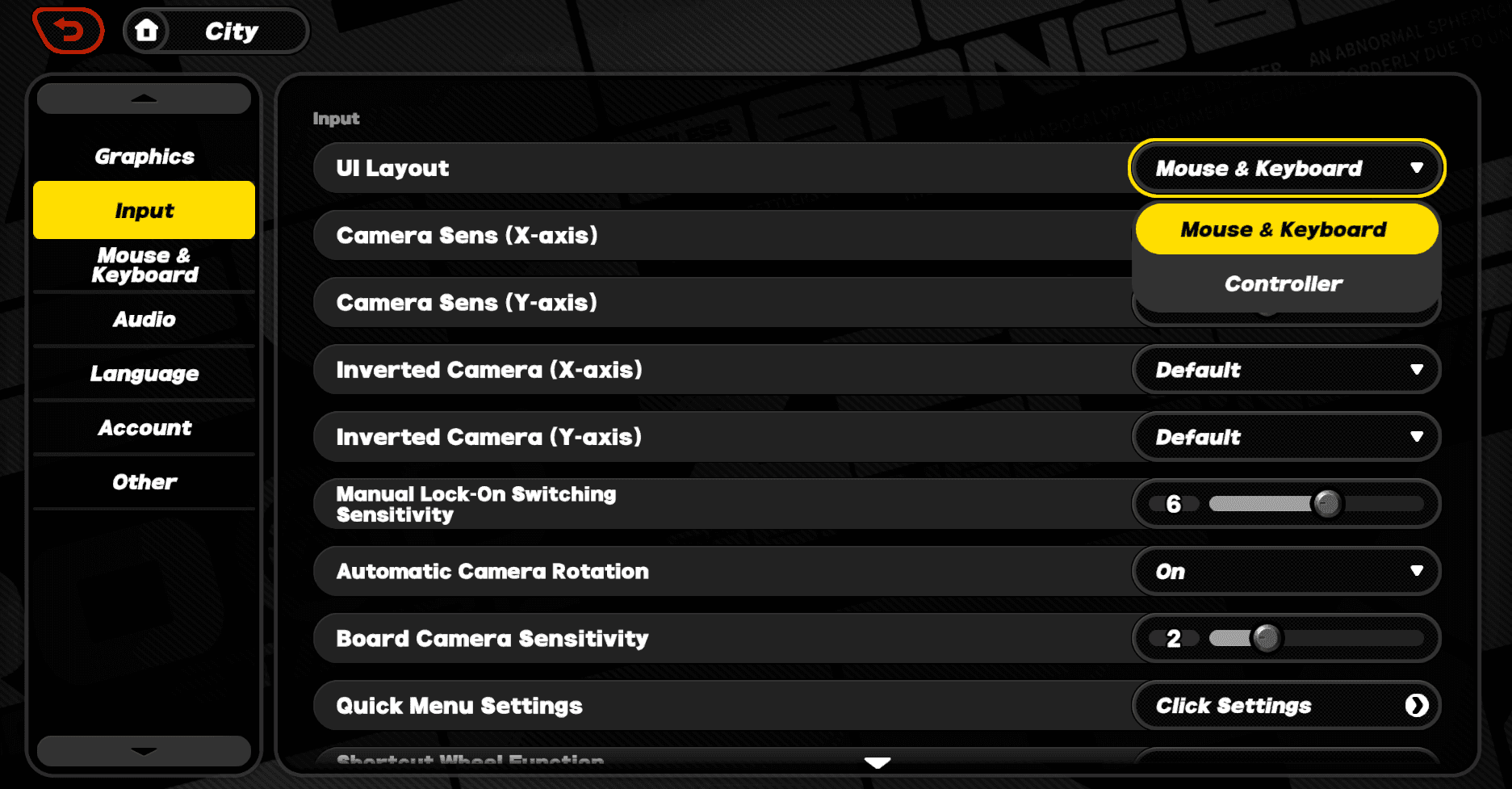
Accessing the In-Game Input and Controller Menu
Open the pause screen by pressing ESC on a keyboard, the Menu button on an Xbox controller, or the Options button on a DualSense pad.
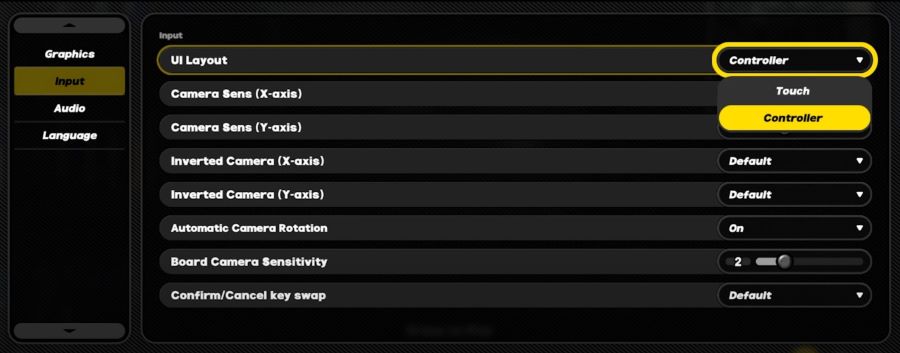
Click the Options gear icon on the left navigation bar, then select the Input tab. This menu displays your connected hardware, active control profiles, and camera sensitivity sliders.
The PC client detects Xbox, DualShock 4, and DualSense controllers over USB or Bluetooth without third-party drivers. On connection, the interface automatically swaps between Xbox and PlayStation button glyphs to match your device.

300 + 30 Monochromes
 300 + 30 MonochromesUSD 3.99Buy Now
1980 + 260 Monochrome
1980 + 260 MonochromeUSD 24.73Buy Now980 + 110 Monochrome
980 + 110 MonochromeUSD 12.47Buy Now3280 + 600 Monochrome
3280 + 600 MonochromeUSD 40.11Buy Now60 Monochrome
60 MonochromeUSD 0.80Buy NowInter-Knot Membership
 Inter-Knot MembershipUSD 3.99Buy Now
8080 Monochrome * 2
 8080 Monochrome * 2USD 150.66Buy Now
8080 Monochrome * 4
8080 Monochrome * 4USD 301.32Buy Now8080 Monochrome * 8
8080 Monochrome * 8USD 602.64Buy Now6480 + 1600 Monochrome
6480 + 1600 MonochromeUSD 75.33Buy Now
Default Gamepad Layout and Core Combat Mappings
By default, basic combat sits on the face buttons while heavy abilities occupy the triggers. It works for early story missions, but forces your right thumb to jump between attacking and camera aiming.
The standard combat bindings include:
| Combat Action | Xbox Controller Bind | PlayStation Controller Bind | Default Function and Strategic Note |
|---|---|---|---|
| Basic Attack | X Button | Square Button | Standard combo string; requires thumb to leave right stick. |
| Special Attack (EX) | Y Button | Triangle Button | Activates standard special or energy-consuming EX Special. |
| Dodge / Sprint | A Button | Cross Button | Primary evasive dash; tap for dodge, hold to sprint. |
| Ultimate Ability | RT (Right Trigger) | R2 (Right Trigger) | Releases decibel-charged burst attack when gauge is full. |
| Character Switch (Next) | RB (Right Bumper) | R1 (Right Bumper) | Swaps active agent forward through the three-member squad. |
| Character Switch (Prev) | LB (Left Bumper) | L1 (Left Bumper) | Swaps active agent backward to the previous slot. |
| Chain Attack (Left/Right) | LB / RB | L1 / R1 | Selects squad members during triggered Stun QTE windows. |
Default bindings prioritize bumper-based character rotations, grouping primary attacks onto face buttons.
Splitting attacks and dodges across face buttons creates slight thumb travel delays during fast encounters.
Custom Combat Layouts for Four-Finger and Six-Finger Grips
Your physical grip style determines which layout minimizes input delay. Standard four-finger grips rest index fingers across the triggers and bumpers. Six-finger grips place index fingers on bumpers and middle fingers on triggers simultaneously.
The Four-Finger Grip Layout
For four-finger grips, keep high-frequency combat commands clustered together. Assign Dodge to A (Xbox) or Cross (PlayStation), Basic Attack to X / Square, and EX Special Attack to Y / Triangle. Your right thumb manages core attacks, while your index fingers handle squad swaps and Ultimates on the shoulder buttons.
The Six-Finger Trigger-Attack Layout
Six-finger players benefit from shifting attacks to the top bumpers and triggers. Remap Basic Attack to RB / R1 and EX Special Attack to RT / R2.
This keeps your right thumb on the right stick for continuous camera adjustments while attacking. In this configuration, assign Dodge to B / Circle or LB / L1 for instant defensive reactions.
Directional Pad Swapping Configurations
Moving squad switches to the D-pad is another effective option. Binding Squad Swap Next to D-pad Up and Squad Swap Prev to D-pad Down frees both shoulder bumpers for attacks or Chain Attacks (bound to D-pad Left and D-pad Right).
Clean inputs save runs in late-game content. When gearing up for tougher Shiyu Defense floors, a Zenless Zone Zero top-up provides resources to keep your agent levels on pace with your execution.
Camera Sensitivity and Automatic Target Tracking
Combat mobility quickly outpaces default camera speeds. If your camera lags behind during evasive dashes, adjust sensitivity immediately.
Inside Options > Input, the horizontal (X-axis) and vertical (Y-axis) sensitivity sliders operate independently. Keeping horizontal sensitivity higher than vertical allows fast 180-degree turns without erratic vertical shifts.
- Horizontal Camera Sensitivity: Set between 6 and 8 for fast tracking.
- Vertical Camera Sensitivity: Keep between 4 and 5 for vertical stability.
- Invert Camera Axis: Independent toggles for X and Y axes.
- Combat Auto-Camera Rotation: Snaps the camera toward active targets on hit. Disable this for full manual control, or enable it if you struggle with off-screen enemies.
If your controller supports software-level response curves, choose Aggressive or Linear to eliminate initial dead zones.
Platform Input Differences Across PC, Android, and iOS
Cross-play and shared progression are standard across platforms, but controller behavior differs by operating system.
| Platform | Detection Method | UI Layout Switching | Controller Prompts / Glyphs | Compatible Hardware Support |
|---|---|---|---|---|
| PC | Automatic on connection | Dynamic switch on input detection | Native Xbox & PlayStation glyphs | Xbox, DualSense, DualShock 4, direct USB/Bluetooth |
| Android | Manual in settings | Options > Input > Switch to Controller | Adapts based on connected gamepad | Native gamepads, Backbone One, Razer Kishi |
| iOS | Manual in settings | Options > Input > Switch to Controller | May default to Xbox glyphs | MFi controllers, DualSense, Xbox Wireless |
PC automatically adapts UI elements to input types, while mobile platforms require a manual menu toggle.
Mobile builds will not switch to controller mode automatically when a Bluetooth gamepad connects. You must open Options > Input and change the UI Layout from Touch to Controller manually. Android natively maps mobile controllers like the Backbone One and Razer Kishi with full parity.
On iOS, connecting a DualSense controller can still produce Xbox ABXY button prompts on screen. PC builds do not exhibit this bug and correctly display PlayStation glyphs.
How to Bypass Controller Mapping Restrictions on PC
When the in-game settings menu blocks a specific rebind or fails to recognize secondary paddle buttons, Windows-level remapping tools solve the issue.
Using the Xbox Accessories Application
For official Xbox and Elite controllers:
- Open the Xbox Accessories app in Windows.
- Select your controller and click Configure.
- Create a profile for Zenless Zone Zero.
- Remap buttons, invert stick axes, or shorten trigger dead zones for faster inputs.
- Apply and link the profile.
Custom Profiles via Third-Party Mapping Software
Third-party software like reWASD (v5.4+) routes physical controller signals to custom keyboard macros or modified gamepad outputs. This enables paddle binds, altered stick curves, and custom vibration intensity profiles.
Heads Up on Visual Glyphs: System-level remapping alters input signals before they reach the game, but does not modify in-game glyphs. If you remap X to RB externally, the screen still shows an 'X' prompt for basic attacks.
Precise button timing prevents dropped combos in high-difficulty Hollows. To pull and build new squad members alongside your setup, you can top up Zenless Zone Zero Monochrome for immediate Polychrome access.
Troubleshooting Controller Disconnects and Vibration Glitches
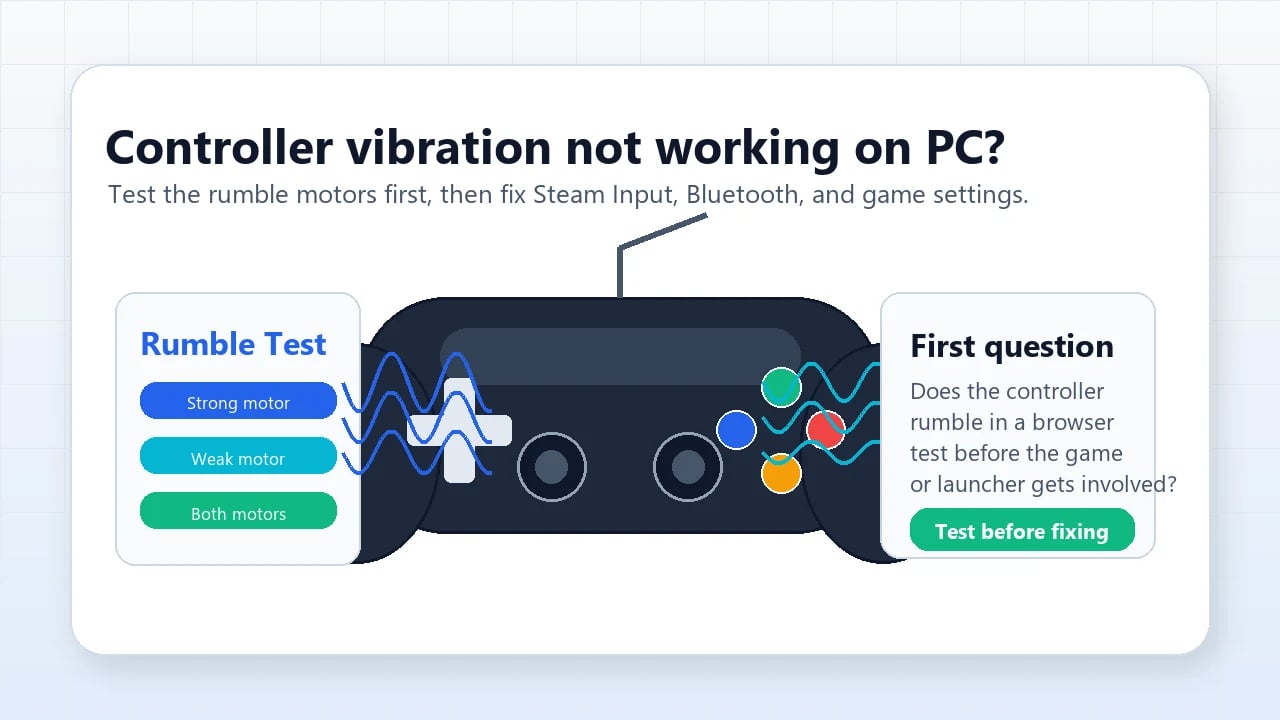
When your controller drops connection or loses haptic feedback mid-combat, follow these steps in order:
- Connect Before Launching: Plug in via USB or pair Bluetooth before starting the game client. Connecting mid-session often prevents the input engine from hooking the device.
- Close Conflicting Overlays: Disable third-party background software with gamepad hooks (such as recording overlays or virtual controller drivers) and restart the game.
- Reset Haptic Audio Channels in Windows: DualSense controllers route haptics through Windows audio. Open Windows Sound Control Panel, right-click your controller audio device, open Properties > Advanced, and run a sample rate test to reset vibration motors.
- Switch to Exclusive Fullscreen: Borderless windowed mode can lose controller focus to background notifications. Switch to Exclusive Fullscreen in Graphics settings to maintain focus.
- Cycle the In-Game Vibration Slider: In Options > Input, confirm Controller Vibration is ON. If vibration is unresponsive, slide intensity to zero and back up to force a profile refresh.
Comparing Common Gamepad Configurations
Your ideal layout depends on whether you prefer standard action-RPG controls, Souls-like shoulder attacks, or quick squad rotations.
The table below evaluates three popular controller configurations for PC players:
| Configuration Type | Primary Attack Binds | Dodge & Switch Binds | Recommended Grip | Tactical Advantage |
|---|---|---|---|---|
| Default Action | Face Buttons (X & Y / Square & Triangle) | Dodge on A / Cross; Switch on Bumpers | 4-Finger Standard | Familiar feel; best for players who rely on auto-targeting. |
| Souls-Like Trigger | Triggers/Bumpers (RB & RT / R1 & R2) | Dodge on B / Circle; Switch on D-Pad | 6-Finger Grip | Full continuous right-stick camera control during attacks. |
| D-Pad Tactical | Face Buttons (X & Y / Square & Triangle) | Switch on D-Pad Up/Down; Dodge on Trigger | 4-Finger Hybrid | Prevents accidental character swaps during fast combos. |
The Souls-Like Trigger layout provides superior camera freedom, while Default Action remains easiest for beginners.
The Souls-Like Trigger layout offers the clearest advantage in endgame Hollow Zero. Keeping thumb contact on the right analog stick during attack strings prevents off-screen surprise hits and simplifies target acquisition.
Sharp mechanical execution makes endgame combat significantly smoother. If you need master tapes or materials for upcoming banners, checking ZZZ recharge options helps keep your roster upgraded.
FAQ
How do I access controller settings in Zenless Zone Zero on PC?
Press the ESC key on your keyboard or the Menu button on your controller to open the main pause menu. From there, click the Options gear icon and select the Input tab to view your active controller layout and adjust sensitivity settings.
Does Zenless Zone Zero natively support PlayStation controllers on PC?
Yes, Zenless Zone Zero natively supports DualShock 4 and DualSense controllers via USB or Bluetooth. The game automatically detects the hardware and displays native PlayStation button glyphs on screen.
Can I remap controller buttons using external software on PC?
Yes, you can use system-level software like the Xbox Accessories app or reWASD to remap physical inputs. However, external tools will not change the on-screen visual button prompts displayed by the game client.
Why is my controller not detected when launching Zenless Zone Zero?
Ensure your controller is connected and powered on before launching the game executable. Background overlays or conflicting virtual controller drivers can intercept device hooks and prevent the client from recognizing your gamepad.
What is the best controller layout for intense combat in ZZZ?
Many experienced players recommend binding Basic Attack and Special Attack to the right shoulder bumper and trigger (RB/RT or R1/R2). This frees your right thumb to control the camera stick continuously while dodging and attacking.
How do I fix controller vibration not working in Zenless Zone Zero?
Ensure Controller Vibration is toggled ON under Options > Input in the game settings. On Windows, open Sound Control Panel, select your controller speaker properties, and run an audio format test to reinitialize the rumble motors.
Why does my mobile device show Xbox buttons when using a PlayStation controller?
On iOS, the game engine occasionally defaults to standard Xbox ABXY visual prompts regardless of the connected gamepad brand. This is a known mobile UI limitation, though physical button inputs still register correctly.
Optimal Setup Verdict
The default layout works for casual story missions, but restricts camera management during fast combat. Moving standard and special attacks to shoulder bumpers and triggers provides continuous camera control and cleaner dodge timing. Spend five minutes in the Input menu tuning camera sensitivity and reassessing your button priorities to eliminate thumb travel delay.






Comments