

Learn how to disable motion blur in Neverness to Everness on PC and mobile menus to eliminate driving smearing and combat sickness without FPS loss.
Driving through the neon-lit districts of Hethereau at top speed should feel sharp and responsive. Instead, Hotta Studio's default post-processing pipeline layers an aggressive camera-smear effect across the screen. Every steering correction and combat camera whip coats your view in visual sludge.
If you experience simulation sickness or lose track of enemy hitboxes during fast encounters, disabling motion blur fixes the issue immediately. The toggle sits in the display settings, though PC players running stubborn presets may need a direct configuration file edit.
Why Motion Blur Ruins Open-World Driving in Hethereau
Neverness to Everness runs on Unreal Engine 5, pairing high-speed driving with supernatural action RPG combat. In cinema, motion blur masks 24 FPS shutter pacing across a static projector screen. Interactive games give you direct camera control, making full-screen camera blur drag background geometry across your reticle, wrecking edge clarity and fatiguing your eyes.
Full-screen camera blur differs fundamentally from per-object motion blur. Camera blur smears the entire viewport during view rotation. Per-object blur selectively softens individual fast assets like a slashing sword or a passing sports car. NTE bundles both passes under unified post-processing profiles, so camera smear dominates the image unless shut down entirely.
Simulated blur works against modern high-refresh displays.
| Display Refresh Rate | Frame Interval Time | Software Motion Blur Impact | Recommended Setting |
|---|---|---|---|
| 60Hz Baseline | 16.67 ms | Smears screen; masks micro-stutter at the cost of target tracking | Off |
| 120Hz Performance | 8.33 ms | Causes heavy visual muddiness during camera rotation | Off |
| 144Hz High-Refresh | 6.94 ms | Ruins native panel clarity; increases tracking delay in combat | Off |
| 240Hz Competitive | 4.17 ms | Completely unnecessary; conflicts with hardware motion resolution | Off |
Running high refresh rate panels renders software-based camera blur obsolete by delivering native frame intervals as low as 4.17 ms.
Disabling the blur will not hurt your frame rate. Because post-process shaders carry minor GPU overhead, shutting them off either maintains your current FPS or provides a fractional gain. The real upgrade is instant visual clarity and zero motion-induced nausea.

All in One(60+300+980+1980+3280+6480)Riftcrystal
 All in One(60+300+980+1980+3280+6480)RiftcrystalUSD 132.31Buy Now
Riftcrystal Mining Permit
 Riftcrystal Mining PermitUSD 3.29Buy Now
6480Riftcrystal (First Top Up Get Double)
6480Riftcrystal (First Top Up Get Double)USD 65.84Buy Now3280Riftcrystal (First Top Up Get Double)
3280Riftcrystal (First Top Up Get Double)USD 32.92Buy Now1980Riftcrystal (First Top Up Get Double)
1980Riftcrystal (First Top Up Get Double)USD 19.75Buy Now980Riftcrystal (First Top Up Get Double)
980Riftcrystal (First Top Up Get Double)USD 9.87Buy Now300Riftcrystal (First Top Up Get Double)
300Riftcrystal (First Top Up Get Double)USD 3.29Buy Now60Riftcrystal (First Top Up Get Double)
60Riftcrystal (First Top Up Get Double)USD 0.65Buy Now
Disabling Motion Blur in the PC Display Settings
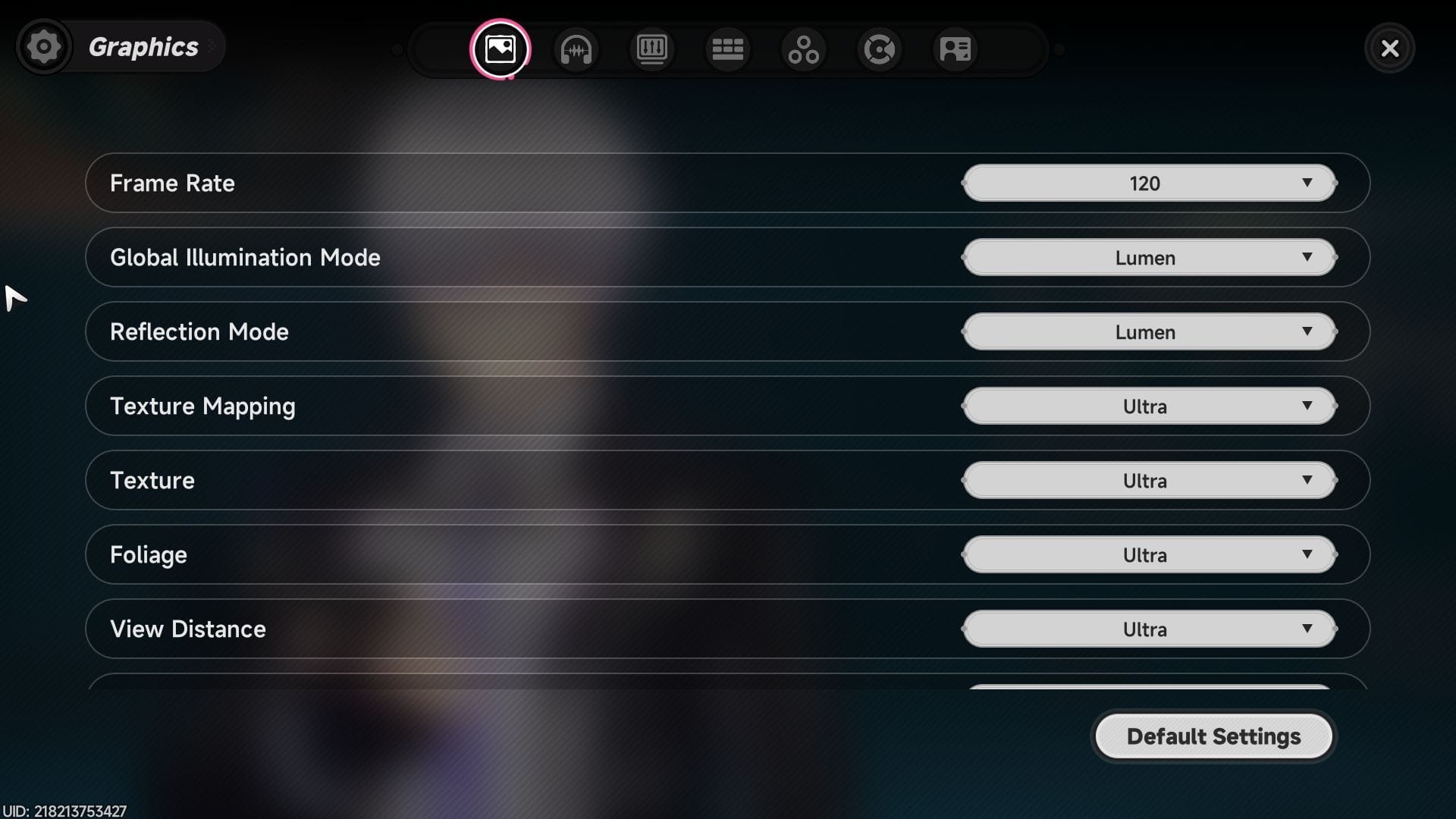
PC players can disable motion blur in under twenty seconds directly through the in-game options menu.
- Press Esc to open the main pause menu in-game or on the title screen.
- Click the Settings gear icon on the right-side interface dock.
- Select the Graphics tab (monitor icon) on the left navigation bar.
- Scroll past Display Resolution and Window Mode down to the Post-Processing category.
- Locate the Motion Blur toggle switch.
- Set the toggle to Off.
- Click Apply or press the spacebar to confirm.
Main Menu (Esc) -> Settings (Gear Icon) -> Graphics Tab -> Post-Processing -> Motion Blur: OFF -> Apply
The change applies instantly without a client restart. Test it by getting into a car and panning the camera across the skyline; street signs and building edges will stay crisp instead of blurring into color streaks.
While fine-tuning your client and preparing your account roster, you can secure premium resource packs through a Neverness to Everness top-up on xptopup to ensure you are ready for upcoming character banners.
Mobile Graphic Tweaks for High-Speed Clarity
On Android and iOS, disabling motion blur improves thermal stability and frame pacing. Mobile GPUs struggle under the combined load of UE5 dynamic lighting, asset streaming, and screen-space post-processing.
To disable blur on mobile:
- Tap the Menu or Gear Icon in the top-right corner of the screen.
- Tap the Graphics category on the left side of the settings panel.
- Switch the Graphics Preset to Custom if locked to Low, Medium, or High.
- Scroll down to find Motion Blur.
- Tap Off.
- Confirm your Frame Rate is locked to 30 FPS or 60 FPS based on your hardware tier.
Flagship devices running MediaTek Dimensity processors feature dedicated integration with MediaTek Frame Rate Converter (MFRC). MFRC uses motion vectors and depth buffers to interpolate frames in real time, cutting power consumption by up to 40% during sustained gameplay. Motion blur corrupts these motion vectors, causing distortion halos around your character. Turning blur off gives the interpolation hardware clean frame data.
On mid-range chipsets like the Snapdragon 7 series, combining a 30 FPS cap with Motion Blur set to Off eliminates aggressive thermal throttling during downtown driving sequences.
Unreal Engine 5 Config File Overrides for Stubborn Presets
Switching global graphic presets can silently restore post-processing blur shaders even when the menu toggle displays Off. When a patch or quality preset change forces blur back into your client, hardcode the engine flags in your configuration files.
Unreal Engine uses the console variable r.MotionBlurQuality to manage blur passes. Setting this value to 0 strips blur out of the engine render pipeline entirely.
To edit the configuration file:
- Close Neverness to Everness.
- Press
Win + Rto open the Windows Run box. - Paste the following path and press Enter:
%LOCALAPPDATA%\NTE\Saved\Config\WindowsNoEditor\(Note: If the directory differs by launcher, search%LOCALAPPDATA%for the Hotta or NTE folder). - Open GameUserSettings.ini with Notepad or any text editor.
- Scroll down to the
[ScalabilityGroups]section or the[/Script/Engine.GameUserSettings]header. - Add these lines at the bottom of the section:
r.MotionBlurQuality=0
r.MotionBlurSeparable=0
- Save the file (
Ctrl + S) and close the editor. - Right-click GameUserSettings.ini, open Properties, check Read-only, and click Apply.
Setting Read-only prevents the game from overwriting these variables during in-game menu adjustments. If you change your screen resolution or keybindings later, uncheck Read-only before launching the client.
Recommended Settings Profiles Across Hardware Baselines
Disabling motion blur is the foundation of a stable configuration. Because NTE renders dense urban vehicle physics and pedestrian systems, balanced graphics profiles are required to maintain smooth frame pacing.
| Hardware Profile | Resolution Target | Frame Rate Cap | Motion Blur | Key Adjustments |
|---|---|---|---|---|
| Low-End Mobile(Snapdragon 7 / Helio) | Native / Sub-native | 30 FPS | Off | Medium View Distance, Low Textures, Low Shadows, Foliage Low |
| Flagship Mobile(Snapdragon 8 / Dimensity) | Native 1080p | 60 FPS | Off | High Textures (requires 8GB+ RAM), TAA Enabled, MFRC Active |
| Budget PC Baseline(GTX 1660 / RX 5600) | 1080p | 30 / 60 FPS | Off | Low View Distance, Reduced Traffic Density, SSR Off |
| Mid-to-High PC(RTX 4070 / RX 7800 XT) | 1440p | 60 / 120 FPS | Off | DLSS/FSR Quality, High View Distance, High Textures, SSR On |
Every baseline benefits immediately from setting Motion Blur to Off, leaving compute headroom for vital rendering passes like texture filtering and view distance.
To apply the Mid-to-High PC 1440p profile:
- Set Display Resolution to
2560x1440in Fullscreen mode. - Set Frame Rate Limit to
120 FPS(or your display's native refresh rate). - Set Motion Blur to
Off. - Set Anti-Aliasing / Upscaling to
DLSSorFSR3with the mode slider onQuality. - Set View Distance to
Highto prevent building pop-in. - Set Shadow Quality and Reflections (SSR) to
MediumorHigh.
If you experience minor frametime hitching when crossing city intersections at 120 FPS, lower the Traffic density slider before reducing shadow or texture assets.
Platform Differences: PC Engine Controls vs Mobile Presets
Platform architecture determines how graphics settings behave. PC gives you configuration file access, driver overrides, and granular resolution scaling. Mobile environments operate within strict power draw and memory ceilings.
When exploring the city, stocking up on premium resources via xptopup Neverness to Everness recharges provides a quick way to keep your team competitive without falling behind on character growth.
| Feature / Setting | PC Platform | Flagship Mobile | Budget Mobile |
|---|---|---|---|
| Motion Blur Toggle | Dedicated toggle under Post-Processing | Available under Custom Graphics | Available under Custom Graphics |
| Config File Access | Yes (GameUserSettings.ini in AppData) | No (Sandboxed storage) | No (Sandboxed storage) |
| Upscaler Integration | DLSS, FSR3, XeSS with Quality sliders | Fixed spatial scaling / Dynamic resolution | Fixed sub-native resolution |
| Hardware Frame Gen | Driver-level / Engine-level DLSS3/FSR | MediaTek MFRC (select chipsets) | Not supported |
| Traffic Scaling | Granular slider under Others tab | Preset-bound | Hard-locked to minimum |
| Installation Size | ~70GB high-resolution storage footprint | Compressed mobile textures | Compressed mobile textures |
PC offers fine-grained access to configuration files and advanced upscalers, while mobile optimization relies heavily on disabling blur to prevent thermal throttling.
System RAM limitations drive mobile stuttering. High and Ultra texture assets require 8GB of operational memory. If your device has 6GB or less, running high textures alongside post-processing blur will trigger out-of-memory crashes during high-speed map transitions.
Eliminating Ghosting: TAA and Upscaler Clarity
If trailing artifacts remain after disabling motion blur, Temporal Anti-Aliasing (TAA) or low internal upscaler resolutions are the cause.
TAA accumulates visual data across consecutive frames to smooth polygon edges. Rapid camera sweeps can cause this temporal buffer to leave a ghost trail that looks like mild camera blur.
To clean up temporal trailing on PC and mobile:
- Set Upscalers to Quality: Never run DLSS, FSR, or XeSS in Performance or Ultra Performance modes at 1080p or 1440p. Performance modes render at low native resolutions (such as 720p or 540p) and rely on temporal reconstruction that produces trailing artifacts. Stick to Quality or Balanced.
- Tune In-Game Sharpening: Keep the sharpening slider between 50% and 60% to sharpen polygon silhouettes without introducing high-contrast halo artifacts.
- Use Photo Mode for Stylistic Blur: For cinematic screenshot blur, do not use gameplay post-processing. Open Photo Mode, which features dedicated depth-of-field controls with adjustable apertures from f/1.4 to f/16 to generate authentic optical bokeh while paused.
Stopping Urban Driving Stutter Under the Others Tab
Disorienting driving sequences are often caused by CPU frame-pacing spikes rather than visual motion blur. Streaming dense urban traffic across Unreal Engine 5 taxes both storage bandwidth and processor cores.
Hotta Studio placed the traffic density slider outside the Graphics tab.
To lower vehicle and pedestrian density:
- Open the pause menu and click Settings (Gear icon).
- Open the Others tab (the icon with three circles).
- Find the Traffic slider.
- Lower the slider from High down to Low or Medium.
- Save and exit.
Lowering traffic density slashes active vehicle physics threads and pedestrian navigation routines, removing frametime hitches during high-speed cornering.
FAQ
How do I turn off motion blur in Neverness to Everness on PC?
Open the pause menu by pressing Esc, click the Settings gear icon, and select the Graphics tab. Scroll down to the Post-Processing section, set the Motion Blur toggle to Off, and click Apply to confirm.
How do I disable motion blur in NTE on mobile?
Tap the Settings gear icon on your screen, select the Graphics category, and switch your preset to Custom. Scroll down to find Motion Blur and tap Off to lock the change.
Does disabling motion blur increase FPS in Neverness to Everness?
Disabling motion blur provides a negligible FPS boost because post-processing shaders have minimal compute overhead. The primary benefit is vastly improved image clarity, zero camera smearing, and easier target tracking in combat.
Why does my game still look blurry after disabling motion blur?
Lingering blur is typically caused by Temporal Anti-Aliasing (TAA) ghosting or running DLSS/FSR in aggressive Performance modes. Set your upscaler to Quality mode and set sharpening to around 50% to restore edge crispness.
Can I force motion blur off via configuration files if the menu toggle fails?
Yes, open your GameUserSettings.ini file located in %LOCALAPPDATA%\NTE\Saved\Config\WindowsNoEditor\ and add r.MotionBlurQuality=0 and r.MotionBlurSeparable=0 under the [ScalabilityGroups] section. Set the file to Read-only after saving.
How do I stop stuttering while driving through Hethereau in NTE?
Open Settings, navigate to the Others tab (the fifth icon with three circles), and lower the Traffic slider. This reduces the number of rendered NPCs and simulated vehicles, clearing up CPU streaming bottlenecks.
Visual Verdict for Neverness to Everness
Leaving motion blur enabled in Neverness to Everness compromises target acquisition and causes visual disorientation during high-speed driving across Hethereau.
Turn Motion Blur to Off immediately. PC players should pair this with DLSS or FSR Quality mode at 1440p, lowering the Traffic slider in the Others tab if CPU frametime spikes occur downtown. On mobile, locking blur off while holding a stable 30 or 60 FPS cap avoids thermal throttling and out-of-memory crashes.
Once your display is configured for clean visual feedback, check the catalog on the Neverness to Everness top up store to grab the pulls and resources needed to build out your squad.






Comments