

Learn how to link Sky account to Nintendo Switch safely. Prevent blank moth account locks, sync your mobile cosmetics, and preserve all your hard-earned progress.
The Critical First Step: Link on Mobile Before Touching Your Console
If you take away only one rule from this guide, make it this: never launch the game on your console first.
Booting the console edition before your mobile profile is linked creates an immediate roadblock. The moment the title launches on your console, the system binds your active user profile to a fresh save—trapping you with what the community calls a blank moth account.
Once that fresh save binds to your console profile, the console will not let you overwrite it with your existing mobile character. You cannot merge two profiles. There is no in-game menu option on the console to swap to an existing profile once a new one exists on that user profile.
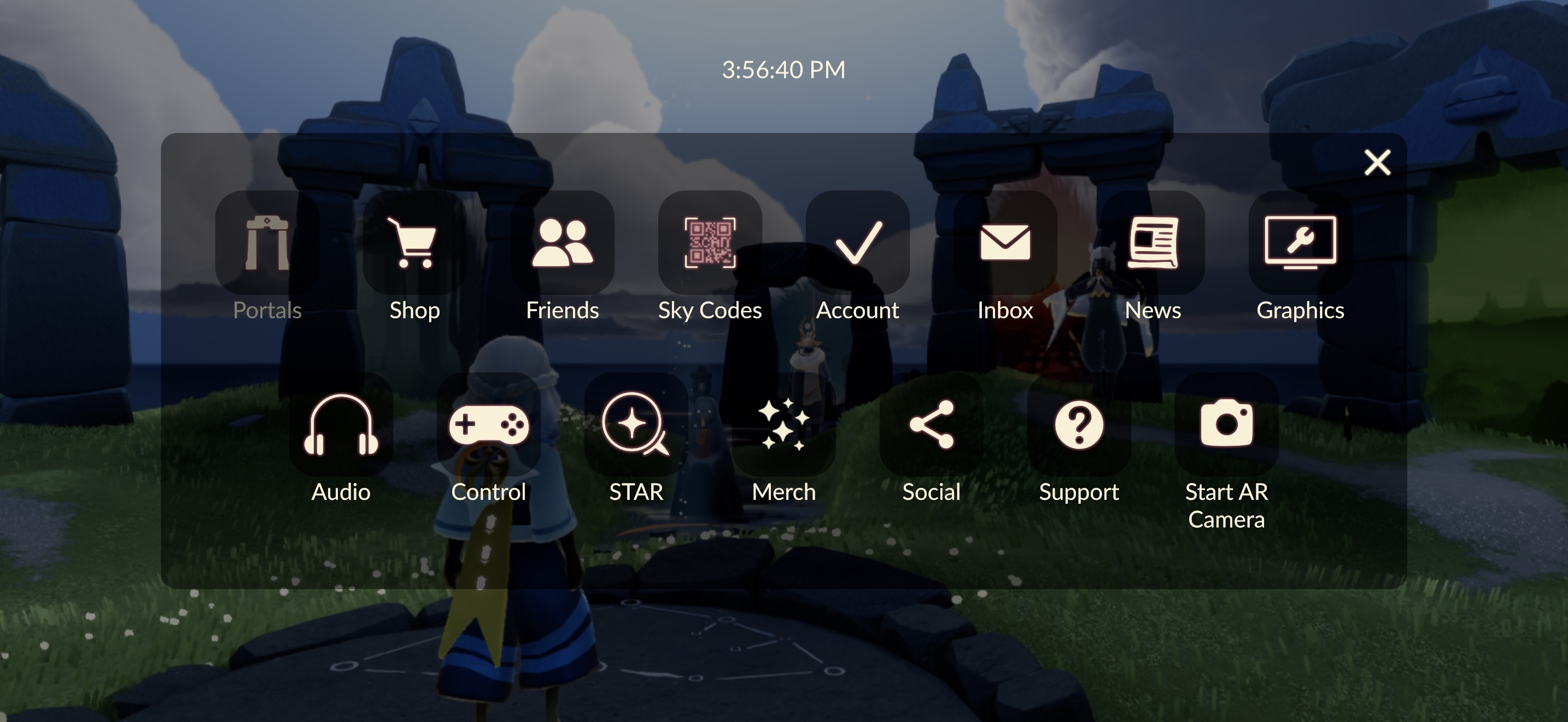
To do this correctly, you must perform the link on your phone or tablet while your console remains turned off. Open your existing game on your smart device. Tap the top-right corner to open the in-game settings cog, select Account, and tap the console option to authorize your console account. Once you complete the web authentication and see the green checkmark, your original save file is safely tied to your console profile. Only then can you download and boot the game on your handheld console.

15 Season Candles
 15 Season CandlesUSD 4.51Buy Now
15 Season Candles
15 Season CandlesUSD 4.51Buy Now30 + 5 Bonus Season Candles
30 + 5 Bonus Season CandlesUSD 8.57Buy Now60 + 12 Bonus Season Candles
60 + 12 Bonus Season CandlesUSD 17.69Buy Now150 + 40 Bonus Season Candles
150 + 40 Bonus Season CandlesUSD 40.51Buy Now
Step-by-Step Walkthrough: Binding Mobile Progress to Console
The binding procedure requires strict adherence to a precise order. Skipping ahead locks you into technical headaches that require dummy profiles to untangle.
1. Prepare Your Mobile Application
Launch the game on iOS or Android. Walk around your home space for five seconds to confirm that your wings, spirits, cosmetics, and currencies are fully loaded. Do not attempt an account bind during unstable server transitions or while downloading an in-game patch.
2. Enter the Account Settings Menu
Tap the screen to reveal the HUD, tap the gear icon in the upper-right corner, and choose Account. You will see a list of third-party login providers.
3. Select Console Linking
Tap the console option. The application will launch your default web browser, directing you to the official authentication screen. Sign in using the exact console credentials tied to the console user profile you plan to use.
If you use a smart device sign-in method directly on your console browser, you will encounter a 5-digit verification code. Enter this temporary five-digit code promptly before the session timer expires to validate the browser handshake.
4. Confirm the Link on Mobile
Return to the mobile application. The console entry inside your Account menu should now display as linked. If it shows linked, your mobile progress is permanently mirrored.
5. Launch the Console Edition
Pick up your console, select the specific local user profile linked to those credentials, and launch the game. Instead of spawning as an uncustomized newcomer in the opening desert, you will immediately materialize at your current home space with all your seasonal items, wing buffs, and friendship trees intact.
If you want to dress your character in event-exclusive capes without fumbling with console menus, you can get items directly through Sky: Children of the Light top up options to stock up ahead of traveling spirits.
| Migration Path | Mandatory Starting Action | Outcome |
|---|---|---|
| Mobile to Console | Link credentials inside mobile Account settings | Full progress mirrored safely |
| Console to Mobile | Launch mobile, click Cancel, select console sign-in | Console save loaded on mobile |
| Unlinked Console Boot | Boot console game without prior mobile bind | Blank moth save permanently assigned |
The migration sequence determines whether your save file remains intact or gets locked out by an unwanted blank character profile.
The Reverse Migration: Transferring Console Progress to Mobile
If you discovered the game on your handheld console first, taking that character on the go requires reversing the process.
When you install the game on your mobile device for the first time, the game tries to steer you straight into the tutorial. It automatically asks if you want to create a new profile. You must hit Cancel.
If you proceed through the prompt, the mobile app creates a fresh local profile that clutters your phone. By tapping Cancel on the initial prompt, the client redirects you to an authentication selector. Select the console icon from the list, log in with your active credentials, and your console progress will populate your phone screen.
Review this overview of migration behaviors before touching any login screens:
| Direction | Authentication Route | Risk Level |
|---|---|---|
| Mobile to Console | Mobile Account Menu -> Bind Console | High if console opened first |
| Console to Mobile | Fresh Mobile Install -> Cancel Tutorial -> Select Console Sign-In | Low if Cancel is clicked |
| Cross-Console Transfer | Mobile Bridge -> Bind secondary console network ID | Moderate (requires mobile intermediary) |
Always verify your login credentials on a secondary web browser before confirming console bindings to avoid tying your game to an abandoned profile.
Fixing the "Account Already Linked" Error
If you ignored the warnings and opened the console game first, you will encounter the dreaded error when you finally try to link on mobile: the game informs you that the console profile is already associated with another account.
This happens because the console generated a brand-new moth profile and assigned your console credentials to it immediately. You cannot simply hit "unlink" on the console; system rules bind the selected console account to that specific profile on first launch. Unlinking cannot be carried out from the console interface at all.
To rescue your mobile account, you must perform an unlinking procedure using a throwaway dummy login. Follow these steps:
- Pick up a mobile device that does not have your primary profile running.
- Install the game and launch it.
- Hit Cancel on the opening prompt and sign in using the console credentials that hold the accidental moth account.
- Once loaded into the unwanted moth account on mobile, open Settings and go to Account.
- Link this unwanted moth account to a secondary, spare third-party login method (such as an unused social or email login).
- Once the secondary login is active, the unlinking option for your console credentials becomes clickable.
- Unlink your console account from the moth profile.
- Delete the mobile app data on that secondary device to clear the session.
- Open your primary mobile device containing your actual main profile.
- Head to Account settings, select the newly freed console option, and bind it immediately.
Do not contact customer support expecting them to flip a switch. Customer Support cannot manually assist with unlinking an account from a console profile. Their internal tools are restricted because account linking is designed to be permanent. You have to execute this dummy-profile bypass yourself.
Currency Segregation: The Purchased Candle Trap
One of the most confusing parts of playing across both handheld console and mobile platforms is your currency counter. You log in on your phone, see a massive candle stack, dock your console, and suddenly your total drops. Do not panic—your currency was not stolen.
The game divides currency into two buckets: earned currency and purchased currency.
Earned candles—the ones you forge by running through the 7 explorable areas, collecting light from dark plants, and completing daily quest cycles—sync everywhere. If you forge 15 candles on mobile, all 15 show up on your console.
Purchased candles do not transfer between console and mobile platforms. Candles bought through console-specific checkout services are strictly locked to the console version. Conversely, candles bought on mobile devices will only appear on mobile devices.
Cosmetics, however, are universal. If you spend your console-locked candles on an event cape or seasonal tree, that cape stays equipped when you switch to your phone. If you need to top up your reserves for a surprise visiting spirit, pick up a Sky: Children of the Light candle pack to secure your cosmetics without worrying about currency balance discrepancies.
| Currency Type | Earned In-Game | Purchased on Console | Purchased on Mobile |
|---|---|---|---|
| Appears on Mobile | Yes | No | Yes |
| Appears on Console | Yes | Yes | No |
| Unlocked Cosmetics | Shared everywhere | Shared everywhere | Shared everywhere |
Earned game progress transfers across platforms without friction, but purchased balances stay locked to their original payment environment.
Platform Authentication Methods Compared
When managing your cross-progression setup, your mobile operating system dictates how many third-party authentication methods you can bind to your profile. Building redundancy into your account saves you from future lockouts.
On iOS, the game supports 9 distinct account authentication providers: - Game Center - Apple ID - Google - Huawei ID - Facebook - Console Account - Secondary Console ID - Twitch - Additional linked platforms
On Android, the platform client natively supports 6 third-party authentication methods: - Google - Huawei ID - Facebook - Console Account - Secondary Console ID - Twitch
Support listings vary between platform updates, with some mobile operating system FAQs omitting certain third-party authenticators. To prevent login dropouts, link at least one universal provider—such as a Google account—alongside your console credentials.
Having at least two active login methods bound to your primary profile protects your account. If your console account undergoes a security lock or password reset, you still have an active mobile method to access your character, collect daily light, and maintain your seasonal streak.
Managing Friends Across Handheld and Mobile
Once cross-progression is active, connecting with friends across platforms brings a few interface differences.
You do not need a paid console subscription service. Sky remains free-to-play on consoles, with cross-platform matchmaking enabled by default.
Adding existing friends who play on other consoles works through the system friend roster. If you are friends on the console dashboard, they will automatically appear in your console constellation.
However, adding mobile players from your console requires generating an in-game QR code. Head to the friend constellation, select the invite option, and the console will render an invite QR code on your display. Take a clear photo or screenshot of this QR code and send it to your friend. Once they scan the image using their mobile camera inside the game app, your friendship tree links instantly.
If you want to unlock advanced friendship expressions and high-fives quickly, grabbing a bundle from an in-game candle recharge lets you unlock higher tiers in the friendship tree without spending weeks farming candle wax.
Bridging Saves Between Multiple Console Platforms
If your household has multiple different console systems, linking them directly to each other is impossible. You cannot link one console ecosystem directly to another console ecosystem inside a console interface.
Instead, your mobile application acts as the universal bridge. If you started your adventure on a handheld console and eventually want to carry your progress to a different home console, you must follow this path:
- Ensure your original console account is functioning properly.
- Open your mobile app and log in using your primary console credentials.
- While logged in on mobile, open the Account settings menu.
- Tap the secondary console service you want to add, and log in with those credentials.
- Confirm that both console networks show as active and linked inside the mobile Account menu.
- Power on your second home console, boot the game, and your profile will load automatically.
By treating the mobile app as your central command hub, you eliminate the risk of accidental profile overwrites across different gaming hardware.
Unlinking Rules and In-Game Purchase Restrictions
Can you ever undo a link once it is set? Yes, but with one major restriction: financial history.
You can unlink an account through the mobile app settings if you linked the wrong profile by mistake, provided no monetary transactions took place on that specific console credential. If you purchased anything on the console—even a basic cosmetic pack or a single seasonal pass—the game permanently locks that console profile to your Sky account.
This security rule prevents fraudulent balance transfers and chargeback manipulation. Once real money exchanges hands, the connection becomes permanent. Even Thatgamecompany support staff cannot manually override this status. Verify your account names carefully before spending any funds.
FAQ
What happens if I start Sky on Nintendo Switch before linking my mobile account?
A new blank moth account will automatically bind to your console's profile. You cannot merge this blank profile with your existing mobile save, requiring a dummy-account workaround to unlink it.
Do my purchased candles transfer between mobile and Nintendo Switch?
No, purchased candles remain restricted to the platform where they were bought. However, all earned candles and unlocked cosmetics sync across devices without issue.
Do I need a Nintendo Switch Online membership to play Sky with friends?
No, the game is free-to-play on the console and does not require an active paid online membership. Cross-platform matchmaking works automatically.
Can Customer Support manually unlink my Nintendo account from Sky?
No, Thatgamecompany support staff cannot manually assist with unlinking accounts. The unlinking process must be completed by the player through a mobile client before any real-money purchases are made.
How do I add mobile friends while playing on Nintendo Switch?
Generate an in-game invite QR code on your console and send a capture of it to your friend. Once they scan the code using their mobile app, your friendship tree connects.
Can I unlink my Sky account directly from the Nintendo Switch console?
No, unlinking cannot be done from the console dashboard or console menus. You must manage linked credentials through the Account menu on a mobile device.
Final Recommendation
The account management system in Sky: Children of the Light is safe as long as you respect its order of operations. Never let your console boot the game before your mobile app displays a verified link under your Account settings. Bind a secondary login provider like Google to your profile as a safety net, keep your platform-exclusive purchased currencies organized, and you can transition between mobile flight and docked console gaming without sacrificing a single wing buff.






Comments