


When Jujutsu Kaisen: Phantom Parade crashes on startup on Android or freezes on a black screen, the issue typically stems from an out-of-memory RAM shutdown, an outdated Android System WebView component, or depleted internal storage. The game client requires 15 GB to 20 GB of free internal space to decompress downloaded assets and write temporary runtime cache; reaching 99% storage capacity causes Android to immediately terminate the boot process. You can resolve these launch failures by updating critical system rendering tools, clearing corrupted authentication cache, and removing performance-throttling battery modes.
Quick Diagnostic Checklist
Before adjusting deeper system configurations or considering a fresh installation, run through this maintenance checklist. High-demand mobile RPGs rely heavily on background OS services to render opening announcements and verify user identity.
| Action | Recommended Cadence | System Impact |
|---|---|---|
| Clear Cache | Weekly or post-patch | Clears corrupted temporary game data that leads to crashes (Apkiraa) |
| Disable Battery Saver | Before every gaming session | Unlocks full CPU and GPU performance to prevent startup throttling shutdowns (Apkiraa) |
| Maintain Internal Storage | 15 GB to 20 GB free space | Provides operating system buffer for asset decompression and temporary cache creation (Apkiraa) |
Several web guides recommend adjusting desktop GPU settings, swapping PCIe cables, or altering monitor refresh rates. Disregard those steps entirely; they apply only to PC emulator environments and do not resolve native Android OS startup failures.

140 Paid Cubes
 140 Paid CubesUSD 1.05Buy Now
Starter Favorable Pack
Starter Favorable PackUSD 1.05Buy NowWeekly Pass
Weekly PassUSD 1.05Buy NowSatoru Gojo Celebration Pack A
Satoru Gojo Celebration Pack AUSD 0.83Buy Now430 Paid Cubes
430 Paid CubesUSD 3.18Buy NowMonthly Pass
Monthly PassUSD 3.18Buy NowStarter Gift Cube Pack A
Starter Gift Cube Pack AUSD 3.18Buy NowSatoru Gojo Celebration Pack B
Satoru Gojo Celebration Pack BUSD 2.50Buy Now930 Paid Cubes
930 Paid CubesUSD 8.57Buy NowCube & Premium Pass Bundle
Cube & Premium Pass BundleUSD 6.86Buy NowSatoru Gojo Celebration Pack C
Satoru Gojo Celebration Pack CUSD 6.75Buy Now1430 Paid Cubes
1430 Paid CubesUSD 12.37Buy NowStarter Gacha Pack
Starter Gacha PackUSD 12.37Buy Now3000 Paid Cubes
3000 Paid CubesUSD 26.32Buy Now5000 Paid Cubes
5000 Paid CubesUSD 44.06Buy NowCrystal of Rec. Bits SSR Pack
Crystal of Rec. Bits SSR PackUSD 44.06Buy NowCube & Chaotic Crystal Pack
Cube & Chaotic Crystal PackUSD 44.06Buy NowMonthly Favorable Cube Pack
Monthly Favorable Cube PackUSD 44.06Buy NowResonant Soul Shard SSR Pack
Resonant Soul Shard SSR PackUSD 44.06Buy NowStarter Gift Cube Pack B
Starter Gift Cube Pack BUSD 44.06Buy NowJujutsu 10,000 G
Jujutsu 10,000 GUSD 85.26Buy NowStarter Gift Cube Pack C
Starter Gift Cube Pack CUSD 85.26Buy Now
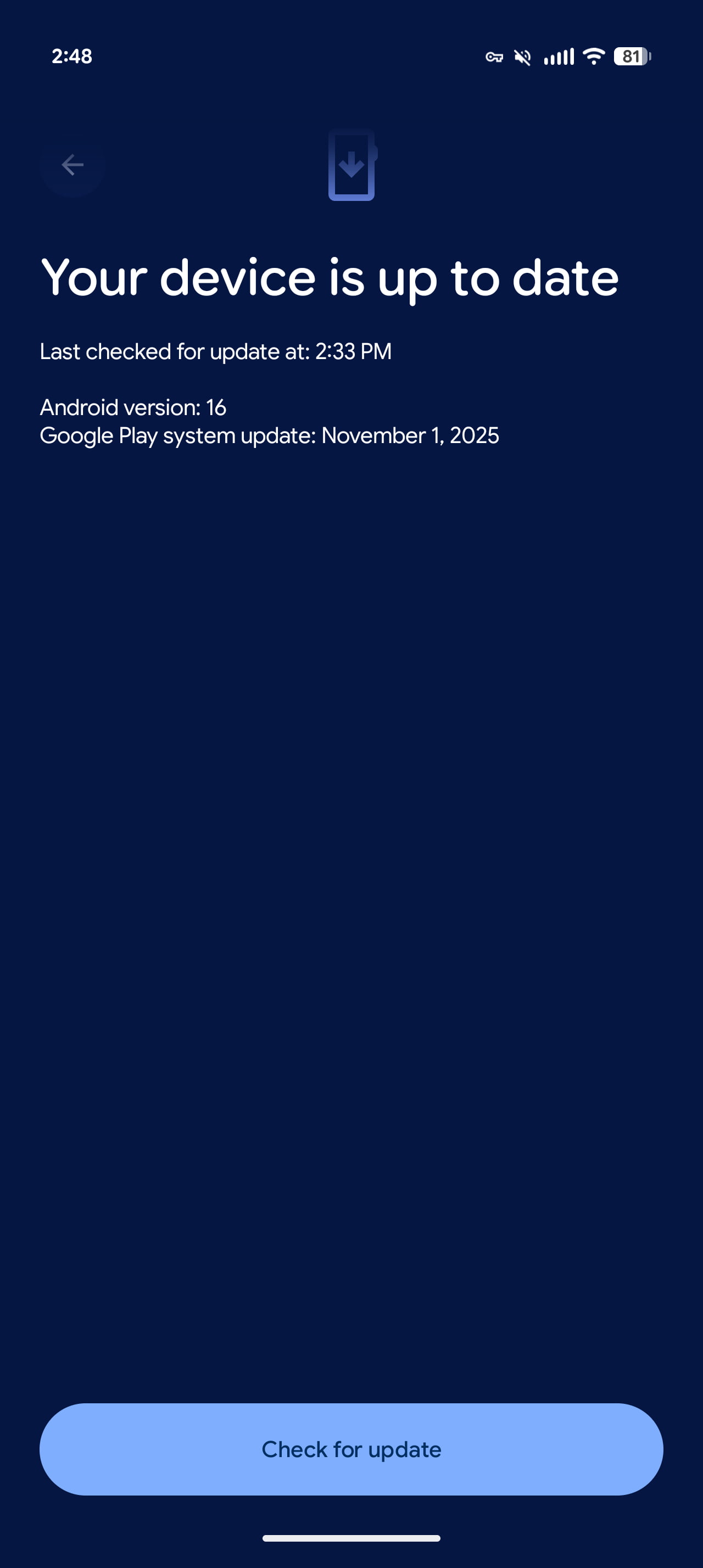
Step 1: Update Android System WebView
If Jujutsu Kaisen: Phantom Parade opens to a black screen on launch or freezes before the developer logos disappear, the Android System WebView service is the most likely culprit. Mobile titles rely on WebView to render in-engine web elements, including initial terms of service pop-ups, login dialogues, and banner news notices.
When WebView is missing or corrupted, the game client encounters a fatal exception during asset initialization and closes to the home screen.
- Open the Google Play Store on your Android device.
- Tap your profile icon in the upper-right corner and select Manage apps & device.
- Check the Updates available list for Android System WebView.
- Tap Update and wait for the installation to finish.
- Restart your mobile device before attempting to launch the game again.
Step 2: Free 15 to 20 GB of Internal Storage
Game installations require temporary breathing room beyond the raw download size shown on app store pages. When a major patch drops or when the client boots for the first time, Android must unpack compressed data archives into local storage.
If your internal storage capacity hits 99%, the operating system blocks the allocation of temporary cache files (Apkiraa). The client cannot write its startup configuration and crashes out immediately.
- Check your phone's storage via Settings > Storage.
- Delete unused applications, downloaded media files, or duplicate screen recordings until you have at least 15 GB to 20 GB of unoccupied space.
- Avoid relying on external SD cards for this buffer, as Android handles application scratch files on internal memory.
Step 3: Clear Cache for Google Play Services and Google Play Games
Corrupted authentication tokens in your device's Google ecosystem can crash the game before the start screen even renders. Jujutsu Kaisen: Phantom Parade checks Google Play Services during its initial handshake to confirm your account identity. When cached credentials become desynchronized, the verification script hangs and drops the application.
You can wipe this corrupted handshake cache without touching your actual account data or losing in-game progress (Google Support):
- Open Android Settings and tap Apps (or Apps & Notifications).
- Select See all apps and scroll down to Google Play Services.
- Tap Storage & cache, then tap Clear Cache.
- Return to the app list, select Google Play Games, and tap Clear Cache.
- Select Jujutsu Kaisen: Phantom Parade from the same menu and tap Clear Cache (do not tap "Clear Storage" or "Clear Data" unless your account is securely linked).
Step 4: Stop RAM Exhaustion and Disable Battery Saver
Android features an internal out-of-memory (OOM) safety mechanism. When launching resource-heavy mobile games, the client requests a substantial block of volatile memory (RAM). If background applications, web browser tabs, and messaging platforms have already occupied the available RAM, the operating system kills the newly launched process to keep your device from freezing completely (Apkiraa).
Active Power Saving or Battery Saver modes also throttle hardware performance by downclocking CPU and GPU frequencies and restricting background data. Boot sequences trigger sudden hardware spikes as the engine loads high-demand graphical textures and scripts. When a throttled processor fails to handle that load, Android terminates the app immediately.
- Close Background Apps: Swipe up from the bottom of your screen to access the App Switcher, then tap Clear all to reclaim system RAM.
- Disable Battery Saver: Swipe down the notification shade and toggle off Battery Saver or Power Saving Mode.
- Use Game Boosters: If your device manufacturer provides a built-in game optimization utility (such as Samsung Game Booster or Xiaomi Game Turbo), enable performance mode prior to launching the title.
Step 5: Contact Support from the Title Screen
If the client stays open long enough to display the opening splash art but consistently crashes when you attempt to tap through to the lobby, use the title screen support portal. This lets you report the crash directly to the developers without needing access to the main settings menu.

- Launch the game and wait for the opening title banner to appear.
- Tap the Contact / Support icon located in the upper-right corner of the screen.
- Select Game Login or Game-Related from the inquiry categories (GamingonPhone).
- Submit your inquiry along with your device model, Android OS version, and an explanation of the startup freeze.
- The Customer Center Team typically responds by email within 48 hours.
In Jujutsu Kaisen: Phantom Parade, Paid Cubes serve as the primary currency for guaranteed SSR summons, exclusive banners, AP stamina refills, and limited-time bundles. Players looking to secure premium summons can manage their resources or purchase Jujutsu Kaisen: Phantom Parade Top Up packages through verified digital storefronts.

Comments