


When the MICO app keeps crashing on Android or gets stuck on a blank feed, the quickest resolution is terminating active background tasks through system settings and clearing corrupted cache files, followed by updating Android System WebView. Because Android actively struggles to manage temporary buffers and media-heavy processes when internal storage drops below 10% capacity, freeing device space or toggling system-level camera and microphone privacy settings resolves the vast majority of boot loops and startup crashes without wiping your account data.
Immediate Triage: Force Stop and Non-Destructive Cache Clearing
If the app closes immediately on launch or freezes midway through a broadcast, do not uninstall it right away. A simple reboot of the app's process clears corrupted memory without touching your account balance or login credentials.
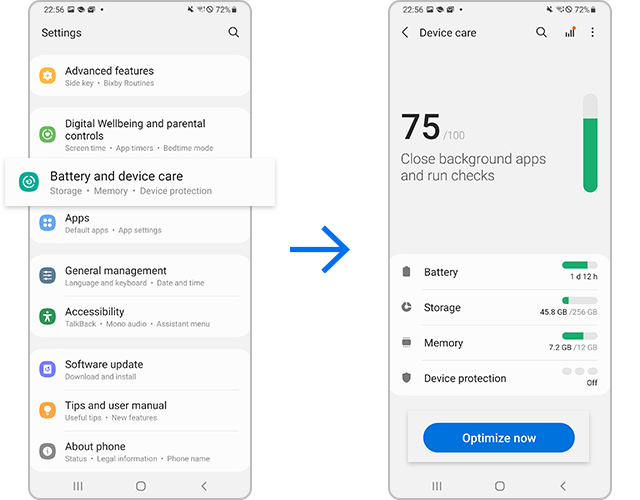
First, force-stop the process to terminate lingering background tasks. SamMobile's troubleshooting documentation outlines that heading to Settings > Apps, selecting MICO, and tapping Force stop terminates active threads and flushes them completely from RAM.
Next, clear the temporary files that pile up from live video streams and chat interactions:
- Open your Android Settings.
- Tap Apps (or Application Manager depending on your phone's brand).
- Find and select MICO from the installed application list.
- Tap Storage.
- Select Clear cache at the bottom of the screen.
Choosing "Clear cache" deletes only cached media fragments and script buffers without altering your account data, chat histories, or active sessions (Samsung Support guides on app storage).

445 Mico Coins
 445 Mico CoinsUSD 3.57Buy Now
500 Mico Coins
500 Mico CoinsUSD 4.01Buy Now900 Mico Coins
900 Mico CoinsUSD 7.21Buy Now1,100 Mico Coins
1,100 Mico CoinsUSD 8.81Buy Now2,200 Mico Coins
2,200 Mico CoinsUSD 17.62Buy Now2,730 Mico Coins
2,730 Mico CoinsUSD 21.86Buy Now3,300 Mico Coins
3,300 Mico CoinsUSD 26.43Buy Now4,400 Mico Coins
4,400 Mico CoinsUSD 35.23Buy Now5,500 Mico Coins
5,500 Mico CoinsUSD 44.05Buy Now5,700 Mico Coins
5,700 Mico CoinsUSD 45.65Buy Now6,600 Mico Coins
6,600 Mico CoinsUSD 52.86Buy Now7,700 Mico Coins
7,700 Mico CoinsUSD 61.69Buy Now8,550 Mico Coins
8,550 Mico CoinsUSD 68.48Buy Now8,800 Mico Coins
8,800 Mico CoinsUSD 70.48Buy Now11,000 Mico Coins
11,000 Mico CoinsUSD 88.09Buy Now22,000 Mico Coins
22,000 Mico CoinsUSD 176.19Buy Now33,000 Mico Coins
33,000 Mico CoinsUSD 264.28Buy Now55,000 Mico Coins
55,000 Mico CoinsUSD 440.47Buy Now
Resolving WebView and Google Chrome Startup Failures
Many live-streaming apps rely on internal web rendering engines to display profile cards, dynamic events, and in-app storefronts. When the MICO app crash on startup occurs before any user interface appears, the fault frequently lies outside the app itself.
Android apps loading dynamic web scripts depend directly on Android System WebView. Carlcare service analysis reports that outdated or corrupted Android System WebView and Google Chrome updates trigger widespread, immediate app shutdowns across mobile devices.
To repair this system dependency:
- Open the Google Play Store.
- Search for Android System WebView.
- If an Update button appears, install it immediately.
- Search for Google Chrome and apply any pending update.
- If WebView updated recently just before the crashes began, tap Uninstall on its Play Store page to roll back to the stable factory build.
- Restart your phone and launch MICO again.
Fixing the MICO Live Black Screen and Sensor Conflicts
A black screen usually signals a hardware handover failure rather than a pure memory crash. If the app opens its shell but displays a black screen when entering a live stream, 1v1 video call, or voice party room, sensor permissions are typically blocked.
User documentation from Benchmark Reviews forums shows that denied runtime permissions cause apps to freeze or abort during camera initialization. Long-press the MICO icon, tap the (i) Info icon, enter Permissions, and manually toggle Camera, Microphone, and Storage to "Allowed".
Android 12+ Sensor Privacy Toggles
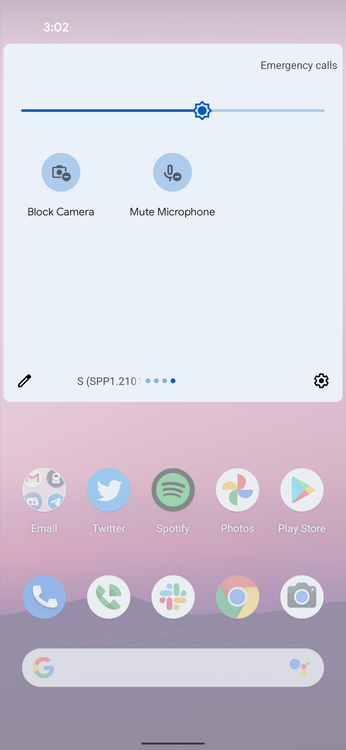
If manual permissions are already granted and the screen stays blank, check your global privacy toggles. Android Developer documentation on permission access notes that Android 12 and newer builds include system-wide switches that sever camera and microphone feeds. When these toggles are turned off, the OS feeds the app blank video and silent audio instead of displaying a permission prompt.
Swipe down twice from the top of your screen to inspect your Quick Settings tiles. Ensure that Camera access and Mic access are toggled on. If they are turned off, live video screens stay pitch black.
Managing Storage Capacity and Battery Optimization
Media-intensive streaming apps require sustained memory bandwidth and local disk caching to decode video feeds in real time.
| Setting / Constraint | What It Causes When Misconfigured | Recommended Configuration |
|---|---|---|
| Free Storage Space | App crashes during caching; OS fails to allocate buffer memory | Maintain >10% free internal capacity (SamMobile) |
| Battery Optimization | Streams terminate abruptly in the background; dropped video calls | Set to "Unrestricted" or "Never sleeping apps" (Avicenna Research) |
| System Cache Partition | Interface freezes and boot crashes after an OS update | Clear cache partition in Recovery Mode (Whizz Mobile) |
| Third-Party Conflicting Apps | Crashing caused by third-party memory cleaners or overlays | Verify device stability via Safe Mode (Samsung Support) |
The 10% Storage Threshold
When free internal storage falls below 10% of total capacity, Android struggles with essential write operations (SamMobile). The system fails to allocate memory for incoming video buffers or local chat indexes, forcing an unhandled crash. Delete heavy downloads, remove unused apps, and ensure free space remains well above that 10% baseline.
Battery Sleep Restrictions
Aggressive battery management software built into device interfaces like Samsung One UI will cut off background tasks. If your live broadcasts or voice rooms drop unexpectedly, adjust your device's power rules. Technical steps documented on the Avicenna Research forum recommend setting the app's battery usage to Unrestricted, or navigating to Settings > Battery > Background usage limits and adding the application directly to Never sleeping apps.
Diagnostic Reboot: Safe Mode and Cache Partition Clearing
When standard app-level troubleshooting does not stop MICO from crashing on startup, the conflict may stem from corrupted operating system files or aggressive background cleaners.
Isolating Clashing Software with Safe Mode
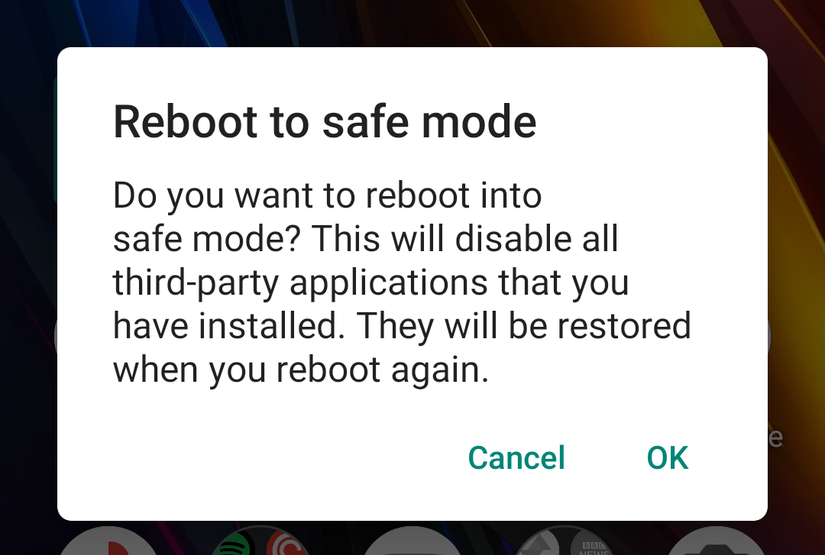
Background utility apps, screen recorders, or third-party cleaners can conflict with video decoding services. To determine if another tool is causing the breakdown, restart your phone in Safe Mode.
Safe Mode temporarily turns off every downloaded third-party tool and runs strictly core system services, as outlined in Samsung Support troubleshooting guidelines.
Turn off the phone, press and hold Power until the brand logo appears, then hold Volume Down until the boot cycle finishes. If the interface runs smoothly and MICO launches without error, an installed utility, memory cleaner, or screen recorder is conflicting with video playback.
Wiping the System Cache Partition
Did MICO begin freezing right after your phone received a major Android system or firmware update? System upgrades often leave behind stale build files that clash with installed app libraries.
Wiping the system cache partition via Android Recovery clears stale OS build files without touching personal files, photos, contacts, or app data (Whizz Mobile).
Power down the handset—connecting it via USB to a PC or charger if your manufacturer requires it—then hold Power and Volume Up until the Recovery menu displays. Use the volume rocker to select Wipe cache partition, confirm the prompt, and choose Reboot system now.
Full Reset: Clear Data vs. Reinstallation
If the MICO keeps stopping Android alert continues to appear despite cache cleans and permission audits, your local database state is likely corrupted.
Under Settings > Apps > MICO > Storage, tapping Clear data resets the software to its original factory state. Samsung's official guide confirms that this action completely wipes local files, database indexes, and login tokens.
Before executing a data wipe or uninstalling the app: - Make sure you know your login method (Google, phone number, or social ID). - Verify your account credentials so you can log back in without delay.
Performing a data clear or reinstalling from the Google Play Store will not delete your server-side account assets. Your profile data and your MICO Coins balance remain stored on the platform's remote servers. Once you log back into your verified profile, your coins—used for virtual gifts, 1v1 video calls, voice party rooms, streamer PK support, and profile customization—will appear intact.
Avoid pulling application installation packages from unverified third-party repositories like APKMirror or Aptoide unless troubleshooting a verified build regression, as unsigned packages can introduce signature verification errors and further launch crashes.



Comments