

Fix mobile legends crashing on loading screen android devices with this tested repair checklist. Clear cache, reset network routes, and save your rank.
Staring at a frozen hero splash art while your friends ping your missing lane is infuriating. The match launch audio cuts off, the loading percentage halts at 0% or 99%, and your phone dumps you straight to the home screen. Sometimes the display goes pitch black. Other times, an egg-timer animation loops until the server disconnects you for inactivity.
Loading failures happen in two specific phases: initial app launch and matchmaking loading screens. The root causes range from stale temporary cache files to broken third-party login tokens and regional routing drops.
This guide outlines the exact, sequenced diagnostic order to fix MLBB crashes on Android without deleting your profile or wiping your hero progress.
Pinpointing Why Mobile Legends Freezes on Android
Mobile Legends: Bang Bang requires synchronous asset streaming alongside continuous network handshakes. Any disruption in local memory allocation or data transmission kills the session immediately.
A crash during startup points to an invalid system state or a version mismatch. When the game updates to a new build—such as Original Server Patch 2.1.95 rolled out on August 4, 2026—the app rebuilds local asset indexes. If your Android system retains cached memory pointers from an older build, the startup handshake fails.
Match loading crashes occur right after hero selection. The game engine suddenly loads high-definition textures, skins, and map assets into active RAM while synchronizing ten players across regional servers. If available device memory drops below the safety threshold or a network packet drops during this burst phase, Android force-closes the app to prevent OS memory corruption.

42 Diamonds
 42 DiamondsUSD 0.67Buy Now
70 Diamonds
70 DiamondsUSD 1.11Buy NowWeekly DiamondPass (Event Topup+100)
Weekly DiamondPass (Event Topup+100)USD 1.91Buy Now284 Diamonds
284 DiamondsUSD 4.47Buy Now569 Diamonds
569 DiamondsUSD 8.92Buy Now716 Diamonds
716 DiamondsUSD 11.18Buy Now1446 Diamonds
1446 DiamondsUSD 22.31Buy Now1730 Diamonds
1730 DiamondsUSD 26.78Buy Now2976 Diamonds
2976 DiamondsUSD 44.62Buy Now4422Diamonds
4422DiamondsUSD 67.04Buy Now6668 Diamonds
6668 DiamondsUSD 100.66Buy Now7502 Diamonds
7502 DiamondsUSD 111.63Buy Now86 Diamonds
86 Diamonds USD 0.98Buy NowWeekly Diamond Pass (Brazil)
Weekly Diamond Pass (Brazil)USD 1.26Buy NowFirst Top Up 150+150 Diamonds
First Top Up 150+150 Diamonds USD 1.89Buy Now172 Diamonds
172 DiamondsUSD 1.96Buy NowWeekly Diamond Pass 2x
Weekly Diamond Pass 2xUSD 2.51Buy NowFirst Top Up 250+250 Diamonds
First Top Up 250+250 DiamondsUSD 3.10Buy Now257 Diamonds
257 Diamonds USD 2.93Buy NowWeekly Diamond Pass 3x
Weekly Diamond Pass 3xUSD 3.77Buy Now344 Diamonds
344 DiamondsUSD 3.92Buy Now429 Diamonds
429 DiamondsUSD 4.89Buy NowWeekly Diamond Pass 4x
Weekly Diamond Pass 4xUSD 5.02Buy Now516 Diamonds
516 DiamondsUSD 5.87Buy NowFirst Top Up 500+500 Diamonds
First Top Up 500+500 DiamondsUSD 6.35Buy Now600 Diamonds
600 Diamonds USD 6.85Buy Now706 Diamonds
706 DiamondsUSD 7.84Buy Now792 Diamonds
792 Diamonds USD 8.81Buy Now878 Diamonds
878 Diamonds USD 9.79Buy Now963 Diamonds
963 Diamonds USD 10.76Buy Now1050 Diamonds
1050 DiamondsUSD 11.75Buy Now1135 Diamonds
1135 DiamondsUSD 12.72Buy Now1220 Diamonds
1220 Diamonds USD 13.55Buy Now1346 Diamonds
1346 Diamonds USD 14.68Buy Now1412 Diamonds
1412 DiamondsUSD 15.66Buy Now1669 Diamonds
1669 Diamonds USD 18.59Buy Now1.825 Diamonds
1.825 Diamonds USD 19.58Buy Now1.926 Diamonds
1.926 DiamondsUSD 21.52Buy Now2014 Diamonds
2014 Diamonds USD 22.51Buy Now2195 Diamonds
2195 Diamonds USD 23.50Buy Now2901 Diamonds
2901 DiamondsUSD 31.32Buy Now3.688 Diamonds
3.688 DiamondsUSD 39.15Buy Now5.532 Diamonds
5.532 DiamondsUSD 58.73Buy Now9.288 Diamonds
9.288 DiamondsUSD 97.88Buy NowGlobal-86 Diamonds (78 + 8 Bonus)
Global-86 Diamonds (78 + 8 Bonus)USD 1.08Buy NowGlobal-70 Diamonds ( 64 + 6 Bonus )
Global-70 Diamonds ( 64 + 6 Bonus )USD 1.05Buy NowGlobal-Weekly Pass
Global-Weekly Pass USD 1.34Buy NowGlobal-112 Diamonds ( 102 + 10 Bonus )
Global-112 Diamonds ( 102 + 10 Bonus )USD 1.84Buy NowGlobal-150+150 Diamonds
Global-150+150 DiamondsUSD 2.04Buy NowGlobal-140 Diamonds
Global-140 DiamondsUSD 2.16Buy NowGlobal-172 Diamonds (156 + 16 Bonus)
Global-172 Diamonds (156 + 16 Bonus)USD 2.13Buy NowGlobal-Weekly Pass x2
Global-Weekly Pass x2USD 2.69Buy NowGlobal-223 Diamonds ( 203 + 20 Bonus )
Global-223 Diamonds ( 203 + 20 Bonus )USD 3.67Buy NowGlobal-257 Diamonds (234 + 23 Bonus)
Global-257 Diamonds (234 + 23 Bonus)USD 3.11Buy NowGlobal-250+250 Diamonds
Global-250+250 DiamondsUSD 3.29Buy NowGlobal-Monthly Epic Bundle (Available Once a Month)
Global-Monthly Epic Bundle (Available Once a Month)USD 3.44Buy NowGlobal-Weekly Pass x3
Global-Weekly Pass x3USD 4.03Buy NowGlobal-284 Diamonds
Global-284 DiamondsUSD 4.17Buy NowGlobal-336 Diamonds ( 303 + 33 Bonus )
Global-336 Diamonds ( 303 + 33 Bonus )USD 5.51Buy NowGlobal-344 Diamonds (312 + 32 Bonus)
Global-344 Diamonds (312 + 32 Bonus)USD 4.27Buy NowGlobal-355 Diamonds
Global-355 DiamondsUSD 5.23Buy NowGlobal-429 Diamonds ( 390 + 40 Bonus )
Global-429 Diamonds ( 390 + 40 Bonus )USD 5.35Buy NowGlobal-Weekly Pass x4
Global-Weekly Pass x4USD 5.37Buy NowGlobal-514 Diamonds(468 + 46 Bonus)
Global-514 Diamonds(468 + 46 Bonus)USD 6.21Buy NowGlobal-Weekly Pass x5
Global-Weekly Pass x5USD 6.71Buy NowGlobal-500+500 Diamonds
Global-500+500 DiamondsUSD 6.74Buy NowGlobal-570 Diamonds ( 504 + 66 Bonus )
Global-570 Diamonds ( 504 + 66 Bonus )USD 7.88Buy NowGlobal-Twilight Pass
Global-Twilight PassUSD 7.05Buy NowGlobal-Weekly Pass x6
Global-Weekly Pass x6USD 8.06Buy NowGlobal-706 Diamonds (625 + 81 Bonus)
Global-706 Diamonds (625 + 81 Bonus)USD 8.40Buy NowGlobal-716 Diamonds
Global-716 Diamonds USD 10.32Buy NowGlobal-963 Diamonds(859 + 104 Bonus)
Global-963 Diamonds(859 + 104 Bonus)USD 11.50Buy NowGlobal-1050 Diamonds(937 + 113 Bonus)
Global-1050 Diamonds(937 + 113 Bonus)USD 12.66Buy NowGlobal-1084 Diamonds
Global-1084 DiamondsUSD 15.29Buy NowGlobal-1446 Diamonds ( 1296 + 150 Bonus )
Global-1446 Diamonds ( 1296 + 150 Bonus )USD 17.71Buy NowGlobal-1770 Diamonds (1589 + 181 Bonus)
Global-1770 Diamonds (1589 + 181 Bonus)USD 21.90Buy NowGlobal-2195 Diamonds (1860 + 335 Bonus)
Global-2195 Diamonds (1860 + 335 Bonus)USD 25.43Buy NowGlobal-2398 Diamonds ( 2015 + 383 Bonus )
Global-2398 Diamonds ( 2015 + 383 Bonus )USD 36.49Buy NowGlobal-2539 Diamonds(2172 + 367 Bonus)
Global-2539 Diamonds(2172 + 367 Bonus)USD 29.69Buy NowGlobal-2901 Diamonds(2485 + 416 Bonus)
Global-2901 Diamonds(2485 + 416 Bonus)USD 33.82Buy NowGlobal-2976 Diamonds (2655 + 321 Bonus)
Global-2976 Diamonds (2655 + 321 Bonus)USD 35.67Buy NowGlobal-3688 Diamonds (3099 + 589 Bonus)
Global-3688 Diamonds (3099 + 589 Bonus)USD 42.42Buy NowGlobal-4165 Diamonds(3527 + 635 Bonus)
Global-4165 Diamonds(3527 + 635 Bonus)USD 48.63Buy NowGlobal-4394 Diamonds(3724 + 670 Bonus)
Global-4394 Diamonds(3724 + 670 Bonus)USD 50.81Buy NowGlobal-5532 Diamonds (4649 + 883 Bonus)
Global-5532 Diamonds (4649 + 883 Bonus)USD 64.05Buy NowGlobal-6046 Diamonds(5117 + 929 Bonus)
Global-6046 Diamonds(5117 + 929 Bonus)USD 70.26Buy NowGlobal-6238 Diamonds(5274 + 964 Bonus)
Global-6238 Diamonds(5274 + 964 Bonus)USD 72.45Buy NowGlobal-7182 Diamonds(6132 + 1050 Bonus)
Global-7182 Diamonds(6132 + 1050 Bonus)USD 84.01Buy NowGlobal-7502 Diamonds (6429 + 1073 Bonus)
Global-7502 Diamonds (6429 + 1073 Bonus)USD 87.82Buy NowGlobal-7727 Diamonds(6509 + 1218 Bonus)
Global-7727 Diamonds(6509 + 1218 Bonus)USD 89.48Buy NowGlobal-9288 Diamonds (7740 + 1548 Bonus)
Global-9288 Diamonds (7740 + 1548 Bonus)USD 106.38Buy NowGlobal-12189 Diamonds(10225 + 1964 Bonus)
Global-12189 Diamonds(10225 + 1964 Bonus)USD 140.20Buy NowGlobal-12976 Diamonds(10839 + 2137 Bonus)
Global-12976 Diamonds(10839 + 2137 Bonus)USD 148.80Buy NowGlobal-14820 Diamonds(12389 + 2431 Bonus)
Global-14820 Diamonds(12389 + 2431 Bonus)USD 170.43Buy NowGlobal-18576 Diamonds(15483 + 3096 Bonus)
Global-18576 Diamonds(15483 + 3096 Bonus)USD 212.76Buy Now71 Diamonds (64 + 7 Bonus)
71 Diamonds (64 + 7 Bonus)USD 1.07Buy Now74 Diamonds (67 + 7 Bonus)
74 Diamonds (67 + 7 Bonus)USD 1.21Buy Now85 Diamonds (77 + 8 Bonus)
85 Diamonds (77 + 8 Bonus)USD 1.27Buy NowWeekly Diamond Pass
Weekly Diamond PassUSD 1.55Buy Now110 Diamonds (100 + 10 Bonus)
110 Diamonds (100 + 10 Bonus)USD 1.49Buy Now113 Diamonds (102 + 11 Bonus)
113 Diamonds (102 + 11 Bonus)USD 1.71Buy Now132 Diamonds (120 + 12 Bonus)
132 Diamonds (120 + 12 Bonus)USD 2.01Buy Now144 Diamonds (130 + 14 Bonus)
144 Diamonds (130 + 14 Bonus)USD 2.14Buy Now148 Diamonds (134 + 14 Bonus)
148 Diamonds (134 + 14 Bonus)USD 2.25Buy Now170 Diamonds (154 + 16 Bonus)
170 Diamonds (154 + 16 Bonus)USD 2.54Buy Now300 Diamonds (150 + 150 Bonus) Frist Topup
300 Diamonds (150 + 150 Bonus) Frist TopupUSD 2.47Buy NowWeekly Diamond Pass 2x
Weekly Diamond Pass 2xUSD 3.08Buy Now2x Weekly Diamond Pass
2x Weekly Diamond PassUSD 3.08Buy Now229 Diamonds (207 + 22 Bonus)
229 Diamonds (207 + 22 Bonus)USD 3.41Buy Now240 Diamonds (217 + 23 Bonus)
240 Diamonds (217 + 23 Bonus)USD 3.58Buy Now255 Diamonds (231 + 24 Bonus)
255 Diamonds (231 + 24 Bonus)USD 3.81Buy Now277 Diamonds (250 + 27 Bonus)
277 Diamonds (250 + 27 Bonus)USD 4.19Buy Now284 Diamonds (254 + 30 Bonus)
284 Diamonds (254 + 30 Bonus)USD 4.25Buy NowMonthly Elite Bundle
Monthly Elite BundleUSD 4.11Buy Now296 Diamonds (256 + 40 Bonus)
296 Diamonds (256 + 40 Bonus)USD 4.40Buy Now500 Diamonds (250 + 250 Bonus) First Topup
500 Diamonds (250 + 250 Bonus) First TopupUSD 4.10Buy Now301 Diamonds
301 DiamondsUSD 4.48Buy NowWeekly Diamond Pass 3x
Weekly Diamond Pass 3xUSD 4.63Buy Now3x Weekly Diamond Pass
3x Weekly Diamond PassUSD 4.63Buy Now340 Diamonds (308 + 32 Bonus)
340 Diamonds (308 + 32 Bonus)USD 5.08Buy Now370 Diamonds (333 + 37 Bonus)
370 Diamonds (333 + 37 Bonus)USD 5.64Buy Now408 Diamonds (367 + 41 Bonus)
408 Diamonds (367 + 41 Bonus)USD 6.06Buy Now436 Diamonds (392 + 44 Bonus)
436 Diamonds (392 + 44 Bonus)USD 6.50Buy Now4x Weekly Diamond Pass
4x Weekly Diamond PassUSD 6.16Buy Now466 Diamonds (410 + 56 Bonus)
466 Diamonds (410 + 56 Bonus)USD 6.94Buy Now493 Diamonds (444 + 49 Bonus)
493 Diamonds (444 + 49 Bonus)USD 7.32Buy Now510 Diamonds (462 + 48 Bonus)
510 Diamonds (462 + 48 Bonus)USD 7.61Buy Now536 Diamonds (473 + 63 Bonus)
536 Diamonds (473 + 63 Bonus)USD 7.98Buy Now5x Weekly Diamond Pass
5x Weekly Diamond PassUSD 7.70Buy Now568 Diamonds (503 + 65 Bonus)
568 Diamonds (503 + 65 Bonus)USD 8.30Buy NowTwilight Pass
Twilight PassUSD 7.52Buy Now1000 Diamonds (500 + 500 Bonus) Frist Topup
1000 Diamonds (500 + 500 Bonus) Frist TopupUSD 8.24Buy Now648 Diamonds (584 + 64 Bonus)
648 Diamonds (584 + 64 Bonus)USD 9.63Buy Now704 Diamonds (623 + 81 Bonus)
704 Diamonds (623 + 81 Bonus)USD 10.45Buy Now720 Diamonds (651 + 69 Bonus)
720 Diamonds (651 + 69 Bonus)USD 10.74Buy Now789 Diamonds (700 + 89 Bonus)
789 Diamonds (700 + 89 Bonus)USD 11.72Buy Now816 Diamonds (734 + 82 Bonus)
816 Diamonds (734 + 82 Bonus)USD 12.11Buy Now875 Diamonds (774 + 101 Bonus)
875 Diamonds (774 + 101 Bonus)USD 12.72Buy Now903 Diamonds (799 + 104 Bonus)
903 Diamonds (799 + 104 Bonus)USD 13.16Buy Now934 Diamonds (827 + 107 Bonus)
934 Diamonds (827 + 107 Bonus)USD 13.59Buy Now960 Diamonds (851 + 109 Bonus)
960 Diamonds (851 + 109 Bonus)USD 13.99Buy Now1000 Diamonds (879 + 121 Bonus)
1000 Diamonds (879 + 121 Bonus)USD 14.86Buy Now1045 Diamonds (928 + 117 Bonus)
1045 Diamonds (928 + 117 Bonus)USD 15.26Buy Now1115 Diamonds (991 + 124 Bonus)
1115 Diamonds (991 + 124 Bonus)USD 16.30Buy Now1136 Diamonds (1006 + 130 Bonus)
1136 Diamonds (1006 + 130 Bonus)USD 16.60Buy Now1171 Diamonds (1030 + 141 Bonus)
1171 Diamonds (1030 + 141 Bonus)USD 17.12Buy Now1283 Diamonds (1141 + 142 Bonus)
1283 Diamonds (1141 + 142 Bonus)USD 18.77Buy Now1368 Diamonds (1218 + 150 Bonus)
1368 Diamonds (1218 + 150 Bonus)USD 20.03Buy Now1453 Diamonds (1295 + 158 Bonus)
1453 Diamonds (1295 + 158 Bonus)USD 21.30Buy Now1523 Diamonds (1358 + 165 Bonus)
1523 Diamonds (1358 + 165 Bonus) USD 22.35Buy Now1691 Diamonds (1508 + 183 Bonus)
1691 Diamonds (1508 + 183 Bonus) USD 24.83Buy Now1704 Diamonds (1509 + 195 Bonus)
1704 Diamonds (1509 + 195 Bonus)USD 24.89Buy Now1750 Diamonds (1548 + 202 Bonus)
1750 Diamonds (1548 + 202 Bonus)USD 25.43Buy Now1835 Diamonds (1625 + 210 Bonus)
1835 Diamonds (1625 + 210 Bonus)USD 26.70Buy Now2010 Diamonds (1708 + 302 Bonus)
2010 Diamonds (1708 + 302 Bonus)USD 27.65Buy Now2625 Diamonds (2322 + 303 Bonus)
2625 Diamonds (2322 + 303 Bonus)USD 32.18Buy Now4020 Diamonds (3416 + 604 Bonus)
4020 Diamonds (3416 + 604 Bonus)USD 55.29Buy Now4830 Diamonds (4003 + 827 Bonus)
4830 Diamonds (4003 + 827 Bonus)USD 66.35Buy Now6030 Diamonds (5124 + 906 Bonus)
6030 Diamonds (5124 + 906 Bonus)USD 82.93Buy Now8040 Diamonds (6832 + 1208 Bonus)
8040 Diamonds (6832 + 1208 Bonus)USD 110.57Buy Now9660 Diamonds (8006 + 1654 Bonus)
9660 Diamonds (8006 + 1654 Bonus)USD 132.69Buy Now14490 Diamonds (12009 + 2481 Bonus)
14490 Diamonds (12009 + 2481 Bonus)USD 199.03Buy Now20100 Diamond
20100 DiamondUSD 243.46Buy Now20130 Diamond
20130 DiamondUSD 244.51Buy Now21330 Diamond
21330 DiamondUSD 257.64Buy Now27864 Diamond
27864 DiamondUSD 338.34Buy Now30990 Diamonds
30990 DiamondsUSD 365.87Buy Now50 + 50 First Purchase Bonus
50 + 50 First Purchase BonusUSD 0.83Buy Now70 Diamonds
70 DiamondsUSD 1.07Buy Now112 Diamond ( 102 + 10 Bonus )
112 Diamond ( 102 + 10 Bonus )USD 1.61Buy NowWeekly Diamond Pass
Weekly Diamond PassUSD 1.69Buy Now140 Diamonds
140 Diamonds USD 2.14Buy Now168 Diamonds
168 DiamondsUSD 2.55Buy Now150 + 150 First Purchase Bonus
150 + 150 First Purchase BonusUSD 2.44Buy NowWeekly Diamond Pass x2
Weekly Diamond Pass x2USD 3.39Buy NowMonthly Epic Bundle
Monthly Epic BundleUSD 4.05Buy Now250 + 250 First Purchase Bonus
250 + 250 First Purchase BonusUSD 4.05Buy Now284 Diamonds
284 DiamondsUSD 4.17Buy NowMalaysia-278 Diamonds ( 254 + 26 Bonus )
Malaysia-278 Diamonds ( 254 + 26 Bonus )USD 3.95Buy Now355 Diamonds
355 DiamondsUSD 5.23Buy NowWeekly Diamond Pass x3
Weekly Diamond Pass x3USD 5.08Buy Now429 Diamonds
429 DiamondsUSD 6.30Buy NowWeekly Diamond Pass x4
Weekly Diamond Pass x4USD 6.78Buy Now569 Diamonds
569 DiamondsUSD 7.95Buy Now500 + 500 First Purchase Bonus
500 + 500 First Purchase BonusUSD 8.23Buy Now571 Diamonds ( 521 + 53 Bonus )
571 Diamonds ( 521 + 53 Bonus )USD 7.88Buy NowWeekly Diamond Pass x5
Weekly Diamond Pass x5USD 8.44Buy NowTwilight Pass
Twilight PassUSD 9.43Buy Now716 Diamonds
716 DiamondsUSD 10.32Buy Now1192 Diamonds
1192 Diamonds USD 15.79Buy Now1048 Diamonds (940 + 108 Bonus)
1048 Diamonds (940 + 108 Bonus)USD 16.20Buy Now1085 Diamonds
1085 DiamondsUSD 15.59Buy Now1136 Diamonds (1016 + 120 Bonus)
1136 Diamonds (1016 + 120 Bonus)USD 17.05Buy Now1220 Diamonds (1092 + 128 Bonus)
1220 Diamonds (1092 + 128 Bonus)USD 18.33Buy Now1358 Diamonds (1221 + 137 Bonus)
1358 Diamonds (1221 + 137 Bonus)USD 20.44Buy Now1412 Diamonds (1270 + 142 Bonus)
1412 Diamonds (1270 + 142 Bonus)USD 21.29Buy Now1446 Diamonds
1446 DiamondsUSD 19.40Buy Now1506 Diamonds (1348 + 158 Bonus)
1506 Diamonds (1348 + 158 Bonus)USD 22.59Buy Now1788 Diamonds
1788 Diamonds USD 23.74Buy Now1584 Diamonds (1409 + 175 Bonus)
1584 Diamonds (1409 + 175 Bonus)USD 23.66Buy Now1669 Diamonds (1493 + 176 Bonus)
1669 Diamonds (1493 + 176 Bonus)USD 24.93Buy Now1704 Diamonds (1522 + 182 Bonus)
1704 Diamonds (1522 + 182 Bonus)USD 25.58Buy Now1730 Diamonds
1730 DiamondsUSD 24.13Buy Now1841 Diamonds (1649 + 192 Bonus)
1841 Diamonds (1649 + 192 Bonus)USD 27.68Buy Now1875 Diamonds (1635 + 240 Bonus)
1875 Diamonds (1635 + 240 Bonus)USD 28.69Buy Now1926 Diamonds (1720 + 206 Bonus)
1926 Diamonds (1720 + 206 Bonus)USD 28.77Buy Now2010 Diamonds (1760 + 250 Bonus)
2010 Diamonds (1760 + 250 Bonus)USD 29.76Buy Now2380 Diamonds (2089 + 291 Bonus)
2380 Diamonds (2089 + 291 Bonus)USD 35.32Buy Now3005 Diamonds
3005 DiamondsUSD 39.46Buy Now2976 Diamonds
2976 Diamonds USD 40.55Buy Now3606 Diamonds
3606 Diamonds USD 47.36Buy Now3692 Diamonds ( 3134 + 558 Bonus )
3692 Diamonds ( 3134 + 558 Bonus )USD 53.29Buy Now4810 Diamonds
4810 Diamonds USD 63.14Buy Now4422 Diamonds ( 3753 + 669 Bonus )
4422 Diamonds ( 3753 + 669 Bonus )USD 63.87Buy Now4416 Diamonds ( 3781 + 635 Bonus )
4416 Diamonds ( 3781 + 635 Bonus )USD 64.16Buy Now4851 Diamonds ( 4136 + 715 Bonus )
4851 Diamonds ( 4136 + 715 Bonus )USD 70.27Buy Now5952 Diamonds ( 5002 + 950 Bonus )
5952 Diamonds ( 5002 + 950 Bonus )USD 80.68Buy Now6012 Diamonds ( 5066 + 956 Bonus )
6012 Diamonds ( 5066 + 956 Bonus )USD 78.91Buy Now6668 Diamonds (5635 + 1033 Bonus)
6668 Diamonds (5635 + 1033 Bonus)USD 95.90Buy Now7502 Diamonds
7502 DiamondsUSD 100.24Buy NowWeekly Diamond Pass
Weekly Diamond PassUSD 1.55Buy Now112 Diamonds ( 102 + 10 Bonus )
112 Diamonds ( 102 + 10 Bonus )USD 1.53Buy Now168 Diamonds ( 153 + 15 Bonus )
168 Diamonds ( 153 + 15 Bonus )USD 2.29Buy Now150 + 150 Bonus
150 + 150 BonusUSD 2.26Buy NowWeekly Diamond Pass x2
Weekly Diamond Pass x2USD 3.04Buy Now223 Diamonds ( 203 + 20 Bonus )
223 Diamonds ( 203 + 20 Bonus )USD 3.08Buy NowMonthly Elite Bundle
Monthly Elite BundleUSD 3.74Buy Now279 Diamonds ( 254 + 25 Bonus )
279 Diamonds ( 254 + 25 Bonus )USD 3.90Buy Now250 + 250 Bonus
250 + 250 BonusUSD 3.77Buy Now301 Diamonds ( 274 + 27 Bonus )
301 Diamonds ( 274 + 27 Bonus )USD 4.20Buy NowWeekly Diamond Pass x3
Weekly Diamond Pass x3USD 4.56Buy Now336 Diamonds ( 303 + 33 Bonus )
336 Diamonds ( 303 + 33 Bonus )USD 4.46Buy NowWeekly Diamond Pass x4
Weekly Diamond Pass x4USD 6.08Buy NowWeekly Diamond Pass x5
Weekly Diamond Pass x5USD 7.60Buy Now570 Diamonds ( 504 + 66 Bonus )
570 Diamonds ( 504 + 66 Bonus )USD 7.43Buy NowTwilight Pass
Twilight Pass USD 7.52Buy Now500 + 500 Bonus
500 + 500 BonusUSD 7.61Buy Now626 Diamonds ( 555 + 71 Bonus )
626 Diamonds ( 555 + 71 Bonus )USD 8.32Buy Now669 Diamonds ( 609 + 60 Bonus )
669 Diamonds ( 609 + 60 Bonus )USD 9.05Buy Now682 Diamonds ( 606 + 76 Bonus )
682 Diamonds ( 606 + 76 Bonus )USD 9.05Buy Now738 Diamonds ( 657 + 81 Bonus )
738 Diamonds ( 657 + 81 Bonus )USD 9.83Buy Now849 Diamonds ( 758 + 91 Bonus )
849 Diamonds ( 758 + 91 Bonus )USD 11.33Buy Now906 Diamonds ( 807 + 99 Bonus )
906 Diamonds ( 807 + 99 Bonus )USD 12.08Buy Now1018 Diamonds ( 909 + 109 Bonus )
1018 Diamonds ( 909 + 109 Bonus )USD 13.58Buy Now1163 Diamonds ( 1007 + 156 Bonus )
1163 Diamonds ( 1007 + 156 Bonus )USD 17.79Buy Now1733 Diamonds ( 1511 + 222 Bonus )
1733 Diamonds ( 1511 + 222 Bonus )USD 22.63Buy Now2398 Diamonds ( 2015 + 383 Bonus )
2398 Diamonds ( 2015 + 383 Bonus )USD 29.71Buy Now3561 Diamonds ( 3022 + 539 Bonus )
3561 Diamonds ( 3022 + 539 Bonus )USD 45.23Buy Now4131 Diamonds ( 3526 + 605 Bonus )
4131 Diamonds ( 3526 + 605 Bonus )USD 52.79Buy Now5132 Diamonds ( 4333 + 799 Bonus )
5132 Diamonds ( 4333 + 799 Bonus )USD 64.85Buy Now6042 Diamonds ( 5035 + 1007 Bonus )
6042 Diamonds ( 5035 + 1007 Bonus )USD 74.26Buy Now7205 Diamonds ( 6042 + 1163 Bonus )
7205 Diamonds ( 6042 + 1163 Bonus )USD 90.47Buy Now8440 Diamonds ( 7050 + 1390 Bonus )
8440 Diamonds ( 7050 + 1390 Bonus )USD 105.55Buy Now9010 Diamonds ( 7554 + 1456 Bonus )
9010 Diamonds ( 7554 + 1456 Bonus )USD 113.09Buy Now10173 Diamonds ( 8561 + 1612 Bonus )
10173 Diamonds ( 8561 + 1612 Bonus )USD 128.16Buy Now12084 Diamonds ( 10070 + 2014 Bonus )
12084 Diamonds ( 10070 + 2014 Bonus )USD 150.77Buy Now15052 Diamonds ( 12589 + 2463 Bonus )
15052 Diamonds ( 12589 + 2463 Bonus )USD 188.47Buy Now20524 Diamonds ( 17120 + 3404 Bonus )
20524 Diamonds ( 17120 + 3404 Bonus )USD 256.31Buy Now50 + 5 Diamonds
50 + 5 Diamonds USD 0.87Buy NowWeekly Pass
Weekly PassUSD 1.75Buy Now150 + 15 Diamonds
150 + 15 Diamonds USD 2.57Buy Now250 + 25 Diamonds
250 + 25 Diamonds USD 4.27Buy Now500 + 65 Diamonds
500 + 65 Diamonds USD 8.58Buy Now1000 + 155 Diamonds
1000 + 155 Diamonds USD 17.20Buy Now1500 + 265 Diamonds
1500 + 265 Diamonds USD 25.71Buy Now2500 + 475 Diamonds
2500 + 475 Diamonds USD 42.90Buy Now5000 + 1000 Diamonds
5000 + 1000 Diamonds USD 85.70Buy Now50 + 50 First Purchase Bonus
50 + 50 First Purchase BonusUSD 0.83Buy Now70 Diamonds
70 DiamondsUSD 1.09Buy NowWeekly Diamond Pass
Weekly Diamond PassUSD 1.69Buy Now140 Diamonds
140 Diamonds USD 2.03Buy Now168 Diamonds
168 DiamondsUSD 2.58Buy Now150 + 150 First Purchase Bonus
150 + 150 First Purchase BonusUSD 2.44Buy Now182 Diamond (165 + 17 Bonus)
182 Diamond (165 + 17 Bonus)USD 2.62Buy Now210 Diamond (191 + 19 Bonus)
210 Diamond (191 + 19 Bonus)USD 3.18Buy NowWeekly Diamond Pass x2
Weekly Diamond Pass x2USD 3.39Buy NowMonthly Epic Bundle
Monthly Epic BundleUSD 4.05Buy Now250 + 250 First Purchase Bonus
250 + 250 First Purchase BonusUSD 4.05Buy Now284 Diamonds
284 DiamondsUSD 4.17Buy Now278 Diamonds ( 254 + 26 Bonus )
278 Diamonds ( 254 + 26 Bonus )USD 3.95Buy Now355 Diamonds
355 DiamondsUSD 5.23Buy NowWeekly Diamond Pass x3
Weekly Diamond Pass x3USD 5.08Buy Now429 Diamonds
429 DiamondsUSD 6.30Buy NowWeekly Diamond Pass x4
Weekly Diamond Pass x4USD 6.78Buy Now500 + 500 First Purchase Bonus
500 + 500 First Purchase BonusUSD 8.23Buy Now569 Diamonds
569 DiamondsUSD 7.88Buy Now571 Diamonds ( 521 + 53 Bonus )
571 Diamonds ( 521 + 53 Bonus )USD 7.88Buy NowWeekly Diamond Pass x5
Weekly Diamond Pass x5USD 8.44Buy Now716 Diamonds
716 DiamondsUSD 10.32Buy Now1085 Diamonds
1085 DiamondsUSD 15.29Buy Now1446 Diamonds
1446 DiamondsUSD 21.45Buy Now1730 Diamonds
1730 DiamondsUSD 24.13Buy Now1788 Diamonds (1599 + 189 Bonus)
1788 Diamonds (1599 + 189 Bonus)USD 23.74Buy Now2976 (2501+475) Diamonds
2976 (2501+475) DiamondsUSD 40.55Buy Now3005 Diamonds (2648 + 357 Bonus)
3005 Diamonds (2648 + 357 Bonus)USD 39.46Buy Now3606 Diamonds (3073+ 533 Bonus)
3606 Diamonds (3073+ 533 Bonus)USD 47.36Buy Now6012 Diamonds ( 5066 + 956 Bonus )
6012 Diamonds ( 5066 + 956 Bonus )USD 78.91Buy Now7502 Diamonds
7502 DiamondsUSD 100.24Buy NowTurkey-55 Diamonds ( 50 + 5 Bonus )
Turkey-55 Diamonds ( 50 + 5 Bonus )USD 0.85Buy NowTurkey-88 Diamonds ( 80 + 8 Bonus )
Turkey-88 Diamonds ( 80 + 8 Bonus )USD 1.15Buy NowTurkey-Weekly Diamond Pass
Turkey-Weekly Diamond PassUSD 1.67Buy NowTurkey-133 Diamonds ( 121 + 12 Bonus )
Turkey-133 Diamonds ( 121 + 12 Bonus )USD 1.73Buy NowTurkey-165 Diamonds ( 150 + 15 Bonus )
Turkey-165 Diamonds ( 150 + 15 Bonus )USD 2.51Buy NowTurkey-221 Diamonds ( 201 + 20 Bonus )
Turkey-221 Diamonds ( 201 + 20 Bonus )USD 2.87Buy NowTurkey-275 Diamonds ( 250 + 25 Bonus )
Turkey-275 Diamonds ( 250 + 25 Bonus )USD 4.19Buy NowTurkey-494 Diamonds ( 449 + 45 Bonus )
Turkey-494 Diamonds ( 449 + 45 Bonus )USD 6.36Buy NowTurkey-565 Diamonds ( 500 + 65 Bonus )
Turkey-565 Diamonds ( 500 + 65 Bonus )USD 8.52Buy NowTurkey-1041 Diamonds ( 897 + 144 Bonus )
Turkey-1041 Diamonds ( 897 + 144 Bonus )USD 12.75Buy NowTurkey-2645 Diamonds ( 2242 + 403 Bonus )
Turkey-2645 Diamonds ( 2242 + 403 Bonus )USD 31.82Buy NowTurkey-6146 Diamonds ( 5122 + 1024 Bonus )
Turkey-6146 Diamonds ( 5122 + 1024 Bonus )USD 72.61Buy NowWeekly Diamond Pass
Weekly Diamond PassUSD 1.55Buy Now
Fast Diagnostics: Client Error vs Server Downtime
Confirm whether the stall sits on your phone or on Moonton's servers before touching your device settings. Players frequently spend hours reinstalling files when regional server clusters are simply undergoing routine maintenance or suffering routing dropouts.
Server-side drops and matchmaking routing issues present symptoms identical to local app corruption: infinite spinning icons, sudden black screens, and hard crashes back to your launcher.
Use the breakdown below to diagnose your failure symptom before executing fixes.
| Failure Symptom | Most Likely Cause | Primary Recommended Action |
|---|---|---|
| App closes immediately upon tapping icon | Outdated game version or OS incompatibility | Update via Google Play Store / Verify Android 5.0+ |
| Frozen loading bar at 0% or 99% | Corrupted local cache or VPN block | Clear App Cache and disable active VPN/proxies |
| Endless spinning icon / egg timer | Active server maintenance or network packet drop | Check server status / Toggle Wi-Fi to Mobile Data |
| Black screen right after matchmaking lobby | RAM exhaustion or broken asset indexing | Device restart / Account session relink |
| Authentication failure on splash screen | Expired linked Google/Facebook session | Relink third-party credentials in account manager |
Reviewing symptoms against this matrix helps isolate whether your crash stems from client memory or live infrastructure.
If the entire regional cluster is down, no local troubleshooting step will get you into the lobby. If your teammates are online while you remain locked out, move directly to the repair checklist.
Sequenced Troubleshooting: Step-by-Step Fixes
Follow these steps strictly in order. Do not jump to drastic measures like factory resets. Start with the least invasive cache flush and work toward system-level resets.
1. Clear the Mobile Legends App Cache
Corrupted or stale temporary app cache interrupts session initialization. Flushing the cache removes temporary runtime junk without deleting your account credentials, custom control layouts, or core downloaded patches.
- Open your Android device Settings.
- Tap Apps (or Apps & Notifications depending on your Android skin).
- Scroll down and select Mobile Legends: Bang Bang.
- Tap Storage & Cache (or Storage).
- Tap Clear Cache.
Do not tap "Clear Storage" or "Clear Data" during this step unless you are prepared to redownload optional expansion assets later. Clear Cache is completely non-destructive.

2. Swap Your Network Path
Mobile network routing can fail even when raw bandwidth appears stable. If your local Wi-Fi drops authentication packets directed at Moonton login servers, the client stalls indefinitely on the startup banner.
Turn off Wi-Fi and switch to 4G/5G mobile data. If you are already on cellular data, connect to a stable Wi-Fi network. This forces your device to establish a fresh DNS routing path and bypasses local ISP packet drops.
3. Disable Active VPN and Firewall Services
Third-party VPN services, ad-blockers, and private DNS filters route traffic through intermediate proxy nodes. MLBB authentication servers frequently reject or misroute traffic coming from data-center IP addresses used by commercial VPNs.
Turn off all VPN profiles, proxy apps, and local device firewalls before launching the game. The client requires a direct, low-jitter route to the server assigned to your account zone.
4. Verify Your App Build in Google Play Store
Running an outdated client prevents your phone from completing the server protocol handshake. When live balance updates drop on the Original Server (such as Patch 2.1.95), an older client build cannot negotiate match lobby parameters.
Open the Google Play Store, search for Mobile Legends: Bang Bang, and tap Update if a new patch is pending. If you participate in test branches running preview updates—like Advance Server Patch 2.2.10 (August 14, 2026) or Patch 2.2.08 (August 7, 2026)—ensure your test client matches the active Advance Server environment.
5. Perform a Clean Android System Reboot
Clearing app cache only clears application-level memory. A full system reboot flushes background system RAM, terminates lingering background tasks, and resets Android OS networking stacks.
Hold down your device's Power button, tap Restart, and allow the operating system to complete its startup sequence before launching MLBB again.
The table below summarizes the sequence, access path, and functional impact for each step.
| Troubleshooting Step | Action Path | Functional Result |
|---|---|---|
| 1. Clear App Cache | Settings → Apps → Mobile Legends → Storage → Clear Cache | Removes corrupted temporary session files without deleting game account data |
| 2. Network Switch | Quick Settings → Toggle Wi-Fi / Mobile Data | Bypasses local routing blocks, high latency, and dropped authentication packets |
| 3. Disable VPN / Proxy | VPN App / Android Settings → Disconnect VPN | Ensures direct connection to Moonton login and match servers |
| 4. App Update | Google Play Store → Mobile Legends → Update | Aligns the Android client with the live server protocol version |
| 5. Device Reboot | Long press Power → Restart | Flushes system RAM and resets Android networking interfaces |
Executing these five steps in order resolves over ninety percent of Android loading screen hangs.
Account Token Desync and Session Refreshing
Stalls during loading can also occur when your authentication token expires. When you link MLBB to third-party platforms like Google Play Games or Facebook, the client requests a secure login handshake on every launch.
If you recently updated your account password, logged out of social media on your browser, or hit an authentication timeout, the app hangs waiting for a credential validation response that never arrives.
To refresh broken tokens: 1. Open your Android device Settings. 2. Tap Passwords & Accounts (or Accounts & Sync). 3. Verify that your linked Google account is actively syncing without security alerts. 4. Launch MLBB. If you reach the lobby, go to Avatar → Account → Account Center. 5. Unlink and re-link your third-party account to generate a fresh authentication key.
Crashing on the loading screen will not wipe your unlocked heroes, battle points, or rank standing. Profile data and cosmetics reside permanently on server-side databases. If you keep your account active, you can safely top up MLBB diamonds through trusted web platforms without risking your inventory during client troubleshooting.
OS Requirements and Platform Differences
Mobile Legends requires Android 5.0 (Lollipop) or higher. Older operating systems cannot parse modern asset compression or execute current shader pipelines, resulting in hard crashes during launch.
Memory thresholds and thread management vary drastically between hardware generations. Low-RAM devices running legacy OS builds hit severe memory bottlenecks that modern multi-core devices rarely encounter.
| Platform / OS Tier | Minimum / Target Specs | Common Loading Screen Vulnerability | Recommended Mitigation |
|---|---|---|---|
| Legacy Android (5.0 – 8.1) | 2 GB RAM / Quad-core CPU | Out of Memory (OOM) force-close during hero asset load | Close all background apps; wipe cache prior to every session |
| Modern Android (9.0 – 14+) | 4 GB+ RAM / Octa-core CPU | Background battery optimization killing active network sockets | Set MLBB App Battery Usage to "Unrestricted" in system settings |
| Advance Server Client | Test Branch builds (e.g. 2.2.10) | Experimental asset bugs and unoptimized shader caches | Keep client synchronized with weekly test builds; submit bug logs |
| High-Refresh Gaming Devices | 8 GB+ RAM / High-refresh screens | Frame rate synchronization lockup on match initialization | Cap display refresh rate to standard modes if crashes persist |
Hardware capabilities and OS version directly dictate whether loading crashes stem from memory limits or network handshakes.
If your phone runs an older OS close to the Android 5.0 threshold, check manufacturer settings for pending system software updates. OS updates deliver critical GPU driver updates that third-party 3D engines depend on.
Regional Server Stalls and Account Routing
Moonton routes accounts across designated regional server clusters—including Indonesia, Malaysia/Singapore/Philippines, and global groups—based on network latency and account registration origin.
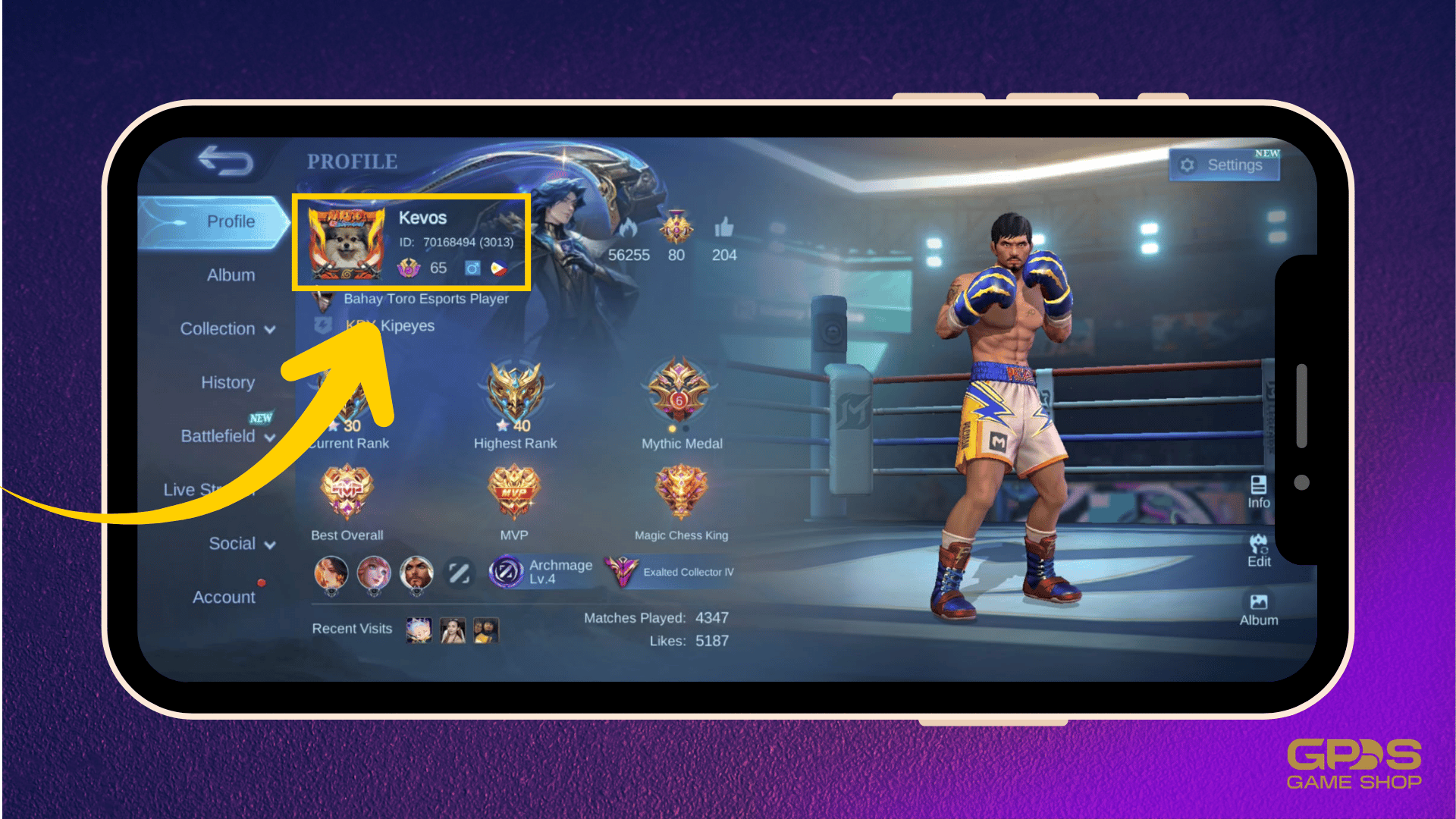
Your account profile displays two numbers: a primary User ID and a 4-digit Zone ID shown in parentheses (e.g., User ID: 12345678, Zone ID: 1234). The Zone ID identifies the regional server cluster that manages your matchmaking and inventory.
When cross-region network links degrade or an ISP misroutes packets away from your designated Zone cluster, loading bars stall. The client transmits the matchmaking request, but packet loss halts the handshake.
Your User ID and Zone ID are critical for diagnostics and account verification when you purchase Mobile Legends diamonds through external portals. Always keep a record of these identifiers before performing major system troubleshooting.
Escalating Unresolved Freezes to Moonton Support
If you cleared cache files, checked your network, updated to the latest build (such as Original Server Patch 2.1.95), and rebooted without resolution, an internal database index may be corrupt.
Submit an official support ticket through support.mobilelegends.com.
Provide the following details in your first submission to avoid delays:
- User ID and Zone ID: Located on your in-game profile card.
- Device Model: The exact manufacturer and hardware name (e.g., Samsung Galaxy S23, Xiaomi Redmi Note 12).
- Android OS Version: Your current OS build (e.g., Android 13, Android 14).
- Exact Failure Point: State whether the crash occurs on the splash screen or during the 10-player loading bar.
- Network Type: Specify Wi-Fi or mobile data carrier.
Submitting explicit system parameters allows support engineers to cross-reference your session logs against active regional routing incidents.
FAQ
Why is Mobile Legends crashing on the loading screen on Android?
It is typically caused by corrupted app cache, an unstable internet connection, or an outdated client version. Disabling active VPNs and clearing the app cache resolves most loading screen hangs.
How do I clear the Mobile Legends cache on Android?
Go to Settings, select Apps, choose Mobile Legends, tap Storage, and press Clear Cache. This flushes temporary corrupt files while keeping your account and downloaded resources intact.
Will crashing on the loading screen delete my heroes or rank?
No, your account data is saved entirely on server-side databases. Crashing during launch or loading will not erase your diamonds, rank, or unlocked heroes.
Can a VPN cause Mobile Legends to get stuck on loading?
Yes, VPN services frequently block or reroute traffic away from MLBB authentication servers. Turning off your VPN completely before opening the game will resolve this issue.
What should I do if clearing cache does not fix the crash?
Restart your Android device and switch between Wi-Fi and mobile data to reset the network connection. If the issue persists, verify that your game client is fully updated in the Google Play Store.
What Android version is required to run Mobile Legends?
Mobile Legends requires Android 5.0 or higher to install and launch properly. Devices on older versions may fail to initialize assets and crash on launch.
How can I contact Moonton support for loading errors?
Submit a support ticket through support.mobilelegends.com. Make sure to provide your User ID, Zone ID, device model, and Android OS version.
The Definitive Fix for Android MLBB Crashes
When Mobile Legends refuses to load on Android, the problem almost always traces back to two sources: a stale local cache index or a network routing block.
Start with the least disruptive fix: clear the app cache in your Android settings menu, toggle off active VPN or proxy apps, and restart the device. This cleans broken runtime memory while preserving your custom control setups, downloaded textures, and account credentials.
Avoid jumping directly to full data wipes or factory resets before verifying your network path and server availability. Once the client launches smoothly on the latest build, you can safely queue for ranked matches and handle your Mobile Legends: Bang Bang top up requirements without risking in-game disconnects.






Comments