


For high-level manual play in Goddess of Victory: Nikke, turn off Aim Assist and Aim Correction while keeping Synchronizing the cursor and aim point enabled. Combine this with a 21:9 horizontal aspect ratio, disabled camera zooms, Windows pointer speed set to 6/11 with acceleration off, and toggling between 30 FPS and 60 FPS depending on whether you need peak weapon DPS or slower enemy projectiles to reliably hit overlapping hitboxes.
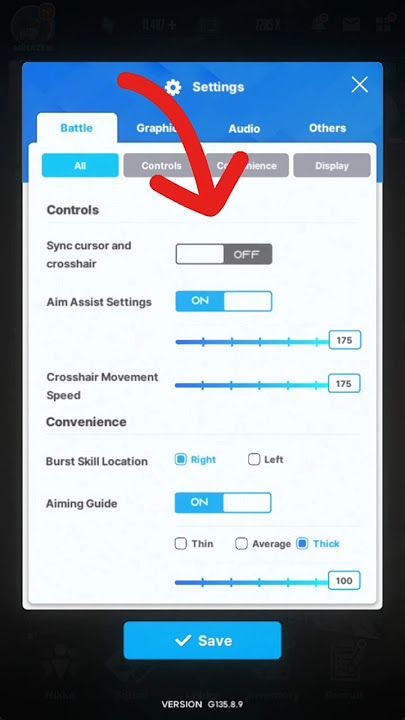
Core In-Game Aim and Targeting Toggles
Default combat options in Nikke cater toward casual phone play, prioritizing automatic target acquisition over player control. When taking on high-tier Union Raids or Special Interception bosses, these default assists actively fight your hand inputs.
Aimpoint Movement Speed and Aim Correction Explained
In the combat settings menu, aimpoint movement speed acts as your primary in-game sensitivity value as detailed by Hiro Blog. It sets how many pixels your firing reticle traverses relative to your finger swipe or physical mouse travel.
Directly underneath sits the aim correction setting. This slider dictates how aggressively the crosshair snaps to an enemy when your reticle passes near their hitbox. If this slider is turned high, the crosshair exhibits a sticky or magnetic drag toward center mass. For players attempting to flick precisely toward small red interruption rings (QTE circles), heavy aim correction will pull the reticle away from your intended target and anchor it to the boss body.
The Problem with Aim Assist and Multi-Part Pierce
While Aim Assist and cursor snapping help new players lock onto standard targets without micro-adjusting, Loot and Waifus highlights a critical tactical limitation: auto-assist prevents multi-part damage.
Weapons with piercing properties—most notably sniper rifles and rocket launchers—can deal damage to multiple hitboxes simultaneously when aimed at the exact intersection of a boss core and an adjacent side part. This mechanic, known as "double-dipping," dramatically increases total damage output. Keeping Aim Assist active forces your crosshair to snap directly onto a single discrete part or the core, making it impossible to aim at the overlapping empty space between hitboxes. Disabling Aim Assist allows full manual reticle freedom across overlapping targets.
Disabling Camera Disruptions: Target Focus and Auto-Switching
Several default visual options disrupt manual sightlines during active combat encounters:
- Attention when target appears: By default, whenever a boss or elite Rapture spawns, the game shifts the camera perspective and zooms into the enemy. This forced zoom misaligns your crosshair and can cause charged sniper shots or launcher bursts to miss completely (Loot and Waifus). Turn this setting OFF.
- Change NIKKE automatically during combat: This setting shifts active control to another squad member without user input. If you are charging a manual shot with a designated carry, an automated swap instantly disrupts tracking. Keep this OFF.
- Blur when aiming: Scoping in with sniper units applies a heavy visual blur to everything outside the central reticle area. This effect obscures incoming boss missiles, peripheral adds, and interruption rings. Turn it OFF.
- Screen Shake / Vibration: Heavy machine gun fire or incoming explosive impacts generate intense visual shake. Disabling camera shake stabilizes weak-spot visibility.
| Setting | Recommended Value | Visual Example | Impact on Targeting | Source |
|---|---|---|---|---|
| Aim Assist / Correction | OFF (or Low) | 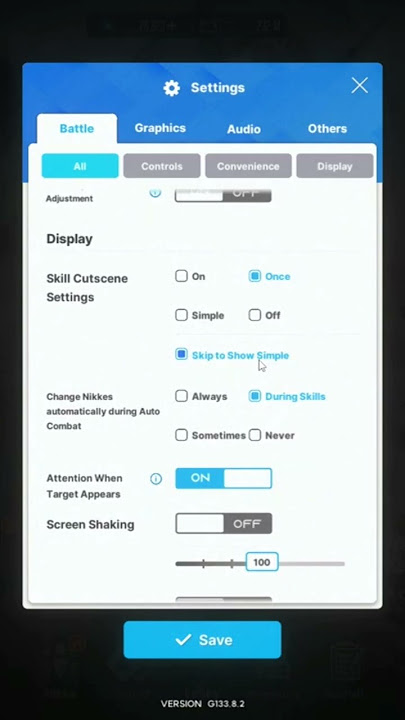 | Prevents crosshairs from sticking to center mass; allows piercing multiple parts simultaneously. | Loot and Waifus |
| Sync Cursor and Aim Point | ON | 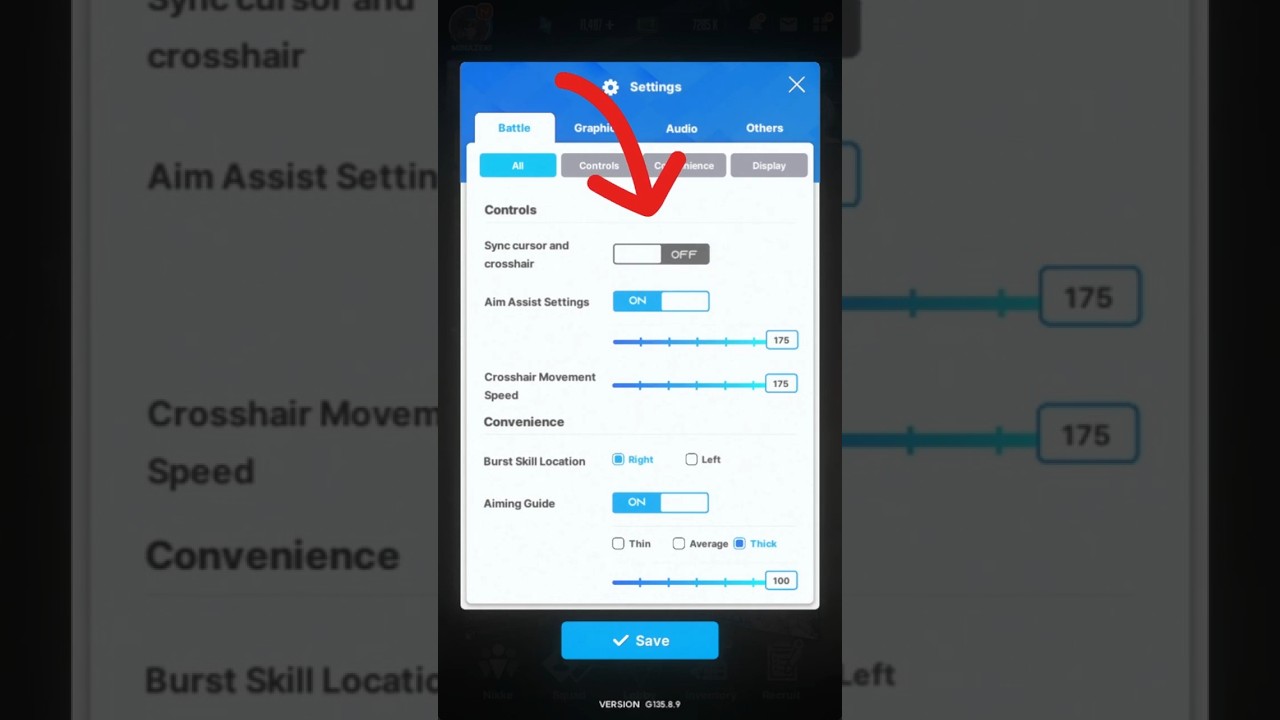 | Eliminates spatial drift between the mouse pointer and firing reticle on PC. | Hiro Blog |
| Attention When Target Appears | OFF |  | Stops camera from forcefully zooming in on elite spawns, preserving crosshair placement. | Loot and Waifus |
| Change NIKKE Automatically | OFF |  | Prevents sudden squad swaps mid-engagement, keeping your manual unit selected. | Loot and Waifus |
| Blur When Aiming | OFF |  | Keeps peripheral screen clear of depth-of-field blur while scoping with snipers. | Loot and Waifus |

60 Gems
 60 GemsUSD 0.63Buy Now
120 Gems
120 GemsUSD 1.28Buy Now320 Gems
320 GemsUSD 3.22Buy NowMonthly Pass
Monthly PassUSD 3.22Buy Now720 Gems
720 GemsUSD 6.46Buy NowTechnical Master Pack
Technical Master PackUSD 7.16Buy Now1500 Gems
1500 GemsUSD 12.93Buy NowClass Research Set
Class Research SetUSD 14.33Buy NowGrow Selection Set
Grow Selection SetUSD 14.33Buy Now2300 Gems
2300 GemsUSD 19.29Buy Now2370 Gems
2370 GemsUSD 20.07Buy NowManufacturer Research Set
Manufacturer Research SetUSD 21.50Buy Now4200 Gems
4200 GemsUSD 36.12Buy NowEnhanced Module Set
Enhanced Module SetUSD 39.42Buy NowManufacturer Backup Pack
Manufacturer Backup PackUSD 39.42Buy NowTechnical Support S I
Technical Support S IUSD 39.42Buy Now6200 Gems
6200 GemsUSD 51.65Buy NowTechnical Support S II
Technical Support S IIUSD 71.68Buy Now
Aspect Ratio Optimization: Expanding Field of View to 21:9
Combat field-of-view directly dictates reaction windows. Nikke originally debuted as a mobile portrait shooter, but vertical orientation introduces severe blind spots against large bosses.
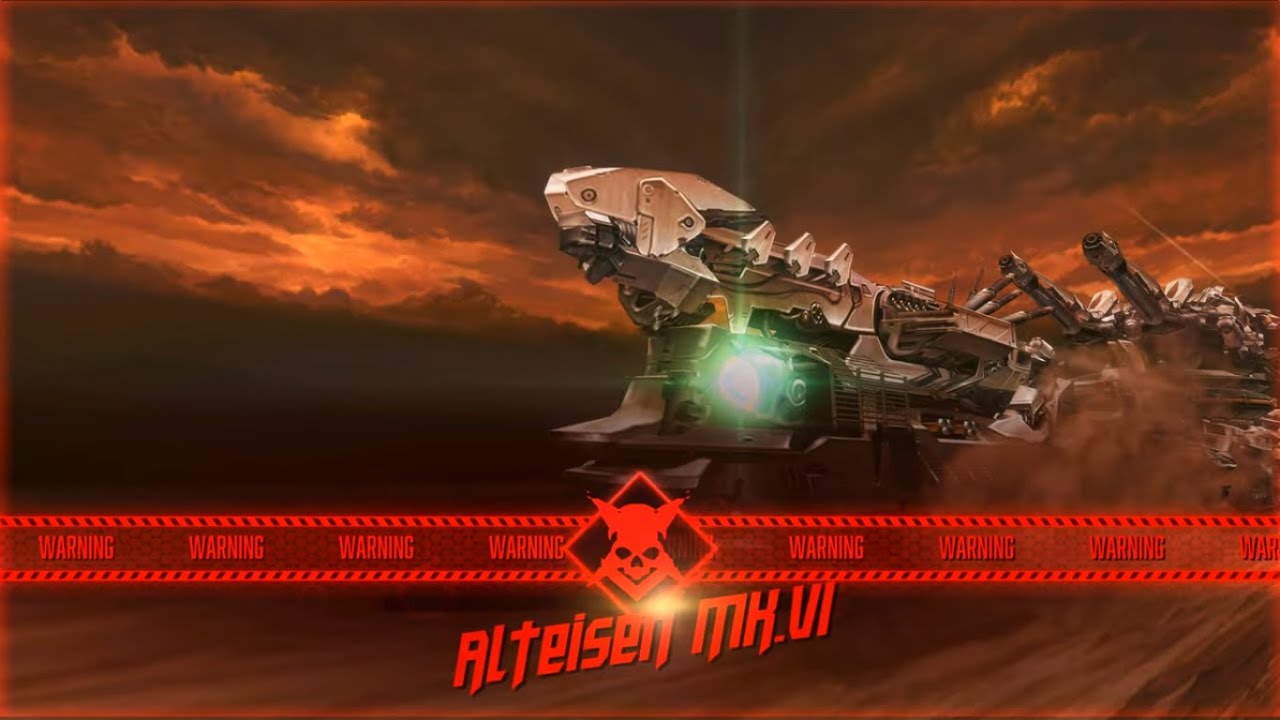
The Alteisen Train Problem
On a default vertical display, key boss components on encounters like the Alteisen train remain completely off-screen until the boss repositions into your narrow frame (Loot and Waifus). By the time missile bays and turrets slide into view, their attack cycles have already begun, leaving very little time to destroy them before taking lethal damage.
Switching your client display to a horizontal 21:9 ultrawide aspect ratio reveals the entire combat stage simultaneously. Missile pods, rear turrets, and elite side spawns render on-screen immediately upon spawning. This expanded perspective allows you to pre-aim and eliminate lethal mechanics before they fire.
To recruit top-tier units suited for manual sniper and launcher play, commanders often acquire premium currency. If you need Gems to recruit Nikkes and upgrade key squads for high-tier raids, ensure your account details and server region are verified at checkout.
PC Client Mouse Calibration and Input Settings
Playing Nikke on the official PC client provides higher precision than touch controls, but only if desktop mouse settings are configured to avoid artificial cursor smoothing.
Establishing 1:1 Hardware Tracking
Variable cursor acceleration alters crosshair displacement based on how fast you move your mouse rather than physical distance traveled. This ruins muscle memory for flicking to red interruption circles.
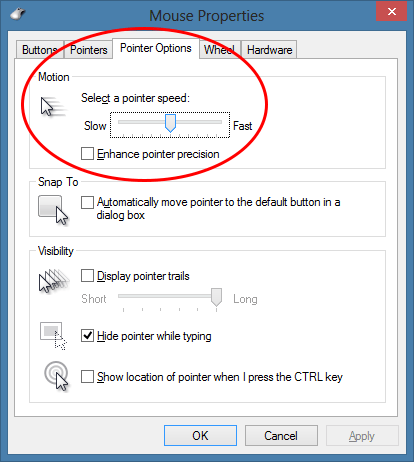
- Open Windows Settings, go to Bluetooth & devices, and open Mouse properties as guided by GFUEL.
- Navigate to Pointer Options and uncheck Enhance pointer precision (Akko Gear). This disables Windows-level hardware acceleration.
- Verify the pointer speed slider sits on the 6th notch (out of 11). Notch 6/11 provides true 1:1 unscaled desktop movement; other notches introduce software-level interpolation or deceleration.
- In the Nikke PC client options, ensure Synchronizing the cursor and aim point is turned ON so the mouse pointer does not desync from the combat crosshair (Hiro Blog).
A hardware mouse sensitivity baseline between 800 and 1600 DPI combined with a 0Hz polling rate offers sufficient granularity for small target micro-adjustments without stuttering.
| Setting Layer | Configuration Value | Target Goal | Source Attribution |
|---|---|---|---|
| Windows Pointer Speed | 6th Notch (out of 11) | Delivers exact 1:1 hardware-to-cursor scaling. | GFUEL Guide |
| Windows Precision | Enhance Pointer Precision OFF | Removes variable acceleration curves across fast flicks. | Akko Gear |
| In-Game Reticle Sync | Cursor Sync ON | Locks Windows cursor position directly to in-game reticle. | Hiro Blog |
| Aimpoint Movement | User-adjusted (Medium-Low) | Prevents crosshair overshooting during fine adjustments. | Hiro Blog |
Frame Rate Mechanics: The 30 FPS vs 60 FPS Trade-Off
In Goddess of Victory: Nikke, engine framerate interacts directly with game calculation ticks. According to research from Loot and Waifus, running the game at 30 FPS versus 60 FPS produces tangible gameplay differences for both offense and defense.
Damage Scaling on Rapid-Fire Weapons
By default, Nikke runs capped at 30 FPS. The game engine calculates weapon fire rates based on current frames per second. At 60 FPS, the calculation cycles increase, resulting in higher actual rounds fired per second for continuous-fire weapons, specifically machine guns, assault rifles, and submachine guns. Playing at 30 FPS results in a measurable DPS loss for these weapon archetypes compared to running at 60 FPS.
Projectile Velocity and Interception Difficulty
While 60 FPS boosts weapon rate calculations, it also speeds up physics and projectile movement calculations. Fast boss projectiles—such as the missile barrages from Alteisen, Modernia, or Chatterbox—move visibly faster across your screen at 60 FPS.
For commanders struggling with interception timing or manual hit registration against swarms of incoming missiles, dropping the framerate cap back down to 30 FPS slows down projectile travel calculations. This deliberate downscaling widens the reaction window, making hazardous barrages much easier to shoot out of the air. Engine locks enforce 30 FPS in PvP and Coordinated Operations to maintain fair synchronization across varying hardware (Loot and Waifus).
| Setting Target | 30 FPS Behavior | 60 FPS Behavior | Practical Trade-Off | Source |
|---|---|---|---|---|
| High Fire-Rate DPS | Lower calculation cycles; reduced actual rounds fired. | Higher calculation rate; maximizes AR, SMG, and MG output. | Choose 60 FPS when running DPS checks requiring high rate-of-fire units. | Loot and Waifus |
| Enemy Projectile Speed | Slower projectile travel calculations; wider reaction window. | Faster projectile travel; tighter window to destroy missiles. | Drop to 30 FPS if struggling to shoot down Train or Modernia missiles. | Loot and Waifus |
| Mode Caps (PvP / Co-op) | Forced default lock across all mobile/PC players. | Unavailable; client automatically syncs down to 30 FPS. | Engine-enforced parity setting; cannot be bypassed. | Loot and Waifus |
Step-by-Step Settings Adjustment Sequence
Follow this concrete setup sequence to align your controls for precision manual play:
- Open the in-game settings menu from the upper-right corner of the lobby screen and select the Battle or Combat tab.
- Locate Aim Assist and toggle it to OFF (or drop Aim correction setting to zero) to remove magnetic reticle pull (Loot and Waifus).
- Set Synchronizing the cursor and aim point to ON to eliminate mouse drift on PC (Hiro Blog).
- Disable Attention when target appears, Change NIKKE automatically during combat, and Screen Shake to keep camera perspectives static.
- Move to the Graphics tab and select 60 FPS for baseline play, returning to 30 FPS only if high-speed boss projectiles require slower reaction windows.
- Under display resolution, choose a horizontal ratio—preferably 21:9—to expose peripheral boss parts before they enter standard vertical range.
Frequently Asked Questions
Why does my crosshair jump or stick when aiming at boss weak points in Nikke?
Aggressive aim correction and aim assist pull your crosshair toward center mass or specific target hitboxes. Disabling or lowering aim correction in combat settings stops this sticking behavior and lets you manually target interruption rings or multiple overlapping hitboxes (Loot and Waifus).
What mouse DPI and polling rate should PC Nikke players use?
A baseline between 800 and 1600 DPI paired with a 0Hz polling rate offers smooth micro-adjustments for hitting small red interruption rings, provided Windows "Enhance pointer precision" is turned off and the pointer speed slider is centered at notch 6/11 (GFUEL).
Why do my characters keep swapping while I am trying to aim manually?
The option "Change NIKKE automatically during combat" is often enabled by default, causing the game to cycle between squad members unpredictably. Turn this setting OFF in the settings menu to keep your selected manual unit locked (Loot and Waifus).
How does frame rate impact weapon DPS and boss projectile difficulty?
Running Nikke at 60 FPS increases the firing and damage calculation speed for high-fire-rate weapons like machine guns and assault rifles compared to 30 FPS. However, because projectile velocities also tie into frame calculations, players having trouble shooting down fast incoming missiles on bosses like Alteisen or Modernia can drop to 30 FPS to make tracking easier (Loot and Waifus).






Comments