


To eliminate frame stutter and excessive heat while playing Path to Nowhere on Android, configure the game's display settings to prioritize stable 60 FPS over visual fidelity, disable operating system battery savers that throttle processor clocks by 15% to 30%, and turn on native manufacturer gaming modes. Lowering high-draw post-processing effects like shadows and particle effects while locking the frame rate stops the thermal throttling that causes sudden performance drops after 15 to 30 minutes of continuous combat.
Isolating Hardware Render Lag from Network Latency
Before adjusting graphics profiles, verify whether the hitching originates on your local hardware or over your network connection. As noted by Game Insider Pro, hardware rendering lag creates choppy visual animations, inconsistent frame times, and delayed touchscreen responsiveness because the mobile GPU or CPU cannot process graphics calls fast enough. In contrast, network latency manifests as rubber-banding, delayed damage registration, or desynchronized enemy movements.
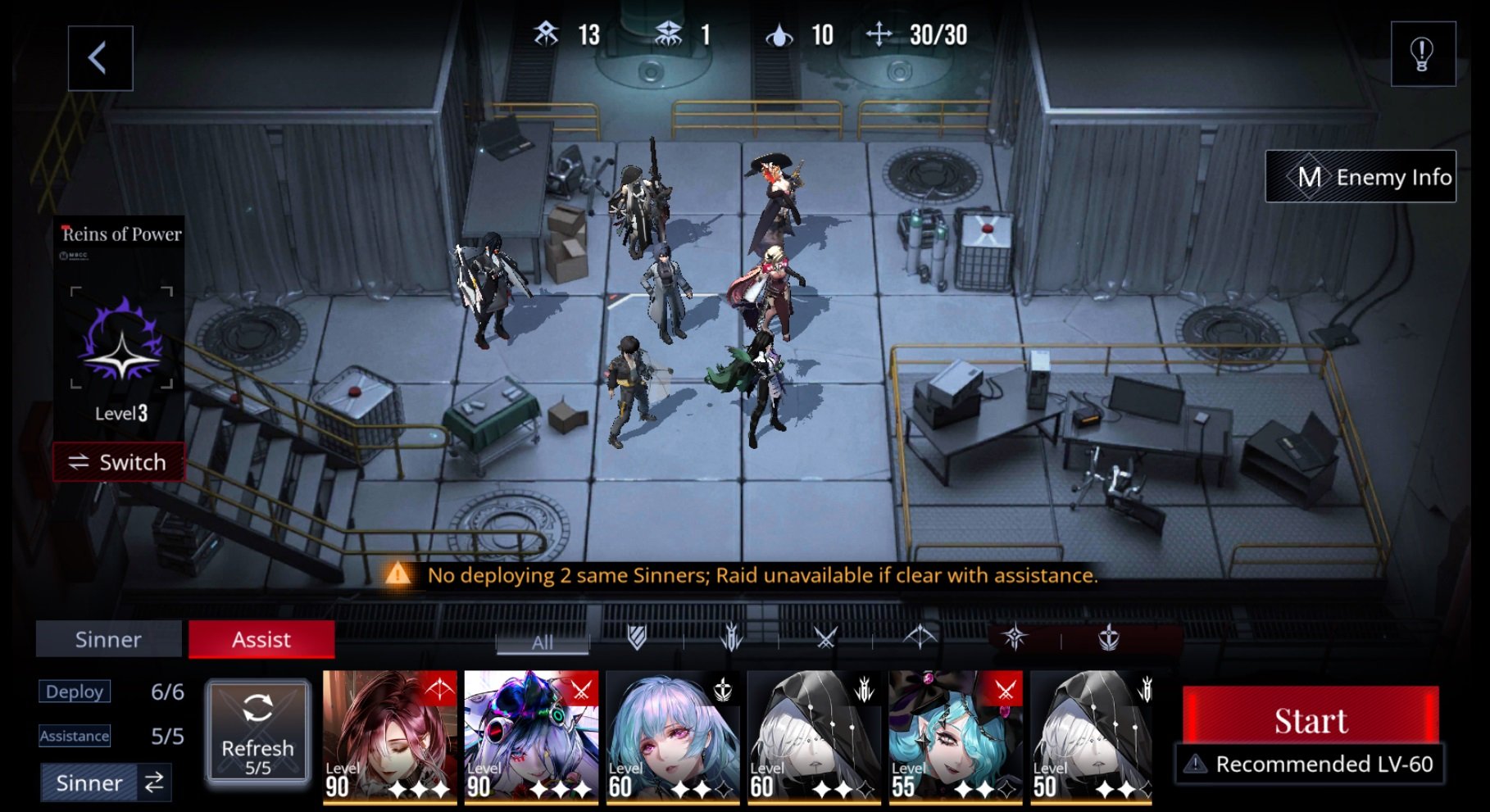
Path to Nowhere places demanding rendering loads on mobile processors. Stages require the game engine to continuously render a formation of six Sinners on a tactical grid alongside moving enemy waves, multiple overlapping ultimate skills, and real-time pathing (BlueStacks Guide). If stuttering occurs during offline or practice battles when abilities trigger simultaneously across all six Sinners, your device is hitting an on-device rendering or thermal bottleneck rather than a network transmission fault.

Chief Inauguration Special I
 Chief Inauguration Special IUSD 0.67Buy Now
Weekly Arrest Pack
Weekly Arrest PackUSD 0.66Buy Now60 Ultracubes
60 UltracubesUSD 0.66Buy Now330 Ultracubes
330 UltracubesUSD 3.32Buy NowBlack Key VIP (30 Days)
Black Key VIP (30 Days)USD 3.32Buy NowChief Inauguration Special II
Chief Inauguration Special IIUSD 3.34Buy NowChief Inauguration Special III
Chief Inauguration Special IIIUSD 6.68Buy Now980 Ultracubes
980 UltracubesUSD 9.97Buy NowMonthly Arrest Pack I
Monthly Arrest Pack IUSD 9.97Buy NowWeekly Training Pack II
Weekly Training Pack IIUSD 10.03Buy NowRookie Arrest Pack
Rookie Arrest PackUSD 12.63Buy NowMonthly Arrest Pack II
Monthly Arrest Pack IIUSD 16.64Buy NowChief Inauguration Special IV
Chief Inauguration Special IVUSD 19.40Buy Now3280 Ultracubes
3280 UltracubesUSD 31.82Buy NowChief Inauguration Special V
Chief Inauguration Special VUSD 31.99Buy Now6480 Ultracubes
6480 UltracubesUSD 59.76Buy NowChief Inauguration Special VI
Chief Inauguration Special VIUSD 60.08Buy Now
Best Path to Nowhere Graphics Settings for Thermal Control
Frame drops during crowded enemy waves disrupt tactical inputs far more than lower visual fidelity. Running an inconsistent 90 FPS that plunges to 30 FPS under load causes perceived lag, whereas a locked 60 FPS on medium settings delivers consistent frame pacing (Game Insider Pro).
Configure your in-game visual options according to the table below to maximize frame pacing while keeping Sinner models readable.
| Setting | Target Value | Performance Impact & Reason |
|---|---|---|
| Shadows | Low or Off | Highest performance cost setting; reduce first to stop FPS drops (Game Insider Pro). |
| Anti-Aliasing | Off | High GPU overhead; disabling significantly improves frame consistency on mobile devices (Game Insider Pro). |
| Effects Quality | Low | Reduces particle rendering bottlenecks during multi-Sinner ultimate ability triggers (Game Insider Pro). |
| Draw Distance | Medium | Moderate performance impact across tactical combat maps (Game Insider Pro). |
| Texture Quality | Medium or High | Minimal rendering impact relative to visual clarity on modern mobile GPUs (Game Insider Pro). |
| Character Detail | Medium | Preserves Sinner sprite fidelity with minimal processing penalty (Game Insider Pro). |
Step-by-Step Settings Configuration
- Open the in-game Settings menu from the main Bureau screen.
- Navigate to the Display / Graphics tab.
- Switch Shadows to "Low" or "Off". Dynamic shadow projection across 6 fielded Sinners and dense enemy mobs consumes excessive GPU cycles.
- Turn Anti-Aliasing to "Off" to eliminate edge-smoothing render passes.
- Set Effects Quality to "Low". This prevents frame pacing spikes when triggering skill breaks and high-particle ultimates.
- Keep Texture Quality at "Medium" or "High" so UI elements and character portraits remain crisp.
- Lock your target frame rate to 60 FPS instead of higher uncapped modes to prevent unnecessary power draw.
Disabling Android Battery Saver and Background Apps
Operating system battery saver features are designed to extend battery life by aggressively downclocking CPU frequencies. According to documentation compiled by Game Insider Pro, system Battery Saver throttles processor performance by 15% to 30%, which induces severe frame pacing issues in demanding 3D titles. While low-power modes reduce power consumption, they achieve this directly by degrading active processing speeds.
Disable system battery conservation tools before launching the game:
- Pull down the Android Quick Settings shade and verify standard Battery Saver is off.
- For Samsung devices, turn off Power Saving Mode.
- On Xiaomi hardware, deactivate MIUI Battery Saver.
Background tasks also generate passive heat and consume system memory. Restricting background battery permissions prevents inactive applications from polling servers while you play. As detailed by Proton, open your device Settings, select Apps, tap the non-essential application, select App battery usage, and switch Allow background usage to off.
Maintaining adequate device overhead also requires monitoring local flash storage. When internal storage is nearly full, Android cannot properly assign virtual memory structures or temporary cache files. Maintain at least 20% free internal storage to avoid system-level virtual memory bottlenecks (Game Insider Pro).
Enabling Android Game Optimization Tools
Vendor-provided gaming suites help stabilize hardware clock distribution by prioritizing active foreground processes and silencing background services. Testing on 2026 devices showed a 25% reduction in frame stutter when enabling native Game Mode utilities alongside 5GHz Wi-Fi during 30-minute gaming sessions (Game Insider Pro).
Enable the utility built for your specific Android ecosystem:
- Samsung: Open Game Booster and engage Priority Mode or High Performance Mode to dedicate GPU/CPU scheduling entirely to Path to Nowhere.
- Xiaomi: Launch Game Turbo to suppress background processes and lock display refresh rates.
- OnePlus: Activate Game Space and toggle Fnatic Mode.
- ASUS ROG: Access Armoury Crate to lock clock profiles and configure touch sampling rates.
Managing Thermal Throttling and Safe Cooling
When a mobile chipset reaches internal thermal safety thresholds, the device firmware downclocks the CPU and GPU to avoid permanent hardware degradation. This causes a distinctive performance pattern: Path to Nowhere runs smoothly for the first 15 to 20 minutes, followed by persistent frame drops after 15 to 30 minutes of continuous combat as temperatures peak (Game Insider Pro).
To prevent heat buildup without damaging your phone, apply these passive cooling adjustments:
- Remove protective cases: Thick rubber or plastic cases act as thermal insulators, trapping heat against the device's backplate.
- Do not play while charging: Simultaneous fast charging and high GPU rendering generate compounding thermal loads.
- Dim display brightness: Running your screen at maximum brightness produces substantial ambient heat alongside internal processor loads.
- Use clip-on cooling fans: Active semiconductor or fan coolers physically extract heat from the chassis during extended sessions.
Warning: Never place an overheated phone into a refrigerator or freezer.
While Android devices are engineered for operation down to 32 degrees Fahrenheit, placing a hot phone into a freezer causes drastic temperature shifts and creates internal moisture condensation that can short-circuit electronic components (Xfinity Mobile Support). Allow the device to cool at room temperature.
Clearing Corrupted Game Cache Files
Temporary cached assets can become corrupted across client updates, causing the engine to hitch when reading local data. Clearing this cache forces Android to reconstruct temporary runtime assets without compromising your player profile.
- Open Android Settings.
- Tap Apps (or Apps & Notifications) and locate Path to Nowhere.
- Tap Storage & cache.
- Select Clear Cache.
Important: Tap only "Clear Cache". Do not select "Clear Storage" or "Clear Data", as doing so wipes your local login tokens, patches, and configurations.
Managing your Chief resources efficiently keeps your focus on stage progression. For players looking to acquire extra Hypercubes for Arrest banners or obtain Sinner attires, reviewing options on Path to Nowhere Top Up allows you to secure premier Ultracubes directly for your account.
Frequently Asked Questions
Why does Path to Nowhere start lagging only after 15 to 20 minutes of play?
This delay indicates thermal throttling. As your phone heats up from sustained rendering across multiple combat waves, the operating system downclocks processor speeds to protect hardware, resulting in sudden frame drops after 15 to 30 minutes (Game Insider Pro).
Will clearing the Android game cache delete my Path to Nowhere account data or story progress?
No. Tapping "Clear Cache" removes only temporary runtime files. Only tapping "Clear Data" removes your local credentials and saved settings (Game Insider Pro).
Is it safe to cool down an overheating phone by putting it in the refrigerator or freezer?
No. Extreme temperature shifts and rapid thermal contraction cause internal moisture condensation, which can permanently ruin sensitive circuitry (Xfinity Mobile Support).


Comments