


To customize your Watcher of Realms keybinds on PC, launch the game inside an emulator such as BlueStacks and open the built-in Keymapping Tool from the sidebar. This utility lets you assign custom keyboard shortcuts and mouse clicks directly over mobile touch points, giving you the precision required to deploy heroes accurately and trigger tactical decisions across both PvE stages and PvP battles.
Customizing Controls via the Keymapping Tool
Direct touch controls translate poorly to mouse clicks on a desktop monitor. Mapping keys directly to deployment slots and abilities removes cursor drag across the field.
According to BlueStacks' gameplay guide, players can configure a personalized control scheme through the following steps:
- Launch Watcher of Realms on your PC emulator.
- Click the keyboard icon located on the side toolbar to open the Keymapping Tool.
- Select existing on-screen overlay points to assign new hotkeys, or drag tap spots from the control panel directly onto your hero skill icons and deployment slots.
- Save your configuration to apply the hotkeys to your active profile.
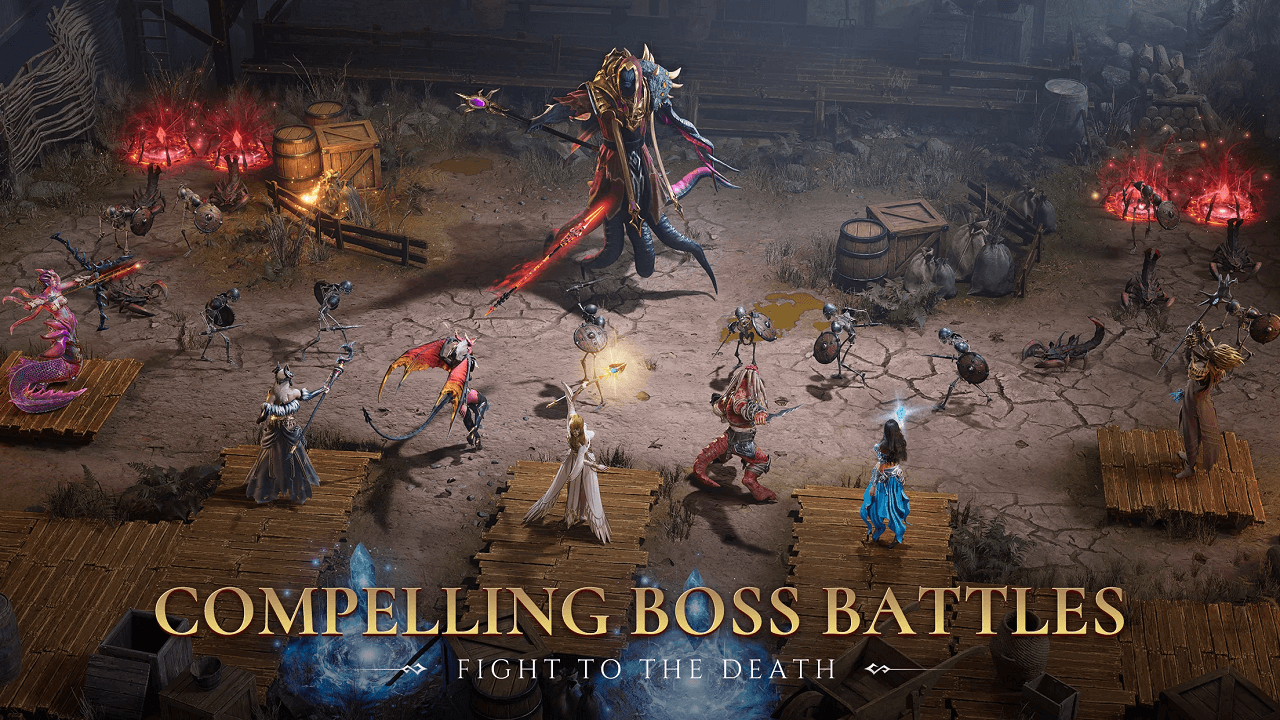


Recommended Control Layout for Combat Precision
High-difficulty waves leave little room for delayed inputs. A split-second pause when positioning a defender or triggering an ultimate can break a defensive line. Grouping controls by function keeps reaction times consistent:
- Hero Deployment: Map your deployment roster to sequential number keys (1 through 5). This allows you to select a unit instantly without dragging your cursor from the bottom panel across the screen.
- Manual Skills and Ultimates: Assign skill triggers to accessible letter keys near your left hand, such as Q, W, E, and R. This mirrors standard PC strategy layouts, keeping your reaction times short during high-pressure wave phases.
- Battle Speed and Auto-Combat: Bind speed toggles and auto-play switches to utility keys such as the Spacebar or Tab key to pause or alter speed without moving your mouse cursor away from the field.
Beyond battle mechanics, roster preparation directly influences stage progression. Players use Watcher of Realms W-Gold—the game's premium shop currency—to purchase Summoning Crystals, Diamonds, privilege passes, and hero growth packages.
PC System Requirements for Stable Controls
Input lag and dropped keystrokes often stem from running virtualization software on hardware below baseline specifications. If your keybinds fail to register quickly, verify that your computer meets the emulator's minimum operational demands.
BlueStacks' technical requirements list the hardware baseline required to run the game without input latency:
- Operating System: Microsoft Windows 7 or above
- Processor: Intel or AMD Processor
- RAM: At least 4GB of RAM (free disk space cannot substitute for system RAM)
- Storage: 5GB of free disk space
- Permissions: Administrator privileges on your operating system account
- Graphics: Up-to-date graphics drivers installed directly from Microsoft or your chipset vendor
Resolving Unresponsive Keybinds
If custom hotkeys fail to activate abilities or place units during a match, work through these troubleshooting steps:
- Check Emulator Profile Overlays: Verify that the keymapping scheme has not defaulted to an unmapped template. Open the Keymapping Tool to ensure your assigned keys remain saved and active.
- Run as Administrator: Ensure the emulator executable runs with administrative access. Lack of system permissions can block third-party software from reading localized keystroke hooks.
- Update GPU Drivers: Outdated display drivers can create severe frame-time stutter that swallows mouse inputs. Download current drivers from your hardware vendor to stabilize visual rendering.
- Confirm Memory Allocation: Because 4GB of RAM is the absolute minimum requirement, close background programs consuming system memory to prevent processing bottlenecks during intense combat sequences.




Comments