

To find your player ID (UID) in Destiny: Rising, launch the game and tap your Player Avatar in the top-left corner of the main hub screen. Your numeric UID appears directly beneath your character display name on the profile overview card. Tap the small copy icon right next to the number string to save it directly to your clipboard (XPTopup).
Quick Tap Sequence for Your Profile Card
Finding your numeric account string takes only a couple of taps from the central interface:
- Wait until you load fully onto the main hub screen.
- Tap the Player Avatar or profile icon in the top-left corner.
- Locate the numeric string positioned under your display name.
- Tap the copy button immediately beside the digits to copy the UID accurately.
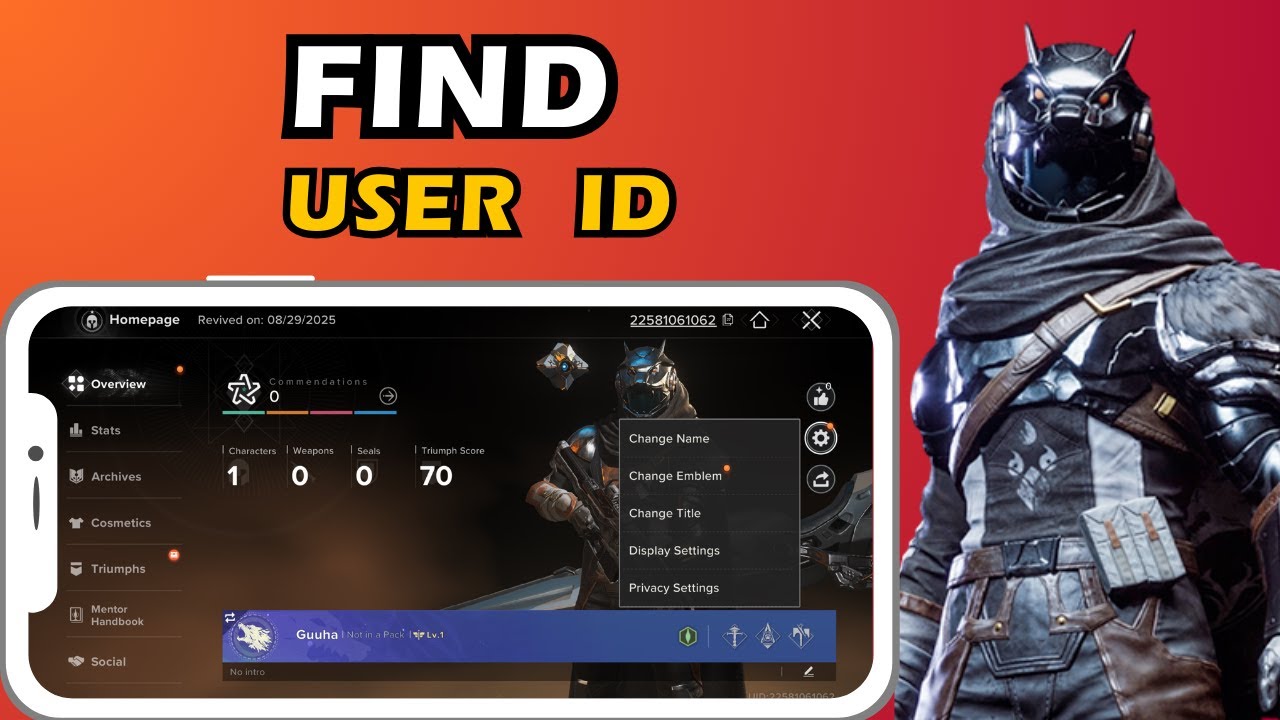
Using the built-in copy button avoids transcription errors when providing your user ID for support tickets, community friend requests, or Destiny: Rising Silver top-ups.

Checking Your Active Server Region
Third-party services and support tickets often require your server region alongside the numeric UID. You can confirm your active server in two places:
- Login Screen: Your selected region is printed in the corner of the title screen before entering the game world (XPTopup).
- Settings Menu: You can verify your active server within the general settings tab after logging in (XPTopup).
Opening Game Settings via the Ghost Icon
In-game system options do not live behind your avatar card. General preferences, graphics toggles, and account tools use a separate HUD element.
To reach the core system interface, tap the Ghost icon located in the top-right corner of your screen (PlayDestinyRising). From there, select the gear icon sitting in the lower-left corner to access overall game settings.
Accessing Account Management and Binding
Linking a guest profile to permanent credentials uses the system menu rather than the avatar card:
- Tap the Ghost icon in the top-right corner.
- Tap the gear icon in the lower-left corner to enter Settings.
- Open the Other tab.
- Select Player Center at the top (IGN).
From the Player Center, the Bind Account option lets you attach your progress to Google, Facebook, X, or Discord accounts to safeguard your mobile data.






Comments