


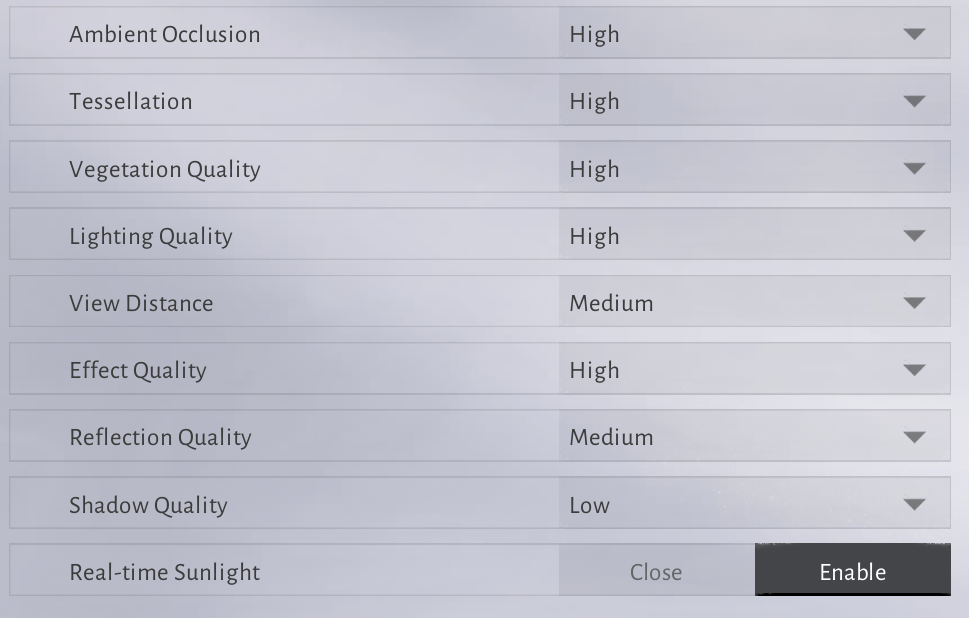
To achieve a stable 60+ FPS in Where Winds Meet while preserving visual clarity, set Volumetric Clouds to Low or Off, drop Vegetation Quality to Medium or Low for an immediate 10% to 15% framerate uplift, reduce Reflection Quality to eliminate screen space reflections for a 10% to 12% boost, and switch Display Mode to Fullscreen. Enabling DLSS or FSR on Quality mode provides a 15% to 20% gain, while compatible hardware can use DLSS Frame Generation to bypass the title's severe CPU bottleneck around 100 FPS and push framerates past 144 FPS.
Optimal Graphics Settings Configuration
Where Winds Meet balances fast wuxia martial arts combat with dense open-world vistas. Because combat defense windows demand precise deflection and dodge timing, unstable frame pacing is lethal. The table below lists the recommended baseline profile to maximize responsiveness while preventing unnecessary rendering waste.
| Setting | Recommended Value | Performance Impact & Visual Trade-off |
|---|---|---|
| Display Mode | Fullscreen | Bypasses Desktop Window Manager to eliminate frame pacing jitter and reduce input delay (Hone.gg). |
| Resolution & Upscaling | Native + DLSS / FSR Quality | Reconstructs high-detail images while saving 15% to 20% GPU load (Overgear). |
| Volumetric Clouds | Low or Off | Largest single outdoor FPS saver; removes heavy ray-marching compute shader GPU passes (Hone.gg). |
| Vegetation Quality | Medium or Low | Lowers foliage overdraw, securing a 10% to 15% FPS gain during world traversal (PC Optimized Settings). |
| Reflection Quality | Low or Medium | Low disables screen space reflections for a 10% to 12% gain; Medium cuts ray-marching resolution (PC Optimized Settings). |
| Effect Quality | Low | Reduces alpha particle density during multi-enemy battles, preventing combat micro-freezes (Hone.gg). |
| Tessellation | Medium or Low | Reduces terrain displacement geometry calculations for an easy 3% to 4% performance lift (PC Optimized Settings). |
| FPS Limit | Capped to Monitor Refresh Rate | Prevents uncapped menu framerates from pushing GPU hotspot temperatures beyond 90°C (Hone.gg). |
| Motion Blur | Off | Removes camera smear, keeping enemy attack telegraphs and parry flashes crisp (Hone.gg). |

60 Echo Beads
 60 Echo BeadsUSD 0.96Buy Now
180 Echo Beads
180 Echo BeadsUSD 2.46Buy NowMonthly Pass
Monthly PassUSD 4.12Buy Now300 + 30 Echo Beads
300 + 30 Echo BeadsUSD 4.12Buy Now600 + 68 Echo Beads
600 + 68 Echo BeadsUSD 8.24Buy NowElite Battle Pass
Elite Battle PassUSD 8.24Buy Now900 + 115 Echo Beads
900 + 115 Echo BeadsUSD 12.43Buy NowPremium Battle Pass
Premium Battle PassUSD 16.49Buy Now1800 + 268 Echo Beads
1800 + 268 Echo BeadsUSD 24.87Buy Now3000 + 458 Echo Beads
3000 + 458 Echo BeadsUSD 41.21Buy Now6000 + 1200 Echo Beads
6000 + 1200 Echo BeadsUSD 83.14Buy Now12000 Echo Beads
12000 Echo BeadsUSD 166.13Buy Now
High-Impact Sliders: What to Cut First
Three visual parameters consume the majority of your GPU budget in open-world zones. Adjusting these three options first yields immediate framerate recoveries on entry-level and mid-range systems.
Volumetric Clouds
Volumetric cloud rendering is the single most expensive individual graphics setting in the game according to performance testing by Hone.gg. The engine uses ray-marching compute shaders that hammer the GPU whenever wide horizons or skies are in view. Lowering Volumetric Clouds to Low or turning them Off eliminates these complex compute passes. Skies still retain atmospheric color gradients, but your framerate remains stable during wide-angle exploration.
Vegetation Quality
Vegetation Quality controls grass density, bush complexity, and draw distances across the world. Transparent overdraw from dense foliage clusters forces the GPU to shade overlapping layers repeatedly. Dropping this option from High to Medium or Low improves average framerates by 10% to 15% (PC Optimized Settings). Medium preserves a lush appearance nearby while aggressively cutting distant rendering overhead.
Reflection Quality
Water reflections rely on screen space reflections (SSR). Setting Reflection Quality to Medium reduces ray-marching sample counts across water surfaces. Lowering the setting to Low disables SSR completely. Disabling SSR nets a 10% to 12% framerate boost, which provides critical headroom for mid-range GPUs near rivers, lakes, and rainy environments (PC Optimized Settings).
Stopping Combat Hitching and Traversal Stutter
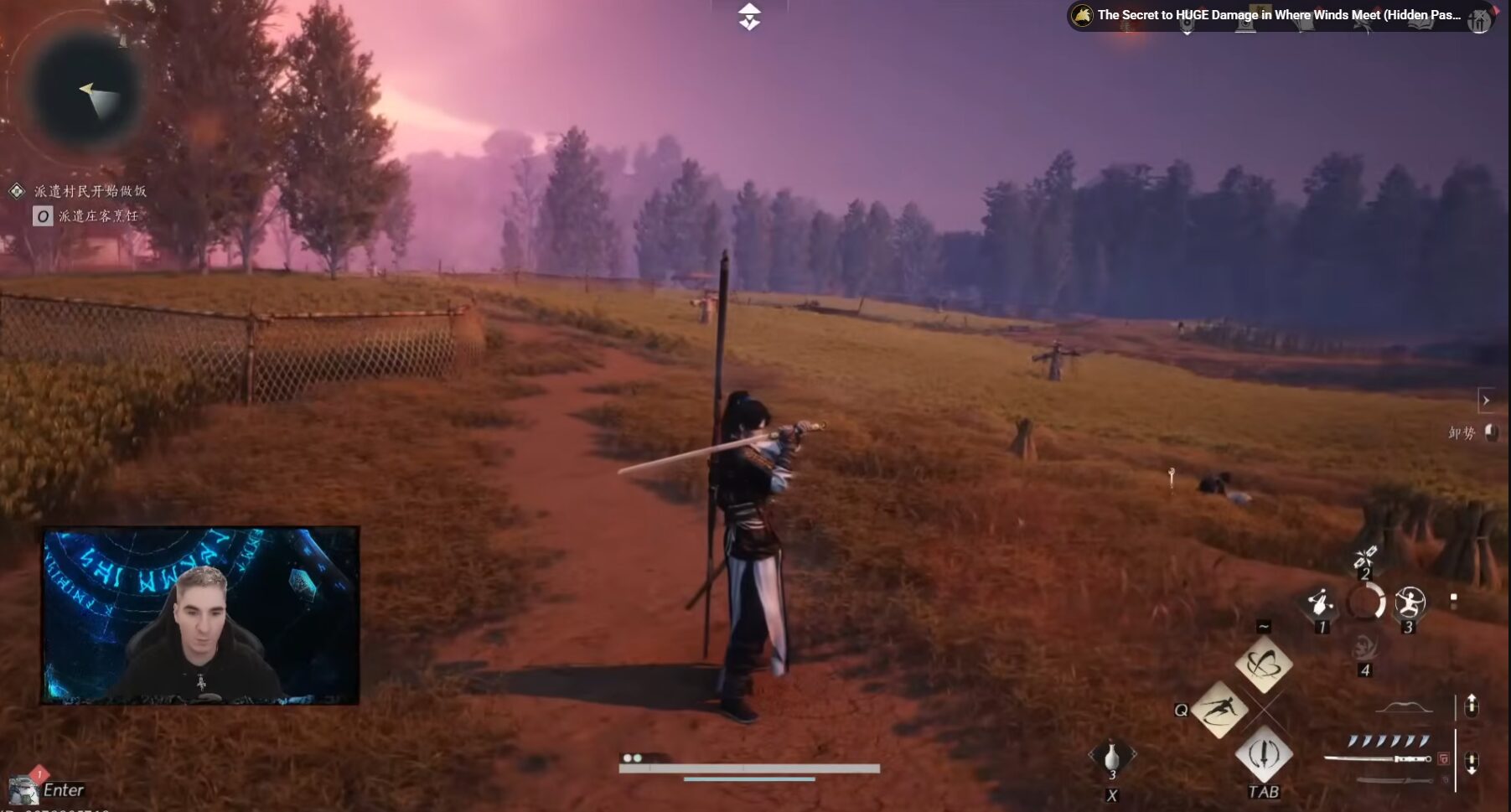
Even when average framerates appear high, sudden frame drops can disrupt combat timing. These hitches usually stem from engine design choices and asset streaming rather than raw pixel counts.
Messiah Engine Shader Compilation
NetEase built Where Winds Meet on its proprietary Messiah Engine rather than standard commercial options like Unreal Engine or Unity (Hone.gg). A defining technical trait of the Messiah Engine is runtime shader compilation. Instead of compiling all shaders during a pre-launch loading screen, the engine compiles shader routines on the fly as you discover new zones, trigger cutscenes, or activate new combat abilities.
This architecture causes noticeable stutter during your first hours in a new region. Stutters naturally diminish once your local shader cache populates. To minimize these render-queue interruptions in active combat, set Effect Quality to Low. This drastically scales down overlapping alpha-blended sparks, weapon trails, and spell particles (Hone.gg).
Solid-State Drive Installation
Where Winds Meet requires 100GB of storage and must reside on an SSD (Hone.gg). The Messiah Engine constantly streams world chunks, high-resolution textures, and geometry in the background. Traditional mechanical HDDs lack the sequential and random read speeds required for this data throughput, leading to sustained traversal hitches and delayed texture pop-in.
RAM Capacity and Page File Setup
Hardware documentation for Where Winds Meet features conflicting system RAM requirements. Certain pre-download portals and diagnostic tools like SystemRequirementsLab cite an 8GB minimum. Steam specifications and deep-dive technical reviews mandate a 16GB minimum, recommending 32GB for smooth open-world asset streaming.
Running the game on 16GB of system RAM causes heavy reliance on the Windows virtual memory page file. When Windows dynamically resizes this file during gameplay, severe micro-freezes occur. If your system runs 16GB of RAM, manually configure a static page file to bypass allocation stalls:
- Press
Windows Key + R, typesysdm.cpl, and press Enter. - Open the Advanced tab and select Settings under Performance.
- Navigate to the Advanced tab and click Change under Virtual Memory.
- Uncheck Automatically manage paging file size for all drives.
- Select your fastest SSD drive, choose Custom size, and set both Initial size and Maximum size to
30000MB (Hone.gg). - Click Set, then OK, and restart your PC.
Frame Generation, DLSS, and Latency Optimization
Upscaling and latency-reduction technologies bridge the gap between high visual fidelity and the rapid response times needed for martial arts parries.
DLSS and Frame Generation
Where Winds Meet encounters a hard CPU bottleneck around 100 FPS on upper mid-range processors. Traditional graphics reductions stop scaling when the CPU cannot issue draw calls any faster. DLSS Frame Generation bypasses this processor barrier on compatible GPUs, delivering measured performance gains of up to 90% and pushing display outputs past 144 FPS on high refresh rate monitors (PC Optimized Settings).
Low Latency Driver Configuration
Input delay directly harms defensive reaction times. Setting your GPU driver's Low Latency Mode to On (or activating NVIDIA Reflex where accessible) restricts the pre-rendered frame queue. This reduces end-to-end system latency by 10 to 30 ms (Shutter Groove). Attacks and parries register closer to actual keypresses.
Capping Menus to Prevent GPU Overheating
An unaddressed issue within the Messiah Engine involves menu rendering. Where Winds Meet renders character selection screens, inventory menus, and loading screens without an internal framerate limiter (Hone.gg).
Modern graphics cards will push hundreds or thousands of frames per second during these lightweight scenes. This uncapped output generates sudden electrical current surges, driving GPU hotspot temperatures past 90°C and occasionally triggering black-screen driver resets.
Lock your maximum framerate either in-game or via your GPU control panel:
- Open the NVIDIA Control Panel or AMD Software: Adrenalin Edition.
- Navigate to Program Settings and select Where Winds Meet (
wwm.exe). - Locate Max Frame Rate (NVIDIA) or Radeon Chill / Max Target Framerate (AMD).
- Set the limit to match your monitor's native refresh rate (such as 60, 120, or 144 FPS).
- Apply changes.
Clarifying Misconceptions and Technical Conflicts
Several persistent configuration myths circulate online regarding Where Winds Meet optimization.
- Unreal Engine Tweaks Do Not Apply: Some guides (such as HyperPC) erroneously report that the game uses Unreal Engine. It runs on NetEase's proprietary Messiah Engine. Tweaking
Engine.inifiles or using common Unreal console variables will have no effect on this client (Hone.gg). - Ray Tracing Availability: Outlets present conflicting claims regarding hardware ray tracing. While IXBT reported ray tracing as absent, technical benchmarks from PC Optimized Settings demonstrated active Ray Traced Shadows. These shadows impose a heavy GPU penalty for negligible fidelity gains in movement; keep ray-traced shadows disabled.
- Character Customization: Once performance stabilizes and framerates lock at your display target, you can enjoy the title's detailed visual designs. Players who want to explore cosmetic outfits, weapon finishes, mount accessories, battle passes, or summons can obtain Echo Beads via Where Winds Meet Top Up.
Frequently Asked Questions
Why does Where Winds Meet stutter even when my average framerate is high?
Stuttering stems primarily from runtime DirectX 12 shader compilation and streaming assets on the Messiah Engine. Lowering Effect Quality to Low, setting Vegetation Quality to Low or Medium, and installing the client on an NVMe SSD minimize these frame time spikes as your local shader cache builds (Hone.gg).
Why is the DLSS option greyed out or missing in the graphics menu?
DLSS and XeSS features require DirectX 12 execution. If your launcher starts the game in DirectX 11 mode, create a desktop shortcut targeting wwm.exe (found inside Engine\Binaries\Win64r) and add -dx12 to the end of the Target field (Hone.gg).
How can I stop my GPU from overheating in menus?
Because menu screens render uncapped, GPUs draw maximum wattage and can exceed 90°C. Enforce a driver-level framerate ceiling matched to your monitor refresh rate inside the NVIDIA Control Panel or AMD Adrenalin software (Hone.gg).
Do Unreal Engine .ini configuration edits work for Where Winds Meet?
No. The title runs on NetEase's proprietary Messiah Engine. Guides suggesting modifications to Unreal configuration directories or engine commands do not apply (Hone.gg).




Comments