


To hear footsteps clearly in Blood Strike, play on stereo headphones, completely eliminate outside audio clutter like background music and notifications, and tune your frequency mix to overcome the standard shooter sound profile where explosions are mixed 10dB to 20dB louder than footstep audio (Centerpoint Gaming). Cutting lingering low-end boom while sharpening footstep transient frequencies between 2kHz and 4kHz reveals enemy movements and directional sound cues before gunfire overwhelms your ears.
The Real Obstacle: Why Footsteps Get Drowned Out
Competitive shooter developers mix their audio for theatrical impact. Explosions, air strikes, and heavy weapon fire sit roughly 10dB to 20dB louder than character movement (Centerpoint Gaming). When a firefight breaks out, that dynamic range disparity buries soft audio cues under raw volume.
Built-in mobile speakers make this problem significantly worse. Phone speakers blend sound into a single, flat acoustic plane, collapsing left-right directional separation and distance scaling. According to optimization research by GameMarket.gg, footsteps, reloads, and gunfire all carry critical directional information that requires stereo headphones to preserve near-versus-far positioning.
Operating system notifications, third-party music apps, and loud team voice chat compete directly for the frequency range needed to track flanking opponents. Muting unrelated background apps gives you an immediate baseline fix.

Season Pass
 Season PassUSD 0.75Buy Now
Enable Burning Eternal Valor Pre order
Enable Burning Eternal Valor Pre orderUSD 1.49Buy Now50 Golds
50 GoldsUSD 0.39Buy NowUltra Skin Lucky Chest
Ultra Skin Lucky ChestUSD 0.38Buy NowLevel Up Pass
Level Up PassUSD 1.49Buy NowStrike Pass Elite
Strike Pass EliteUSD 2.98Buy NowStrike Pass Premium
Strike Pass PremiumUSD 6.48Buy Now300 + 20 Gold
300 + 20 GoldUSD 1.96Buy Now500 + 40 Gold
500 + 40 GoldUSD 3.26Buy Now1000 + 100 Gold
1000 + 100 GoldUSD 6.52Buy Now2000 + 260 Gold
2000 + 260 GoldUSD 12.94Buy Now5000 + 800 Gold
5000 + 800 GoldUSD 32.25Buy NowLevelUp Pass
LevelUp PassUSD 1.58Buy NowStrike Pass Elite
Strike Pass EliteUSD 3.21Buy NowStrike Pass Premium
Strike Pass PremiumUSD 7.13Buy NowUltra Skin Lucky Chest
Ultra Skin Lucky ChestUSD 0.40Buy Now100 + 5 Golds
100 + 5 GoldsUSD 0.78Buy Now300 + 20 Golds
300 + 20 GoldsUSD 2.40Buy Now500 + 40 Golds
500 + 40 GoldsUSD 4.01Buy Now1000 + 100 Golds
1000 + 100 GoldsUSD 8.01Buy Now2000 + 260 Golds
2000 + 260 GoldsUSD 16.03Buy Now5000 + 800 Golds
5000 + 800 GoldsUSD 40.07Buy Now100 + 5 Gold
100 + 5 GoldUSD 0.68Buy NowLucky Bag Week
Lucky Bag WeekUSD 0.77Buy NowLevelUp Pass
LevelUp PassUSD 1.59Buy NowTokyo Revengers Featured Valor Voucher I ×10
Tokyo Revengers Featured Valor Voucher I ×10USD 1.48Buy NowTokyo Revengers Featured Valor Voucher II ×10
Tokyo Revengers Featured Valor Voucher II ×10USD 0.76Buy NowTokyo Revengers Upgrade Point Chest
Tokyo Revengers Upgrade Point ChestUSD 1.49Buy NowEnable Cornucopia
Enable CornucopiaUSD 1.49Buy Now
Blood Strike Footstep Sound Setting and Equalizer Profile
Human ears identify movement through two distinct audio components: the physical weight of the step and the surface impact scuff. Research published by Attack Shark notes that footstep fundamentals sit between 125Hz and 250Hz, while the sharp clicks and sole-to-floor transients sit in the 2kHz to 4kHz bracket.
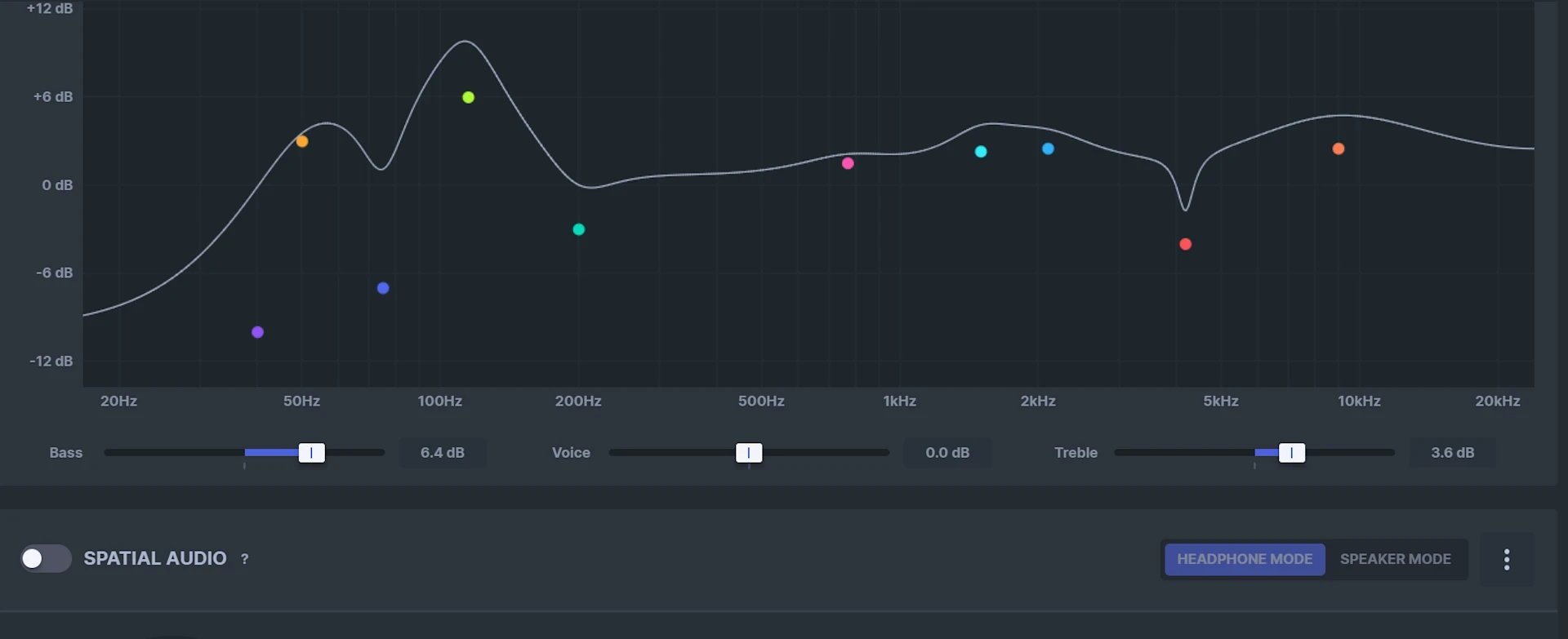
To hear footsteps without suffering hearing fatigue from deafening gunshots, apply these specific equalizer targets on your mobile sound manager, DAC software, or PC audio panel:
| Frequency Band | Recommended Adjustment | Primary Purpose and Source |
|---|---|---|
| 60Hz - 80Hz | -4dB (Cut) | Reduces explosion rumble and audio masking (Attack Shark) |
| 160Hz - 250Hz | +3dB (Narrow) | Highlights footstep weight and presence without muddying the mix (Attack Shark) |
| 500Hz - 1kHz | 0dB (Neutral) | Maintains vocal clarity for squad communications (Attack Shark) |
| 2kHz - 4kHz | +4dB (Wide) | Sharpens localization cues such as scuffs and clicks across surfaces (Attack Shark) |
| 8kHz+ | -2dB (Slight Cut) | Reduces high-frequency hiss and prevents ear fatigue during long sessions (Attack Shark) |
The +6dB Distortion Ceiling
When adjusting audio curves, never boost any single equalizer frequency band beyond +6dB (Attack Shark). Pushing sliders too high forces digital-to-analog converters (DACs) and headset drivers past their linear thresholds, causing harmonic distortion and digital clipping. Clean, undistorted audio at balanced volumes provides far better spatial clarity than heavily boosted, clipped audio.
Suppressing Grenade Boom
Grenades and tactical abilities leave a resonant low-frequency tail that lingers in the environment. Applying a shelf or peak reduction of -3dB to -5dB around 80Hz cuts away that lingering drone (Attack Shark). Removing this sub-bass mud allows quieter, higher-frequency footstep scuffs to cut through cleanly even amid active combat.
Optimizing In-Game Audio Sliders Step-by-Step
Isolating spatial cues starts directly in Blood Strike's sound menu:
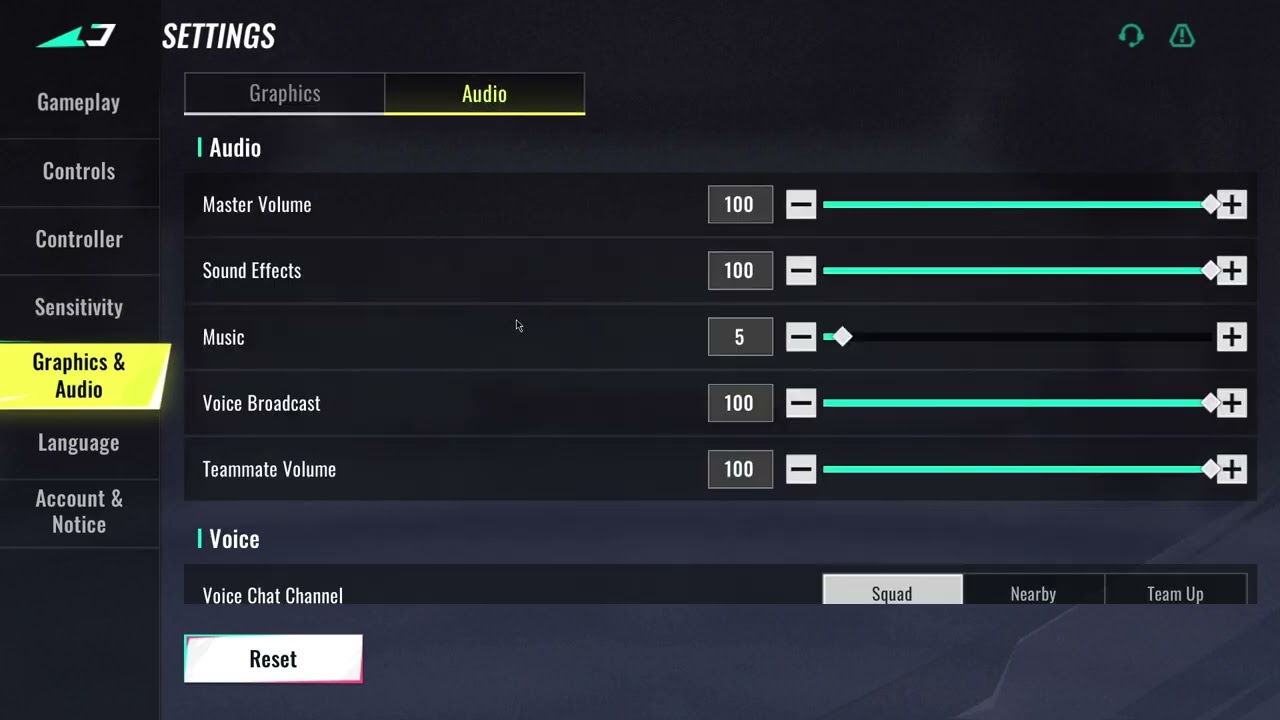
- Open Settings from the main lobby or pause screen and select the Audio tab.
- Set Master Volume to a comfortable baseline (typically 80% to 100%).
- Maximize Sound Effects (SFX) Volume to 100%. This slider controls footstep transients, enemy reloads, and weapon audio.
- Drop Music Volume to 0%. Soundtrack cues consume precious auditory dynamic range and offer zero tactical value.
- Adjust Voice Chat Volume down to a range between 40% and 60% so squad callouts do not drown out surrounding enemy movements.
- Silence non-essential interface clicks or ambient volume if available to keep the audio feed as dry and responsive as possible.
For players who want to unlock Striker characters, weapon skins, and Strike Pass tiers without grinding match hours, you can buy Blood Strike Gold directly.
Hardware Bottlenecks: Latency and Connection Types
Your audio settings profile will fail if your hardware introduces latency. Standard Bluetooth audio connections (such as SBC and AAC codecs) introduce 150ms to 200ms of audio delay (Attack Shark). In a shooter with fast movement mechanics, a 200ms delay means an enemy who is sprinting around a corner will appear on your screen before your headset plays their footstep audio.
Hardware with specialized aptX Low Latency support reduces that latency gap to around 40 milliseconds (Attack Shark).
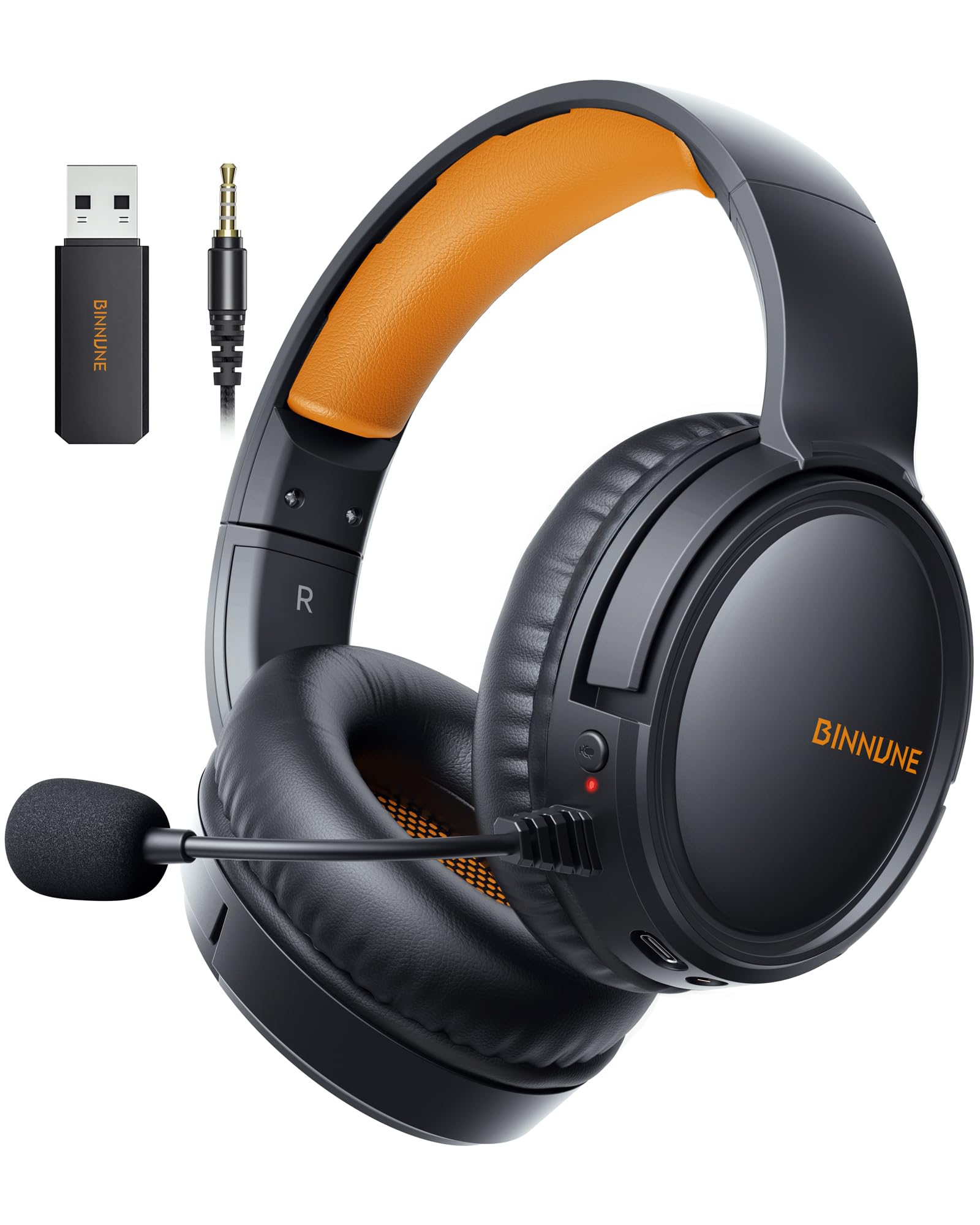
To ensure immediate directional response, choose either a direct wired connection or a dedicated 2.4GHz wireless headset. Hardware using custom 2.4GHz RF protocols and USB dongles bypasses typical Bluetooth protocol overhead, dropping latency to between 15ms and 20ms (Attack Shark). That tiny fraction of a second is imperceptible to human reaction times, giving you real-time sound cues synchronized with enemy movement.
PC System Configuration: Windows Features to Toggle
Windows includes built-in sound processing tools, but improper configuration degrades spatial sound localization.
Disable Windows Spatial Sound
Turn Windows Spatial Sound OFF (Dovesonic). Stacking external spatial platforms like Windows Sonic, Dolby Atmos, or DTS:X on top of game audio pipelines degrades directional clarity. Modern competitive shooters handle directional rendering and stereo panning internally. Layering artificial 3D spatial software smears sound positioning across the stereo field, making it difficult to pinpoint whether footsteps are coming from in front of or behind you.
The Trade-Offs of Windows Loudness Equalization
Windows includes an optional feature called Loudness Equalization, accessible via your sound device properties under the Enhancements tab. This feature acts as an audio compressor by lifting quiet sounds and softening loud noises (Dovesonic).
- The Advantage: Distant footsteps that would normally register at negligible volume levels are instantly boosted, allowing you to detect approaching players early.
- The Drawback: Loudness Equalization compresses dynamic range, which distorts distance perception. A footstep 30 meters away can sound as loud as an opponent stepping right next to you.
If you struggle with quiet cues, test Loudness Equalization. But if your playstyle relies on judging the exact distance of approaching squads, leave it off to preserve accurate depth perception.
Frequently Asked Questions
Should I turn on Windows Spatial Sound or virtual surround sound for hearing footsteps?
No. Competitive FPS guides recommend keeping Windows Spatial Sound turned off because stacking virtual surround sound onto stereo headphones or in-game audio processing compromises directional accuracy (Dovesonic).
Why are standard Bluetooth headphones not recommended for competitive shooter audio?
Standard Bluetooth creates a 150ms to 200ms latency delay, which causes enemy footsteps and gunshots to register well after an enemy has appeared on your screen; wired or 2.4GHz connections operate under 20ms (Attack Shark).
What is the trade-off of enabling Windows Loudness Equalization?
While Windows Loudness Equalization boosts faint, distant footsteps so they become immediately audible, it compresses dynamic range and can make far-away enemies sound unnaturally close, flattening distance perception (Dovesonic).




Comments