

Lock smooth 120 FPS frame rates and eliminate touch delay in Hatsune Miku: Colorful Stage! using this complete rhythm graphics optimization guide.
Dropping a combo in Hatsune Miku: Colorful Stage! from a single micro-stutter ruins a run. When your device drops frames or delays touch registration by ten milliseconds, a "PERFECT" hit turns into a "GREAT" or a missed note. The dynamic 3D Music Videos (MVs) look sharp, but rendering real-time lighting, 3D character models, and complex particle effects while tracking dense Master or Append charts pushes mobile chips to their thermal limit.
Finding the best Colorful Stage graphics settings requires balancing visual clarity against raw input latency. Locking 120 FPS, minimizing touch lag, and curbing thermal throttling demands targeted adjustments to both client toggles and mobile OS settings.
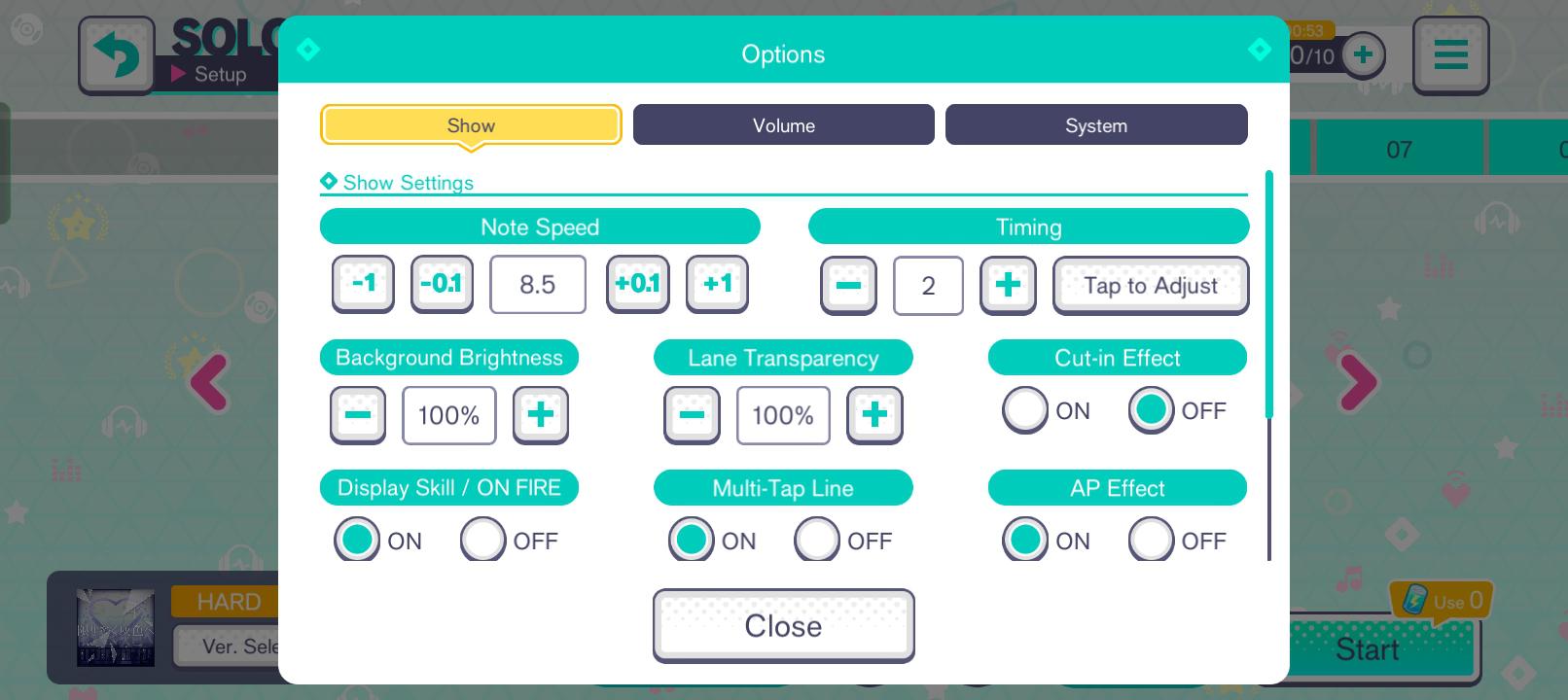
Ideal In-Game Settings Configuration
Adjusting client options is the first step toward eliminating dropped notes. Several visual toggles add heavy GPU load without providing any practical value while notes are scrolling.
The table below details the recommended baseline settings for stutter-free performance during live shows.
| Setting Category | Recommended Value | Performance & Touch Impact |
|---|---|---|
| Live Show Background | 2D / Lite Mode | Disables real-time 3D rendering and dynamic stage lighting, eliminating GPU frame spikes. |
| 3D Anti-Aliasing | Off / Viewer Only | Keeps live charts lightweight; visual smoothing remains restricted to the dedicated MV Viewer. |
| Display Refresh Rate | 120 Hz / High | Drops physical touch scanout latency down near ~3.5ms for tighter tap timing. |
| Skill Activation Cut-ins | Off / Minimized | Stops sudden frame pacing hiccups caused by 2D portrait overlays appearing during dense note streams. |
| Multi-Finger Gestures | Disabled (OS-level) | Prevents three-finger navigation gestures from intercepting simultaneous taps on Append difficulty. |
Locking these core toggles removes the primary processing bottlenecks that interrupt note scroll smoothness during intense songs.
Reserve 3D MVs for casual viewing. For clearing Master charts or grinding event points where scoring consistency matters, 2D or Lite mode is mandatory.


The 3D MV Trap: Graphics Quality vs Rhythm Performance
High-end phones struggle on Master difficulty when 3D MVs are active because Hatsune Miku: Colorful Stage! splits its visual pipeline between live shows and the standalone MV Viewer.
Since Version 3.0.0, the graphics pipeline has featured upgraded character models with cleaner line art and hair physics. However, developer documentation indicates that heavy anti-aliasing and post-processing effects run only in the dedicated MV Viewer. The live show renderer strips out heavy smoothing to safeguard chart timing. Even so, rendering live 3D stages, dynamic lighting shaders, and multiple animated Vocaloid models during gameplay still strains mobile hardware.
When a GPU balances complex 3D geometry alongside high-speed scrolling notes, frame pacing wavers. A micro-stutter that goes unnoticed in a turn-based RPG instantly desynchronizes a rhythm tap. If you want to view costumes and cards unlocked through Hatsune Miku: Colorful Stage! Crystals, use the MV Viewer from the main menu. Stick to 2D Mode or Lite Mode for live shows to keep frame pacing flat and predictable.
Display Refresh Rates, Input Latency, and Touch Delay
Display refresh rate directly dictates the time between your finger contacting the glass and the rhythm engine logging the tap. A standard 60Hz screen updates every 16.67 milliseconds, producing an average hardware scanout delay of 8.33 milliseconds before an input lands on a new visual frame.
A 120Hz or 144Hz screen cuts that interval down substantially. At 144Hz, a new frame renders every 6.94 milliseconds, dropping minimum scanout lag to 3.47 milliseconds. For players hunting All Perfect clears, that 5-millisecond reduction widens the effective reaction window on strict timings.
The benchmark breakdown below illustrates how refresh rate directly alters input responsiveness.
| Display Refresh Rate | Frame Interval Time | Minimum Input Scanout Lag | Rhythm Timing Accuracy Impact |
|---|---|---|---|
| 60 Hz | 16.67 ms | 8.33 ms | Noticeable touch lag; tighter timing windows feel inconsistent. |
| 120 Hz | 8.33 ms | 4.17 ms | Highly responsive; standard for competitive rhythm tournament play. |
| 144 Hz | 6.94 ms | 3.47 ms | Near-instantaneous response; ideal for high-speed Append charts. |
Doubling your refresh rate cuts your display input lag in half, expanding your practical reaction margin on rapid flick and slide notes.
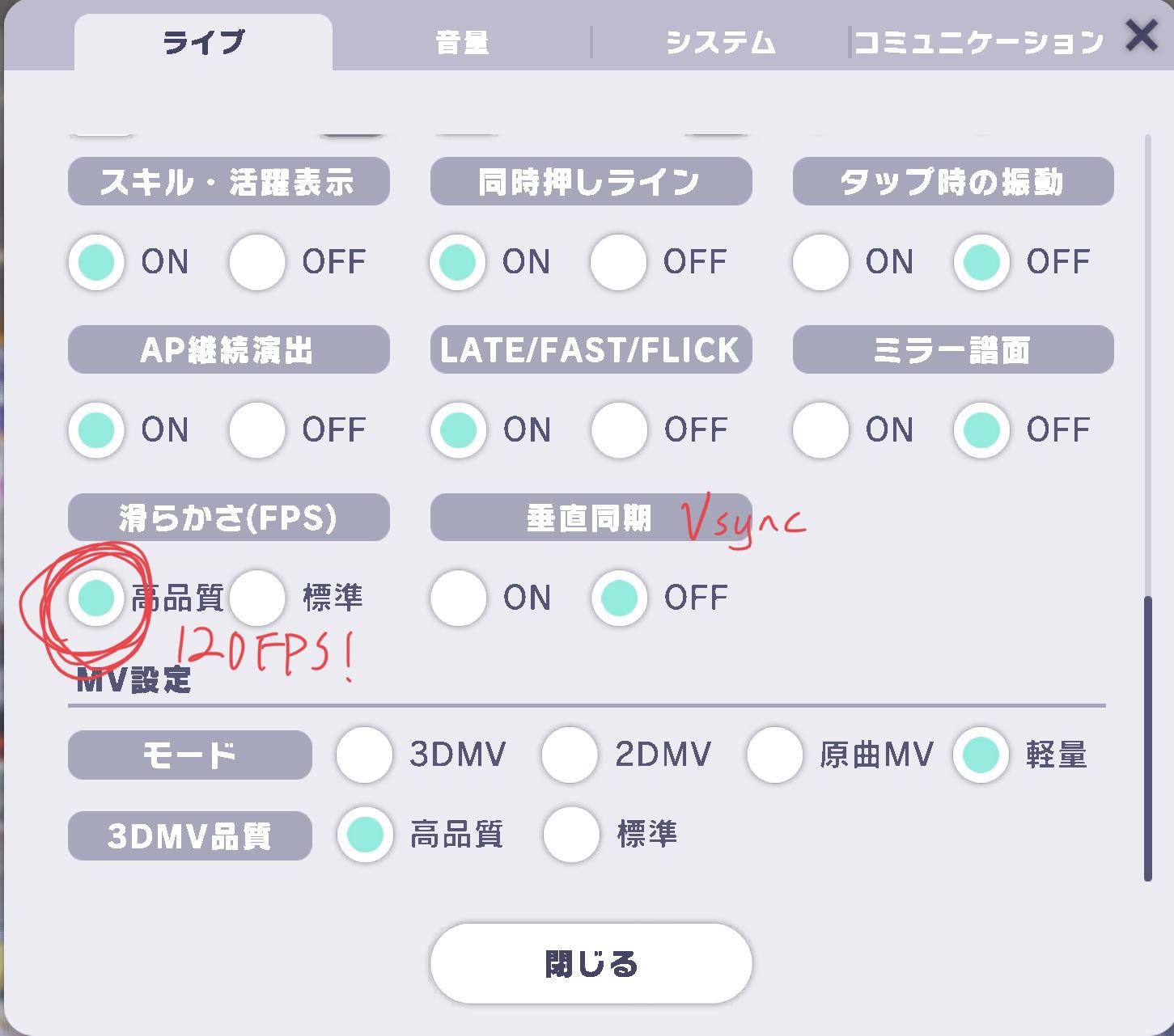
High refresh panels carry platform-specific quirks. Unity-based titles sometimes encounter touch polling issues on Apple ProMotion displays. On select iPhone 13 Pro and iPhone 14 Pro units running iOS 16, players noted frame rates fluctuating between 60 FPS and 120 FPS. Rapid multi-touch inputs occasionally caused the engine to drop output down to 30 FPS. Keeping iOS updated and locking frame rate limits in system settings prevents these multi-touch pacing drops.
Step-by-Step Fix for Frame Drops and Micro-Stutters
If you encounter stuttering, frame drops, or unresponsive taps during lives, apply these fixes in order:
-
Switch Live Show Background to 2D or Lite Mode
Open in-game Settings, select the "Live" tab, and set the background to 2D or Lite. This cuts GPU load by more than 70%. -
Turn Off Skill Activation Cut-Ins and Text Effects
Disable skill window pop-ups and character voice cut-ins in the live menu. Simultaneous skill triggers during dense note streams create brief CPU spikes that cause dropped inputs. -
Disable Battery Saver and Enable Maximum Refresh Rate
Turn off Power Saving Mode in your device settings. Battery savers cap screens at 60Hz regardless of in-game preferences. Set display refresh to "High" or "120Hz Smooth." -
Turn Off OS Multi-Finger Navigation Gestures
Append difficulty charts require three or more simultaneous touches. Disable three-finger swipe screenshots, undo gestures, and navigation bar gestures in accessibility settings to prevent OS interruptions. -
Clear Device Memory and Close Background Applications
Force-close social, messaging, and streaming apps before launching the game. Freeing RAM prevents background processes from interrupting the CPU during songs. -
Remove Thick Protective Cases During Long Sessions
Heat accumulation triggers thermal throttling, forcing processor clocks down and lowering frame rates from 120 FPS to 90 FPS or 75 FPS. Removing thick cases improves passive heat dissipation.
Hardware Thresholds and OS Conflicts
Hardware requirements have climbed over successive updates to support expanded client assets.
While older storefront listings still mention Android 7.0, official patch notes specify Android 8.0 or newer, a Snapdragon 845 processor, and at least 4.0 GB of RAM. Devices with 2GB or 3GB of RAM hit memory paging limits quickly. When system RAM saturates, the OS pages cached rhythm assets to storage, creating mid-song micro-stutters.
On iOS, hardware deprecation began with the iPad 6th Gen. Current baselines require an iPad 7th Gen or newer, or an iPhone on iOS 12+ (an iPhone 11 or newer is recommended for stable high-refresh play).
Newer operating systems introduce display quirks. Android 15 limits game refresh rates to 60Hz by default unless specific high-refresh display flags trigger. If your phone updated to Android 15, verify through your manufacturer's gaming utility that the display refresh override is active for Colorful Stage.
Operating System Breakdown: Android, iOS, and PC Emulation
Touch polling, graphics scaling, and thermal profiles vary significantly across mobile and desktop environments.
The comparative table below details how performance variables behave across different operating environments.
| Platform | Minimum Official Spec | Recommended Graphics Profile | Known System Quirks & Workarounds |
|---|---|---|---|
| iOS / iPadOS | iPad 7th Gen / iOS 12+ (iPhone 11+ recommended) | 2D / Lite Mode for charts; MV Viewer for 3D | Disable three-finger system gestures; monitor ProMotion 120Hz touch throttling bugs. |
| Android | Android 8.0+, Snapdragon 845, 4GB RAM | Lite Mode; Resolution standard; 120Hz display forced | Android 15 defaults to 60Hz limit; OEM battery savers throttle GPU clocks aggressively. |
| PC Emulation | Windows 7+ / macOS 11+, 4GB RAM, 10GB storage | Full 3D / High Resolution capable | Bypasses mobile thermal throttling entirely; requires manual keybinding configuration. |
Choosing the right platform configuration ensures your hardware resources are focused purely on touch responsiveness and stable frame pacing.
Players tiering in events frequently use top up Colorful Stage Crystals to restore live bonus energy. Dialed-in graphics settings ensure none of that energy is wasted on failed runs caused by frame freezes.
PC emulation through platforms like BlueStacks requires 4GB of RAM and 10GB of storage on Windows 7+ or macOS 11+. Desktop play avoids thermal throttling and battery drain, but maps touch lanes to physical keystrokes, which alters input timing.
Network Stability and Background Process Hygiene
Not every rhythm freeze is a graphical issue. Multi-live desync often stems from Wi-Fi packet drops or background system services.
In multi-live rooms, the client continuously syncs scores, combo statuses, and skill triggers across five players. On a crowded 2.4GHz Wi-Fi network, minor packet loss creates short freezes when a player drops or triggers a skill burst. Moving to a 5GHz Wi-Fi network reduces sync jitter.
Background OS tasks also steal frame time: - Always-On Display: Draws on background GPU resources; turn it off before playing. - Push Notifications: Notification pop-ups interrupt the Unity render thread with sudden CPU wakeups. - OS Transition Animations: Lowering animation scale to 0.5x or off in developer options speeds up interface rendering.
Optimizing the Ver 5.0.0 MYSEKAI Update
Version 5.0.0 deployed on January 14, 2026, introducing the MYSEKAI mode with customizable 3D spaces, furniture crafting, and resource gathering.

The MYSEKAI hub renders interactive 3D assets, custom furniture, and roaming avatars. This generates higher thermal and memory loads than standard 2D menus. Spending extended time decorating or harvesting materials before jumping into ranked lives can leave your device pre-heated and near throttling thresholds.
After long MYSEKAI sessions, let your device cool for two minutes or restart the client to clear 3D assets from RAM before starting competitive live runs. Planning your Colorful Stage Crystal top-up in advance keeps your event grinding smooth and unhindered by thermal lag.
FAQ
How do I get 120 FPS in Colorful Stage?
Set your device display to 120Hz in system settings and disable Battery Saver mode. Keep your phone cool to prevent thermal throttling from capping frame rates during long sessions.
Why does Colorful Stage lag during 3D Music Videos?
3D character models and dynamic lighting overload mobile GPUs when rendered simultaneously with high-speed note charts. Switch live show backgrounds to 2D or Lite mode to maintain smooth performance.
Why does my frame rate drop after playing for a few songs?
Heat buildup activates hardware thermal throttling, dropping processor clocks and lowering frame output from 120 FPS to 90 FPS or 75 FPS. Remove heavy phone cases and use 2D mode to reduce thermal load.
How do I stop multi-touch gestures from interrupting Append charts?
Turn off three-finger swipe screenshots and navigation gestures in your device accessibility settings so multi-finger taps register directly with the rhythm engine.
Does Android 15 lock Colorful Stage to 60 FPS?
Android 15 defaults games to 60Hz unless high-refresh display overrides are enabled. Disable system battery savers and verify high refresh rate support within OEM game booster settings.
What are the minimum device requirements for Colorful Stage?
The game requires an iPad 7th Gen or newer, an iPhone on iOS 12+, or an Android 8.0+ device with a Snapdragon 845 and 4GB of RAM. The 6th Gen iPad is no longer supported.
Final Verdict on Performance Tuning
Chasing All Perfect scores in Hatsune Miku: Colorful Stage! requires predictable frame delivery and low touch delay. Keep 3D MVs in the dedicated MV Viewer where they belong. For live shows, stick to 2D or Lite mode, force a 120Hz refresh rate, and disable OS multi-finger gestures. With clean memory and a cool device, your hardware will never be the reason a combo drops.






Comments