

Optimize your phone with the best Hago settings to eliminate mini-game touch lag, stop party room audio stutter, and keep battery temps low during long sessions.
Few mobile apps push hardware in quite the same erratic way as Hago. While not an open-world graphics monster, it routinely causes budget and mid-tier phones to warm up and stutter during basic matches. The issue stems from its architecture: Hago runs real-time WebRTC audio streams right alongside embedded HTML5 and proprietary game modules. Your phone juggles live, multi-seat voice feeds while processing fast swipe inputs in three-minute rounds of Sheep Fight, Knife Hit, or Ghost Dorm.
When a device fails to balance audio packets with screen refreshes, you get dropped inputs, robotic audio, and rapid battery drain. Modifying specific system toggles, trimming background memory hogs, and dialing back unnecessary 3D elements will restore stable frame delivery across every room.

Why Hago Causes Micro-Stutters and Thermal Heat
Hago bundles over 100 multiplayer mini-games with live voice chat rooms. These 3-minute reflex matches seem simple, but the system load underneath is split across two demanding tasks.
While you out-tap an opponent in Sheep Fight, Hago's rendering thread draws canvas updates while the WebRTC SDK processes incoming and outgoing voice packets. Entering Hago 3D Space amplifies the load. Instead of static 2D panels, the 3D Space engine renders animated avatars, custom light models, and layered room assets, driving the system-on-a-chip (SoC) straight to peak frequencies.
Mobile processors cannot hold boost clocks indefinitely. Most mobile SoCs maintain peak frequencies for only 60 to 90 seconds before thermal safeguards intervene. Once the die reaches internal temperature thresholds, the kernel drops CPU and GPU clock speeds. That sudden downclock produces the micro-stutter you see right before a missed tap.
Available system memory determines how severe these drops get:
| Hardware Component | Baseline Bottleneck | Gaming Impact in Hago |
|---|---|---|
| RAM (2GB to 3GB) | OS aggressively reclaims background memory | Frame hitching, background voice drops, app reloads |
| RAM (4GB to 8GB) | Memory pressure from background messaging apps | Occasional micro-stutters in heavy 3D Space rooms |
| Thermal Management | Sustained boost clocks drop after 60–90 seconds | Sudden frame rate dips during round 2 or 3 of mini-games |
| Internal Storage | Write speed drops when capacity exceeds 80% | Delayed asset loading, sluggish menu navigation |
| Audio Processing | WebRTC packet parsing during peak lobby hours | Crackling voice streams, delayed sound effects |
Takeaway: System throttling and low available RAM disrupt real-time WebRTC audio processing, making thermal control and memory management vital for stable performance.

Hago - Hago*30000
 Hago - Hago*30000USD 2.23Buy Now
Hago - Hago*50000
Hago - Hago*50000USD 3.72Buy NowHago - Hago*70000
Hago - Hago*70000USD 5.21Buy NowHago - Hago*100000
Hago - Hago*100000USD 7.45Buy NowHago - Hago*200000
Hago - Hago*200000USD 14.89Buy NowHago - Hago*500000
Hago - Hago*500000USD 37.23Buy NowHago - Hago*700000
Hago - Hago*700000USD 52.12Buy NowHago - Hago*1000000
Hago - Hago*1000000USD 74.46Buy NowHago - Hago*2000000
Hago - Hago*2000000USD 148.91Buy NowHago - Hago*5000000
Hago - Hago*5000000USD 372.29Buy Now
The Recommended Settings Profile for Hago
Balancing 60 FPS gameplay against battery drain requires adjustments inside Android's Developer Options and Hago's room settings.
Apply these five adjustments:
- Disable Force 4x MSAA in Developer Options: Keep this setting disabled on budget and midrange hardware. Multisample anti-aliasing smooths polygon edges in 3D views, but it increases GPU load on budget chips, inducing an immediate 3 to 4 FPS drop and excess heat.
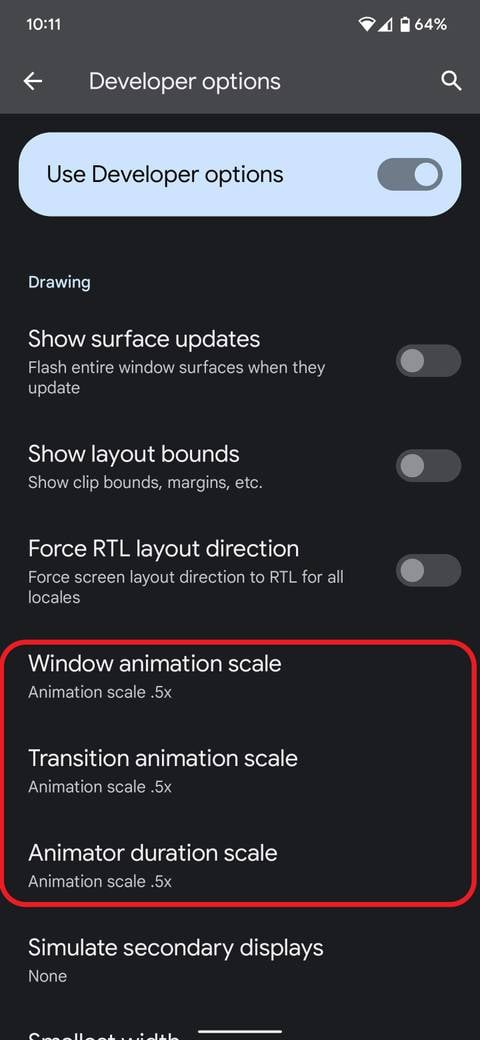
- Adjust System Animation Scales to 0.5x: Set Window Animation Scale, Transition Animation Scale, and Animator Duration Scale to 0.5x inside Developer Options. This cuts UI transition times in half, making room transitions and game launches feel immediate.
- Set Background Process Limit to 2: For phones with 2GB to 4GB of RAM, restrict cached background processes to 2. This blocks dormant apps from fighting Hago for active memory pages.
- Turn Off In-App 3D Space Auto-Rendering: Avoid idling in decorated 3D spaces if you only want to chat or play mini-games. Flat 2D voice channels draw substantially fewer draw calls than avatar-driven spaces.
- Limit Background App Data Refresh: Turn off background mobile data and Wi-Fi sync for non-critical apps in your system settings. This prevents background cloud syncs from hogging radio bandwidth and interrupting CPU cycles mid-match.
Recommended Configuration Flow:
[Developer Options] -> Force 4x MSAA: OFF
[Developer Options] -> Animation Scales: 0.5x
[Developer Options] -> Background Process Limit: Max 2
[Hago Interface]   -> Stick to Classic Voice Channels for Mini-Games
[System Settings]  -> Restrict Non-Essential Background Data
Flagship chips like the Dimensity 8300 or Snapdragon 8-series paired with 12GB of RAM can run Force 4x MSAA without stability penalties. These chipsets offer enough thermal headroom to smooth 3D geometry without triggering clock drops.
When preparing for live room competitions or seasonal store events, securing your balance via top up hago diamonds avoids transaction stalls and deposits room funds directly to your profile.
Network Optimization: Fixing Audio Crackle and High Ping
Mini-games like Knife Hit or Ludo need very little raw bandwidth. They transmit tiny byte arrays of coordinate updates and turn triggers. Packet latency and jitter, however, will break them instantly.
When packet arrival times deviate, voice audio turns robotic and your taps register with noticeable latency. Ditch 2.4GHz Wi-Fi. Move your device to a 5GHz Wi-Fi band, which avoids the RF congestion created by home electronics and neighboring routers.
System-level location scanning is another common cause of spikes on Android. By default, the OS continuously scans for nearby Wi-Fi beacons to calibrate location fixes—even while you are parked on a working connection. Every scan burst creates a split-second network hiccup.
Turn it off: - Open Settings. - Tap Location and open Location Services (or Wi-Fi and Bluetooth Scanning). - Switch Wi-Fi Scanning to Off. - Switch Bluetooth Scanning to Off.
This stops spontaneous latency spikes without breaking GPS tracking in map tools.
Device Thermals: Extending 60 FPS Beyond the 90-Second Mark
When frame rates slide after ten minutes in a party room, thermal throttling is almost always the cause. Passive heat dissipation dictates how long your SoC can hold stable clocks before the kernel intervenes.
Thick protective cases trap heat along the backplate. The phone holds onto that thermal energy, raising battery and SoC temperatures until throttling begins. Taking the case off before long sessions lets the frame bleed heat into the air, extending stable 60 FPS performance well past the typical 90-second boost window.
| Thermal Management Action | Mechanical Impact | Practical Benefit in Hago |
|---|---|---|
| Remove Protective Case | Eliminates thermal insulation on rear casing | Prevents throttling, holding 60 FPS across 30-minute runs |
| Avoid Simultaneous Charging | Prevents charging circuit heat from stacking on SoC | Stops immediate downclocking within 2 minutes of match launch |
| Operate in 20% to 80% Battery Zone | Avoids extreme voltage stress on lithium cells | Reduces heat generation and extends long-term cell health |
| Play on Flat, Hard Surfaces | Maximizes passive airflow around the chassis | Lowers ambient thermal buildup compared to soft bedding |
Takeaway: Passive cooling practices keep hardware beneath thermal throttling thresholds, preserving consistent touch response and battery stability.
Avoid playing while fast-charging. The heat from incoming current combines directly with the thermal load from the GPU and audio decoder. Unless your handset includes hardware bypass charging that powers the board directly, gaming on the charger triggers thermal throttling within minutes.
Keep the battery between 20% and 80%. Lithium cells encounter higher internal resistance when nearly empty or charged above 80%, both of which generate unwanted thermal load under sustained hardware use.
Storage Health and Cache Management
Cache bloat quietly degrades frame pacing. Hago caches avatars, room banners, animated gifts, and sound clips as you browse rooms. Over months of activity, that temporary folder expands significantly.
Mobile flash memory—especially UFS storage—slows down on writes once drive usage climbs past 80%. On a 128GB phone, passing 100GB of storage usage forces the controller to allocate fragmented flash blocks rather than write to sequential sectors. When Hago attempts to write temporary match files or load game modules, the resulting disk latency causes micro-stutters.
Emptying the cache clears the buildup without touching account data. Unlike "Clear Data", clearing the cache leaves logins, message logs, and friend lists intact on Hago's servers.
Maintenance Workflow:
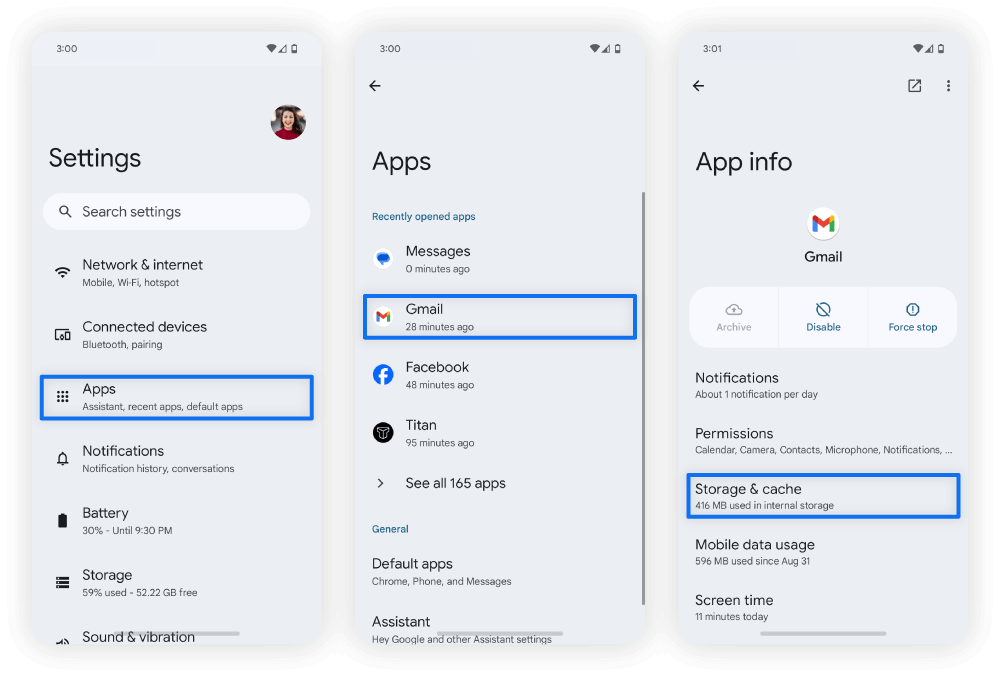
[Settings] -> [Apps] -> [Hago] -> [Storage] -> Tap "Clear Cache"
(Do NOT tap "Clear Data" unless you want to re-enter your login credentials)
Clear Hago's app cache every two to three weeks. If your internal drive exceeds 80% capacity, remove stored videos and unused apps to bring storage headroom back into optimal operating territory.
Platform Showdown: Android Tweaks vs. iOS Constraints
Your tuning path depends on your operating system. Android grants deep control over background limits, UI animation scaling, and graphics behavior. iOS locks these low-level flags down, leaving storage capacity and battery settings as your primary levers.
| Optimization Factor | Android Implementation | iOS Implementation |
|---|---|---|
| Background Tasks | Hard cap background processes to 2 via Developer Options | Toggle Background App Refresh off per app in Settings |
| Display Rendering | Force 4x MSAA toggle manually managed | Handled dynamically by Metal API; no manual toggle |
| Storage Threshold | Write degradation begins above 80% drive usage | Dynamic paging drops frames below 10% to 15% free storage |
| Animation Speed | Manual scale adjustments down to 0.5x | System transitions fixed; reduced via "Reduce Motion" |
| Network Jitter Fix | Disable system Wi-Fi and Bluetooth background scanning | Reset Network Settings; disable local network access per app |
| Low-RAM Handling | Aggressive paging on 2GB to 3GB RAM devices | Memory compression preserves audio, drops background tasks |
Takeaway: Android requires manual adjustments to developer limits and network scanning, while iOS stability depends primarily on keeping more than 15% of storage space free.
Apple devices require at least 10% to 15% free storage to manage active swap memory. When iOS drops below that threshold, dynamic asset streaming and virtual memory paging slow down, causing frame hitches during matches.
If you need room gifts or event items ready across either operating system, using hago recharge online via your browser bypasses mobile checkout errors and updates your balance immediately.
The Low Power Mode Debate: Fact vs. Myth
A persistent assumption among mobile users is that Battery Saver or Low Power Mode prolongs gaming sessions without degrading performance. In practice, the opposite occurs.
The idea sounds reasonable: limit power draw, keep the phone cool, and avoid thermal throttling. However, power-saving profiles achieve this by capping hardware clocks immediately. They reduce CPU frequencies, throttle GPU performance, and force display refresh rates down.
In tap-dependent titles like Sheep Fight, this causes instant touch delay, dropped inputs, and stuttering animations. Leave power-saving modes disabled while running games.
Performance Profiles by Device Tier:

[Budget Tier: 2GB-4GB RAM / Helio G-Series]
- Force 4x MSAA: OFF
- Background Limit: 2 Processes
- Free Internal Storage: > 30%
- Low Power Mode: OFF

[Mid-Range Tier: 6GB-8GB RAM / Snapdragon 7-Series]
- Force 4x MSAA: OFF
- Background Limit: Standard
- Free Internal Storage: > 20%
- Low Power Mode: OFF

[Performance Tier: 12GB+ RAM / Dimensity 8300+ or Flagship]
- Force 4x MSAA: Optional / ON
- Background Limit: Standard
- Free Internal Storage: > 15%
- Low Power Mode: OFF
If you run out of tokens mid-stream for party interactions, an account top up on xptopup delivers digital credits directly to your account so you can rejoin the room without delay.
Recommended Settings Checklist
Before running multi-game sessions or hosting voice rooms, run through this maintenance routine:
- Check Device Thermals: Remove heavy phone cases before launching long gaming sessions.
- Verify Wi-Fi Connection: Switch to a 5GHz Wi-Fi band and turn off background Wi-Fi scanning in system settings.
- Verify Storage Overhead: Ensure at least 15% to 20% of internal storage remains open to avoid flash write slowdowns.
- Purge App Cache: Clear Hago's cached files through system settings every two weeks.
- Turn Off Power Savers: Confirm Battery Saver and Low Power Mode are switched off before matching.
FAQ
How do I stop micro-stutters during Hago mini-games like Sheep Fight?
Clear Hago's app cache in system settings and limit background processes to free up RAM. This prevents the operating system from aggressively paging data while running game logic and voice chat simultaneously.
Does enabling Force 4x MSAA improve performance in Hago?
No, turning Force 4x MSAA off improves frame rate stability and battery life on budget and mid-range devices. While it smooths polygon edges, the extra GPU computation causes frame drops and increases heat.
Why does my phone overheat after a few minutes in Hago voice party rooms?
Overheating occurs because continuous WebRTC voice streaming and real-time screen rendering push mobile SoCs past their thermal limits within 60 to 90 seconds. Removing your phone case and avoiding playing while charging prevents severe thermal throttling.
Will clearing Hago's app cache delete my account or chat history?
No, clearing the cache removes only temporary stored assets like downloaded images and interface files. Your account credentials, friends list, and server-side data remain completely safe.
How can I prevent audio crackling during crowded Hago party events?
Connect to a 5GHz Wi-Fi band and turn off background Wi-Fi scanning in your device location settings. Group voice channels rely on low network latency rather than raw bandwidth to prevent audio packet loss.
Should I keep Battery Saver or Low Power Mode on while playing Hago?
Turn Battery Saver mode off before launching mini-game matches to avoid processor downclocking. Power-saving modes restrict CPU and GPU clock speeds, which directly induces input lag and frame drops.
How much free storage space should I keep on my phone for smooth Hago gameplay?
Maintain at least 15% to 20% free storage capacity on your internal drive. Flash storage write speeds degrade significantly when drives exceed 80% capacity, causing noticeable in-game stutters.
Verdict on Hago Performance Tuning
Hago's mix of real-time voice channels and interactive mini-games puts unique demands on mid-tier hardware, but performance drops are manageable. Disabling Force 4x MSAA, removing insulated phone cases, and cleaning your temporary storage cache will keep framerates steady at 60 FPS. Keep storage usage under 80%, leave power savers off during matches, and your device will handle matches and party rooms with minimal lag.






Comments