

Lock smooth 60+ FPS in Tarisland raids with these tested graphics settings, slider breakdowns, and visual declutter tweaks for PC and mobile players.
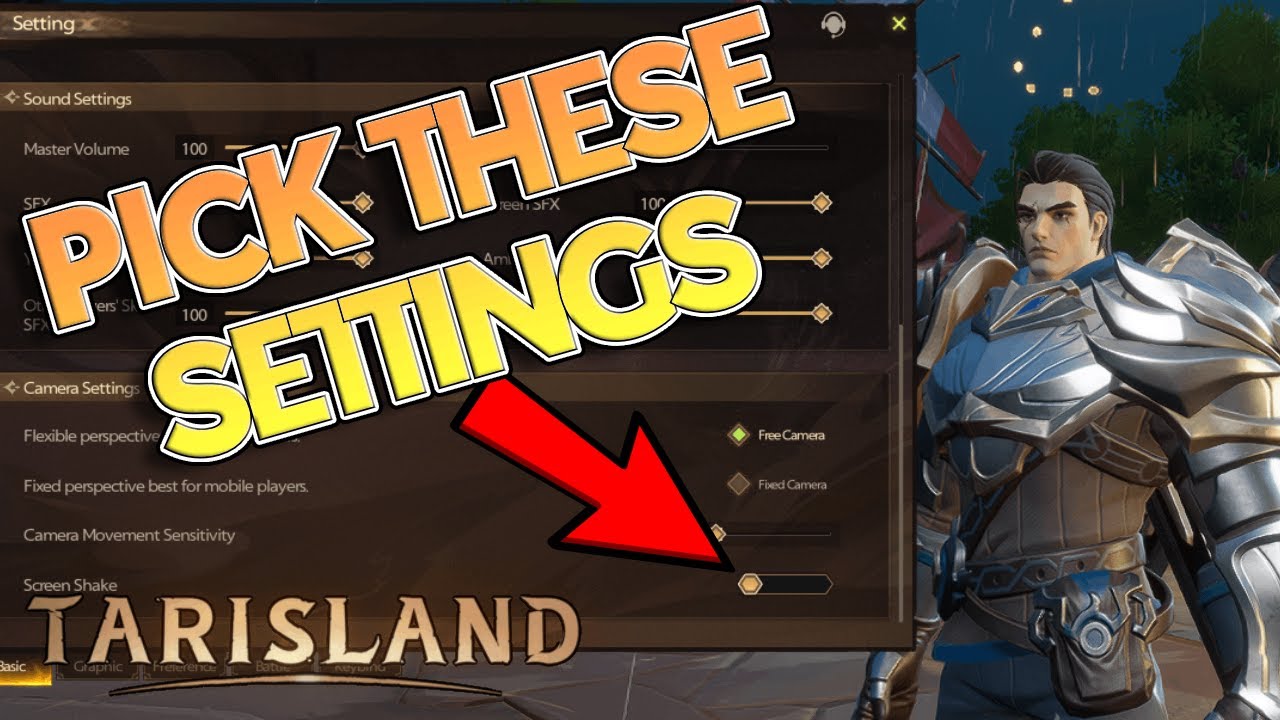
Raid Bottlenecks: CPU Spikes vs GPU Workloads
Tarisland looks like a light, stylized MMO on paper. In practice, 10-player raids turn it into a hardware grinder. You can cruise through open fields at 120 FPS, only to watch framerates drop to 20-40 FPS the second your raid group pulls an instanced boss.
The culprit is combat calculation overhead. When ten players trigger rotations, procs, and dual-talent abilities at once, the CPU must resolve dozens of combat entities and floor hazards simultaneously on a single primary thread. The GPU sits half-idle waiting for draw instructions, causing harsh frame pacing stutters.
Optimization here is not just about raw averages—it is about stabilizing 1% frame lows and eliminating visual noise. If dynamic shadows or spell flares mask a boss wipe telegraph, high frames won't save the wipe. The goal is stripping out rendering bloat while keeping telegraph rings razor-sharp.

60 Crystals
 60 CrystalsUSD 0.70Buy Now
Weekly Ticket
Weekly TicketUSD 0.86Buy NowMonthly Ticket
Monthly TicketUSD 2.54Buy Now330 Crystals
330 CrystalsUSD 3.40Buy Now700 Crystals
700 CrystalsUSD 6.93Buy NowSemiannual Ticket
Semiannual TicketUSD 14.30Buy Now1800 Crystals
1800 CrystalsUSD 16.34Buy Now3600 Crystals
3600 CrystalsUSD 32.73Buy Now7250 Crystals
7250 CrystalsUSD 69.59Buy Now
The Core Sliders: Tested In-Game Graphics Settings
Every graphics slider in Tarisland has a distinct performance cost. Some toggles eat 25% to 40% of GPU headroom without improving visual clarity, while others are essential for seeing telegraphs.
Here is the target configuration for every major in-game graphics slider during heavy combat:
| Setting Slider | Recommended Value | Performance Impact & Reason |
|---|---|---|
| Shadow Quality | Low / Medium | High GPU cost. Lowers complex shadow maps and stabilizes raid frames. |
| Special Effects / Particles | Low / Medium | High CPU/GPU load. Cuts spell clutter so ground markers stay visible. |
| Render Resolution | 100% (Native) | Baseline clarity. Prevents UI blurring and stops costly 4x supersampling. |
| Anti-Aliasing | Off / Low (2x) | Up to 41% FPS gain. Removes heavy edge-smoothing overhead on modest GPUs. |
| Screen Space Reflections (SSR) | Disabled / Low | Up to 25% FPS gain. Eliminates expensive dynamic surface calculations. |
| Motion Blur & Depth of Field | Disabled | Visual clarity gain. Removes camera smearing and unwanted background blur. |
| Frame Rate Cap | Monitor Refresh (-3 FPS) | Prevents thermal throttling and locks smooth frame delivery inside VRR. |
Takeaway: Lowering shadows, particle density, and anti-aliasing yields the largest frame recovery while keeping combat arenas readable.
Shadows and Lighting
Shadow calculations are the single biggest GPU drain in Tarisland's engine. Setting Shadow Quality to Ultra forces real-time soft shadows for every player character, pet, and minion in the arena. Drop this to Low or Medium. You keep grounded contact shadows under character feet while eliminating rendering spikes during group movement.
Particle Density and Spell Opacity
With nine playable classes casting spells at the same time, particle effects quickly flood the screen. Turning Special Effects down to Low or Medium strips away non-essential glow effects and particle bursts. It keeps the glowing red and orange boss telegraph zones crisp, ensuring you never miss a lethal floor mechanic.
If you plan to farm battle passes or unlock cosmetic tracks, you can manage your seasonal upgrades with a top-up for Tarisland to claim your rewards without letting excessive particle trails ruin your framerate.
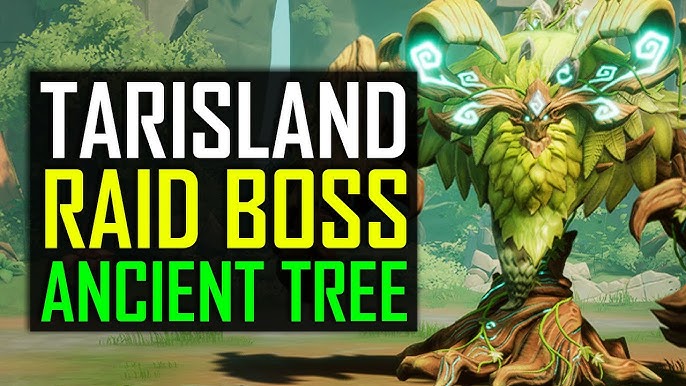
Visual Clarity: Banishing Spell Clutter and Screen Shake
Post-processing toggles add cinematic flare to solo quests, but in high-tier raids they actively obscure lethal boss mechanics.
Screen Shake
Screen shake triggers whenever heavy hits or ultimate abilities land. In a 10-player raid, abilities land every split second, producing constant camera micro-jitters that disrupt dodge timing. Disable screen shake entirely to keep your camera stable during burn phases.
Motion Blur, Depth of Field, and Bloom
Motion blur smears screen edges during quick camera turns to track add spawns. Depth of field artificially blurs objects outside your immediate reticle focus. Bloom causes spell flashes to bleed bright light across the encounter floor.
Turn all three off: * Motion Blur introduces tracking latency and visual distortion. * Depth of Field hides incoming mechanics at the perimeter of the boss room. * Bloom obscures ground boundary circles under bright lighting conditions.
Disabling them provides a clean image and eliminates the GPU post-processing passes tied to camera movement.
Display and Resolution Tuning for Clean Frame Times
Display configuration directly dictates whether your system delivers smooth gameplay or erratic microstutter.
The Render Resolution Trap
Render scaling sets the internal resolution at which the engine draws the 3D world before outputting to your monitor: * Sub-100% Scaling (e.g., 70%-85%): Reduces pixel count to help extremely weak GPUs, but turns text, UI elements, and floor telegraph borders into a muddy mess. * 100% Native: The baseline standard. Every pixel maps 1:1 with your display panel for maximum visual clarity. * 200% Scaling: Acts as brute-force supersampling, quadrupling the total pixel count (a 4x increase) and crushing framerates on almost any GPU.
Lock render scale at 100%. If you need extra performance, adjust shadows and reflections rather than degrading your internal resolution.
Solving the Missing V-Sync Issue on PC
The native PC client of Tarisland launched with limited display options and lacks a built-in V-Sync toggle. If your frame delivery does not match your monitor refresh rate, you will see horizontal screen tearing across the middle of your screen.
To fix this, ignore the in-game display panel and enforce vertical synchronization through your GPU driver software. Pair it with a global framerate cap set 3 FPS below your monitor's maximum refresh rate (141 FPS on a 144Hz panel, or 57 FPS on a 60Hz panel) to stay inside your monitor's variable refresh rate (VRR) window.
Step-by-Step Fix for Tarisland 60 FPS Stutter and Tearing
If you are experiencing erratic stuttering or tearing during combat, apply these fixes in order.
- Enforce Driver-Level V-Sync: Open your GPU control panel, navigate to Tarisland's 3D profile, and force V-Sync to "On" or "Fast" to fix the client's lack of an in-game toggle.
- Set a Frame Rate Ceiling: Cap your framerate to match your display refresh rate or lock it to 60 FPS to prevent erratic frame time spikes.
- Turn on Windows Game Mode: Open Windows Settings and verify Game Mode is active so background tasks do not rob single-thread CPU cycles.
- Enable Hardware-Accelerated GPU Scheduling (HAGS): Toggle HAGS in your Windows Graphics settings to reduce input latency and system-level frame pacing jitter.
- Drop Shadows and Reflections First: Lower Shadow Quality and SSR to Low in-game to gain an immediate GPU overhead buffer.
- Clear Post-Processing: Turn off Motion Blur, Bloom, and Depth of Field to lock in clean visual clarity across all raid encounters.
Platform Comparison: Native PC, Emulators, and Mobile
Hardware demands shift drastically depending on whether you run the native Windows client, an emulator, or mobile hardware.
| Platform / Client | Minimum Hardware Spec | Recommended Hardware Spec | Performance Profile |
|---|---|---|---|
| Native PC Client | Intel i7-9th Gen / Ryzen 3700, RTX 2060 / RX 5700 XT | Modern multi-core CPU, 16GB–32GB DDR5 RAM, NVMe SSD | High fidelity, susceptible to single-thread CPU raid drops. |
| PC Mobile Emulator | Intel/AMD CPU, 4GB RAM, 5GB Storage | Quad-core CPU, 8GB RAM, Dedicated GPU | Lower graphical overhead, limited by emulation translation layer. |
| Mobile (Android/iOS) | Mid-range Octa-Core SoC, 4GB RAM | Flagship SoC with dedicated vapor chamber cooling | High thermal load, prone to thermal throttling in 10-player raids. |
Takeaway: The native PC client delivers the best control precision, while mobile and emulator builds require strict thermal and resource management.
For players jumping between mobile and desktop, picking up Tarisland crystal top-ups lets you grab battle pass tiers or cosmetics across all platforms on a single unified account.
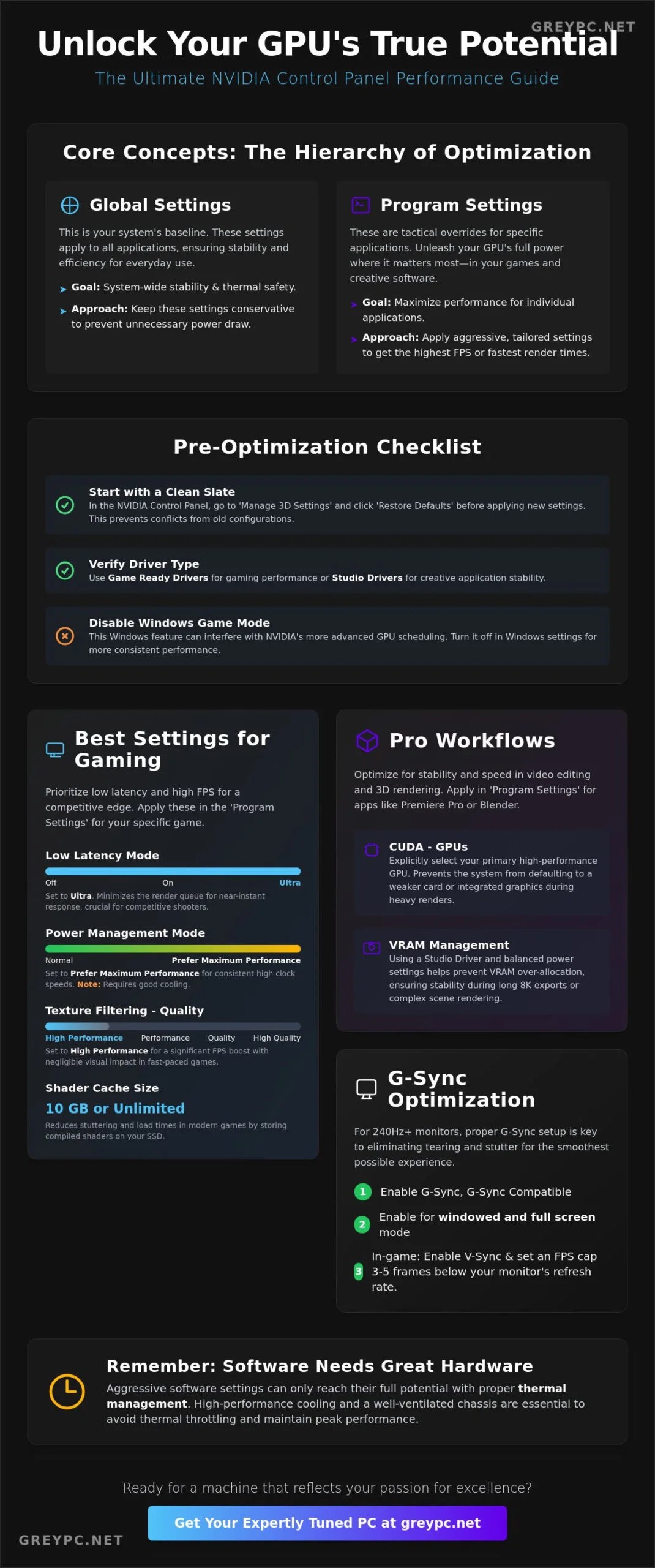
Driver Level Tweaks and System Optimizations
In-game menus only control half the performance equation. Driver profiles and operating system settings stabilize your 1% frame lows when spell effects fill the screen.
Apply these external driver and OS configurations to stabilize combat frame delivery:
| Setting Location | Target Parameter | Recommended Value | Impact on Gameplay |
|---|---|---|---|
| GPU Driver Panel | Power Management Mode | Prefer Maximum Performance | Prevents GPU downclocking during light scene transitions. |
| GPU Driver Panel | Low Latency Mode | Ultra / On | Reduces frame queue latency during heavy ability spam. |
| GPU Driver Panel | Texture Filtering - Quality | Performance | Delivers minor frame boosts with zero visible loss in stylized textures. |
| GPU Driver Panel | Threaded Optimization | On | Forces multi-threading support for Tarisland's main rendering loop. |
| Android Developer Options | Force 4x MSAA | Disabled (Off) | Prevents severe thermal throttling and battery drain during raids. |
| Windows Settings | Background Apps & Battery Saver | Off / High Performance | Ensures full CPU clock speed allocation during combat. |
Takeaway: External driver tweaks enforce stable clock speeds and reduce input lag during high-intensity raid phases.
Memory and Storage Considerations
Fast asset streaming prevents sudden hitching when transitioning between crowded hubs and raid arenas. While 16GB of system RAM is the working baseline, running 32GB alongside a PCIe NVMe SSD eliminates stutter when loading character models and spell visual caches.
Mobile Thermal Throttling Fixes
Thermal throttling on phones drops clock speeds within minutes of pulling a boss. Make sure developer options like "Force 4x MSAA" remain disabled, as hardware anti-aliasing rapidly overheats mobile GPUs.
Disable OS-level battery saver modes before raiding. Battery savers aggressively downclock CPU clusters, causing massive frame hitching when ten players execute abilities simultaneously.
Contradictions and Common Setting Traps
Optimization guides frequently offer conflicting advice for Tarisland. Here is how to navigate the two most common debates.
The Render Scale Debate: Resolution vs Legibility
Some guides recommend dropping render scale below 100% to boost framerates on budget hardware. While this reduces GPU compute load, it creates a severe handicap in raids by blurring telegraph borders and combat numbers.
Keep render scale locked at 100% native resolution. Lower shadows, volumetric lighting, and anti-aliasing instead to regain GPU headroom without sacrificing telegraph readability.
CPU Raid Bottlenecks vs GPU Booster Myths
Third-party booster tools claim to double raid framerates by altering GPU texture pipelines. In Tarisland, severe raid drops down to 20-40 FPS stem from single-threaded CPU limits and combat entity management.
No GPU overclock or texture script bypasses a CPU bottleneck when the engine is waiting on combat calculations. To maximize CPU throughput, close background web browsers, disable unnecessary overlays, enable Windows Game Mode, and verify Threaded Optimization is active in your GPU panel.
FAQ
What are the best graphics settings for high FPS in Tarisland raids?
Set Shadow Quality, Special Effects, and Post-Processing to Low or Medium while locking Render Resolution at 100%. Disable Motion Blur, Bloom, and Depth of Field to maintain clear visibility over boss mechanics and prevent frame drops during 10-player encounters.
Why does Tarisland experience screen tearing on PC?
The native PC client does not include an in-game V-Sync toggle in its standard display settings. You can resolve tearing by forcing V-Sync to "On" in your NVIDIA Control Panel or AMD Radeon Software, and pairing it with a framerate cap set slightly below your monitor refresh rate.
What are the official minimum PC requirements to run Tarisland?
Level Infinite specifies an Intel i7-9th Gen or AMD Ryzen 3700 processor, an NVIDIA RTX 2060 or AMD RX 5700 XT GPU, 16GB of RAM, and 30GB of available storage. Players with lower-tier hardware can run the mobile version on PC using an emulator requiring only 4GB of RAM and 5GB of storage.
How can mobile players fix lag and stutter in Tarisland on Android?
Turn off Battery Saver mode, enable your device's built-in Game Mode, and confirm that developer options like Force 4x MSAA are disabled. This prevents your device from thermal throttling and downclocking the CPU during long dungeon and raid sessions.
Does lowering render scale below 100% help raid performance in Tarisland?
Lowering render scale reduces GPU rendering load, but it blurs telegraph circles and UI elements needed for boss mechanics. It is far better to leave render scale at 100% native and lower shadows, reflections, and anti-aliasing instead.
Why does Tarisland stutter even when average FPS appears high?
Combat microstutters occur when 1% frame lows drop significantly below your average FPS during sudden ability spam. Setting an external framerate cap, enabling Low Latency Mode, and turning on Windows Game Mode will smooth out your frame pacing and eliminate jitter.
Final Raid Optimization Verdict
Rock-solid raid performance in Tarisland requires smart resource allocation rather than dropping every slider to minimum. Sacrificing visual clarity by dropping render scaling gets you killed by obscured floor mechanics, while running Ultra shadows and heavy screen bloom bogs down your hardware during combat.
Lock render scale to 100%, lower shadow complexity and particle density, and let your GPU control panel handle V-Sync and low-latency queuing. This setup locks in stable 60+ FPS, protects your 1% lows, and keeps your screen clear for boss mechanics.
When your performance is dialed in and you are ready to expand your cosmetic wardrobe, explore Tarisland recharge packs to grab the $21.99 premium pass or custom mounts for your favorite class.






Comments