

Stuck on the title screen? Learn how to fix CarX Street Error Code 1004 on mobile and PC fast by clearing DNS conflicts, cache bugs, and network locks.
Firing up CarX Street only to hit a grey dialogue box reading Error Code 1004: Connection to server failed immediately halts your session. Sunset City stays locked behind an authentication barrier.
Error 1004 rarely points to a deleted profile. In almost every case, an interrupted authentication handshake between your local game client and the remote servers triggers the drop.
Fast Fix for CarX Street Error Code 1004
Run through this five-minute triage checklist in order. These four steps resolve most local client dropouts.
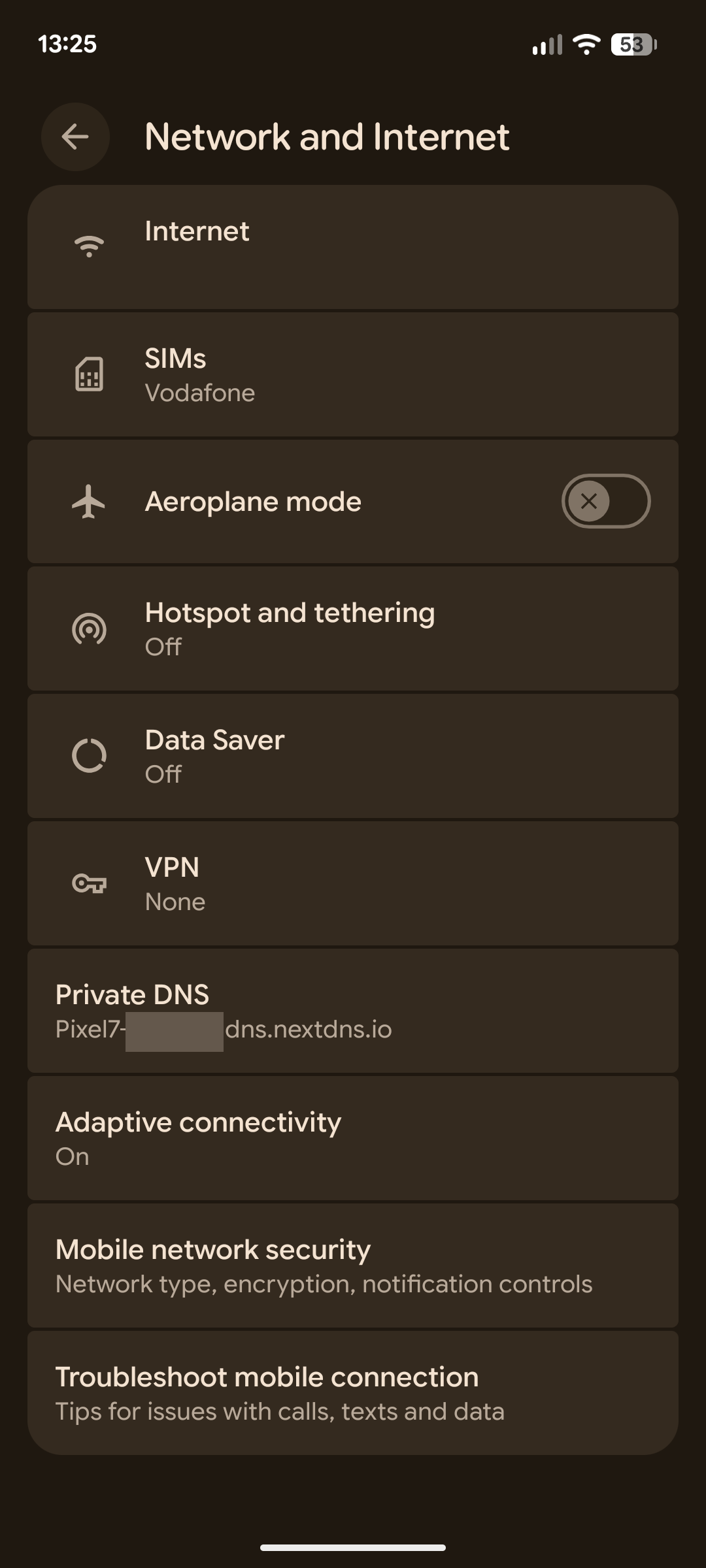
- Disable Custom Private DNS: Open your device network settings. If you use a custom Private DNS hostname (such as NextDNS or AdGuard), switch it back to Automatic or Off. Custom DNS profiles often fail to resolve game server hostnames across standard ports.
- Disconnect Active VPNs and Proxies: Turn off any active VPN apps or proxy routing profiles. VPN gateways frequently override standard DNS tables and trigger handshake timeouts with game authentication servers.
- Switch to a Mobile Hotspot: Disconnect from your local Wi-Fi and connect your phone or PC to a cellular mobile hotspot. If the game connects instantly, your home internet router has a stale routing table or a temporary DNS block.
- Wipe Stale App Cache: On Android, head to Settings > Apps > CarX Street > Storage and tap Clear Cache. On PC, close the game and purge your system DNS cache using the command prompt.
If the error persists after these four steps, the cause lies deeper in your network stack or profile authentication layer.
Why Error 1004 Kicks You Out of Sunset City
CarX Street relies on a persistent online handshake. Every time you launch the game, the client contacts remote servers to validate your profile, sync your garage, and check leaderboard security. If that initial data packet drops, the engine returns Error Code 1004.
The Port 53 and Port 853 Bottleneck
Standard network lookups happen across UDP/TCP Port 53. When you run encrypted or Private DNS configurations, your operating system redirects lookups across Port 853 (DNS-over-TLS). If your Internet Service Provider, router firewall, or operating system mishandles Port 853 handshakes, domain resolution stalls. The game client attempts to reach the authentication endpoint, times out after a few seconds, and throws Error 1004.
Network Routing Faults and Invalid DHCP Leases
Hardware glitches also trigger the error. If a router runs for weeks without a reboot, its internal NAT table can corrupt. In severe cases, a device fails to acquire a local gateway address and assigns itself an IP starting with 169.254.x.x.
This prefix marks an Automatic Private IP Addressing (APIPA) state where DHCP allocation failed. Even if your device displays an active Wi-Fi icon, outbound communication is zero.
| Error Profile | Root Trigger | Target Resolution |
|---|---|---|
| DNS Configuration Conflict | Custom Private DNS hostname drops port 853 lookups | Switch Private DNS to Automatic or Flush DNS |
| VPN Routing Interruption | Gateway override clashes with local routing tables | Disconnect VPN / Proxy Services |
| Local App Data Corruption | Outdated tokens in Google Play or client cache | Clear App & Service Cache / Storage |
| Network Gateway Failure | Router DHCP failure assigning 169.254.x.x self-IP | Power Cycle Router for 10 Seconds |
Reviewing your local network symptoms against this breakdown pinpoints whether the breakdown is on your device or your home router.
Mobile Troubleshooting on Android and iOS
Mobile devices run aggressive background battery management and networking profiles that directly interfere with multiplayer titles. If you are on a phone or tablet, tackle these specific mobile bottlenecks.
Resolving the Android Private DNS and VPN Clash
Android ad-blocking setups often route lookups through hostnames like NextDNS. While effective for web browsing, custom hostnames routinely block game server communication on local Wi-Fi networks.
On Android 12 and newer builds, running Private DNS alongside VPN services (such as Tailscale 1.23.53) causes both systems to compete for DNS routing. The operating system fails domain lookups entirely, blocking login handshakes.
To fix this on Android: 1. Open Settings on your phone. 2. Navigate to Network & Internet (or Connections). 3. Tap Private DNS. 4. Change the selection from Private DNS provider hostname to Automatic or Off. 5. If you use a VPN app, force-close it completely.
Clearing Google Play Games and Services Storage
On Android, CarX Street authenticates through Google Play Services. If the local authorization token stored on your phone becomes desynchronized or corrupted, the server rejects the login packet and displays Error 1004.
To clean out corrupted tokens without losing your game install: 1. Go to your device Settings > Apps. 2. Locate and tap Google Play Games Mobile App. 3. Tap Storage & Cache, then select Clear Storage. 4. Go back to the apps list, select Google Play Services, tap Storage, and tap Clear Storage. 5. Restart your phone and launch CarX Street again.
iOS Network Permission Resets
On iPhone and iPad, Error 1004 often traces back to disabled local network permissions or corrupted iCloud Private Relay lookups. Head to Settings > CarX Street and ensure Local Network and Cellular Data are both toggled on. If you use iCloud Private Relay, temporarily toggle it off under your Apple ID iCloud settings to verify it is not routing game traffic through an unresponsive edge server.
Once your connection is verified and your profile is syncing cleanly, you can safely explore ways to top up your CarX Street balance to expand your garage collection without worrying about lost session progress.
Resolving Error 1004 on Windows and macOS
On PC platforms, network stacks build up large local caches of DNS queries. When game servers rotate backend IP addresses or balance loads across regional clusters, your operating system might try to reach an address that no longer answers. This results in an immediate connection dropped popup.
Flushing the Windows DNS Cache
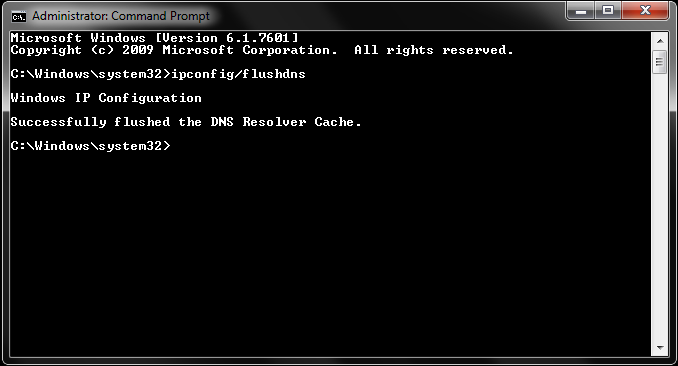
Flushing your local resolver cache removes stale IP mappings and forces your operating system to request fresh lookup tables from your primary DNS provider.
- Press the Windows Key, type
cmd, right-click Command Prompt, and select Run as administrator. - In the console window, type the following command and press Enter:
text ipconfig /flushdns - You should see a confirmation message stating: Successfully flushed the DNS Resolver Cache.
- In the same window, release and renew your local IP lease by typing:
text ipconfig /release ipconfig /renew - Close the console and launch the game.
Flushing macOS DNS Cache
If you run the game environment or client on macOS systems, clearing the network lookup table requires a different command executed through the Terminal:
- Open Terminal from Applications > Utilities.
- Enter the following command and press Enter:
bash sudo killall -HUP mDNSResponder - Type your administrator password when prompted and hit Enter.
- Restart your network connection.
Firewall Rules and Network Adapter Drivers
Windows Defender Firewall and third-party security software can misinterpret rapid game server handshakes as suspicious traffic. To verify this is not blocking you:
- Open Windows Security > Firewall & network protection.
- Click Allow an app through firewall.
- Locate the CarX Street executable and ensure both Private and Public checkboxes are ticked.
- Check Device Manager under Network adapters. Right-click your Ethernet or Wi-Fi card and select Update driver. Outdated network drivers often cause packet dropouts during encrypted game handshakes.
To understand the technical layers involved when clearing these communication barriers, review this protocol breakdown:
| Operating Layer | Impacted Port / Protocol | Diagnostic Tool / Command | Direct Functional Outcome |
|---|---|---|---|
| Standard DNS | Port 53 (UDP/TCP) | ipconfig /flushdns | Clears stale server IP entries on Windows |
| Encrypted DNS | Port 853 (DNS-over-TLS) | Android Settings Menu | Disables failing Private DNS hostnames |
| macOS Resolver | mDNSResponder Daemon | sudo killall -HUP mDNSResponder | Restarts system domain lookup daemon on Mac |
| IP Lease Assignment | DHCP Protocols | 10-Second Power Cycle | Clears invalid 169.254.x.x network self-assignments |
Applying the correct command to its specific protocol layer eliminates ghost network routes that prevent game client handshakes.
Diagnostic Checklist: Local Glitch vs Global Server Outage
Before spending time altering router settings, verify whether the problem is local or if the game infrastructure is undergoing emergency maintenance. A live server outage produces the exact same Error Code 1004 message as a broken local Wi-Fi connection.
                    [Launch CarX Street]
                             |
                   [Error 1004 Appears]
                             |
               +-------------+-------------+
               |                           |
      [Test Mobile Hotspot]       [Check Status Feeds]
               |                           |
        +------+------+             +------+------+
        |             |             |             |
   [Connects]   [Still Fails]   [Outage]      [Normal]
        |             |             |             |
  [Local Router  [Profile /     [Wait for     [Client DNS /
   Issue - Reboot Device Glitch] Server Fix]   Cache Reset]
1. The Mobile Hotspot Isolation Test
This is the fastest diagnostic test available. Disconnect your gaming device from your primary home Wi-Fi or wired network. Enable the personal hotspot on your smartphone and connect your PC or gaming device to that cellular network.
If CarX Street connects over cellular data, your gaming hardware and local game installation are fine. The issue is strictly isolated to your home router, local DNS server, or Internet Service Provider routing table.
2. The 10-Second Router Power Cycle
If the hotspot test proves your home network is causing the drop, do not just press the soft reset button on your router. Unplug the physical power cable from the back of the router.
Wait a full 10 seconds. This pause allows the internal capacitors to drain completely, clearing temporary cache partitions, freeing jammed NAT lookup tables, and dropping stuck network gateway sessions. Plug the power cable back in, wait for all status lights to turn solid green, and launch CarX Street.
3. Cross-Device Account Verification
If the game fails across both Wi-Fi and mobile hotspot, attempt to log into your account from a secondary device (such as a friend's phone or a second PC).
If the secondary device connects without errors, your primary device has a corrupted local cache partition or network adapter conflict. If the secondary device also throws Error 1004 over a separate network, the game's regional authentication servers are either offline or undergoing backend maintenance.
Checking third-party monitoring platforms like DownDetector and official community status feeds will confirm if other players are experiencing dropped handshakes simultaneously.
Modded Accounts and Server Handshake Rejections
Account modifications and third-party tampering directly cause connection failures.
CarX Street has large online communities. Dedicated PC mod hubs host thousands of active members (some sharing custom game modifications with over 3,400 members and close to 1,000 active users). Street racing communities like No Hesi command massive audiences, reaching upwards of 1.19 million registered users and over 177,000 active members coordinating racing setups. Alongside legitimate modification hubs, third-party services claim to offer injected currencies, modified prototype parts, and anti-ban bypass tools across groups numbering 10,000 to 20,000 members.
Avoid injected currency tools and account modding packages entirely.
Modern game servers run automated integrity checks during the login handshake. When the server compares your account inventory against server-side transaction receipts, any mismatch immediately flags your profile. The server terminates the handshake, throwing a persistent Error Code 1004 or related connection drops. Anti-ban tools cannot bypass server-side validation checks permanently.
| Community Category | Documented Scale | Operational Focus | Server Handshake Risk Level |
|---|---|---|---|
| Massive Racing Hubs | 1,192,027 members / 177,699 active | Multiplayer coordination & servers | Zero (Standard game clients) |
| Third-Party Currency Modding | 10,000 to 20,000 members | Injected currency & unlock bypasses | Severe (Triggers Error 1004 bans) |
| Dedicated PC Modding Hubs | 3,434 members / 979 active | Custom file mods & visual tweaks | Moderate (File mismatch flags) |
Using modified saves or unauthorized tools creates server validation mismatches that directly trigger permanent login blocks.
If you want to speed up your progression without triggering authentication flags, stick to verified purchasing methods. You can securely process a CarX Street account top-up through established channels that deliver resources directly to your official profile ID, keeping your account in full compliance with authentication servers.
Resolving the Custom DNS Contradiction
Gaming forums often debate whether custom DNS services bypass routing bottlenecks. While manual DNS settings can resolve sluggish web browsing, technical logs show that mobile operating systems running custom Private DNS hostnames frequently break game server connectivity on Wi-Fi and VPN connections. Custom profiles struggle to route TLS-wrapped lookups over Port 853, stranding the client.
Switching Private DNS to Automatic prevents these lookup failures. Letting the operating system negotiate native local DNS gateways keeps socket handshakes stable.
For players expanding their car collections, using verified reliable CarX Street resources avoids the integrity flags and handshake rejections associated with modded files.
FAQ
What causes Error Code 1004 when launching CarX Street?
Error Code 1004 occurs when the game client fails to complete an authentication handshake with the game servers. It is usually caused by Private DNS misconfigurations, active VPN software, corrupted local cache, or live server maintenance.
How do I fix Error Code 1004 on Android?
Open your phone's network settings and set Private DNS to Automatic or Off. Then, navigate to your App settings and clear the cache and storage for both CarX Street and Google Play Services.
How can I resolve server connection errors on CarX Street PC?
Open the Windows Command Prompt as an administrator and execute ipconfig /flushdns to clear outdated server routing tables. Ensure that CarX Street is allowed through Windows Defender Firewall and that all proxy software is disabled.
Does using a VPN fix or worsen Error Code 1004?
Active VPNs typically worsen the issue by conflicting with native DNS lookups and altering IP routing during authentication. Disconnecting all VPN and proxy software before starting the game resolves most login failures.
Will restarting my router help fix CarX Street connection errors?
Yes, unplugging your router for 10 seconds clears jammed NAT tables and forces the router to renew its local DHCP leases. This fixes invalid 169.254.x.x self-assigned IP addresses that block outbound game traffic.
Can third-party account mods cause Error Code 1004?
Yes, using injected save files or modded accounts causes the server to reject your profile during the initial handshake. Sticking to official game clients and authorized top-ups prevents your profile from being flagged and blocked.
Final Verdict on Keeping Your Connection Stable
CarX Street Error Code 1004 looks intimidating when it locks you out of your garage, but it is almost always a simple communication breakdown rather than a broken game install.
Do not waste hours reinstalling the entire multi-gigabyte client as your first step. Turn off custom Private DNS hostnames, drop your active VPNs, flush your DNS resolver cache, and give your home router a clean 10-second power cycle. Taking control of your local network stack will clear the block, bypass the handshake timeout, and get you back drifting through Sunset City in minutes.






Comments