


To resolve Brawl Stars crashing on launch on Android, force stop the application and clear its temporary cache through system settings, verify your phone meets the minimum threshold of Android 7.0 and 2GB RAM with at least 1.5GB free storage, and confirm Supercell's servers are not undergoing maintenance breaks that cause startup hangs.
Check for Server Maintenance and the 87% Freeze
Before changing local device settings, verify whether the launch failure originates on your phone or on Supercell's infrastructure. When Supercell rolls out title updates or conducts scheduled backend maintenance, the game client cannot establish a handshake with the game servers.
According to Planet VPN, this condition frequently manifests as a freeze at 87% on the loading bar rather than an instantaneous application shutdown. If your game client initializes, displays the splash screen, and freezes precisely at 87%, the local installation files are rarely damaged. The client is paused while waiting for an overloaded or offline authentication server.
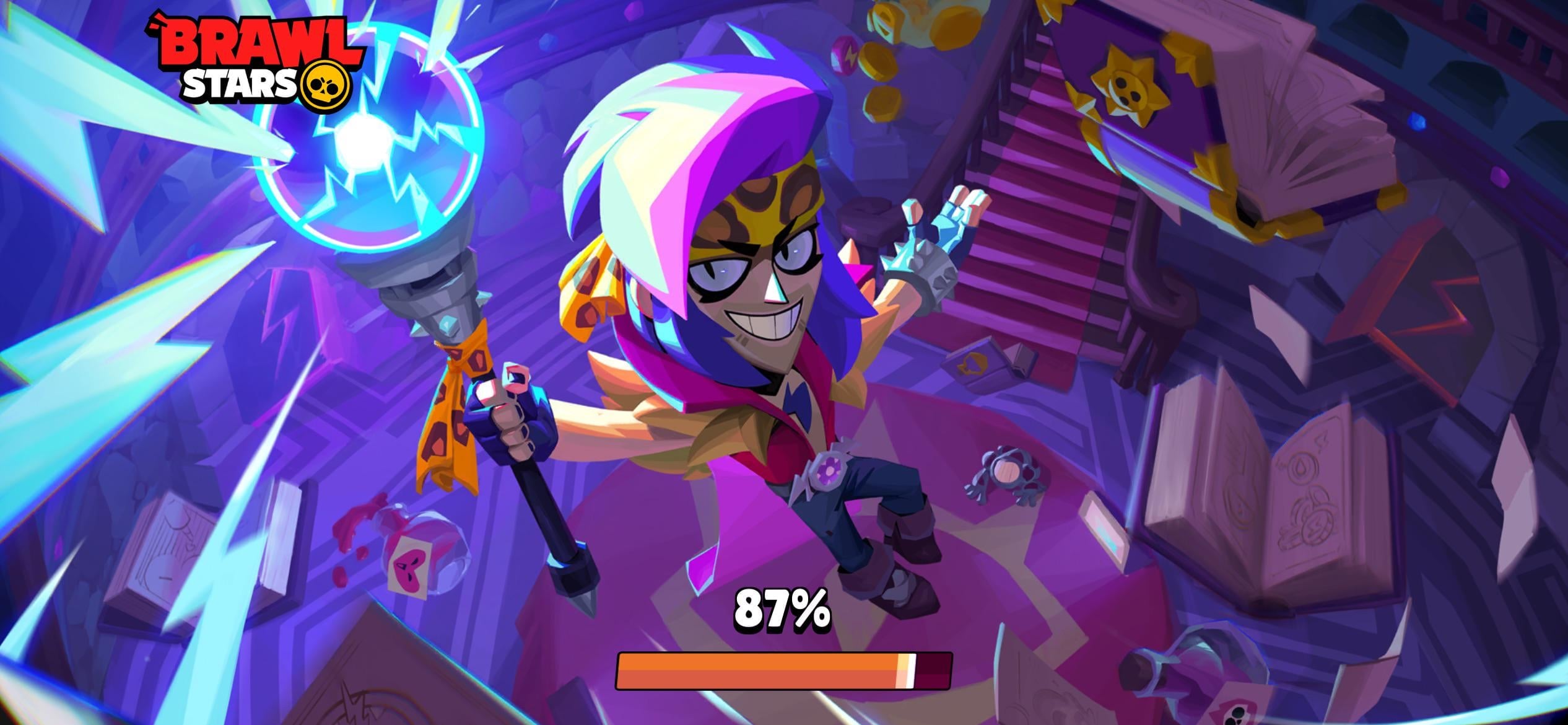
When Brawl Stars closes immediately after opening without displaying the loading bar, the failure is client-side. In that situation, move directly into hardware verification and local troubleshooting.

Starter Pack! Brawl like a pro!
 Starter Pack! Brawl like a pro!USD 2.41Buy Now
Ultimate Collector's Pack
Ultimate Collector's PackUSD 21.76Buy NowCollector's Pack
Collector's PackUSD 22.57Buy NowPro Pass Plus
Pro Pass PlusUSD 20.14Buy Now2000Gems
2000GemsUSD 80.63Buy Now950Gems
950GemsUSD 40.31Buy Now360Gems
360GemsUSD 16.12Buy Now170Gems
170GemsUSD 8.06Buy Now80Gems
80GemsUSD 4.02Buy Now30Gems
30GemsUSD 1.60Buy NowBrawl Pass Plus Upgrade
Brawl Pass Plus UpgradeUSD 4.02Buy NowBrawl Pass Plus
Brawl Pass PlusUSD 10.48Buy NowBrawl Pass
Brawl PassUSD 7.25Buy Now
Verify Hardware and Operating System Requirements
Brawl Stars requires specific processing and storage thresholds to launch cleanly. Running the game on deprecated software or insufficient memory causes the OS kernel to kill the process during startup initialization.
Supercell officially discontinued support for operating systems older than Android 7.0, as detailed in the Supercell Support Bulletin.
| System Requirement | Official Minimum | Recommended Baseline | Visual Verification Reference |
|---|---|---|---|
| Operating System | Android 7.0 (Supercell) | Android 10 or higher (esports.net) | 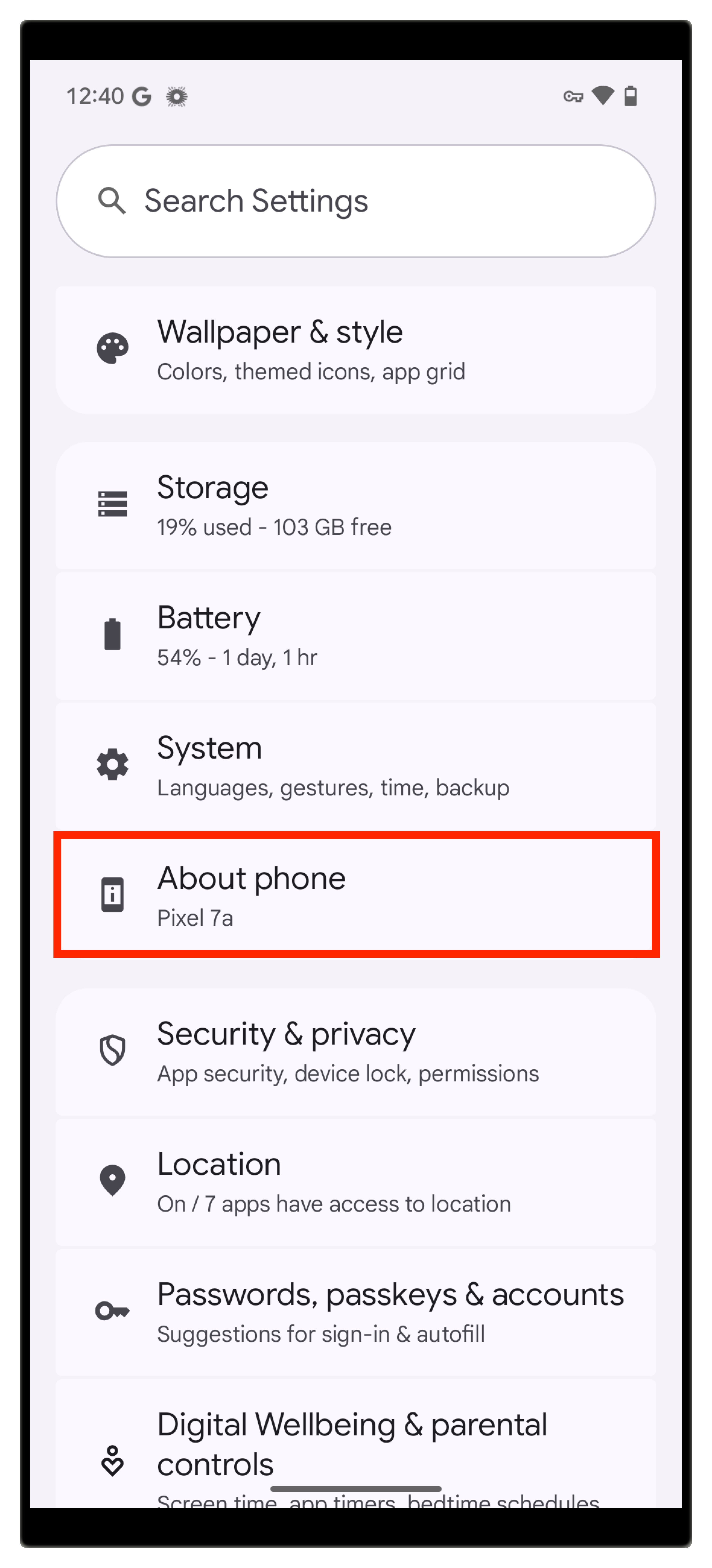 |
| System Memory (RAM) | 2GB RAM (esports.net) | 4GB RAM or higher (esports.net) | 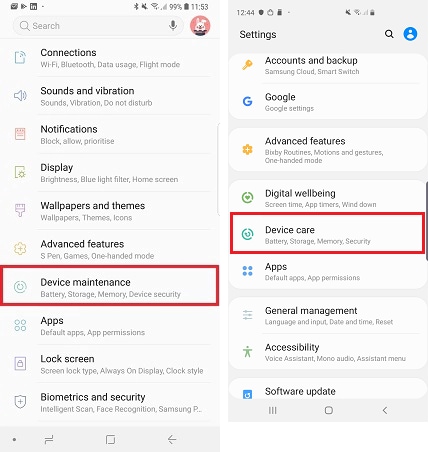 |
| Free Internal Storage | 1.5GB free space (esports.net) | 3GB free space (esports.net) | 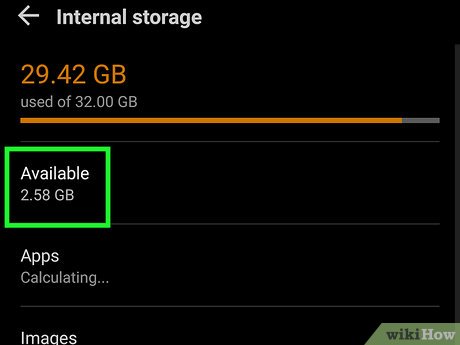 |
Storage exhaustion is a frequent driver of crashes after an update. The base APK installer takes up roughly 1GB to 1.3GB upon first download from Google Play. Once the game unpacks live assets, dynamic maps, and brawler models, esports.net notes that total game storage expands to 1.5GB–2GB. If your device possesses less than 1.5GB of free space, the asset decompression routine fails and the app terminates instantly.
Step-by-Step Diagnostic Order to Fix Startup Crashes
Work through these fixes in sequential order. This progression resolves corrupted local caches first, protecting your account credentials before moving to system-level configuration changes.
1. Force Stop the App Process
When Brawl Stars crashes repeatedly on startup, Android often leaves suspended background threads in memory. Re-tapping the app icon merely reattaches the display to a broken runtime loop.
- Open your device Settings.
- Tap Apps (or Apps & notifications).
- Select Brawl Stars from your installed applications list.
- Tap Force Stop in the bottom corner, as outlined by Asurion Tech Tips.
- Relaunch the game client to see if a clean memory state solves the crash.
Clear App Cache Without Wiping Your Account
A corrupted local cache following a content update commonly triggers a black screen on startup. You can safely clear this temporary cache in device settings without wiping your saved progress.
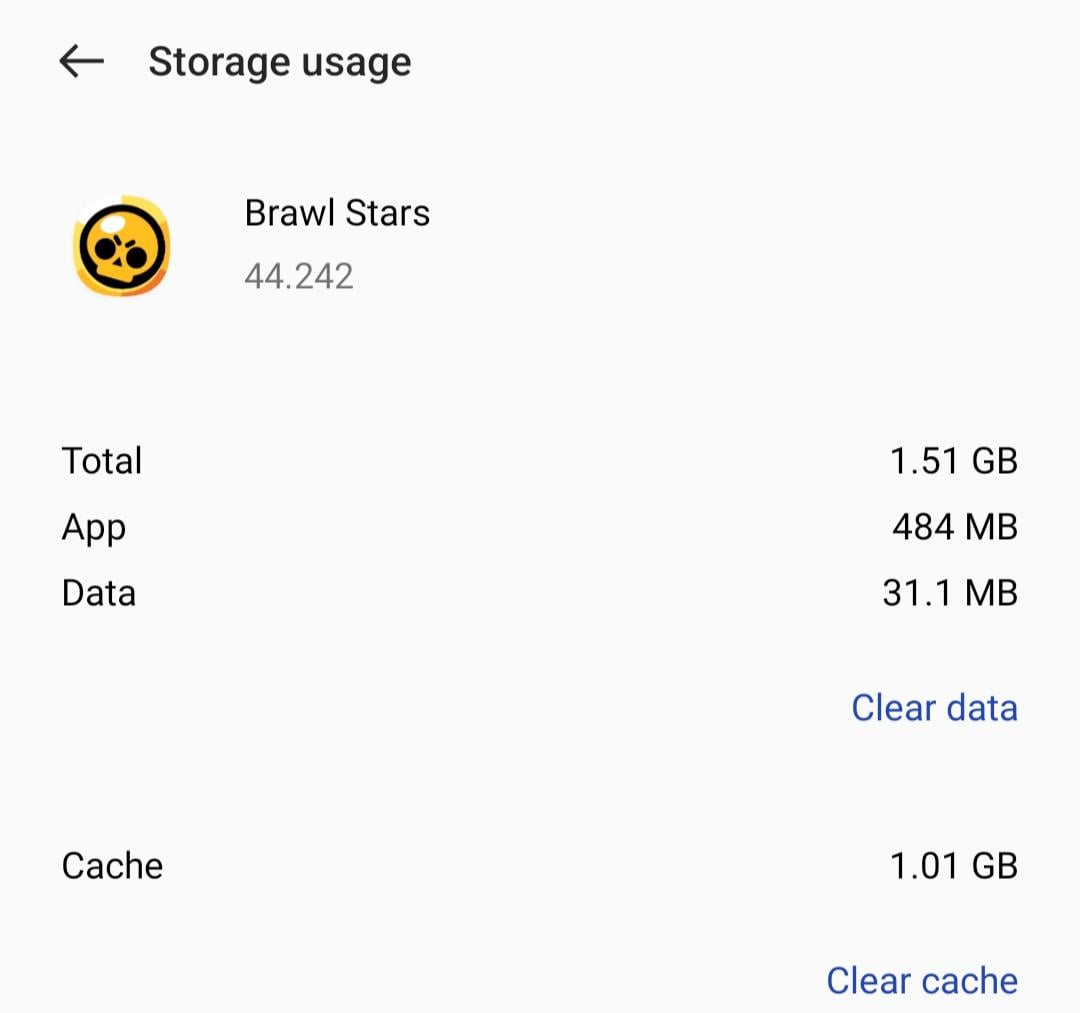
- Navigate to Settings > Apps > Brawl Stars.
- Tap Storage (or Storage & cache).
- Tap Clear Cache.
GearUP Booster's troubleshooting analysis stresses that players must avoid tapping Clear Data or Clear Storage at this stage unless their game profile is already confirmed linked to a Supercell ID. Clearing cache only wipes dispensable temporary asset files. In contrast, tapping Clear Data wipes local guest login keys and offline configurations.
Clear Google Play Services and Play Games Cache
If the application launches, shows a black screen, and closes while attempting to connect to your profile, the fault often sits within the Google Play Games authentication layer. Google Play Help confirms that clearing the cache for Google Play services resolves persistent game login stalls.
- Open Settings > Apps > See all apps.
- Locate and tap Google Play Games.
- Open Storage & cache and select Clear cache.
- Return to the app list, tap Google Play services, open Storage & cache, and tap Clear cache.
- Restart your Android device and open Brawl Stars.
Disable Battery Saver and System Throttling
Aggressive battery profiles throttle CPU clocks and block background sync. As GearUP Booster points out, power-saving restrictions frequently interrupt network handshakes during boot, prompting the OS to shut down the client before rendering completes.
- Pull down the Android notification shade and verify that Battery Saver is switched off.
- Go to Settings > Battery > Battery Saver and toggle it off.
- Open Settings > Apps > Brawl Stars > App battery usage (or Battery).
- Set the preference to Unrestricted so the system does not cap CPU clocks during game boot.
5. Turn Off USB Debugging and Developer Options
Certain mobile games detect debugging hooks and terminate immediately upon startup to maintain environment integrity. XDA Developers documents that several game applications refuse to launch entirely if USB debugging remains enabled.
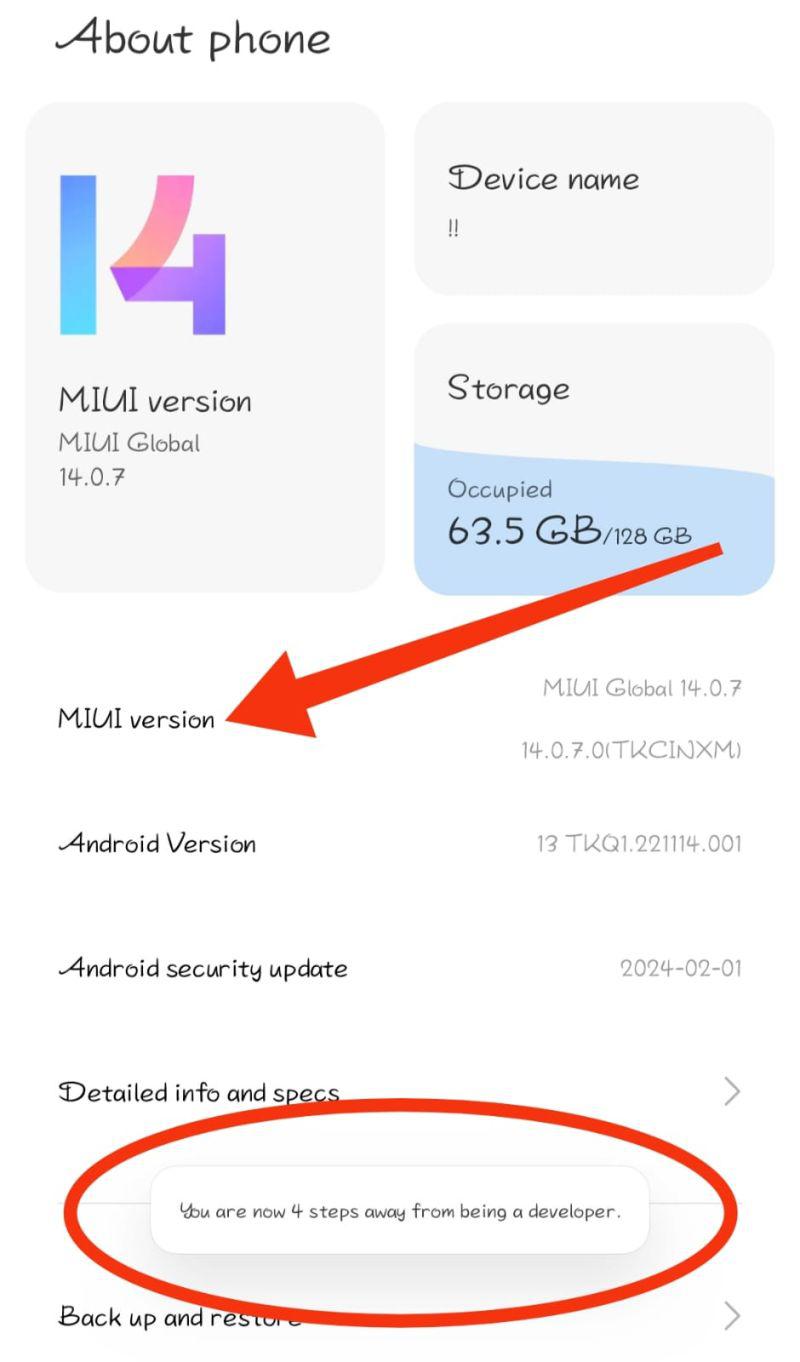
If you have previously configured development settings on your phone, disable them before opening the game:
- Go to Settings > System (or Additional Settings).
- Tap Developer Options.
- Toggle the master switch at the top of the menu to Off.
- Reboot your phone and launch Brawl Stars.
| Crash Symptom | Most Likely Root Cause | Documented Corrective Action | Evidence Source |
|---|---|---|---|
| Immediate kick to home screen on icon tap | Developer debugging flags or frozen background processes | Toggle off Developer Options; execute Force Stop | XDA Developers, Asurion |
| Black screen hangs during authentication | Corrupted Google Play Services session | Clear cache on Google Play Games and Services | Google Play Help |
| Crashing after new seasonal patch | Corrupted temporary asset cache | Clear Brawl Stars app cache via system storage | GearUP Booster |
| Game stalls at exactly 87% | Live server maintenance or backend overload | Wait for maintenance completion; avoid client reinstallation | Planet VPN |
| Instant closing on older Android phone | OS version lower than Android 7.0 | Upgrade device OS or migrate to supported hardware | Supercell |
When to Reinstall the Game Client
If you have verified system requirements, cleared the cache, and disabled developer flags without success, your local installation may contain corrupted core asset binaries. Reinstalling provides a clean file structure, but you must observe specific account safety precautions.
| Storage Component | Action Taken | Impact on Player Progress | Safety Recommendation |
|---|---|---|---|
| Temporary Asset Cache | Tap Clear Cache | Zero impact; clears only transient graphics and temp files | Safe to execute at any time (GearUP Booster) |
| Local Application Data | Tap Clear Data | Erases guest login tokens, local audio, and control preferences | Only execute if linked to Supercell ID (GearUP Booster) |
| Game Application Package | Uninstall via Google Play | Removes all base files (1GB–1.3GB base, up to 2GB expanded) | Confirm Supercell ID credentials before proceeding (esports.net) |
Do not uninstall the client if your account was played purely as a guest without Supercell ID integration. Reinstalling wipes local guest authentication tokens permanently. Once your Supercell ID is connected, your profile, trophies, cosmetics, and currencies like Brawl Stars Gems (which are used to purchase Brawlers, skins, Starr Drops, and seasonal Brawl Pass rewards) remain secured on Supercell's cloud infrastructure.
To execute a clean reinstallation:
- Open the Google Play Store.
- Tap your profile icon in the top right corner and open Manage apps & device.
- Find Brawl Stars and tap Uninstall.
- Restart your device to clear residual memory states.
- Reopen the Google Play Store, search for Brawl Stars, and download the fresh build.
- Launch the app and log back in through your Supercell ID email verification code.
Frequently Asked Questions
Will clearing app data or reinstalling Brawl Stars delete my game account progress?
Clearing the cache does not touch personal account data. Clearing app data or reinstalling resets local configurations, but your progress is safe as long as your account is connected to a Supercell ID, according to GearUP Booster. Guest accounts not connected to a Supercell ID will lose their local progress.
Why does Brawl Stars hang at 87% or freeze on the splash screen when opening?
A freeze at 87% typically occurs when the client cannot establish a handshake with Supercell's servers. Planet VPN reports that this issue is frequently caused by live maintenance breaks, high post-patch traffic, or corrupted network routing rather than a broken local installation.
Can enabling Android USB debugging or developer options prevent Brawl Stars from launching?
Yes. Some mobile games detect active debugging environments and immediately shut down on launch to protect application integrity. XDA Developers confirms that toggling Developer Options off in Android settings resolves this issue.






Comments