


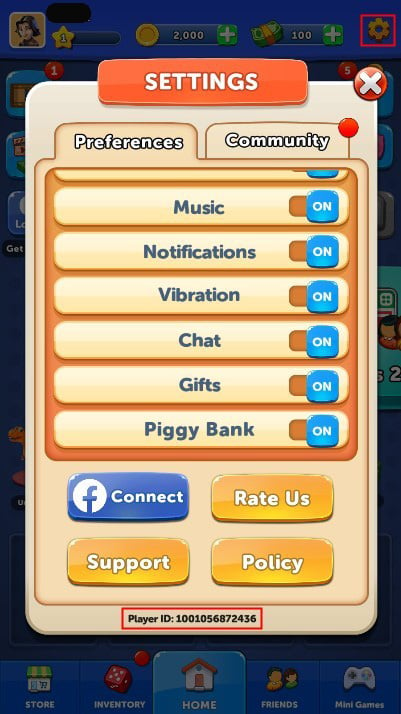
To completely turn off notifications in Ludo Club, disable notification permissions at the operating system level: on Android (which requires Android 7.1 or higher for the game), open Settings > Notifications > App notifications, select Ludo Club, and switch the toggle off; on iOS, open Settings > Notifications > Ludo Club and toggle Allow Notifications to off. Inside the game itself, tap the gear icon in the top-right corner of the lobby screen to access sound toggles and view your unique player UID.
Managing In-Game Sound and Settings in the Lobby
Ludo Club organizes account information and client settings within its main lobby screen. Tapping your avatar in the upper-left corner opens your profile card, while tapping the gear icon located in the upper-right corner opens Game Settings (Ludo Club Top-Up Overview).
Inside this settings panel, players can adjust audio preferences such as dice roll audio and background music. Your account UID appears at the very bottom of this menu. If you plan to acquire Coins or Cash for match entry fees, rerolls, or cosmetic dice skins through Ludo Club Gems & Coins, having this UID accessible ensures purchases link to the correct profile.
Unlike Ludo King—which provides an in-match chat mute switch and player reporting tool—Ludo Club keeps its client controls inside the top-right lobby menu rather than on the active game board.

120 Cash
 120 CashUSD 0.56Buy Now
37,500 Coins
37,500 CoinsUSD 0.56Buy Now190,000 Coins
190,000 CoinsUSD 1.13Buy Now250 Cash
250 CashUSD 1.13Buy Now700 Cash
700 CashUSD 2.82Buy Now1,300,000 Coins
1,300,000 CoinsUSD 5.63Buy Now3,300,000 Coins
3,300,000 CoinsUSD 7.89Buy Now3,200 Cash
3,200 CashUSD 11.27Buy Now13,500,000 Coins
13,500,000 CoinsUSD 16.90Buy Now10,800 Cash
10,800 CashUSD 33.80Buy Now70,000,000 Coins
70,000,000 CoinsUSD 50.70Buy Now20,000 Cash
20,000 CashUSD 56.39Buy Now
Disabling Push Alerts on Android and iOS
While internal game toggles control sound effects during an active match, push alerts about free coins, friend requests, and match turns originate from device notification managers. Silencing these requires adjusting system-level permissions.
Recommended System Configuration Profile
Use this baseline configuration across your mobile operating system:
- Silence or block OS-level push notifications completely.
- Keep in-game vibration and audio active only if you rely on audio cues to know when your turn arrives.
- Keep background data permissions intact at default values rather than restricting them manually.
Step-by-Step Operating System Toggles
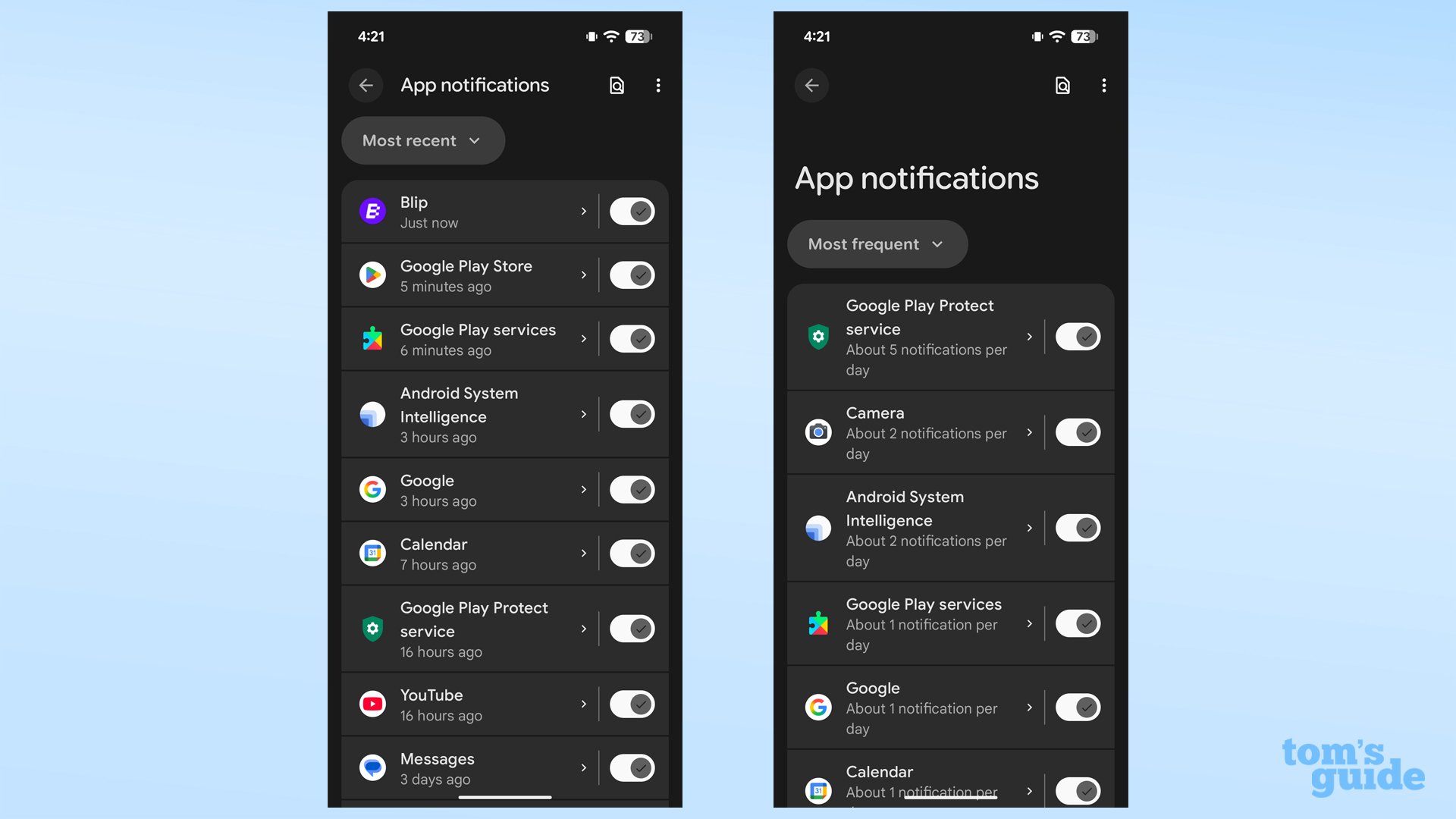
On Android, you can mute alerts in two ways. The first is through the standard settings menu: - Open the Settings app. - Tap Notifications and select App notifications. - Under the dropdown list, choose All apps if Ludo Club does not appear in your recent list. - Select Ludo Club and turn the notification switch off (Google Android Support).
Alternatively, Android allows you to mute alerts from the notification tray. When an alert arrives, swipe down from the top of the display, touch and hold the Ludo Club notification card, tap Settings, and turn off All notifications (Google Android Support). Android also allows switching notifications to "Silent" instead of "Alerting," which keeps notifications in your history drawer without buzzing or ringing.
To turn off alerts on iOS: - Launch the Settings app on your iPhone. - Tap Notifications. - Scroll through the installed apps list and select Ludo Club. - Switch the Allow Notifications toggle to off (MobilityWare Support).
| Platform | Configuration Route | Interface Reference | Primary Effect |
|---|---|---|---|
| Android System | Settings > Notifications > App notifications > Ludo Club | 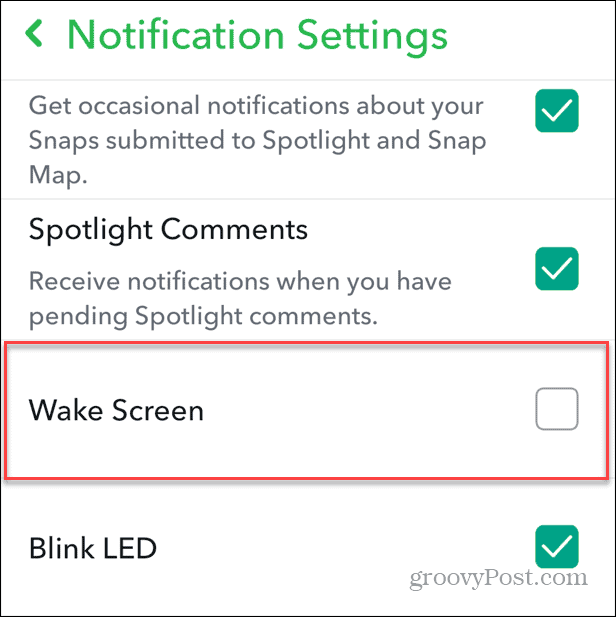 | Silences audio alerts, vibration, and drop-down banners (Source) |
| iOS System | Settings > Notifications > Ludo Club > Allow Notifications | 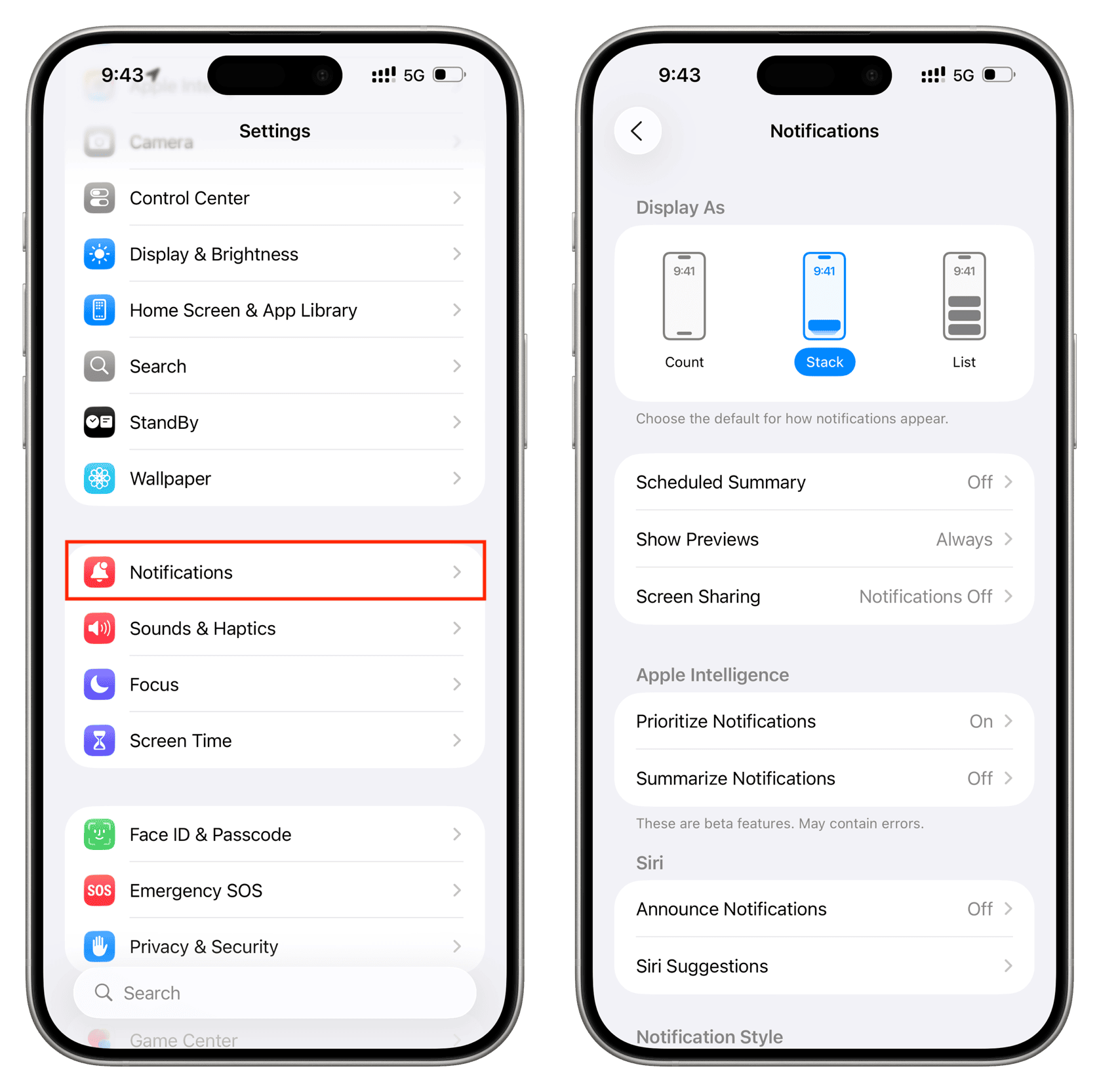 | Disables lock screen banners, sound pings, and notification badges (Source) |
| Samsung Galaxy | Game Booster > Block during game > Notifications | 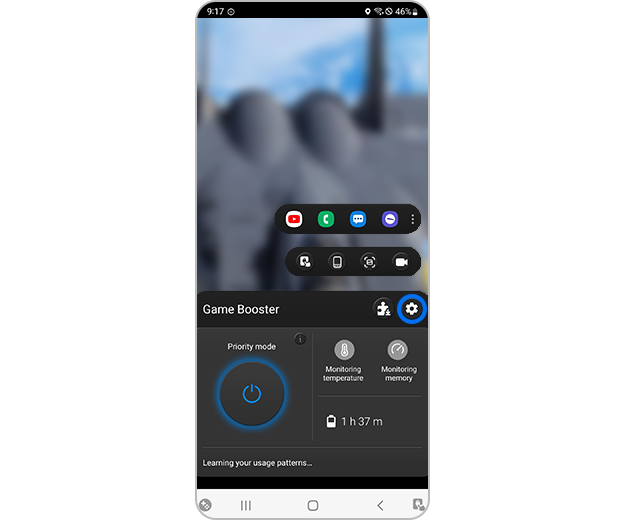 | Blocks incoming alerts while playing; alarms and Messenger may still ring (Source) |
| Windows Desktop | Start > Settings > System > Notifications | 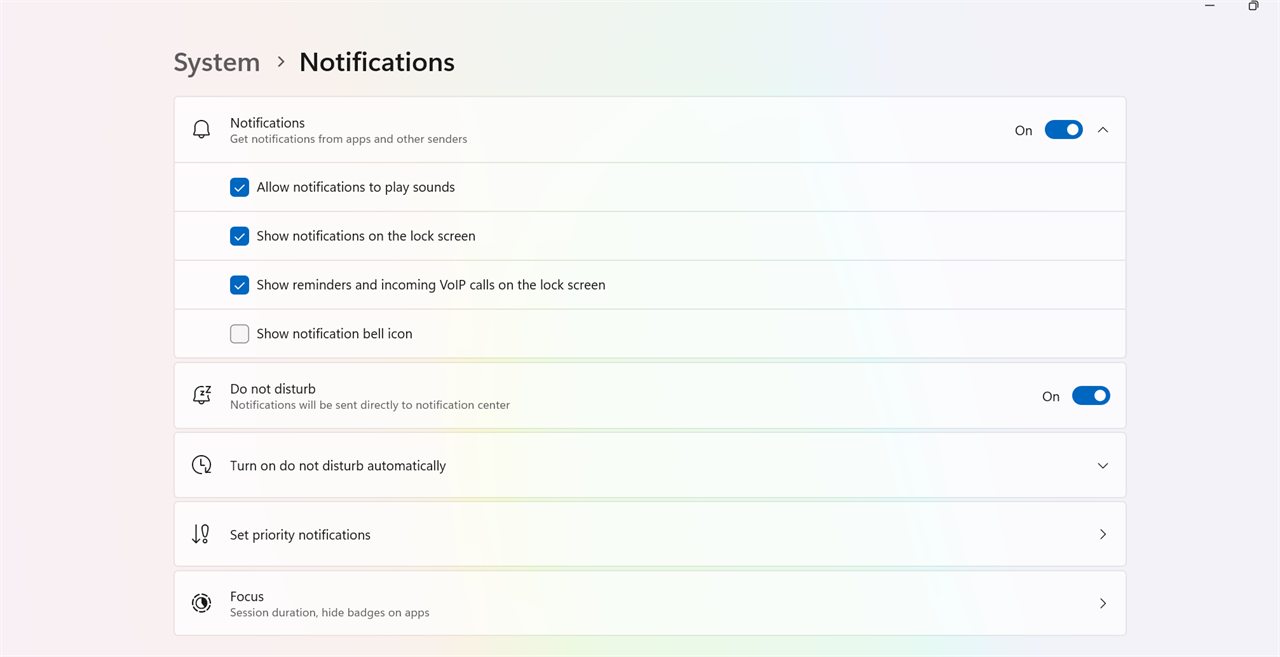 | Mutes emulator banners on PC without closing emulator background processes (Source) |
Session-Specific Blocking via Samsung Game Booster
If you play on a Samsung Galaxy device running Android 7.1 or higher (Uptodown Requirements), you may prefer receiving alerts when away from the game while blocking pop-ups during active matches.
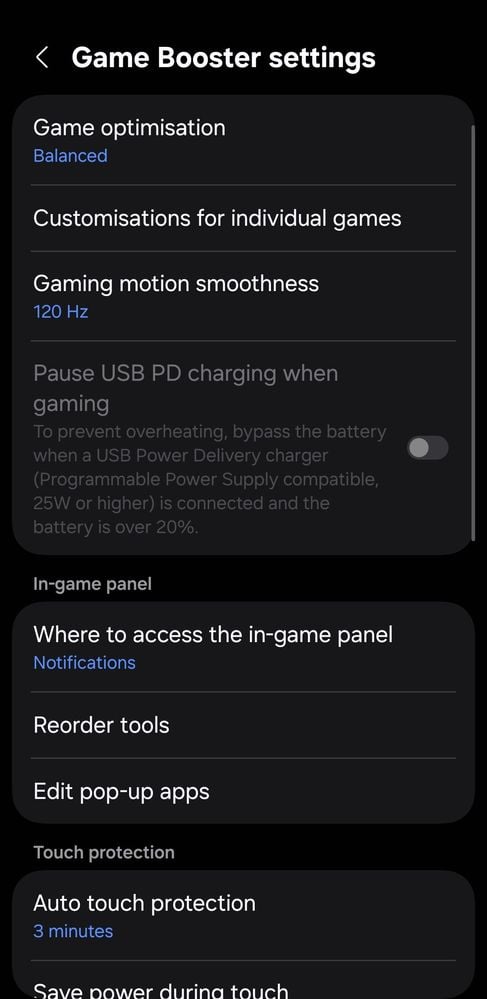
Samsung Game Booster provides a targeted "Block during game" utility: - While playing, access Game Booster settings. - Tap Block during game. - Turn on the toggle switch adjacent to Notifications (Samsung Support).
This suppresses gameplay interruptions from most installed applications. Samsung notes that certain critical system alerts—specifically device alarms and select applications such as Facebook Messenger—bypass this block (Samsung Support). If Facebook Messenger invites repeatedly interrupt a board match, disable notification access for Messenger at the Android system level.
The Background Data Misconception
Restricting background data does not stop push notifications on Android.
Applications using Firebase Cloud Messaging (FCM) route push alerts through a unified background connection managed by Google Play Services (Android Police Analysis). Google Play Services keeps this line open regardless of an individual application's background data switch. Cutting background data limits client syncing when the app is minimized, but the device continues to display push alerts until you revoke notification permissions directly.
| Setting Level | Target Scope | Mechanism Impacted | Push Notification Result |
|---|---|---|---|
| OS Notification Toggle | System notification server | Revokes system permission to post banner/sound events | Completely blocks incoming game alerts (Source) |
| Game Booster Block | In-match active overlay | Suppresses visual overlays during active game processes | Blocks banners during play; exceptions bypass the block (Source) |
| Background Data Restriction | Cell / Wi-Fi network sync | Blocks independent app polling when minimized | Ineffective against FCM-delivered push alerts (Source) |
| In-Game Settings Menu | Local client configuration | Mutes internal board audio, sound effects, and music | Silences match sounds; does not alter device push alerts (Source) |
Managing Notifications on PC Emulators
Players running Ludo Club on desktop hardware via emulators receive banners through the Windows Action Center. Windows handles these alerts independently of mobile operating systems.
To eliminate emulator notifications on Windows: - Open Start > Settings > System > Notifications. - Scroll to the section labeled Notifications from apps and senders. - Locate your emulator software in the sender list. - Toggle the switch to OFF (Microsoft Learn).
This stops banner pop-ups on your desktop while leaving the emulator running in the background.
Frequently Asked Questions
Where can I find the Settings menu in Ludo Club?
Tap the gear icon in the upper-right corner of the main lobby screen. Your unique player UID is located at the bottom of that menu panel (Ludo Club Top-Up Overview).
How can I turn off Ludo Club notifications on an Android phone?
Open your device's Settings app, tap Notifications > App notifications, select Ludo Club from your application list, and turn the notification switch off (Google Android Support).
Does restricting background data stop push notifications?
No. Android applications utilizing Firebase Cloud Messaging receive push notifications over a shared Google Play Services connection. Restricting background data for the individual game does not terminate notifications; you must disable notification permissions directly in system settings (Android Police Analysis).
Does Samsung's 'Block during game' suppress all notifications?
It blocks most pop-ups while an active session runs, but certain alerts—such as alarms and messages from select apps like Facebook Messenger—bypass the block (Samsung Support).






Comments