

Stuck at the login screen? Learn how to fix Devil May Cry Peak of Combat error code 10001 with this direct troubleshooting guide for Android and iOS devices.
Immediate Fix for DMC Peak of Combat Error Code 10001
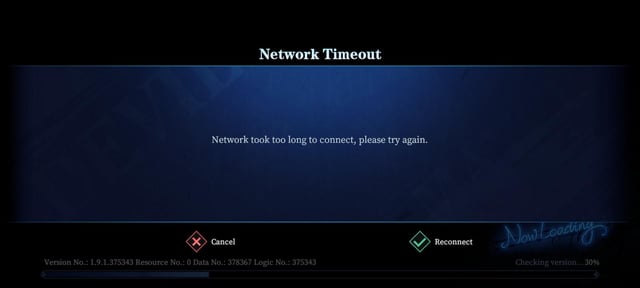
Error Code 10001 in Devil May Cry: Peak of Combat is an authentication timeout. The game client attempts to establish a secure handshake with NebulaJoy login clusters, fails to receive an acknowledgment packet, and aborts the login sequence. When this happens, you get locked at the tap-to-start screen with a failed connection prompt.
Here is the immediate sequence to clear the error:
- Force-close the game client completely from your recent apps switcher.
- Disconnect active VPNs or proxies to eliminate intermediary routing hops.
- Switch network bands or adapters: turn off Wi-Fi and switch to cellular data, or downgrade an unstable 5G connection to 4G in your device settings.
- Launch the game and tap Scan and Repair in the top-right corner of the start screen before tapping the main login button.
- Check the Notice tab on the title screen to ensure NebulaJoy is not running unscheduled maintenance.
Following these steps solves most local connection drops. If the game still hangs after running this sequence, the failure stems from corrupted network cache, DNS resolution failures, or regional server misconfigurations.


60 Devil Gems
 60 Devil GemsUSD 0.48Buy Now
Daily Value Gem Pack I
Daily Value Gem Pack IUSD 1.40Buy NowDaily Mega Gem Pack II
Daily Mega Gem Pack IIUSD 2.11Buy Now300 Devil Gems
300 Devil GemsUSD 2.31Buy NowCard EXP Pack
Card EXP PackUSD 3.52Buy NowDaily Gem Luxury Pack III
Daily Gem Luxury Pack IIIUSD 3.52Buy NowEpic Weapon Selection
Epic Weapon SelectionUSD 3.52Buy NowHunter EXP Pack
Hunter EXP PackUSD 3.52Buy NowRandom Fragment Pack
Random Fragment PackUSD 3.52Buy NowRed Orb Pack
Red Orb PackUSD 3.52Buy NowWeapon EXP Pack
Weapon EXP PackUSD 3.52Buy Now680 Devil Gems
680 Devil GemsUSD 4.84Buy NowCrimson Scale Pack
Crimson Scale PackUSD 7.16Buy NowEpic Hunter Selection
Epic Hunter SelectionUSD 7.16Buy NowEye of Destruction Pack
Eye of Destruction PackUSD 7.16Buy NowEye of the Abyss Pack
Eye of the Abyss PackUSD 7.16Buy NowSkill Manual Pack
Skill Manual PackUSD 7.16Buy NowWeekly Gem Luxury Pack
Weekly Gem Luxury PackUSD 7.16Buy NowAdvanced Rune Selection
Advanced Rune SelectionUSD 10.73Buy Now1280 Devil Gems
1280 Devil GemsUSD 9.53Buy Now3280 Devil Gems
3280 Devil GemsUSD 24.57Buy NowHunter Premium Pack
Hunter Premium PackUSD 35.76Buy NowHunter Supreme Pack
Hunter Supreme PackUSD 35.76Buy NowWeapon Supreme Pack
Weapon Supreme PackUSD 35.76Buy Now6480 Devil Gems
6480 Devil GemsUSD 47.64Buy Now
Understanding Error Code 10001 and Connection Timeouts
Devil May Cry: Peak of Combat relies on persistent, low-latency socket communication. The game runs demanding live multiplayer content, including real-time co-op boss raids with up to 99 health bars and competitive 1v1 PvP matches in the Sky Arena. Because of these low-latency demands, the netcode enforces strict communication windows.
When you open the game, your client queries NebulaJoy authentication servers to verify credentials, regional routing, and client version. Under standard operating conditions, this exchange completes in a few hundred milliseconds. If a network bottleneck, firewall rule, or server lag spike delays the response, the client network timeout expires after roughly 30 seconds of server silence, terminating the request with Error Code 10001.
This error points to one of two bottlenecks:
- Local network path failure: Your router dropped the handshake packet, your mobile carrier DNS failed to resolve the authentication domain, or your local game cache contains a corrupted token.
- Server-side downtime: NebulaJoy authentication nodes are experiencing heavy traffic, deploying server hotfixes, or restricting access during scheduled maintenance windows.
Isolating local issues from server problems saves you from reinstalling gigabytes of game data.
Built-In Title Screen Diagnostics and File Repair
Before adjusting router or phone settings, use the recovery tools built directly into the Peak of Combat start screen. The title screen contains a full maintenance utility tray in the top-right corner:
- Scan and Repair: Inspects your local asset manifest, verifies hash integrity across core data archives, and re-downloads damaged or incomplete patch files without wiping your account.
- Select Server Region: Lets you switch regional clusters (such as North America, Europe, or Asia) if your default region is offline or routing improperly.
- Notice: Displays live announcements, scheduled patch timings, and emergency server downtime notices published directly by the developers.
- User Center: Opens account security controls, linked third-party credentials, and direct customer service contact channels.
- Switch Account: Allows you to log out of a desynchronized authentication session and re-enter your credentials fresh.
| Title Screen Tool | Location | Primary Diagnostic Function | When to Use |
|---|---|---|---|
| Scan and Repair | Top-Right UI | Verifies local patch files and replaces damaged assets | Game fails to load after a patch or hangs on 10001 |
| Select Server Region | Center/Right UI | Switches connection endpoint across regional server hubs | Default server is unreachable or shows high latency |
| Notice | Top-Right UI | Displays live developer patch notes and maintenance alerts | Verifying if Error 10001 is caused by scheduled downtime |
| Switch Account | Top-Right UI | Clears active session token to allow fresh login handshake | Account authentication gets stuck in a login loop |
| User Center | Top-Right UI | Telemetry collection and direct support ticket submission | Persistent errors requiring official staff intervention |
Running Scan and Repair is always preferable to a full game reinstallation because it preserves intact base data and only replaces corrupted files.
Network Troubleshooting: Wi-Fi, Mobile Data, and DNS Changes
If the title screen repair tool finds no damaged assets, the issue sits in your local network routing layer. Transient routing blocks frequently occur between home internet service providers and game authentication clusters.
1. Power Cycle Your Network Hardware
Routers accumulate stale network tables, corrupted DNS caches, and fragmented session states. Unplug your modem and router from their power source, wait approximately 30 seconds for capacitors to discharge, and plug them back in. Once connection lights turn solid, relaunch the game. This power cycle clears silent packet drop states.
2. Switch Between Wi-Fi and Cellular Bands
Disconnect from Wi-Fi and launch Peak of Combat over mobile data. If the game connects immediately on cellular data, your Wi-Fi router or ISP is blocking or timing out the game authentication port.
If you encounter Error 10001 on mobile data, carrier packet jitter may be dropping packets during tower handoffs. Open your device network settings and temporarily switch your preferred network type from 5G to 4G for a steadier authentication handshake.
3. Change Your DNS Configuration
Default ISP domain name servers often suffer slow lookup times and intermittent routing blackouts. Switching your device DNS to an enterprise public resolver ensures reliable lookups for NebulaJoy game servers:
- Google Public DNS: Primary
8.8.8.8, Secondary8.8.4.4 - Cloudflare DNS: Primary
1.1.1.1, Secondary1.0.0.1
On Android, configure Private DNS in Network Settings with dns.google or 1dot1dot1dot1.cloudflare-dns.com. On iOS, open Wi-Fi settings, tap Configure DNS, select Manual, and enter the Cloudflare or Google addresses.
4. Disable VPNs and Proxies
Active VPNs create intermediary hops that add latency and alter geographic routing. If a VPN endpoint congests, it pushes client response times past the 30-second handshake limit, triggering Error Code 10001. Shut down all VPN software before opening the game.
| Troubleshooting Step | Configuration Target | Technical Mechanism | Expected Outcome |
|---|---|---|---|
| Hardware Power Cycle | Router / Modem | Flushes corrupted routing tables and stale ARP cache | Eliminates silent packet dropouts on home Wi-Fi |
| Network Adapter Swap | Wi-Fi to Mobile Data | Bypasses local ISP firewall and strict router NAT rules | Identifies whether the issue is local or server-side |
| Cellular Band Downgrade | 5G to 4G | Reduces carrier packet jitter and unstable tower switching | Stabilizes connection handshakes during login |
| Public DNS Setup | Cloudflare / Google DNS | Routes domain lookup through high-speed resolving nodes | Eliminates domain resolution timeouts |
| VPN Deactivation | Device Network Settings | Removes proxy routing hops causing >30s latency spikes | Restores direct socket connection to game servers |
Applying these network adjustments clears out external routing hurdles so you can quickly return to the action and secure your Devil Gems through Devil May Cry: Peak of Combat Top Up without missing limited banner rotations.
Client Cache Clearing and Operating System Requirements
System-level issues on your mobile device can also disrupt game networking. Over time, Devil May Cry: Peak of Combat generates temporary runtime files, cached login tokens, and stage manifests. If an unexpected disconnect occurs while writing these files, the cache becomes corrupted.
Clearing App Cache on Android and iOS
Clearing application cache deletes temporary session files while keeping your main asset download and account link intact:
- Open your device Settings.
- Navigate to Apps or Application Manager.
- Locate and select Devil May Cry: Peak of Combat.
- Tap Storage & Cache.
- Select Clear Cache (do not tap Clear Storage / Clear Data unless you want to re-download the full asset package).
On iOS devices, offload the app through Settings > General > iPhone Storage > DMC: POC > Offload App, then reinstall it to refresh system binaries while preserving save files.
Verifying Baseline System Requirements
Peak of Combat requires modern operating system modules to run its network security stack. The baseline requirement for Android devices is Android 6.0 or higher. Running outdated OS builds or unverified custom ROMs can break the cryptographic handshake required by the login server, surfacing as a connection timeout.
Keep your operating system updated to prevent compatibility failures with the game security protocols.
Server Maintenance vs. Regional Routing Conflicts
Not all connection errors originate on your device. If you verified your network and cleared the cache, Error Code 10001 often stems from server maintenance or regional access boundaries.
Missing a login window during major progression blocks or competitive raid cycles sets your account back. Before spending hours troubleshooting your phone, check official channels for server downtime alerts:
- Official Twitter/X: Check
@dmc_pocfor real-time announcements on emergency maintenance, server migration, and patch deployments. - Official Facebook Page: NebulaJoy posts scheduled maintenance timings and compensations here.
- Official Discord Community: The community announcements and server-status channels provide instant feedback from other players experiencing the same 10001 errors.
Also check your regional server selection on the title screen. Attempting to force a connection to an incompatible regional server on a region-locked client triggers an immediate handshake timeout. Ensure your in-game server matches your account region.
Once servers are confirmed online, you can jump straight back into grinding boss encounters or exploring Devil May Cry: Peak of Combat top-up options to bolster your team's combat power.
Escalating Unresolved Connection Errors to NebulaJoy Support
If you completed all network resets, verified the servers are live, and still face persistent 10001 errors, your account route may be stuck in a server-side authentication lock. Submit a customer support ticket containing precise device telemetry.
To file a ticket from the title screen: 1. Tap the User Center button in the top-right corner. 2. Select Help and Support. 3. Navigate to Questions and Comments to launch the ticket submission window.
NebulaJoy support representatives require specific data points to trace routing errors through firewall logs. Submitting an incomplete ticket delays your resolution.
Prepare the following information before filing your report:
| Required Ticket Parameter | Telemetry Purpose | Where to Find It |
|---|---|---|
| Player ID (UID) | Identifies your unique account record in the database | User Center overlay or account profile |
| Character Name | Confirms account identity across server shards | In-game profile or initial character setup |
| Server Region | Routes your ticket to the correct regional server cluster | Title screen server selection menu |
| Device Model | Identifies hardware-specific network driver conflicts | Phone Settings > About Phone |
| Operating System Version | Verifies compliance with Android 6.0+ or iOS standards | Phone Settings > Software Information |
| Contact Details | Delivers ticket status updates and resolution notices | Active Email Address and Phone Number |
| Error Screenshot | Captures exact error dialogue and timestamp | Screenshot of the Error Code 10001 prompt |
Providing exact technical specifications helps support staff unblock your connection route without back-and-forth messaging. That way, you can get back to saving pulls for character banners—like hitting the 90-summons pity threshold for Vergil—and manage your currency via Devil May Cry: Peak of Combat top up without technical interruptions.
Frequently Asked Questions
What does Error Code 10001 mean in Devil May Cry: Peak of Combat?
Error Code 10001 indicates a connection timeout or handshake failure between your game client and NebulaJoy login servers. It occurs when network requests fail to receive a timely response due to local connection drops, DNS routing failures, or active server maintenance.
How do I fix the connection timeout error when playing on Wi-Fi?
Restart your Wi-Fi router by unplugging it from power for 30 seconds to flush corrupted routing tables. If the timeout persists, change your device DNS to Cloudflare (1.1.1.1) or Google (8.8.8.8), or temporarily switch your device to cellular data.
Does the Scan and Repair button delete my account progress?
No, the Scan and Repair tool only inspects local game files and replaces missing or damaged asset packages. Your account progress, character data, and linked credentials remain stored safely on the game servers.
Why does my VPN trigger Error Code 10001 in Peak of Combat?
VPNs route your traffic through intermediary server nodes that add latency and can drop authentication packets. If the connection response exceeds the game's strict 30-second timeout threshold, the client automatically aborts the login and throws Error 10001.
How do I submit an error report if I cannot log into the game?
You do not need to log in to contact support. Open the game title screen, tap the User Center button in the top-right corner, select Help and Support, and submit your ticket under Questions and Comments with your Player ID and device details.
Can server maintenance cause Error Code 10001 to appear?
Yes, if NebulaJoy takes authentication servers offline for scheduled maintenance or hotfixes, the client cannot complete its handshake. Check the title screen Notice tab or the official @dmc_poc Twitter account to confirm if servers are down.
What are the minimum system requirements for Peak of Combat on Android?
Devil May Cry: Peak of Combat requires Android 6.0 or higher. Running the game on older operating system versions can prevent secure network handshakes from completing, causing continuous login timeout errors.
Final Troubleshooting Verdict and Next Steps
Error Code 10001 is a communication failure, not a permanent account lock. Most connection timeouts trace back to an unstable Wi-Fi routing table, an active background VPN, or a minor patch corruption that the built-in Scan and Repair tool solves in under two minutes.
Before uninstalling the entire game, work through the routine systematically: toggle to cellular data (stepping down to 4G if 5G fluctuates), clear your app cache, and check @dmc_poc to verify live server status. Once your client establishes a clean handshake, your connection remains stable across raids and arena battles.






Comments