


To change controls in Super Sus, open your in-game settings to switch between touch tapping and the virtual joystick, adjust your stick responsiveness, or switch to a PC setup using an emulator like MEmu 9 to map custom keyboard, mouse, or gamepad inputs. Fine-tuning your button layout and input scheme removes sluggish movement and keeps critical action triggers—like reporting bodies or executing kills—right where your fingers naturally rest.
Misclicking an emergency button when trying to execute an impostor kill ruins rounds fast. When default touch targets feel awkward or your character drifts during tasks, tweaking your layout is the quickest fix.
Mobile Control Schemes: Touch vs Virtual Joystick
Super Sus gives mobile players two primary ways to move across the map: direct touch movement and a virtual analog joystick. Touch movement commands your astronaut to pathfind toward the tapped location, whereas the virtual joystick anchors directional input directly to a thumb pad on the glass.
Here is how to switch and configure movement settings on your device:
- Launch Super Sus and enter the main lobby screen.
- Tap the gear icon in the corner to open the Settings menu.
- Select the Controls tab.
- Toggle your movement mode between Touch and Joystick.
- Adjust joystick dead zones and sensitivity sliders to prevent accidental input drift.
| Control Scheme | Input Method | Best Scenario | Visual Preview | Reference |
|---|---|---|---|---|
| Virtual Joystick | Left thumb dynamic thumbstick | Precision dodging, rapid vent pathing | 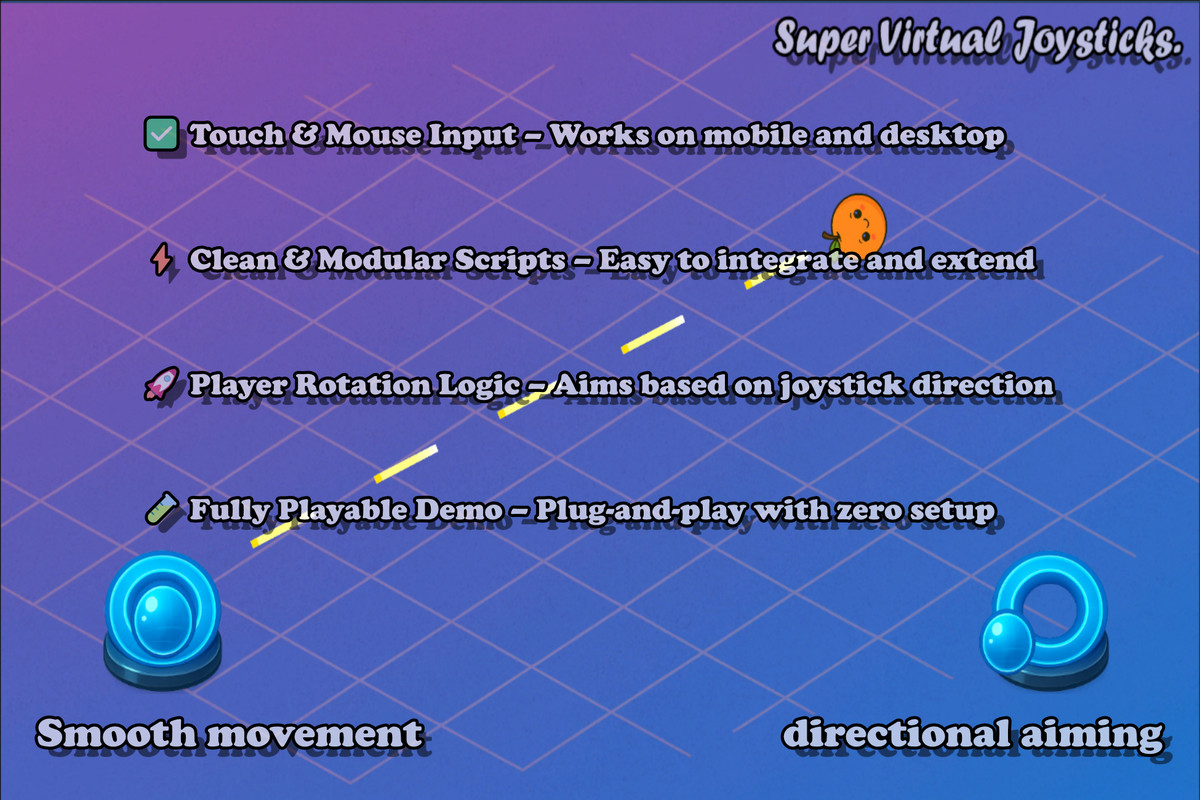 | MEmu Guide |
| Direct Touch | Tap-to-move pathfinding | Relaxed task handling, low-stress crewmate roles | 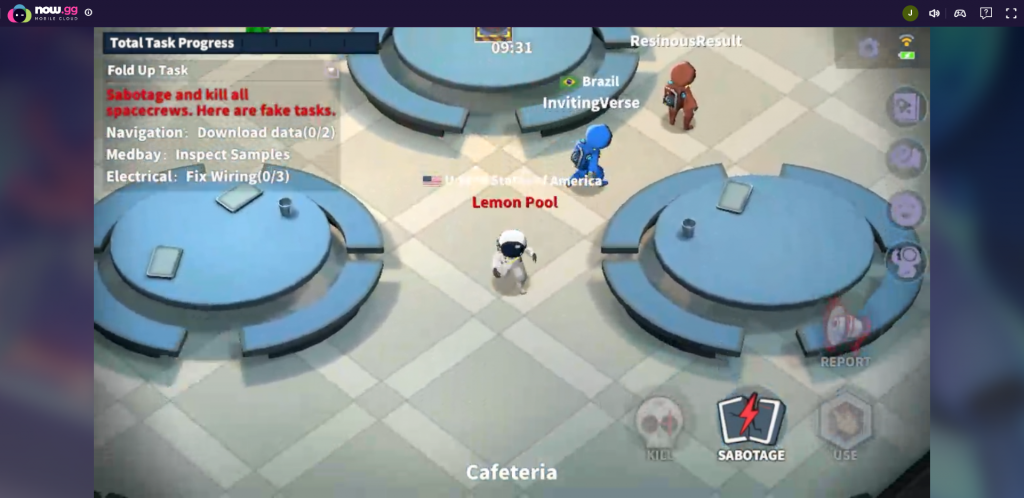 | MEmu Guide |
If glass controls feel too imprecise, desktop emulation gives you full physical keybinds.

Weekly Card
 Weekly CardUSD 0.66Buy Now
100 Golden Stars
100 Golden StarsUSD 0.66Buy Now310 Golden Stars
310 Golden StarsUSD 1.97Buy Now520 Golden Stars
520 Golden StarsUSD 3.29Buy NowSuper Pass
Super PassUSD 3.29Buy Now1060 Golden Stars
1060 Golden StarsUSD 6.64Buy NowSuper Pass Bundle
Super Pass BundleUSD 6.64Buy NowMonthly Card
Monthly CardUSD 7.16Buy NowSuper VIP Card
Super VIP CardUSD 8.00Buy Now2180 Golden Stars
2180 Golden StarsUSD 13.65Buy Now5600 Golden Stars
5600 Golden StarsUSD 35.01Buy Now
Custom Keymapping on PC via MEmu 9
Phone screens cramp your thumbs fast during long sessions. Per MEmu's official Super Sus setup guide, running Super Sus on PC through the MEmu 9 Android emulator swaps glass taps for physical inputs, giving you full keymapping across keyboard, mouse, and gamepad controls.
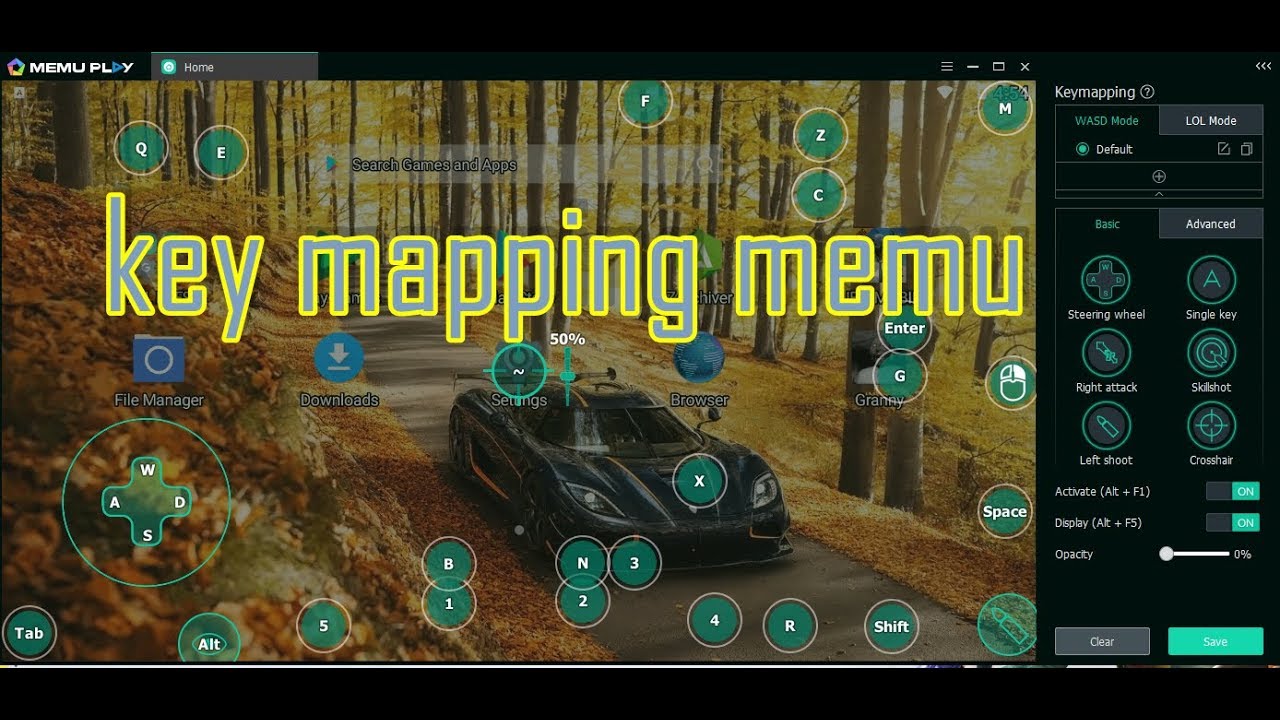
Binding your buttons to physical keys decouples movement from high-stakes actions. Instead of fumbling for kill or report icons with your right thumb under pressure, dedicated keys trigger interactions the instant you hit them.
| Input Device | Recommended Layout | Advantage | Source |
|---|---|---|---|
| Keyboard & Mouse | WASD for movement, Space/E for tasks and kills | Eliminates thumb fatigue, fastest trigger reactions | MEmu Guide |
| Pure Mouse | Click-to-move with side buttons for interactions | Single-hand navigation for simple task clearing | MEmu Guide |
To assign custom binds in MEmu 9:
- Open Super Sus inside MEmu 9.
- Click the keyboard/keymapping icon on the emulator sidebar.
- Drag a directional D-pad widget over the game's movement zone and assign WASD.
- Click over the action buttons (Kill, Report, Sabotage, Use) and assign distinct keys (such as Q, E, or Spacebar).
- Save the profile and enter a custom lobby to verify button alignment.
Testing Layouts Across Multiple Accounts
Testing a fresh control layout in ranked matches is risky. If an action button fails to register or a mapped key overlaps an interaction box, you give away your impostor identity or fail simple reactor fixes.
Per MEmu's Super Sus documentation, MEmu's multi-instance manager runs two or more game accounts simultaneously on one PC. Spin up a secondary account inside a private lobby alongside your main profile: it gives you a risk-free sandbox to dial in button spacing, confirm trigger registers, and check interaction reach without gambling your rank points.
| Configuration Step | Action Needed | Diagnostic Check | Documented Source |
|---|---|---|---|
| Instance Launch | Open MEmu Multi-Instance Manager and start 2 instances | Confirm both windows load lobby screens simultaneously | MEmu Guide |
| Input Verification | Trigger keybinds near the dummy player model | Verify kill, report, and sabotage register on first click | MEmu Guide |
Once your control layout feels natural, you can step into standard matches with instant reaction times. If you also like outfitting your favorite character roles with cosmetic crates or picking up seasonal Super Passes, Super Sus Top Up credits Golden Stars directly to your account using your numeric Space ID.
Troubleshooting Control Delays and Misclicks
If your inputs miss during high-pressure moments, work through these fixes in order:
- Check on-screen button scale: If action circles overlap on small phone screens, increase button spacing in the custom HUD menu to avoid triggering tasks when attempting to report.
- Re-align emulator tap points: When playing on PC, verify your emulator resolution matches your current layout profile so keybind coordinates align with active game icons.
- Clear secondary key bindings: Ensure no single key is mapped to both an interaction and a chat macro, which can freeze character movement mid-chase.
Follow XPTopup for more Super SUS Top Up news~






Comments