

Learn how to change note speed in Colorful Stage, calibrate timing offset, declutter lanes, and dial in the visual flow to clear complex charts.
Dense charts create an optical illusion. When patterns get difficult on Hard, Expert, or Master, slowing the song down produces the opposite of what you want: notes pack together and turn into an unreadable smear of neon bars.
Fixing this traffic jam requires tuning the approach velocity. Faster note travel separates visual clutter without changing song tempo or tap judgments. Adjusting speed is the single most effective way to clear reaction bottlenecks.
Where to Find the Project SEKAI Note Speed Settings Menu
You can tweak speed in two places: the system menu and the pre-live confirmation screen.
Main Menu (Top Right Hamburger Icon)
└── Options
    └── Shows
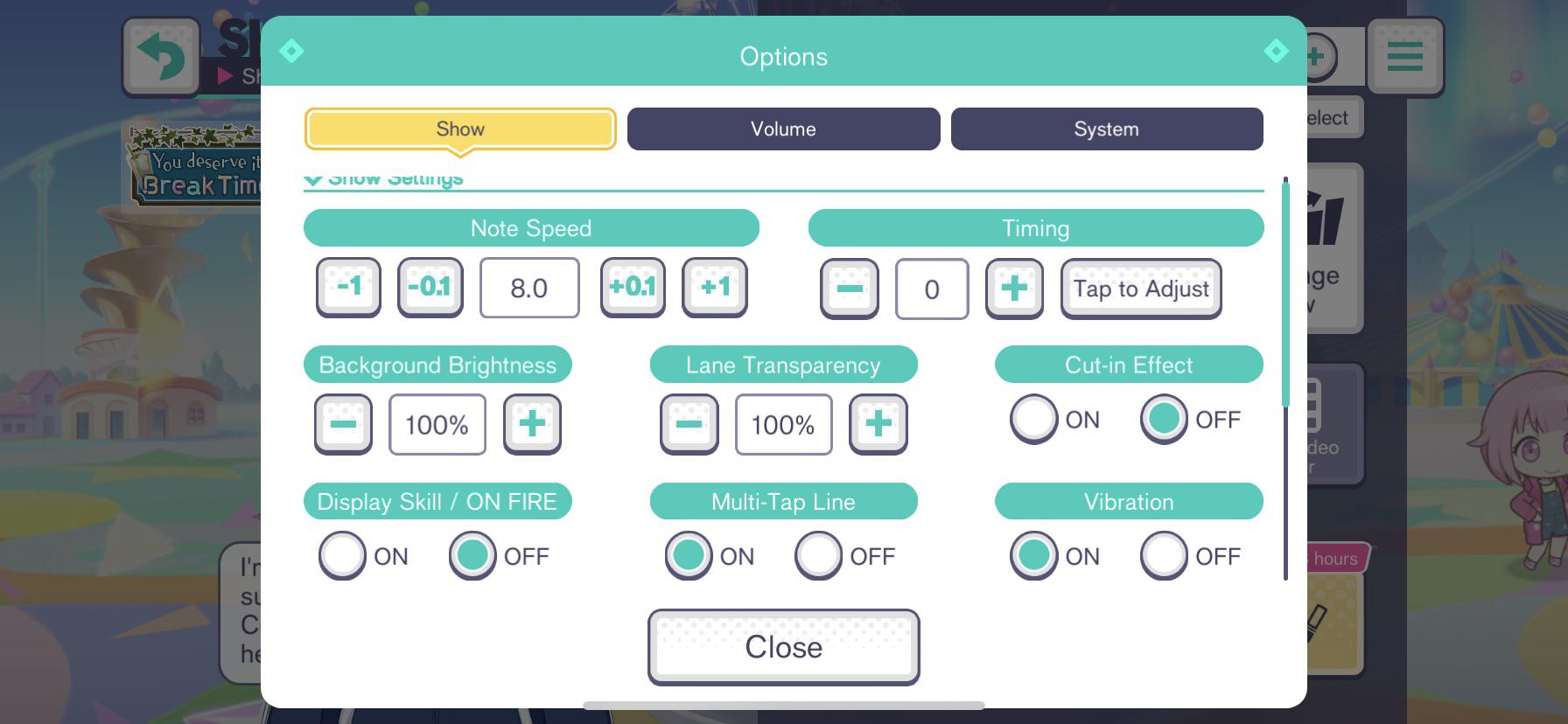
        ├── Note Speed (1.0 to 12.0 slider / +/- buttons)
        ├── Timing Offset (+ / - audio delay)
        ├── Note Start Point (0 to 100)
        └── Lane & Background Visuals
To make permanent adjustments outside of a song: 1. Open the game to the title or main SEKAI hub. 2. Tap the menu icon (three horizontal lines) in the upper-right corner. 3. Tap Options, then select the Shows tab. 4. Adjust the Note Speed slider at the top.
To change it right before a live show, open the song preparation screen where you select your difficulty. Tap the gear icon near the bottom of the song banner to pull up the live show settings pop-up. Changes made here take effect immediately and stay saved for future shows.
You cannot alter speed mid-track once a song starts. Lock your values in before hitting start.
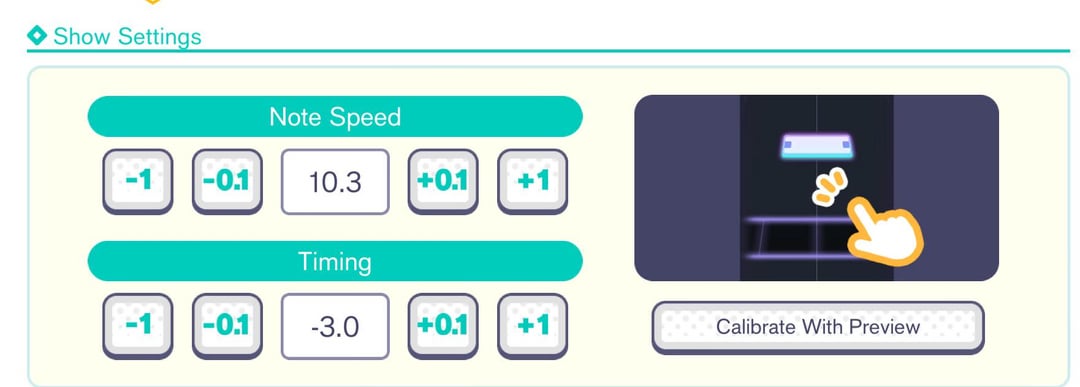


Understanding the Note Speed Scale: 1.0 to 12.0
The speed slider runs from 1.0 to 12.0 in 0.1 increments. New accounts default to 6.0, which works on beginner charts but quickly clogs up as note counts climb.
Speed changes visual approach rate, not audio playback. The engine does not speed up the audio, alter BPM, or tighten timing windows for Perfect, Great, Good, Bad, and Miss ratings. It simply dictates how long a note stays visible on screen between spawning at the top and crossing the judgment line.
At 4.0, a note spends more than a full second on screen. A 16-note-per-second roll turns the runway into a wall of overlapping graphics. At 10.0, notes flash past in a fraction of a second, but each marker stays physically separated so your brain can process the rhythm sequentially.
| Speed Bracket | Setting Range | Visual Reading Behavior | Recommended Target Difficulty |
|---|---|---|---|
| Low Speed | 1.0 - 6.0 | Relaxing pace; notes bunch closely together on dense charts | Easy, Normal (beginner practice) |
| Moderate Speed | 6.1 - 8.9 | Transition zone; spreads notes evenly to improve rhythm recognition | Normal, Hard |
| High Speed | 9.0 - 10.5 | Standard competitive baseline; prevents note overlap on dense streams | Hard, Expert, low Master |
| Extreme Speed | 10.6 - 12.0 | Ultra-fast scroll rate; separates 18+ notes/sec clusters and fast BPM spikes | Master (30+), Append (23 - 38) |
The takeaway: low speeds force your brain to process entire clusters at once, whereas speeds above 9.0 allow you to read incoming notes sequentially as individual rhythmic taps.
Step-by-Step Calibration: Finding Your Ideal Note Speed
Jumping straight from 6.0 to 10.5 guarantees an immediate wipeout. Your eyes cannot track that sudden leap in velocity without step-by-step acclimation.
Calibrate in small bursts across a practice session:
- Pick an anchor track: Select a Hard chart you can clear without combo breaks. Avoid tracks with tempo gimmicks.
- Run your baseline: Play through at your standard speed (such as 7.0) to ground your reaction timing.
- Bump by +0.2: Move the slider to 7.2 and replay the track. Notes appear snappier, but the physical timing feels familiar.
- Repeat the +0.2 climb: Continue creeping up (7.4, 7.6, 7.8) until you hit your reaction ceiling. You will know you hit it when your eyes miss the note spawn and your taps start landing late.
- Drop back by 0.1: Pull the slider back down by 0.1 or 0.2. Lock this value in for a few days before pushing higher.
Most intermediate players land between 9.5 and 10.2. Settings above 10.5 are primarily for dense Master and Append streams that require maximum vertical space between taps.
Padding your team with high-stat cards helps keep your life gauge intact while your eyes adapt to higher speeds. If you need gacha pulls for upcoming banners, pick up Hatsune Miku: Colorful Stage! Crystals to secure your target vocalists.
How to Calibrate Timing Offset and Latency
A perfect scroll speed will not fix taps that register off-beat due to hardware delay. Colorful Stage includes an offset calibration tool under Timing in the Shows tab.
Offset adjustments shift the judgment window relative to the song track: * Positive values (+0.1 to +5.0): Shift the strike point backward. Use this if your taps consistently land early (Early Greats) or if Bluetooth audio lag causes sound to trail behind video. * Negative values (-0.1 to -5.0): Pull the strike point forward. Use negative numbers when you consistently register Late Greats despite feeling on beat.
To calibrate: 1. Tap Timing below the speed slider in Show settings. 2. Run the tap test by hitting the metronome beats. 3. Check the calculated offset value suggested by the engine. 4. Test the number on an actual song. Metronome taps lack the complex instrumentation and syncopation of real charts, so live play is the true test.
Wired headphones generally sit near 0.0 or +/- 0.5. Bluetooth audio hardware almost always requires positive offset compensation due to wireless transmission lag.
Lane Visibility: Start Points, Transparency, and Cut-ins
Speed is only one part of visual clarity. Full 3D backgrounds, bright lane effects, and pop-up banners create visual noise that disrupts lane tracking. Adjust these secondary sliders inside the Shows tab to clear your view.
Note Start Point
The Note Start Point slider runs from 0 to 100. This sets the spawn horizon where hold paths and tap notes appear. Leaving this at default (0) gives you maximum reaction distance down the runway. Raising the number pushes the spawn point lower, which shortens travel distance. Most players keep this at 0.
Long Note Transparency
Dense charts regularly place tap notes behind green hold ribbons. Fully opaque hold trails hide those incoming taps. Dialing Long Note Transparency down to 30%-50% renders ribbons translucent, exposing every note behind them.
Multi-Tap Lines
Simultaneous taps can look like rapid single notes during high-speed sections. Toggling Multi-Tap Lines to ON places a clear horizontal beam across simultaneous markers, immediately signaling a two-finger strike.
Background Brightness and Cut-ins
- Background Brightness: Drop brightness down to 0%-30%. A dark background makes neon note edges pop.
- Character Cut-ins & Skill Pop-ups: Turn cut-ins OFF. Character art popping up mid-combo obscures oncoming notes. Turning off full-screen animations preserves a clear view of the lane.
| Setting Name | Available Range / Toggles | Recommended Value | Direct Reading Benefit |
|---|---|---|---|
| Note Speed | 1.0 - 12.0 | 9.5 - 10.5 | Spreads note clusters apart for sequential rhythm reading |
| Note Start Point | 0 - 100 | Default (0) | Preserves maximum runway travel time across the display |
| Long Note Transparency | 10% - 100% | 30% - 50% | Prevents hold ribbons from obscuring tap notes behind them |
| Multi-Tap Line | ON / OFF | ON | Connects simultaneous tap targets to clarify double notes |
| Background Brightness | 0% - 100% | 0% - 30% | Darkens stage lighting to maximize lane contrast |
| Cut-in Effects | ON / OFF | OFF | Removes character dialogue cards during high-speed segments |
The takeaway: combining a 10.0 note speed with a dimmed background and translucent hold notes transforms an overcrowded visual field into a clean, readable track.
Troubleshooting Stutter and Input Lag Across Platforms
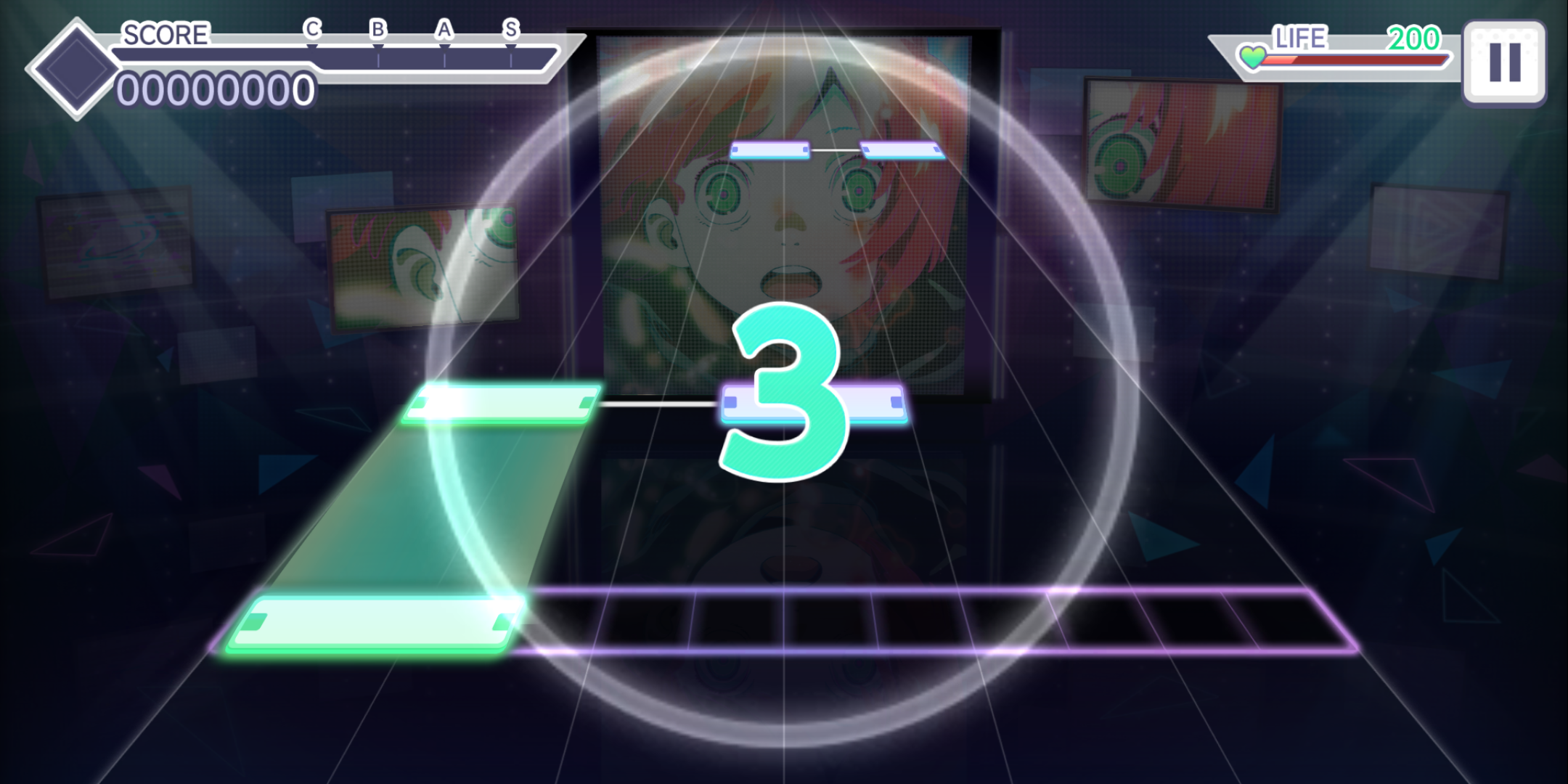
Frame drops break visual tracking. If your device stutters mid-stream, note travel skips forward and breaks your timing window.
If you experience micro-stutters during live shows, check these hardware and display toggles:
- Switch MV to Lite Mode: 3D Music Videos load your device's GPU heavily. Lite mode swaps 3D choreography for a static 2D image, stabilizing the frame rate.
- Check Minimum Hardware Specs: Update 3.0.0 raised iOS tablet minimums from 6th-gen iPads to 7th-gen models. Older chips frequently drop inputs on complex multi-finger sequences.
- Disable Battery Savers: Low Power modes throttle CPU and GPU clocks on iOS and Android, triggering dropped taps.
| Platform Category | Recommended Performance Settings | Known Input / Display Quirks |
|---|---|---|
| Modern iOS Devices (iPad 7th Gen+, iPhone 11+) | Standard or Lite MV; 120Hz ProMotion where supported | Excellent touch latency; requires guided access to prevent home-bar swipes |
| Budget / Older iOS (iPad 6th Gen or older) | Lite MV mandatory; background brightness 0% | Hardware officially unsupported past update 3.0.0; severe frame drops on 3D MVs |
| Modern Android Flagships (Snapdragon 8 Gen 1+) | Lite or Standard MV; enable native high touch sampling | Requires disabling OS gesture navigation to prevent accidental task switching |
| Mid-Range / Budget Android | Lite MV mandatory; cut-ins OFF; sound effects simplified | Variable touch polling rates; often requires manual timing calibration (+1.0 to +3.0) |
The takeaway: if notes appear to jump or stutter down the lane, switch immediately to Lite MV mode before attempting to change your note speed or recalibrate your offset.
Tiering during events requires stamina items and bonus-matching characters. You can get Project SEKAI Crystals through verified digital top-ups to prep your teams for competitive grinding.
Conquering Boss Tracks: Spacing for 18 Notes Per Second and Append Charts
Crossing level 30 on Master turns note speed into a survival mechanic. Boss charts throw burst patterns that break conventional reading habits.
Take The EmpErroR on Master. The chart crams nearly 1,600 notes into a two-minute run at 240 BPM, hitting peak streams of 18 notes per second. At 7.0 speed, those 18 notes merge into a single solid bar. At 10.3 or higher, the engine pulls that bar apart into distinct staircases.
Variable-tempo songs like YAMINABE test both ends of the spectrum. The tempo swings wildly between 75 BPM and 300 BPM. Notes clump up at 75 BPM and rocket down at 300 BPM. Your speed setting must be high enough to space out the 75 BPM segments without making the 300 BPM bursts unreadable.
Append difficulty (levels 23 through 38) adds multi-finger chords and Trace notes introduced in update 3.0.0. Trace notes require simple contact rather than precise strike timing, but charts frequently interleave them with micro-taps and narrow holds. Running speed between 10.0 and 10.8 keeps Trace markers from overlapping standard taps sharing the same lane.
Master difficulty also has an entry gate: you must clear a song's Expert chart with seven or fewer Good, Bad, or Miss judgments. Bumping note speed by +0.2 or +0.3 often provides the extra separation needed to clean up those stray Goods.
To prepare for competitive tiering and festival banners, restock your resources with Hatsune Miku: Colorful Stage! Crystals.
FAQ
How do I change note speed in Hatsune Miku: Colorful Stage?
You can adjust note speed from the main menu by navigating to [Options] and selecting the [Shows] tab. Alternatively, you can change it on the live show confirmation screen right before starting a song by tapping the settings gear icon. Use the slider or increment buttons to select any value between 1.0 and 12.0.
Does increasing note speed give a higher score?
No, changing your note speed has zero direct impact on your final score or note judgment values. The setting only alters how quickly the notes travel visually down the lane. It helps your eyes separate dense clusters so you can land more Perfect ratings through improved visual clarity.
Why do high-level players use faster note speeds?
Faster speeds spread notes further apart along the visual lane, eliminating visual bunching. When notes are spaced out, complex rhythmic patterns and rapid sixteenth-note streams become much easier to read and execute sequentially.
How can I fix notes clumping together on Expert or Master charts?
Increase your note speed slider by increments of 0.1 to 0.2 until the visual congestion clears up. Also drop your background brightness below 30% and turn off skill cut-in animations to remove visual noise.
What should I do if my taps register slightly late or early?
Navigate to the Shows tab in the Options menu and locate the Timing offset slider. Input negative values to pull the tap judgment point forward if you are consistently scoring late, or input positive values to push the judgment backward if you are tapping early.
Can I adjust note speed during a live show?
No, you cannot alter note speed once a live show has officially started. You must configure your preferred speed before hitting start on the song confirmation screen or adjust it beforehand via the main options menu.
How do I unlock Master difficulty if I cannot clear Expert?
You must finish the Expert version of that specific track while recording seven or fewer combined Good, Bad, or Miss judgments. Fine-tuning your note speed between 9.5 and 10.2 is one of the most reliable ways to eliminate stray Good ratings and hit that unlock threshold.
The Verdict on Note Speed and Timing
Do not fear high speeds. Low settings feel safe, but they choke reading ability on Hard and above. Inch your slider upward by 0.2 every few sessions. Combine high speed with a darkened background, translucent hold paths, and disabled cut-ins to strip out lane clutter and let your muscle memory take over.






Comments