

Learn how to link FC Mobile to Apple ID on iOS, bind your guest squad permanently, avoid lost progress, and claim bonus rewards before switching phones.
Step-by-Step: How to Link FC Mobile to Apple ID on iPhone
Binding your FC Mobile profile to an Apple Account (formerly Apple ID) protects your squad, coin balance, and Division Rivals rank on iOS. Unlinked guest accounts live exclusively in your iPhone's local sandbox storage: an iOS cache wipe, a botched game update, or a misplaced phone wipes your club permanently.
Follow these steps inside the client to complete the connection:
- Launch EA Sports FC Mobile on your iPhone and wait for the main interface to load.
- Tap the Settings cogwheel icon in the top-right corner of the screen.
- Scroll down to Account Management and tap Link Accounts.
- Locate the Apple Account option on the platform list and tap Link.
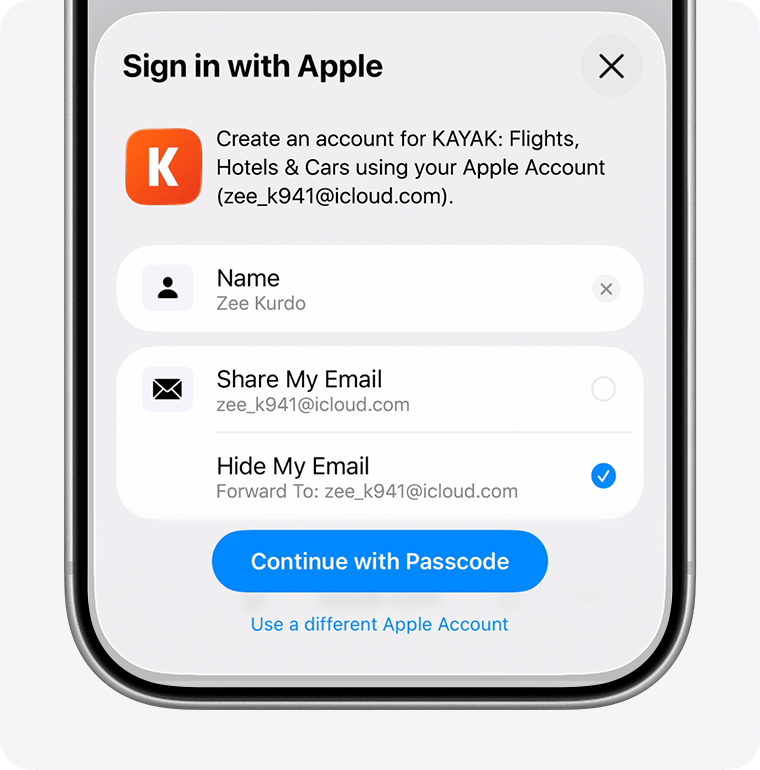
- When the native iOS "Sign in with Apple" prompt appears at the bottom of the screen, confirm your identity using Face ID, Touch ID, or your device passcode.
- Wait for the confirmation banner. Once the client syncs with Apple's authentication servers, the status beside Apple Account will display as "Linked."
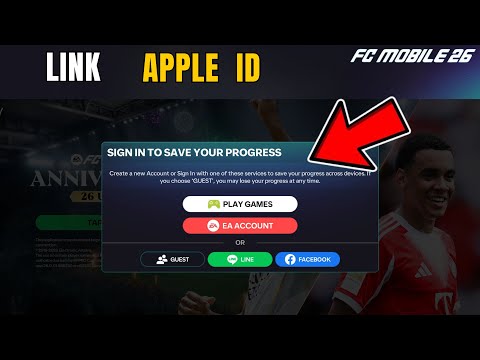
Completing the link triggers an in-game reward in your mailbox. EA grants one item pack for binding a third-party login like Apple Account, plus a separate reward if you connect an EA Account. Claiming both takes under two minutes.

39 Silver
 39 SilverUSD 0.29Buy Now
40 FC POINTS
40 FC POINTSUSD 0.29Buy Now100 FC POINTS
100 FC POINTSUSD 0.69Buy Now99 Silver
99 SilverUSD 1.03Buy Now499 Silver
499 SilverUSD 4.82Buy Now520 FC POINTS
520 FC POINTSUSD 4.82Buy Now1070 FC POINTS
1070 FC POINTSUSD 10.35Buy Now999 Silver
999 SilverUSD 10.35Buy Now1999 Silver
1999 SilverUSD 20.02Buy Now2200 FC POINTS
2200 FC POINTSUSD 20.02Buy Now4999 Silver
4999 SilverUSD 47.63Buy Now5750 FC POINTS
5750 FC POINTSUSD 47.63Buy Now12000 FC POINTS
12000 FC POINTSUSD 102.88Buy Now9999 Silver
9999 SilverUSD 102.88Buy Now1070 FC POINTS
1070 FC POINTSUSD 9.16Buy Now40 FC POINTS
40 FC POINTSUSD 0.41Buy Now100 FC POINTS
100 FC POINTSUSD 0.93Buy Now520 FC POINTS
520 FC POINTSUSD 4.71Buy Now2200 FC POINTS
2200 FC POINTSUSD 19.14Buy Now5750 FC POINTS
5750 FC POINTSUSD 47.26Buy Now12000 FC POINTS
12000 FC POINTSUSD 97.96Buy Now39 Silver
39 SilverUSD 0.41Buy Now99 Silver
99 SilverUSD 0.93Buy Now499 Silver
499 SilverUSD 4.71Buy Now999 Silver
999 SilverUSD 9.24Buy Now1999 Silver
1999 SilverUSD 19.14Buy Now4999 Silver
4999 SilverUSD 47.26Buy Now9999 Silver
9999 SilverUSD 97.15Buy Now40 FC POINTS
40 FC POINTSUSD 0.44Buy Now100 FC POINTS
100 FC POINTSUSD 1.07Buy Now520 FC POINTS
520 FC POINTSUSD 5.21Buy Now1070 FC POINTS
1070 FC POINTSUSD 9.79Buy Now2200 FC POINTS
2200 FC POINTSUSD 20.70Buy Now5750 FC POINTS
5750 FC POINTSUSD 52.31Buy Now12000 FC POINTS
12000 FC POINTSUSD 104.63Buy Now39 Silver
39 SilverUSD 0.44Buy Now99 Silver
99 SilverUSD 1.07Buy Now499 Silver
499 SilverUSD 5.16Buy Now999 Silver
999 SilverUSD 9.79Buy Now1999 Silver
1999 SilverUSD 20.70Buy Now4999 Silver
4999 SilverUSD 52.31Buy Now9999 Silver
9999 SilverUSD 104.63Buy Now520 FC POINTS
520 FC POINTSUSD 3.50Buy Now1070 FC POINTS
1070 FC POINTSUSD 7.01Buy Now2200 FC POINTS
2200 FC POINTSUSD 14.04Buy Now5750 FC POINTS
5750 FC POINTSUSD 34.99Buy Now12000 FC POINTS
12000 FC POINTSUSD 70.11Buy Now99 Silver
99 SilverUSD 0.69Buy Now499 Silver
499 SilverUSD 3.50Buy Now999 Silver
999 SilverUSD 7.01Buy Now1999 Silver
1999 SilverUSD 14.04Buy Now4999 Silver
4999 SilverUSD 34.99Buy Now9999 Silver
9999 SilverUSD 70.11Buy Now40 FC POINTS
40 FC POINTSUSD 0.41Buy Now39 Silver
39 SilverUSD 0.41Buy Now
Linking a Guest Account to Apple ID Without Overwriting Your Squad
Guest profiles exist solely in temporary local storage. Converting that local data into a cloud save requires care, because signing in out of sequence can overwrite weeks of grinding.
Never log out of the guest session before initiating the link. Do not reinstall the game to clear space, and never tap "Sign in with Apple" from the initial title screen. Doing that creates an entirely blank Level 1 account on your Apple ID, setting up a profile collision that blocks your existing team from syncing.
To bind your active guest squad safely:
- Keep the game open on your guest account.
- Tap the top-right cogwheel to view your profile settings.
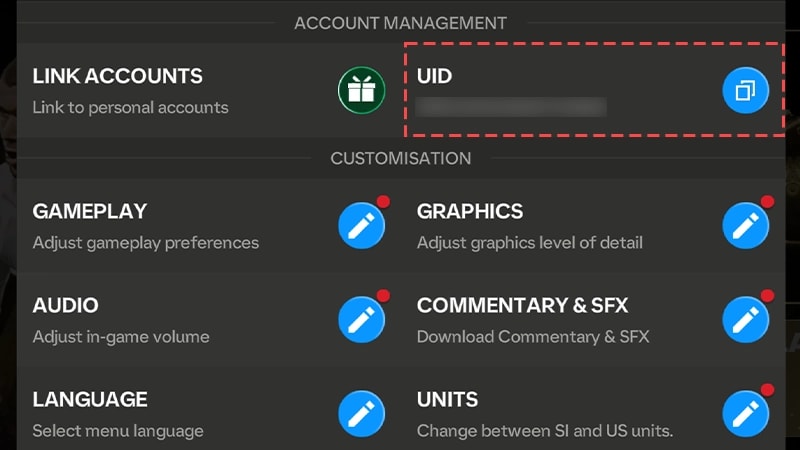
- Write down your unique User ID (UID) shown at the bottom of the screen before touching anything else.
- Tap Link Accounts and select Apple Account.
- When iOS asks to share or hide your email, select either. "Share My Email" makes future EA Help tickets significantly easier to verify.
- Complete the Face ID or passcode prompt.
If the client detects an old squad tied to your Apple Account from a previous season, it displays an overwrite warning. Stop immediately. Never confirm that prompt unless you intend to discard the team currently active on your device.
How to Transfer FC Mobile to a New iPhone Using Apple Account
Migrating your squad to a replacement iPhone in 2026 takes less than two minutes if you bound your profile on the old device first.
Follow this sequence on the new phone:
- Sign into the new iPhone using the same Apple Account registered to your original device.
- Download EA Sports FC Mobile from the App Store.
- Open the game. At the login selection screen, tap Sign in with Apple (do not select "Guest").
- Confirm the iOS authentication sheet using Face ID or your device passcode.
- Enter your two-factor authentication code if Apple prompts for a secondary trusted device.
- Let the client pull your cloud save. Confirm your In-Game Name (IGN), level, and starting XI before playing.
Before purchasing EA Sports FC Mobile FC Points & Silver packs on your new device, play a single casual match or claim a free store pack. This verifies that the local installation is completely synchronized with the server database and that currency deliveries route to the right club.
Unlink and Switch Apple ID in FC Mobile: The Hard Reality
In-game platform links in FC Mobile are one-way decisions. EA provides no "Unlink" button inside the iOS client once an Apple Account is attached.
A clear contradiction exists between EA's mobile rules and its web portal architecture. Through a browser on EA's account management site, standard platform connections can be unlinked and swapped up to three times per 12-month period. Inside the FC Mobile app, however, the mobile development team locks bindings permanently to suppress black-market team trading and unauthorized profile flipping.
Binding your squad to a shared family ID or secondary Apple Account leaves you with very few options. You must file a ticket with EA Help requesting a manual unbind, which requires UID verification and transaction receipts. Success is never guaranteed. Bind to your primary, personal Apple ID from day one.
Age gates also block linking. Apple Family Sharing accounts registered to minors cannot connect to external EA services. If an Apple Account carries child status under iOS Family Sharing, the game locks third-party link options completely.
Account Options Compared: Apple Account vs Other Link Methods
FC Mobile on iOS supports several identity providers beyond Apple: Game Center, EA Account, Facebook, and LINE. Each serves a specific sync role depending on whether you stay on iOS or might switch to Android later.
| Linking Platform | Ecosystem Lock | Reward Granted | Cross-Platform Compatibility |
|---|---|---|---|
| Apple Account | iOS exclusive | 1 Third-Party Reward | No (cannot restore progress on Android devices) |
| EA Account | Universal | 1 Dedicated EA Reward | Yes (full sync across iOS and Android) |
| Game Center | Apple devices only | 1 Third-Party Reward | No (restricted strictly to Apple hardware) |
| Facebook / LINE | Social platform | 1 Third-Party Reward | Yes (allows squad transfer to Android via social login) |
The data above reflects official platform options available in the FC Mobile Account Management settings menu.
An Apple Account link ensures instant recovery across iPhones and iPads, but it cannot restore data on Android. If you buy an Android phone next season, an Apple-only binding leaves your squad locked to Apple hardware.
The safest practice is a dual-link approach. Connect your Apple Account first to secure your iOS cloud save and claim the initial reward. Then, connect a standard EA Account directly beneath it. This setup gives you two binding rewards while preserving full cross-platform access if you ever switch operating systems.
Troubleshooting FC Mobile Apple ID Link Failed Errors
A generic "Link Failed" prompt points to an expired cryptographic token, Apple server downtime, or a local network socket hang.
Four specific checks resolve the issue:
1. Fix Device Time and Date Desynchronization
EA's authentication servers require exact cryptographic handshakes. If your iPhone clock differs from global network time by even a few seconds, the security token expires before validation finishes. Go to iPhone Settings > General > Date & Time and toggle Set Automatically off, wait five seconds, and turn it back on to force a clean clock sync.
2. Verify Apple Server Status
If the client freezes on a blank white box when initiating "Sign in with Apple," the bottleneck is usually on Apple's infrastructure. Open Safari and check Apple's System Status dashboard. Look for outages on "Apple Account," "iCloud Account & Sign In," or "Game Center." If those show yellow or red indicators, client restarts will not help; you have to wait for Apple to resolve the service disruption.
3. Clear Network Latency with a Router Power Cycle
Local gateways frequently hold stale DNS caches or congested sockets that cause authentication handshakes to time out. If linking fails repeatedly on your Wi-Fi network, unplug your router and modem for a full 60 seconds. This cooldown flushes volatile memory completely. Once the connection comes back online, reconnect your iPhone and retry the link.
4. Overcome Underage Account Blocks
If the Link Accounts button is grayed out or missing entirely from the menu, the profile is blocked by an age gate. Accounts registered with a birthdate below the digital age of consent in your region are locked permanently to guest mode. You cannot edit your birthdate in the client settings. The only corrective path is opening Settings > Customer Service and submitting a support ticket to EA Help requesting an age adjustment.
| Failure Symptom | Primary Root Cause | Corrective Action |
|---|---|---|
| Infinite loading spinner | Apple auth token mismatch | Force quit FC Mobile, toggle iPhone Date & Time to Automatic, and relaunch |
| "Authentication Error" prompt | Remote service interruption | Check Apple System Status for Apple Account or Game Center downtime |
| Missing "Link Accounts" button | Profile registered as underage | Contact EA Customer Service via in-game support to request age adjustment |
| Connection timeout on Wi-Fi | Gateway socket congestion | Power cycle your network router with a full 60-second cooldown |
Reviewing these four checkpoints resolves the vast majority of account attachment failures on iOS hardware.
Before purchasing safe FC Points and Silver packages, verify that your Apple link shows as active in the settings menu. Funding an unlinked profile exposes your purchases to irreversible data loss.
Account Security: UID Tracking, IGN Locks, and Graphics Presets
Comprehensive account protection requires more than just an active cloud link. The client settings menu contains three critical operational parameters you need to manage:
First, record your User ID (UID). Open the settings menu using the top-right cogwheel and look at the string at the bottom of the panel. This alphanumeric identifier is your account's permanent address in the EA database. If your phone breaks or Apple authentication fails, EA support cannot locate your squad using your public handle alone. Screenshot this screen and back it up to a secure drive.
Second, choose your In-Game Name (IGN) carefully. FC Mobile does not sell name-change tokens, and the name you choose during club creation cannot be modified later in settings or through customer support.
Third, calibrate your graphics preset to prevent crash-related data corruption. The game offers four tiers: Power Saver, Medium, High, and Ultra. Running Ultra on older iPhones triggers thermal throttling and memory crashes during large roster syncs or pack openings. Setting graphics to Medium or High maintains stable frame delivery without crashing the client.
| Parameter | Modifiable in Settings? | Impact on Profile Management |
|---|---|---|
| User ID (UID) | No (System-assigned) | Mandatory identifier required by EA Help for all squad recovery cases |
| In-Game Name (IGN) | No (Permanent creation) | Public handle; cannot be edited or reset after registration |
| Graphics Setting | Yes (4 Discrete Presets) | Balances visual fidelity against device heat (Power Saver, Medium, High, Ultra) |
| Link Rewards | One-time per account type | Grants 1 third-party reward (Apple) and 1 separate EA Account reward |
Keeping a record of your UID ensures you maintain permanent ownership proof regardless of client updates.
FAQ
How do I link FC Mobile to my Apple ID or Apple Account?
Tap the settings cogwheel located in the top-right corner of the home screen, select Link Accounts under the Account Management heading, and choose Apple Account. Confirm the system dialog using Face ID, Touch ID, or your device passcode to bind your profile.
Can I unlink my Apple ID from FC Mobile later?
No, FC Mobile account links are permanent inside the game client once completed. While general EA Account settings allow up to 3 platform switches per rolling year via a web browser, the mobile game does not provide an in-app unlink toggle.
Do I get in-game rewards for linking FC Mobile to my Apple Account?
Yes, binding your club to an Apple Account grants an account-link reward delivered to your in-game mailbox. You can claim a second, separate reward by linking a standard EA Account as well.
Can I transfer my FC Mobile squad to Android if linked to Apple ID?
No, an Apple Account link only restores your progress on iOS devices like iPhones and iPads. If you plan to switch to an Android device, you must also link your squad to an EA Account or Facebook to transfer your data across operating systems.
Why is the Link Accounts button missing on my iPhone?
Your profile was likely created with a birthdate that falls below the legal age of digital consent in your region. Underage accounts are locked to Guest mode and cannot bind to third-party platforms unless you contact EA Customer Service in-game to update your age.
Where can I find my FC Mobile UID if my login fails?
Your UID is displayed at the bottom of the in-game Settings menu, which you access via the top-right cogwheel. If you cannot log in, check your older device screenshots, as EA Customer Service requires this exact string to locate and restore lost profiles.
What should I do if linking to Apple Account gets stuck on a loading screen?
Ensure your iPhone's Date & Time settings are set to automatic, check Apple's System Status page for active service outages, and power cycle your network router for 60 seconds. These steps clear authentication token errors and expired connection requests.
Final Verdict on Securing Your FC Mobile iOS Profile
Leaving your Ultimate Team on a guest account is an unnecessary risk. A single iOS update or corrupted cache can erase months of roster building and market trading. Binding to your Apple Account takes sixty seconds and permanently anchors your squad to cloud storage.
Do not stop at Apple alone. Add an EA Account link to secure your progress across both iOS and Android while collecting a second binding reward in your mailbox.
Once your UID is recorded and your Apple Account shows "Linked," your club is secure. With your squad backed up, you can safely explore topping up FC Points on xptopup to build your roster without risking your progress.






Comments