


To link your Jawaker profile to an external service, open the app, tap the Settings gear icon on the main screen, select your preferred authentication provider—such as Facebook, Apple ID, Google, or Mobile Number—and confirm authorization. Completing this process binds your unique numeric Player Number to your personal login credentials, permanently preserving your card room history, table cosmetics, and Jawaker Tokens when moving between phones, tablets, or operating systems.
Moving from a Guest Account to a Permanent Profile
Jawaker allows players to join card game lobbies immediately upon installing the application without completing an upfront registration form. While this enables fast access to games like Trix, Tarneeb, and Baloot, an unregistered guest account stores its identifiers strictly on your local device storage. If you clear your app cache, delete the application, or purchase a new phone, local guest progress disappears.
According to Uptodown's platform overview, creating and binding an account directly from the home screen is required if you want to choose a custom username and safeguard progression over time. Linking secures the tokens you use for tournament entries, custom table gifts, and Basha VIP subscriptions so they remain accessible across future sessions.

4,250 Tokens
 4,250 TokensUSD 0.81Buy Now
32,500 Tokens
32,500 TokensUSD 4.03Buy Now70,000 Tokens
70,000 TokensUSD 8.06Buy Now150,000 Tokens
150,000 TokensUSD 15.41Buy Now230,000 Tokens
230,000 TokensUSD 23.63Buy Now400,000 Tokens
400,000 TokensUSD 40.72Buy Now525,000 Tokens
525,000 TokensUSD 53.05Buy Now805,000 Tokens
805,000 TokensUSD 81.44Buy Now
Step-by-Step: How to Link Jawaker Account Methods
The specific authentication options visible in your settings depend on your hardware and mobile operating system. As detailed in Jawaker's account login documentation, options include Mobile Number, Game Center, Apple ID on iOS devices, and Huawei ID on supported Huawei hardware.
Connect Jawaker to Facebook
- Launch the Jawaker app on your device.
- Tap the Settings gear icon on the main menu.
- Tap the Facebook option from the list of connection buttons.
- Your device will redirect to Facebook via the app or a web pop-up. Review the permissions and tap Continue.
- Wait for the confirmation prompt in Jawaker confirming the profile connection.
Be aware of account collisions. Per Jawaker HelpShift FAQ 14, if your active Facebook account is already bound to a different Jawaker profile, the app displays a warning message to prevent accidental overwrites.
Jawaker Link Apple ID or Game Center (iOS)
- Open Jawaker on your iPhone or iPad.
- Tap the Settings icon on the home dashboard.
- Choose Apple ID or Game Center.
- Complete the iOS authentication via Face ID, Touch ID, or your device passcode.
- Verify that your profile displays your username and existing inventory.
Binding a Verified Mobile Number
- Navigate to Settings.
- Select Mobile Number.
- Input your country code followed by your active phone number.
- Enter the one-time passcode (OTP) delivered to your SMS inbox to finalize the bind.
| Authentication Method | Platform Availability | Link Process & Security Requirements | Source Reference |
|---|---|---|---|
| iOS, Android, Web | In-app link via Settings; warning flags if bound elsewhere | HelpShift FAQ 14 | |
| Apple ID / Game Center | iOS / iPadOS | Native device prompt; removal requires 30-day verified contact | HelpShift FAQ 12 & Jawaker Blog |
| Mobile Number | Universal | SMS OTP confirmation; acts as identity anchor | HelpShift FAQ 12 & Jawaker Blog |
| Email Address | Universal | Email verification code; removal requires 30-day phone bind | Jawaker Blog |
Switching Login Methods and Account Security Rules
If you replace an old social profile or want to update how you authenticate, Jawaker enforces specific anti-theft rules outlined in the Jawaker Privacy and Security update.
[Request Removal in Settings > Security]
                    │
                    ▼
   Is there another active login method?
       ├── No  ──> [Action Blocked: Minimum 1 login required]
       └── Yes ──>
                    │
                    ▼
   Is there an email or phone linked for ≥ 30 days?
       ├── No  ──> [Action Blocked: 30-day tenure requirement not met]
       └── Yes ──> [Send OTP to 30-day verified contact] ──> [Remove Method]
The 30-Day Tenure and OTP Requirement
To remove any attached third-party login (such as Facebook, Google, Apple ID, or Game Center), your account must already have a verified email address or mobile number linked for at least 30 days.
When you request removal under Settings > Security, Jawaker dispatches an OTP verification code to that long-standing contact. Entering that code confirms the removal. If you attempt to detach an email address, the verification code must go to a mobile number that has met the 30-day tenure rule.
The Mandatory Method Rule
You cannot strip all credentials to revert an account to an anonymous guest state. Jawaker mandates that at least one authentication method must remain linked at all times. If an account does not meet the security conditions or has only one login attached, the Remove button in the Security menu remains inactive.

Resolving the Facebook Unlinking Discrepancy
There is an inconsistency in official Jawaker guidance regarding how to disconnect Facebook:
- Legacy Documentation:Jawaker HelpShift FAQ 19 states that unlinking Facebook is impossible inside the mobile app. It instructs players to open a desktop browser, visit
www.jawaker.com, select the Old website link, log in via Facebook, access account settings, and click Delete Link. - Current In-App Architecture: Newer platform documentation from the Jawaker Blog states that third-party logins can be managed and removed directly in the mobile client under Settings > Security, provided you clear the OTP and 30-day tenure gates.
If the mobile Security menu does not allow you to detach Facebook, use the browser method on the classic web portal as an alternative.
Troubleshooting Jawaker Login Errors and Warnings
"Account Already Linked" Warning
This error occurs when your Facebook, Apple ID, or phone number is already attached to an older Jawaker account ID. Because the system prohibits duplicate ties to different accounts, you must decide which account to keep: 1. Log out of your current guest account. 2. Log in using the existing social or phone method to inspect the older profile. 3. If you want to connect that credential to your new profile instead, you must disconnect it from the old profile first—either in Settings > Security or via the classic web portal.
Unrecognized Device Notifications
When you sign into your Jawaker profile on a new tablet, phone, or emulator, security triggers activate automatically. Jawaker's security protocols send an alert detailing the device model, operating system, login timestamp, and IP address. This alert arrives across three separate channels: * Your registered email address. * An in-app pop-up notification. * A direct message from the in-game Fouad automated assistant.
Each alert includes a link leading directly to your Security Settings and the Devices List, letting you terminate unfamiliar active sessions immediately.
Locating Your Public Player Number
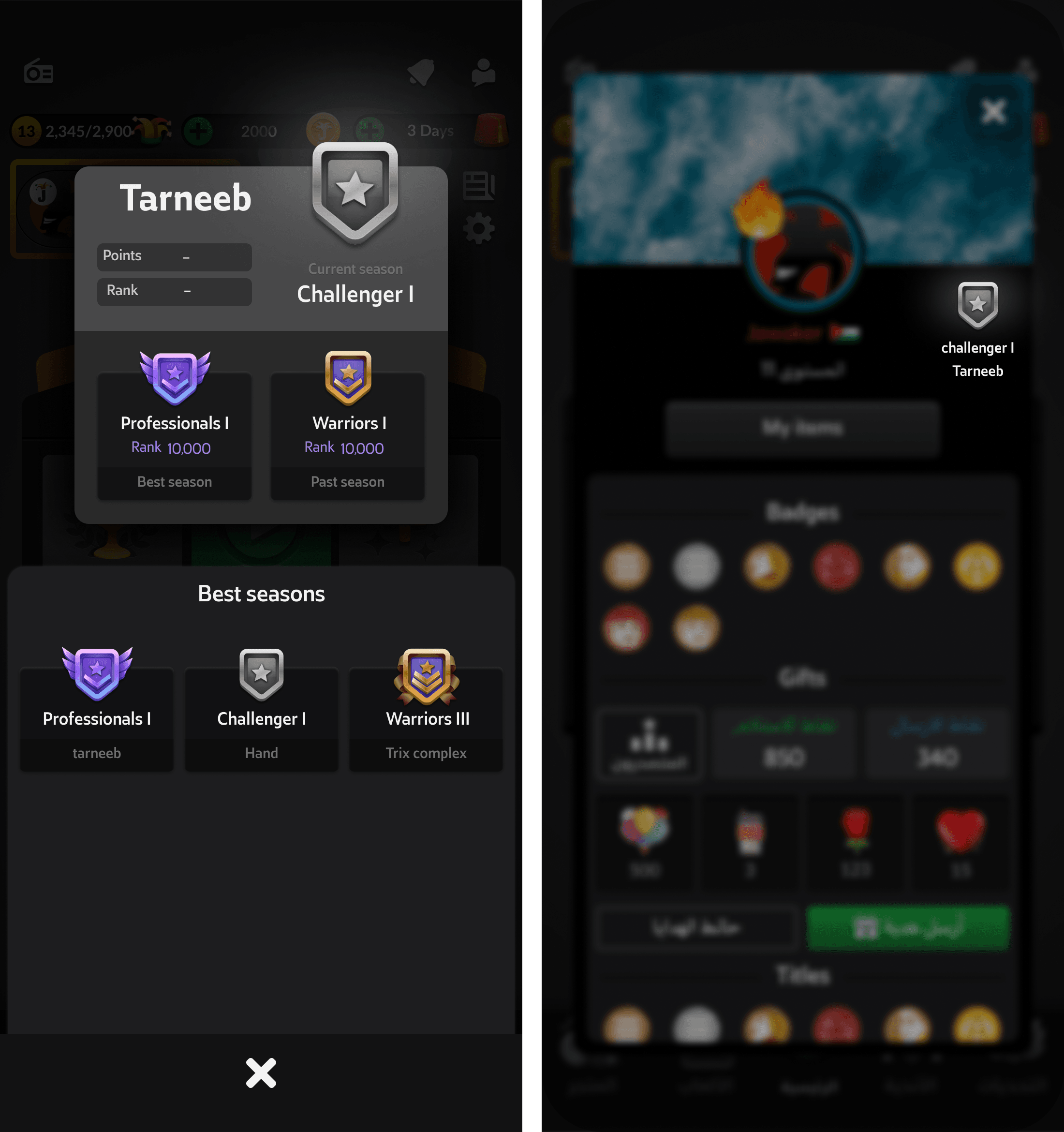
Your numeric Player Number is the master identifier for your Jawaker profile across iOS, Android, and web. As detailed in the XPTopup Jawaker guide, you can find this identifier by tapping the Settings gear icon on the home screen and scrolling to the bottom of the menu.
Unlike your login passwords or private OTP verification texts, your Player Number is completely safe to share. It allows third parties and official tools to route tournament prizes, profile lookups, and token packages to your balance without compromising account ownership.




Comments