

Learn how to link Nikke guest account to Level Infinite without data loss. Follow our step-by-step binding guide across mobile and PC launchers.
Playing on a guest profile is the easiest way to reroll for top-tier Pilgrims in Goddess of Victory: Nikke. It lets you test your luck, reset instantly, and jump straight into the campaign. The problem starts once you pull Scarlet or Modernia and decide to keep the account. Guest data lives entirely inside your phone's temporary sandbox. If the game crashes during a patch, if your operating system purges app cache, or if you drop your phone, that roster is gone.
Level Infinite—established in December 2021 as the dedicated global publishing brand of Tencent Games—uses Level Infinite Pass (LI PASS) as its central authentication backbone. Linking your guest account to this system protects your progress and unlocks PC cross-play. Doing it incorrectly can overwrite your profile with a blank save.
This guide covers the exact method to link your account, bypass linking errors, and ensure your squad remains safe.
The Hidden Danger of Nikke Guest Profiles
Guest accounts exist solely within the local file storage of your iOS or Android device. Local guest saves do not communicate ownership status to the game's cloud servers until you complete formal registration.
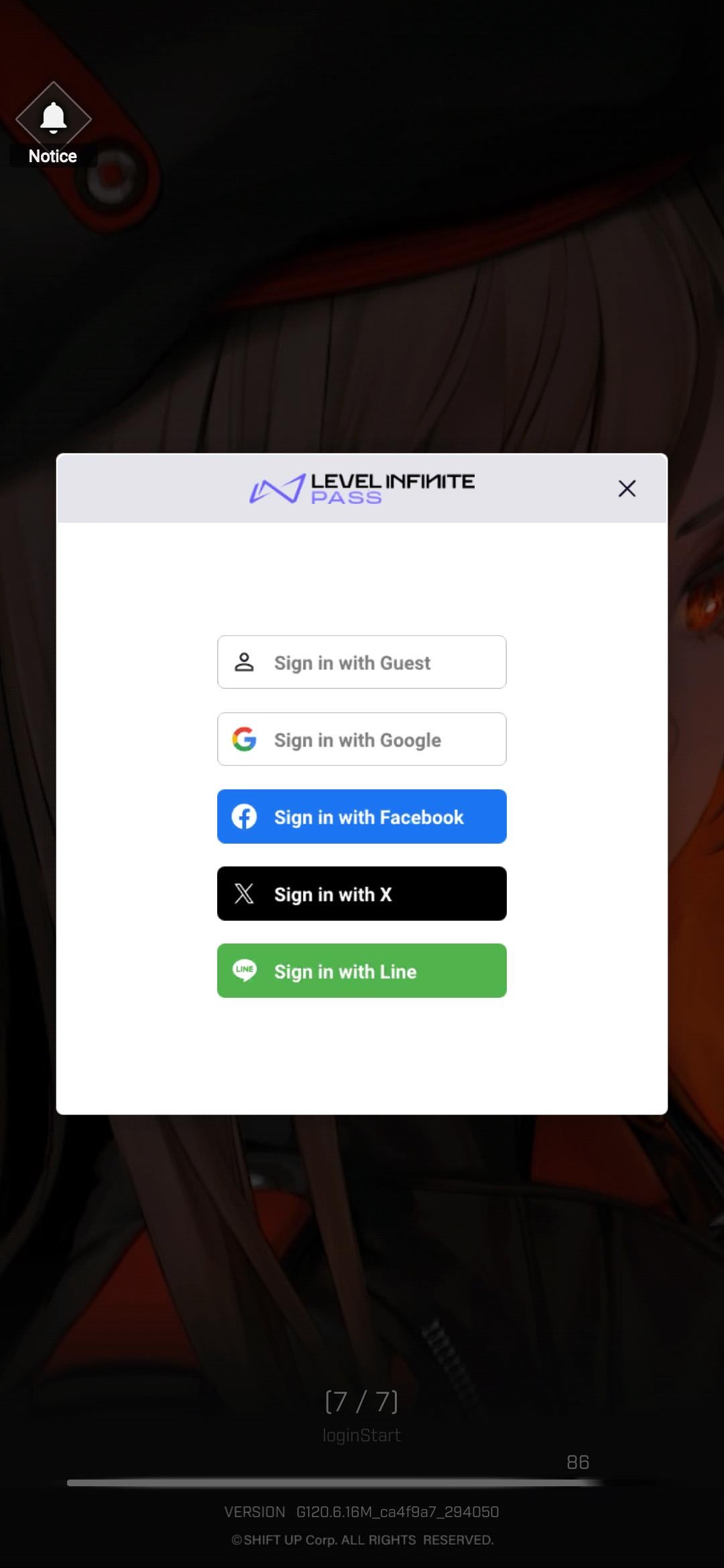
Three routine events can wipe a guest profile instantly:
- Operating System Cache Clearing: Mobile storage managers frequently purge cached app directories when device memory falls below 10 percent.
- Game Client Updates: Major version updates that require a full client redownload from the App Store or Google Play Store can overwrite local guest keys.
- Accidental Logouts: Tapping log out inside the settings menu resets the client state to default, severing the local link to that specific guest identifier.
If you want to spend resources or top up Goddess of Victory: Nikke for banner recruitment pulls, doing so on an unlinked guest account is a massive gamble. Binding your data guarantees that every gem, pilgrim mold, and outpost level is recorded on Level Infinite's central servers.

60 Gems
 60 GemsUSD 0.63Buy Now
120 Gems
120 GemsUSD 1.28Buy Now320 Gems
320 GemsUSD 3.22Buy NowMonthly Pass
Monthly PassUSD 3.22Buy Now720 Gems
720 GemsUSD 6.46Buy NowTechnical Master Pack
Technical Master PackUSD 7.16Buy Now1500 Gems
1500 GemsUSD 12.93Buy NowClass Research Set
Class Research SetUSD 14.33Buy NowGrow Selection Set
Grow Selection SetUSD 14.33Buy Now2300 Gems
2300 GemsUSD 19.29Buy Now2370 Gems
2370 GemsUSD 20.07Buy NowManufacturer Research Set
Manufacturer Research SetUSD 21.50Buy Now4200 Gems
4200 GemsUSD 36.12Buy NowEnhanced Module Set
Enhanced Module SetUSD 39.42Buy NowManufacturer Backup Pack
Manufacturer Backup PackUSD 39.42Buy NowTechnical Support S I
Technical Support S IUSD 39.42Buy Now6200 Gems
6200 GemsUSD 51.65Buy NowTechnical Support S II
Technical Support S IIUSD 71.68Buy Now
Technical Prerequisites for Account Binding
Before opening the binding menu, verify that your credentials meet Level Infinite Pass specifications. The system rejects emails and usernames that fail syntax validation.
| Setting / Field | Technical Requirement | Functional Purpose |
|---|---|---|
| Username | 6–16 characters | Must begin with a letter; accepts letters, numbers, and underscores |
| Email Address | Active, accessible inbox | Receives the mandatory 6-digit verification code |
| Password | Globally synchronized | Synchronizes credentials across all Level Infinite titles |
| SDK Support | Player Network SDK V1.25+ | Supports 30-day quick linking prompts on mobile and web |
The Level Infinite Pass Account Center enforces character length and security parameters across all linked global titles.
Have access to your email inbox ready. The verification code expires quickly, and requesting multiple codes in short succession triggers an IP rate-limit lock.
Step-by-Step: Nikke Bind Guest Account to Email
Complete these steps while logged into your active guest profile. Do not log out before finishing.
1. Open the In-Game Account Center
Launch Nikke on mobile and proceed past the title screen into the Outpost lobby. Tap the Menu icon in the upper-right corner (the four squares). Select Account, then tap Account Center.
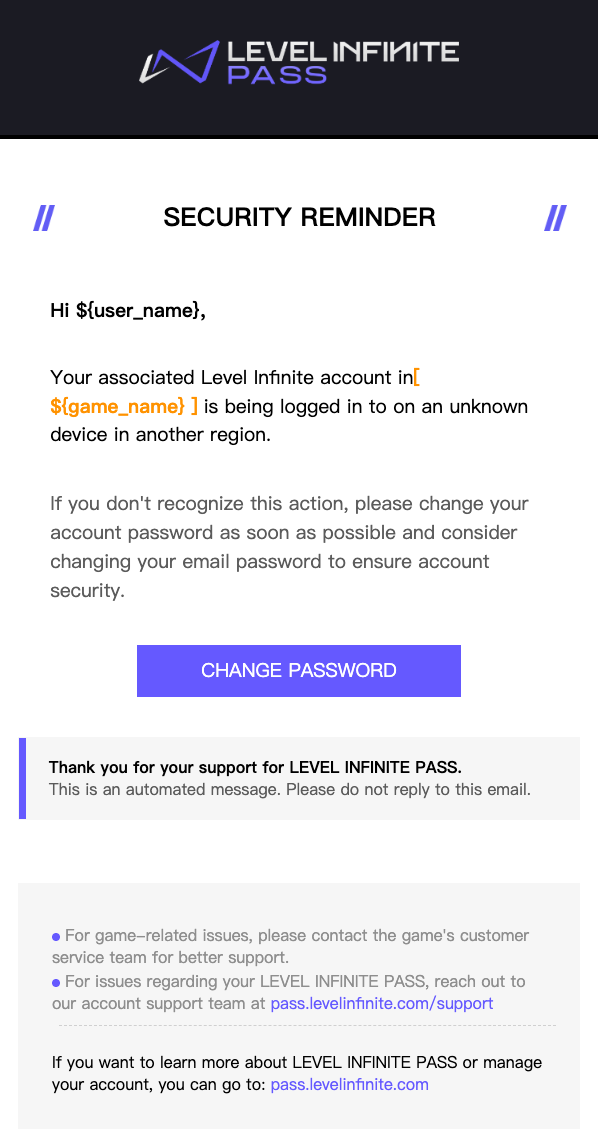
2. Select Level Infinite Pass
Inside the Account Center, tap Link next to the Level Infinite Pass icon.
Crucial Rule: Do not select Google, Apple, or Facebook yet. Level Infinite's architecture requires an email-based Level Infinite Pass before attaching third-party social logins.
3. Enter Your Unregistered Email Address
Enter the email address you want to bind to your Commander profile. This address must not be associated with an existing Level Infinite Pass on Nikke or any other Level Infinite title.
4. Complete Verification and Set Your Password
Tap Send Code. Open your inbox, copy the six-digit verification code, and return to Nikke. Enter the code, create a password, provide a valid username (6–16 characters starting with a letter), and confirm.
Once the confirmation appears, your local guest data is permanently attached to your Level Infinite Pass.
Cross-Platform Sync: How to Transfer Nikke Guest Account to PC
Nikke supports cross-progression between mobile and the official PC client. Commander level, sync room slots, character limits, and campaign clears sync automatically once bound.
The table below highlights the technical differences across supported platforms when managing your account:
| Feature / Mechanism | Android Client | iOS Client | Official PC Launcher |
|---|---|---|---|
| Guest Mode Available | Yes (local app storage) | Yes (local keychain storage) | No (requires direct login) |
| Passkey Support | Android 9.0+ / Play Services 20.33+ | iOS 16.0 or newer | Browser-based authentication |
| Direct Social Binding | Secondary to LI Pass | Secondary to LI Pass | Direct login via linked socials |
| Session Auditing | View device history | View device history | Full remote session termination |
Operating systems manage local guest storage and passkey hardware credentials according to the specifications above.
To load your mobile save on PC: 1. Download and install the official Nikke PC launcher from the official website. 2. Open the launcher and select Log In. 3. Choose Level Infinite Pass as your login method. 4. Enter the email and password bound to your mobile guest account. 5. Choose your original server region (NA, Global, SEA, Japan, or Korea). Profiles remain locked to the specific regional server where they were created.
If you purchase items, using verified Goddess of Victory: Nikke recharge options ensures payment records sync reliably across both platforms.
Resolving the "Already Linked to Another Level Infinite Pass" Conflict
The most common binding error states that an email is already linked to another Level Infinite Pass. This collision happens during rerolling or if you previously registered the address.
[Binding Conflict Flowchart]

Guest Account (Active Profile)
       │
       ▼
[Attempts to bind: user@example.com]
       │
       ├──► Email already exists on LI Server? ──► ERROR: "Already Linked"
       │                                                │
       │                                                ▼
       │                                    [Action: Use a clean email]
       │
       └──► Fresh, unused email entered? ──────► SUCCESS: Profile Bound
Why This Error Happens
If you pre-registered with your primary email or logged into another Level Infinite game (such as SYNCED or Tarisland), a Level Infinite Pass already exists under that email. The backend cannot merge an active guest profile into an already-registered account.
The Solution
- Use an Unused Email: Bind the guest save to a separate, clean email address.
- Never Switch Accounts First: Do not log into an existing Level Infinite Pass on your device while the guest save is active. Doing so overwrites your active local session with the old account.
- Wait Out Device Cooldowns: Logging in from an unfamiliar device triggers automated security flags that temporarily block new third-party bindings. Perform bindings on your primary device or wait for the cooldown to clear.
Account Center Security: Passkeys, 2FA, and Session Management
After linking, enable the security tools inside the Level Infinite Pass Account Center to guard against credential stuffing and unauthorized logins.
| Security Feature | Implementation Requirement | Core Benefit |
|---|---|---|
| Email Two-Factor (2FA) | Account Center activation | Requires a one-time email code when logging in from new devices |
| Passkey Authentication | iOS 16+ or Android 9.0+ with Play Services 20.33+ | Biometric/PIN login without entering plain-text passwords |
| Passkey Storage Limit | Up to 20 passkeys per account | Tracks device name, creation date, and last login timestamp |
| Remote Session Logout | Device History dashboard | Single-click termination of all active remote device sessions |
| Third-Party Unlinking | Email verification confirmation | Safely detach social accounts without losing the core profile |
Centralized security controls in the Account Center provide account protection across all linked hardware.
To configure passkeys: 1. Open the Account Center via browser or the in-game settings menu. 2. Go to Security Settings and select Passkeys. 3. Verify your identity with the email code. 4. Register your device using Face ID, Touch ID, or Android Biometrics.
The system supports up to 20 unique passkeys across desktops, phones, and tablets.
Resolving Social Channel Binding Contradictions
Guides frequently claim players can bypass email registration and bind a guest account directly to Google, Apple, Twitter (X), or Facebook.
Under Player Network SDK architecture, this is impossible. Guest profiles cannot use third-party social providers as a primary anchor.
The email-based Level Infinite Pass must be registered first. Once created, you can link social logins in the Account Center for convenience.
Removing a linked social provider also requires email verification. Your email address remains the permanent root key for account recovery.
How to Recover an Unlinked Lost Guest Account
If you wiped your app data or reinstalled Nikke before binding, the client generates a blank Commander ID.
Standard login options cannot restore an unbound guest profile. You must submit a recovery ticket directly to customer support.
Gather these details before filing a ticket: * Server Region: (e.g., Global, North America, Southeast Asia). * Exact Commander Name & UID: Check past screenshots for the numerical UID in the lower-left corner. * Account Level & Approximate Combat Power: Note Outpost level and team combat power. * Notable SSR Characters: List unique Pilgrims or limited banner units. * Device Details: Specific phone model, operating system version, and approximate account creation date. * Purchase Receipts: If you bought packs through an official Nikke top-up portal, attach order IDs and timestamps. Order invoices provide definitive proof of ownership.
Support response times depend on ticket volume and data accuracy. Recovery is never guaranteed for unbound profiles, which is why binding immediately after rerolling is critical.
Troubleshooting Account Center Sync Errors
If the Account Center errors during the linking process, resolve the issue with these steps:
- Verification Code Timeout: Enter the 6-digit verification code before the countdown expires. If expired, wait 60 seconds before requesting a replacement.
- Spam Filtering: Automated verification emails frequently route to junk or spam folders, particularly on Outlook and Yahoo. Search for Level Infinite and Player Network senders.
- Network Hangs: If the in-game webview fails to load, switch between cellular data and Wi-Fi to bypass restrictive DNS configurations.
- Device Security Locks: Logging in from a new device may place a 24-hour hold on channel binding. Retry from your primary mobile device.
- 30-Day Quick-Link Prompts: On Player Network SDK V1.25+, accounts logged in through social channels receive a periodic prompt every 30 days to link an email. Use this prompt if you missed manual setup.
FAQ
Will linking my Nikke guest account overwrite or erase my progress?
No, linking your guest account directly binds your current local Commander data to a new Level Infinite Pass without resetting your progress. Data loss only occurs if you log out and sign into an existing account that already contains a different save file.
How do I link a Nikke guest account to Level Infinite Pass?
Open the in-game Account Center from the settings menu while logged into your guest profile, tap Link next to Level Infinite Pass, and complete the email verification. Once verified, your guest progress is permanently bound to that Level Infinite Pass.
Can I bind social accounts like Google or Apple directly to a guest profile?
No, Level Infinite Pass architecture requires you to link your guest account to a Level Infinite email account before binding third-party channels. After the primary pass is created, you can link social logins through the Account Center.
What happens if I reinstall Nikke or clear game data while playing as a guest?
Your guest save data will be permanently deleted because guest accounts rely exclusively on local device memory. You must bind your profile to a Level Infinite Pass before clearing cache or uninstalling the app.
Why am I getting an error saying the email is already in use during linking?
This error occurs when the entered email is already registered to an existing Level Infinite Pass account. You must use a fresh email address that is not associated with any Level Infinite ID to bind your guest save.
Can I play on PC with the same Nikke account after linking on mobile?
Yes, Nikke supports complete cross-platform progression across PC, iOS, and Android. Simply launch the PC client and log in using your newly bound Level Infinite Pass credentials.
Lock Down Your Nikke Progress
Guest accounts serve one purpose: rerolling. Keeping an unlinked account risks losing campaign progress, Pilgrim pulls, and gear upgrades to an OS cache purge or app crash. Creating a Level Infinite Pass takes two minutes.
Bind a clean email, complete in-game verification, and turn on passkeys. Once tied to Level Infinite Pass, your profile stays safe across mobile and PC.






Comments