

Fix the Neverness to Everness black screen on launch PC bug with our step-by-step diagnostic guide covering UE5 shaders, D3D12 errors, and crash fixes.
Staring at a pitch-black monitor while background audio plays is an all-too-common launch experience. Neverness to Everness (NTE), developed by Hotta Studio and published by Perfect World Games, launched on April 29, 2026, bringing an Unreal Engine 5 urban open world to Windows PC. That visual ambition brought immediate launch hiccups.
Thousands of PC players boot up the client only to hit an immediate freeze, a persistent black screen with audio running, or a fatal crash dialog referencing missing D3D12 devices. Because Hotta Studio built the city of Hethereau with complex streaming pipelines, the launch sequence is sensitive to driver hooks, precompiled shader corruption, and permission issues.
The diagnostic workflow below isolates the failure point and gets the client running.
Why Neverness to Everness Fails on Startup
At startup, Unreal Engine 5 executes several heavy background tasks before displaying the login screen. The engine builds a DirectX 12 render context, queries GPU feature levels, initializes sound banks, and verifies compiled pipeline state objects (PSOs). A failure in any subsystem halts execution into a crash or a frozen black window.
Identifying the symptom isolates the failure point:
- Black Screen with Audio: Display output pipeline stalled. In UE5, this indicates prolonged background shader compilation or a broken display mode handshake.
- Instant Crash to Desktop (No Error): Fatal initialization exception. Points to non-English directory paths, missing Microsoft Visual C++ runtimes, or network filter hooks.
- D3D Device Lost / DXGI Error: DirectX 12 graphics device reset caused by overlay hooks, corrupted GPU caches, or unstable clock profiles.
- Freezing on Developer Splash Screens: Asset streaming failed to load core character or environment archives, typical on mechanical hard drives or systems lacking extraction buffers.

All in One(60+300+980+1980+3280+6480)Riftcrystal
 All in One(60+300+980+1980+3280+6480)RiftcrystalUSD 132.00Buy Now
Riftcrystal Mining Permit
 Riftcrystal Mining PermitUSD 3.28Buy Now
6480Riftcrystal (First Top Up Get Double)
6480Riftcrystal (First Top Up Get Double)USD 65.69Buy Now3280Riftcrystal (First Top Up Get Double)
3280Riftcrystal (First Top Up Get Double)USD 32.84Buy Now1980Riftcrystal (First Top Up Get Double)
1980Riftcrystal (First Top Up Get Double)USD 19.70Buy Now980Riftcrystal (First Top Up Get Double)
980Riftcrystal (First Top Up Get Double)USD 9.85Buy Now300Riftcrystal (First Top Up Get Double)
300Riftcrystal (First Top Up Get Double)USD 3.28Buy Now60Riftcrystal (First Top Up Get Double)
60Riftcrystal (First Top Up Get Double)USD 0.65Buy Now
PC Hardware Baseline and Storage Demands
Hardware must meet the engine's strict baseline before software fixes will work. Neverness to Everness cannot run on DirectX 11 hardware, and running the client on a mechanical HDD causes fatal asset streaming freezes.
Official launch documentation contains discrepancies regarding storage footprints. Perfect World's primary PC announcement lists a 60GB disk requirement, while regional technical guides specify 65GB. The installer also requires double that capacity during setup to unpack compressed sound and visual packages.
| Hardware Component | Minimum PC Specification | Recommended PC Specification | Technical Impact on Startup |
|---|---|---|---|
| Operating System | Windows 10 64-bit | Windows 10 / 11 64-bit | Windows 10 requires Hardware-accelerated GPU scheduling for Frame Gen |
| Processor (CPU) | Intel Core i7-10700 | Intel Core i7-12700 | Low core counts stall UE5 background shader compilation on boot |
| Memory (RAM) | 16GB RAM | 32GB RAM | 16GB systems face severe out-of-memory crashes during initial load |
| Graphics Card (GPU) | GTX 1660 / RX 5600 | RTX 3060 / RX 6700 | Requires full DirectX 12 feature level; driver version must exceed 595.79 |
| Storage Footprint | 60GB–65GB SSD Space | 60GB–65GB SSD Space | Requires 120GB–130GB free buffer during extraction; HDD causes boot stalls |
Takeaway: Installing NTE on an SSD with at least 120GB of temporary overhead is mandatory to prevent corrupted extraction and boot freezes.
Immediate Quick Checks: Shaders and Display Resets
Two fast workarounds resolve many superficial black screens before you touch system files.
The Two-Minute Shader Wait Rule
On first launch, or right after updating your graphics drivers, Unreal Engine 5 compiles critical runtime shaders in the background. Hotta Studio's client does not always display an active loading bar during this process. The game window appears pitch black while your CPU runs under heavy load.
Leave the client running for a full 1 to 2 minutes on the black screen. Once the initial shader cache builds, the opening cutscene triggers.
Resetting the Graphics Pipeline
If the black screen persists while audio plays, the Windows display presentation buffer may have hung. Press Ctrl + Shift + Win + B simultaneously. Your screen will flicker black and beep, reinitializing the graphics driver without closing active processes.
Step-by-Step Fix Hierarchy for NTE Launch Crashes
Work through this troubleshooting hierarchy in order, from highest-probability fixes to deeper system adjustments.
1. Fix Non-English Directory Paths
Hotta Studio's PC client crashes immediately if its installation path contains non-ASCII or non-English characters (accents, Cyrillic, or Asian scripts). If your Windows user folder or custom games directory uses special characters, the engine fails to locate core packages.
- Open File Explorer and find where the game is installed.
- Inspect the full folder path (e.g.,
D:\Games\NevernessToEverness). - If any folder contains spaces, symbols, or non-English characters, move the entire installation directory to a clean path such as
C:\NTEGameorD:\Games\NTE. - Reopen the official launcher, click "Locate Game Files," and select the renamed directory.
2. Update Incompatible GPU Drivers and Close Astrill VPN
Perfect World Games explicitly confirmed NVIDIA driver version 595.79 causes instant startup crashes on PC.
- NVIDIA Users: Open GeForce Experience or NVIDIA's driver site. Install the newest Game Ready Driver past version 595.79.
- Network Software Conflict: Astrill VPN's network hook causes instant crashes when opening the NTE client. Shut down Astrill and disable its virtual network adapter before launching the game.
3. Clear Corrupted DirectX Shader Caches
A corrupted shader cache traps DirectX 12 in an infinite load loop, presenting as a black screen. Deleting temporary cache files forces the system to rebuild them cleanly.
- Close the NTE client and launcher.
- Press Win + R, type
%LOCALAPPDATA%, and press Enter. - Open the NVIDIA folder and clear the contents of
DXCacheandGLCache. - For AMD graphics cards, open
%LOCALAPPDATA%\AMDand emptyDxcCache. - Press Win + R, type
cleanmgr, select driveC:, check DirectX Shader Cache, and click OK.
4. Install Visual C++ Redistributables (v14 Toolset)
Unreal Engine requires updated Microsoft Visual C++ runtime libraries. If your OS lacks current runtime packages spanning the 2017–2026 toolsets, the game terminates without an error message. Download and install both vc_redist.x86.exe and vc_redist.x64.exe (version 14.0 or newer) directly from Microsoft, then reboot.
5. Disable Conflicting Overlays and Hook Software
Third-party monitoring overlays hook directly into the DirectX 12 render loop, frequently producing DXGI_ERROR_DEVICE_REMOVED errors.
- MSI Afterburner & RivaTuner Statistics Server (RTSS): These utilities conflict directly with NTE. Close MSI Afterburner and RTSS from the system tray.
- Discord Overlay: Go to Discord Settings > Registered Games / Overlay and turn off the in-game overlay for Neverness to Everness.
- System Integrity: Open Command Prompt as Administrator and run
sfc /scannowfollowed byDISM /Online /Cleanup-Image /RestoreHealthto repair missing or corrupted graphics DLLs.
Once you stabilize your game and enter Hethereau, you can prepare your account through a Neverness to Everness top up before jumping into the gacha banners.
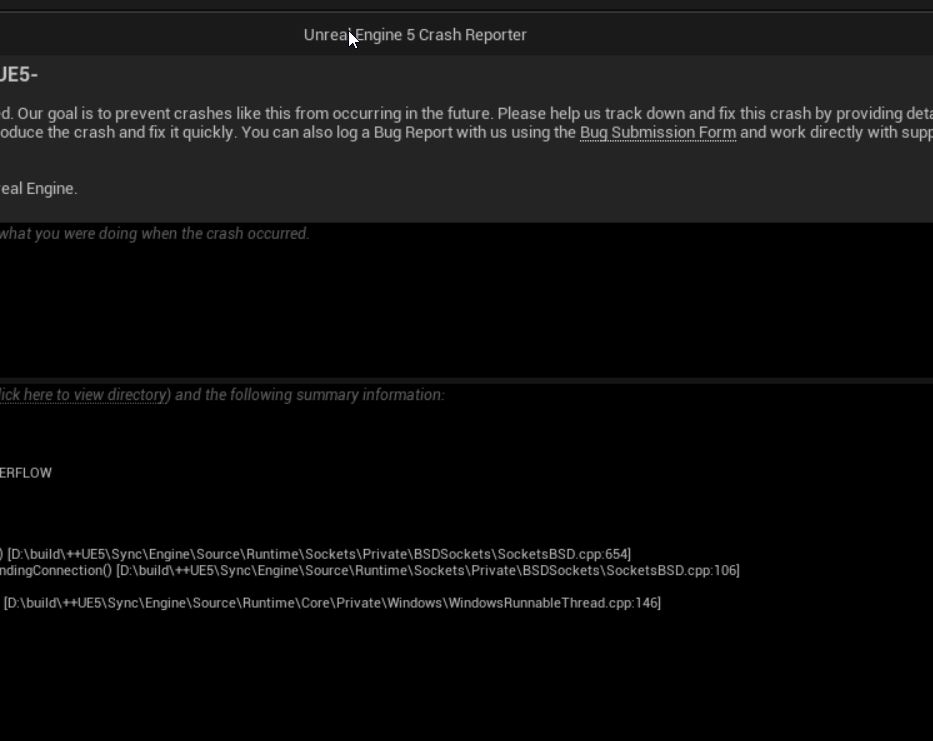
How to Read UE5 Crash Logs in AppData
Unreal Engine generates detailed diagnostic logs and callstack traces every time an unhandled exception occurs, taking the guesswork out of persistent crashes.
To locate your crash logs:
1. Press Win + R, type %LOCALAPPDATA%, and press Enter.
2. Open the project folder associated with the game (the NTE project or Hotta directory).
3. Navigate to Saved > Crashes.
Each crash creates a timestamped folder containing three files:
* CrashContext.runtime-xml: Records system specs, GPU driver version, and crash GUIDs.
* [ProjectName].log: Contains the live console log leading up to the freeze.
* CrashReportClient.ini: Contains engine reporting metadata.
Open .log in Notepad and scroll to the bottom line. An error code like 0x00000002 or a "Null Pointer Exception" means an asset failed to load; run a file verification scan through the launcher. A log ending in Fatal Error: [File:D3D12Util.cpp] [Line: 887a0006] points to a GPU timeout caused by driver conflicts or aggressive overclocks.
DirectX 12, Frame Generation, and GPU Scheduling Tweaks
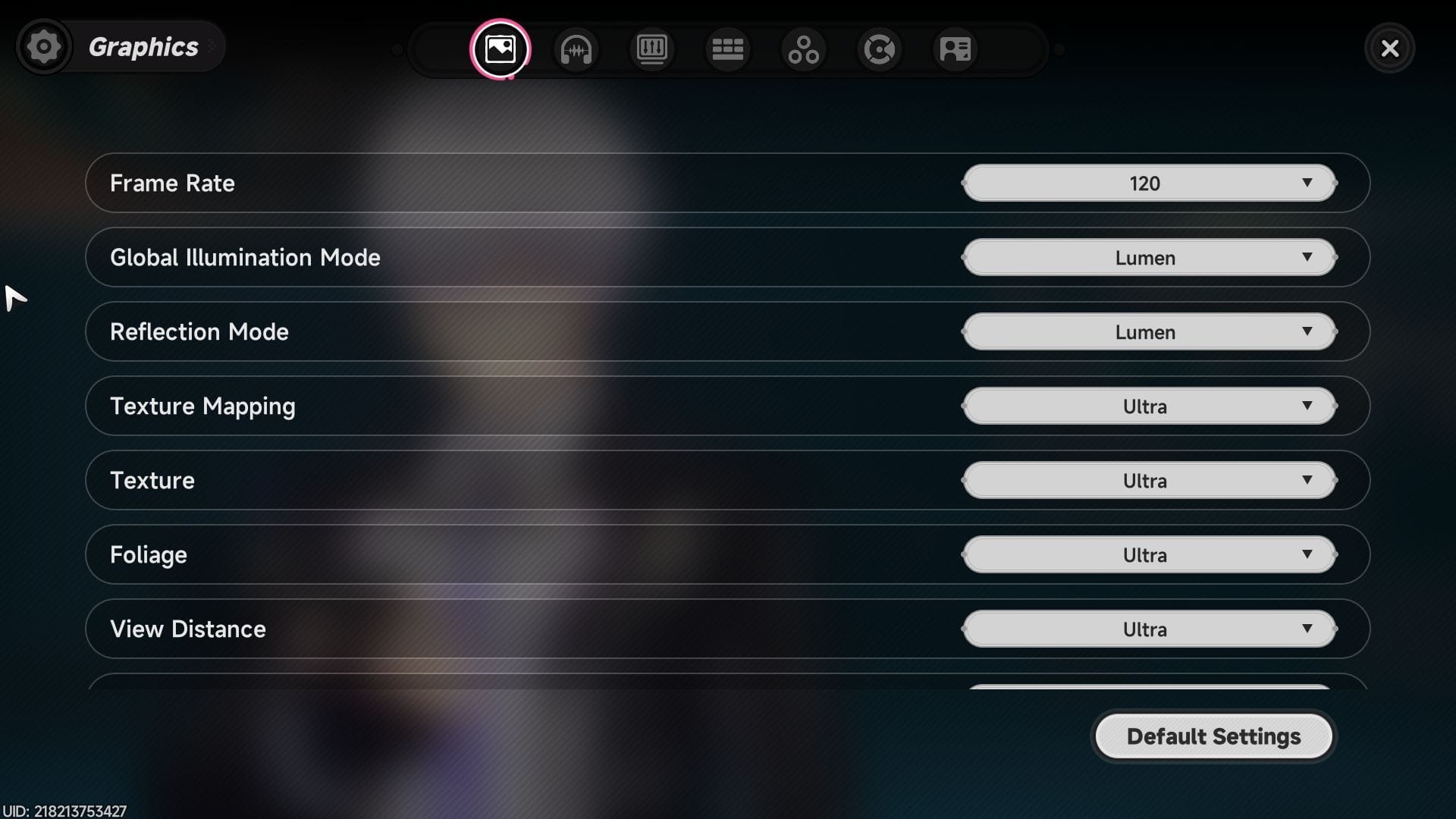
DirectX 12 Ultimate features power the game's real-time reflections and draw distances across Hethereau, but specific GPU architectures require targeted configuration.
Frame Generation on RTX 40-Series Cards
On Windows 10, DLSS Frame Generation with an RTX 40-series GPU crashes on launch if Hardware-accelerated GPU Scheduling (HAGS) is disabled.
- Open Windows Settings > System > Display.
- Click Graphics settings.
- Toggle Hardware-accelerated GPU scheduling to On.
- Restart the PC.
If crashes still occur when loading 3D scenes, disable Frame Generation in your graphics menu. Native DLSS or standard temporal anti-aliasing provides much better crash stability.
In-Game Settings to Stop Cutscene and Streaming Freezes
Transitioning from pre-rendered video cutscenes to real-time open-world city rendering causes sudden memory spikes. Systems low on VRAM or system RAM will lock up into a permanent black screen.
Adjusting these settings directly reduces memory starvation:
| Setting Name | Recommended Tuning | Performance & Stability Impact |
|---|---|---|
| Display Mode | Borderless Windowed | Eliminates Alt-Tab display driver reset crashes during cutscenes |
| Traffic Density | Low / Medium | Heavily reduces CPU streaming thread stalls in central Hethereau |
| View Distance | Very Low / Low | Prevents VRAM exhaustion and fatal D3D device removal errors |
| Frame Rate Cap | 60 FPS | Limits sudden power draw spikes that destabilize GPU clocks on launch |
| Ray Tracing | Disabled | Drastically reduces VRAM footprint, preventing out-of-memory boot halts |
Takeaway: Lowering Traffic Density and View Distance eliminates the primary bottlenecks that cause UE5 cutscene black screens.
After stabilizing frame rates and display settings, you can grab currency via NTE recharge services to pull for characters without unexpected crashes interrupting your gameplay.
Platform Differences and Resource Limits
Neverness to Everness shares code across platforms, but memory demands differ significantly by device.
Official technical guides present conflicting mobile memory baselines: early promotional materials listed 6GB RAM, while hardware compatibility sheets mandate 8GB RAM for open-world rendering. On PC, 16GB is the official minimum, but 32GB RAM is needed to avoid micro-stutters during high-speed vehicle driving through dense city districts.
| Platform | Minimum Memory Baseline | Storage Footprint | Primary Crash & Stability Root Cause |
|---|---|---|---|
| PC (Windows) | 16GB RAM (32GB Rec.) | 60GB–65GB (120GB buffer) | D3D12 device lost, driver 595.79 bug, overlay hooks |
| Mobile (Handheld) | 6GB–8GB RAM | 25GB–35GB Free Space | Thermal throttling, aggressive OS background task kills |
| Console (PS5 / PS5 Pro) | Unified 16GB Memory | ~60GB SSD Space | Shader pipeline is pre-baked; launch crashes are rare |
Takeaway: PC requires substantially more active system RAM to prevent scene-streaming crashes compared to closed console environments.
Diagnostic Checklist Summary
Follow this sequence before attempting a full client redownload:
- Verify Installation Path: Remove all spaces and non-ASCII characters from the directory chain.
- Check GPU Driver Version: Verify your NVIDIA driver is not 595.79; install the latest Game Ready update.
- Terminate Background Software: Shut down Astrill VPN, MSI Afterburner, and RTSS.
- Purge DXCache: Delete DirectX shader cache files in
%LOCALAPPDATA%. - Install Runtime Dependencies: Update Microsoft Visual C++ v14 (2017–2026) runtimes.
- Adjust In-Game Engine Parameters: Switch to Borderless Windowed, cap frame rate at 60 FPS, and lower Traffic Density.
Once the client runs reliably, you can visit the xptopup NTE store page to manage account resources.
FAQ
Why does Neverness to Everness launch into a black screen with audio playing?
The game is compiling Unreal Engine 5 shaders in the background or encountering a fullscreen presentation handshake error. Wait 1 to 2 minutes for shader caching to finish, or press Ctrl+Shift+Win+B to reinitialize the display driver. Switch to Borderless Windowed mode once visual rendering returns.
Which NVIDIA drivers cause Neverness to Everness to crash on PC?
NVIDIA driver version 595.79 causes a fatal launch crash in the NTE PC client. Update to any Game Ready Driver release newer than 595.79 to fix the crash.
How do I fix the 'Game path does not support non-English characters' error?
Move the game folder to a directory path that uses only standard ASCII English characters, such as C:\NTEGame. Then open the official launcher and use the "Locate Game Files" feature to target the new directory without redownloading.
Why does NTE crash immediately when MSI Afterburner is running?
MSI Afterburner and RivaTuner Statistics Server hook directly into the DirectX 12 render loop, causing initialization timeouts. Close both utilities from the system tray before launching the game.
Can I run Neverness to Everness on a traditional hard drive (HDD)?
No. Unreal Engine 5's high-bandwidth asset streaming requires an SSD. Installing on a mechanical HDD causes loading screen freezes, cutscene black screens, and persistent streaming hitches.
How much free disk space is required to install NTE on PC?
You need 120GB to 130GB of free SSD storage during installation. While the final game occupies 60GB to 65GB, the launcher requires an equal amount of temporary buffer space to decompress game packages.
Fixing NTE Startup Issues for Good
Unreal Engine 5 startup crashes in Neverness to Everness trace back to specific software collisions: DirectX 12 render hooks, uncompiled shaders, and driver bugs.
Avoid redownloading the entire 60GB client before testing basic fixes. In most cases, updating past driver 595.79, closing MSI Afterburner, clearing the %LOCALAPPDATA% shader cache, and moving files to an English-only SSD directory resolves startup crashes. Use UE5 crash logs if errors persist to pinpoint failing assets or hardware timeouts.






Comments