


To change controls in Neverness to Everness, open the in-game menu, select the gear icon to enter Settings, and choose the keyboard icon or the Button-related tab. From there, select the combat or vehicle action you wish to remap and press your new input on your keyboard or gamepad. Movement directions and the quick wheel menu remain permanently locked, while feel adjustments such as camera sensitivity, deadzones, and screen shake are configured on the separate Controls tab.
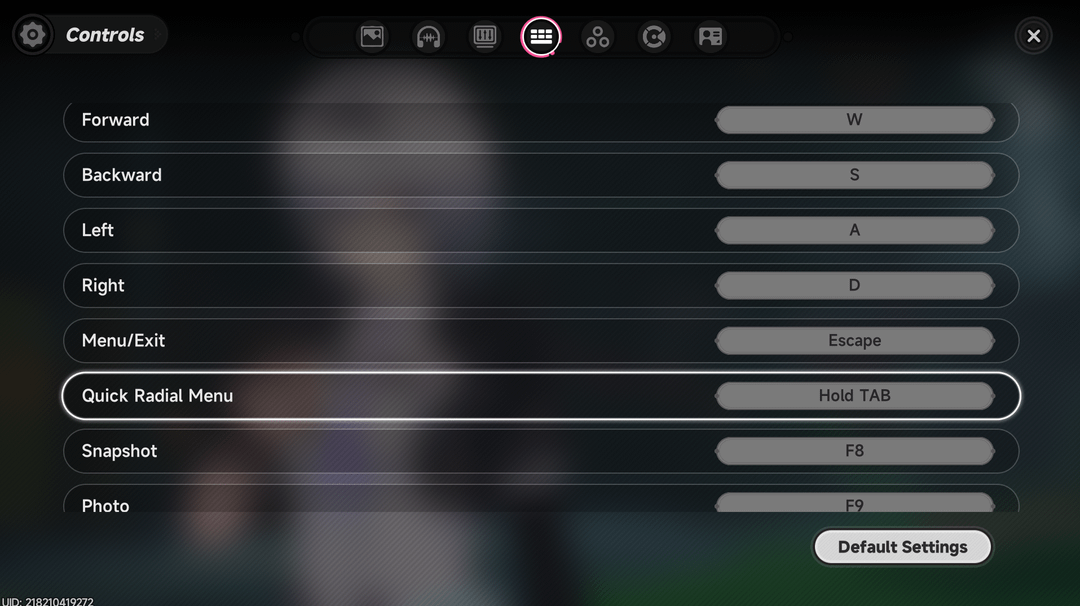
Step-by-Step: Remapping Keys and Buttons
Neverness to Everness splits layout customization across two menus: one for button assignments and another for analog behavior. According to GameWith's NTE Controls Guide, remapping covers both keyboards and gamepads, though movement directions and menu shortcuts remain locked.
- Press Esc on keyboard or the Options / Menu button on your controller to open the main menu.
- Click the Gear icon to open Settings.
- Select the Keyboard icon or navigate to the Button-related settings page.
- Highlight the target action you want to modify.
- Press the new key or controller button to assign the binding.
The Non-Rebindable Inputs
Not every action accepts custom assignments. Movement directions (WASD or Left Analog Stick) cannot be changed (GameWith). The quick wheel menu is also locked to its default assignment. If you prefer alternative directional setups like ESDF, you must rely on external keyboard software profiles rather than in-game options.

All in One(60+300+980+1980+3280+6480)Riftcrystal
 All in One(60+300+980+1980+3280+6480)RiftcrystalUSD 131.14Buy Now
Riftcrystal Mining Permit
 Riftcrystal Mining PermitUSD 3.26Buy Now
6480Riftcrystal (First Top Up Get Double)
6480Riftcrystal (First Top Up Get Double)USD 65.26Buy Now3280Riftcrystal (First Top Up Get Double)
3280Riftcrystal (First Top Up Get Double)USD 32.63Buy Now1980Riftcrystal (First Top Up Get Double)
1980Riftcrystal (First Top Up Get Double)USD 19.57Buy Now980Riftcrystal (First Top Up Get Double)
980Riftcrystal (First Top Up Get Double)USD 9.78Buy Now300Riftcrystal (First Top Up Get Double)
300Riftcrystal (First Top Up Get Double)USD 3.26Buy Now60Riftcrystal (First Top Up Get Double)
60Riftcrystal (First Top Up Get Double)USD 0.65Buy Now
Tuning Camera Sensitivity and Stick Drift
Stick drift and sluggish camera panning require the Controls tab rather than the remapping screen, as detailed in the ntegame.net Controller Settings Guide.
- Camera Sensitivity: Located under the Controls tab. Use the horizontal and vertical sliders to balance standard exploration aiming against high-speed turning.
- Stick Drift and Deadzones: If your analog sticks register phantom movement, adjust your inner deadzone boundaries directly inside Settings → Controls (nevernessnte.org Controller Support Guide). Raising the deadzone threshold stops unwanted drift without third-party calibration tools.
- Feel Toggles: The Controls tab also houses screen shake toggles and target lock-on mode behaviors.
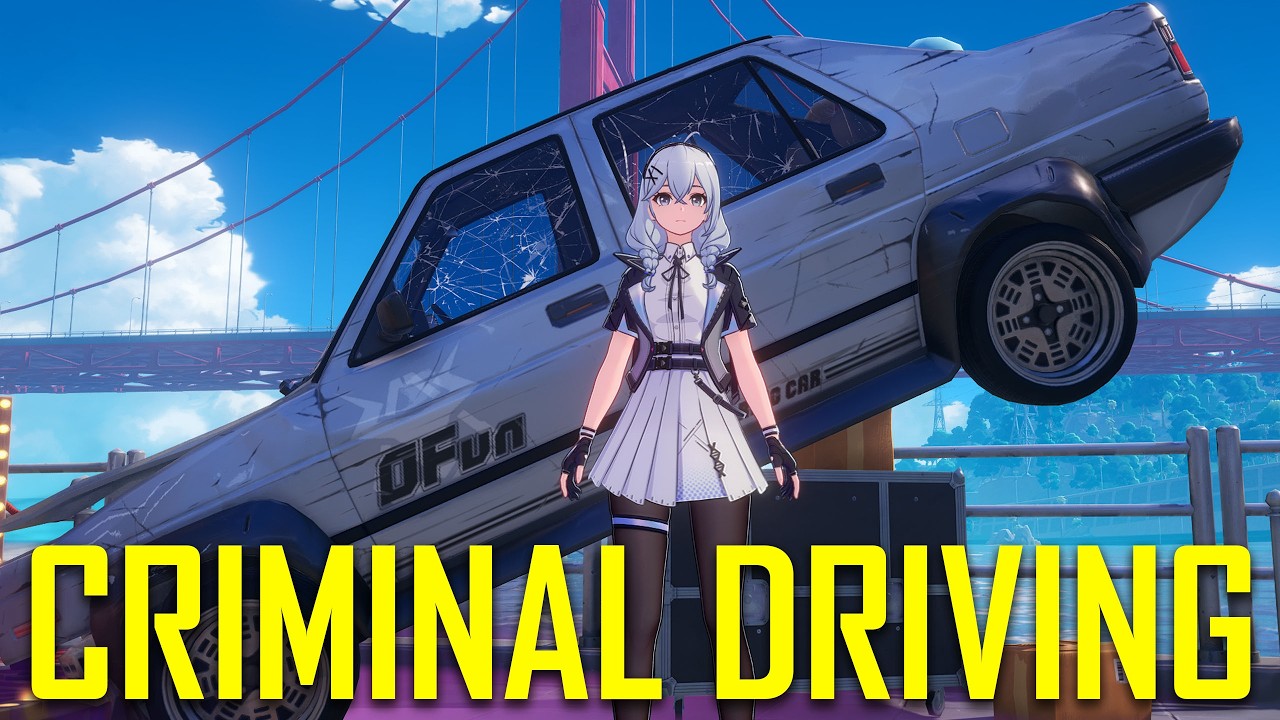
Vehicle Driving Controls and Steering Adjustments
Vehicle handling in Neverness to Everness combines analog steering with designated drift and perspective toggles. The default driving inputs use the following layout across platforms:
| Driving Action | Controller Binding | Keyboard Binding | Source Notes |
|---|---|---|---|
| Accelerate | RT / R2 | W | GameWith NTE Controls Guide |
| Brake / Reverse | LT / L2 | S | GameWith NTE Controls Guide |
| Steer | Left Stick | A / D | Movement directions locked (GameWith) |
| Handbrake (Drift) | Y / △ | Left Shift | Initiates drifting (GameWith NTE Vehicle Guide) |
| Switch Driving View | Right Stick Click (R3) | Z | Toggles first-person and third-person views (GameWith) |
| Exit Vehicle | B / ◯ | F | Interaction dismount (GameWith) |
The 30 FPS Steering Response Quirk
Frame rate settings directly affect vehicle handling physics. Capping the game at 30 FPS in graphics options makes cars react more sharply to steering inputs during turns (GameWith). While this sacrifices high-refresh visual smoothness, it produces a tighter drift recovery arc on tight urban corners.
Fixing PC Controller Detection and Input Conflicts
A connected controller may fail to register or produce conflicting inputs on PC, typically due to driver overlays or keyboard polling priority.
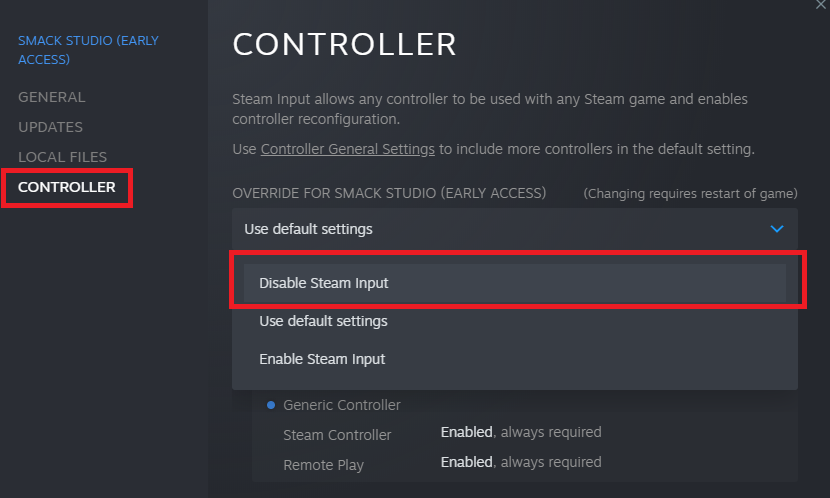
1. Disable Steam Input
Steam Input applies an emulation wrapper that clashes with the game's native controller drivers. According to the ntegame.net Controller Settings Guide, turning this off resolves missing rumble and unresponsive gamepads: 1. Open your Steam Library. 2. Right-click Neverness to Everness and select Properties. 3. Click the Controller tab on the left sidebar. 4. Under the override dropdown, choose Disable Steam Input. 5. Restart the game.
2. Resolve Keyboard Input Contention
Certain PC setups allow keyboard polling to block controller recognition at launch (ntegame.net). If your controller inputs do not register upon reaching the title screen, unplug and replug the controller. If the game still ignores the gamepad, unplug the keyboard momentarily before booting the client so the game assigns primary input priority to the controller.
3. PS5 DualSense Haptics Requirement
Full DualSense functionality—including nuanced haptic rumble textures and adaptive trigger resistance—does not transmit over standard PC Bluetooth connections (ntegame.net). To use these features on PC, you must connect the controller via a wired USB-C cable and ensure Steam Input remains disabled. Running through Bluetooth or an active Steam translation layer flattens vibration signals into generic feedback.
Default Combat Layout Discrepancies
When configuring combat buttons, check your default bindings carefully. Early reference materials report conflicting baseline profiles for standard attacks and evasion:
- Shoulder-Button Scheme:GameWith documents default combat mappings placing Basic Attack on R1 and Dodge/Parry on L1.
- Face-Button Scheme: Guides from ntegame.net and nevernessnte.org document Basic Attack assigned to Square / X and Dodge/Dash mapped to R1 / RB.
Check the Button-related menu immediately after launching the game to confirm which layout your build applies before remapping. For players managing account progression alongside controls, Neverness to Everness Riftcrystals convert into Annulith for character summons.
Frequently Asked Questions
Can I remap every key in Neverness to Everness?
No. You can rebind combat skills, interactions, and vehicle controls, but core movement directions (WASD / Left Stick) and the quick wheel menu are permanently locked (GameWith).
Where do I adjust deadzones if my controller suffers from stick drift?
Navigate to Settings → Controls. Stick deadzone adjustment sliders are located there alongside camera sensitivity and camera shake toggles (nevernessnte.org).
Why are my PS5 adaptive triggers not working on PC?
Adaptive triggers and advanced haptics require a wired USB-C connection and require Steam Input to be forced off in Steam game properties (ntegame.net). They will not function over standard Bluetooth.



Comments