


The "Failed to connect to the server (Error Code 201)" prompt in Once Human indicates that the client cannot complete its network handshake with the game's authentication cluster. This failure is triggered either by scheduled maintenance—such as Starry Studio's standard three-hour patch windows—or local network disruptions caused by overprotective firewall rules, corrupted socket tables, or unsynchronized PC system clocks. Before modifying system settings, verify whether the developers have announced an ongoing server outage; if the infrastructure is operational, restoring access requires flushing your local DNS cache, setting a Windows Defender exclusion, or validating game files through Steam.
Checking Once Human Server Status and Maintenance Schedules
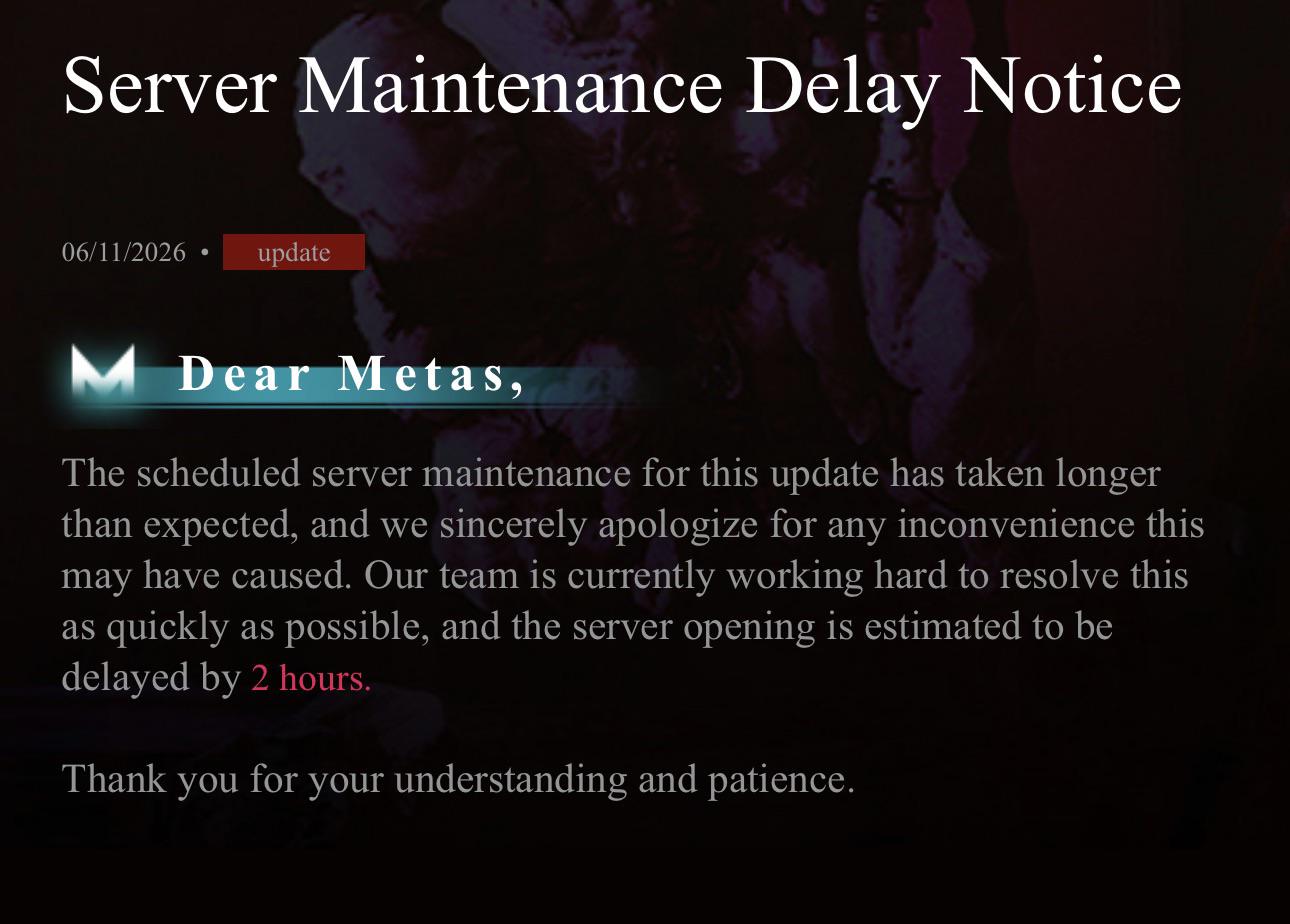
Always rule out developer-side maintenance before altering network hardware or security software. When Starry Studio deploys version updates, the physical game servers are taken completely offline. For instance, the maintenance window on September 16, 2026, began at 4:00 PM (PT) and required an estimated downtime of 3 hours (Once Human DevBlog). During these operational procedures, any login attempt will generate a connection failure alert until the world instances reopen.
According to LagoFast's server status analysis, checking official developer announcements determines whether the error stems from an unplanned crash or your personal computer. If no server maintenance has been announced on official communication boards, the disruption exists between your local operating system and the remote gateway.

62 Crystgin
 62 CrystginUSD 0.84Buy Now
339 Crystgin
339 CrystginUSD 4.20Buy NowMeta Pass (30 Days)
Meta Pass (30 Days)USD 4.22Buy NowBattle Pass Advanced Edition
Battle Pass Advanced EditionUSD 8.45Buy Now1120 Crystgin
1120 CrystginUSD 12.66Buy NowBattle Pass Deluxe Edition
Battle Pass Deluxe EditionUSD 57.77Buy Now2340 Crystgin
2340 CrystginUSD 25.25Buy Now3979 Crystgin
3979 CrystginUSD 42.08Buy Now8075 Crystgin
8075 CrystginUSD 84.16Buy Now
Diagnostic Matrix: Isolating Error Code 201 Causes
Use this breakdown to identify which system component is dropping the game's network packets.
| Failure Type | Root Cause | Primary Symptom | Required Action | Source |
|---|---|---|---|---|
| Scheduled Maintenance | Central servers taken offline for patches | All players blocked; occurs after patch updates | Wait for the announced 2–3 hour maintenance window to conclude | Once Human DevBlog |
| Antivirus / Firewall Block | Security tool terminates outgoing socket traffic | Instant rejection at the login loading screen | Add folder exclusion in Windows Defender or pause real-time shield | LagoFast Server Status |
| DNS & Winsock Corruption | Outdated routing tables query obsolete IP targets | Game hangs on loading before returning Error 201 | Execute ipconfig /flushdns and reset Winsock catalog in CMD | Microsoft Community |
| Corrupted Installation Files | Client version mismatch or damaged patch files | Client stuck checking patch file differences | Run file verification tool in the Steam client library | MiniTool News |
| System Time Desynchronization | Client timestamp mismatches server security tokens | Immediate authentication rejection during handshake | Enable automatic time synchronization in Windows Settings | Microsoft Community |
Reconfiguring Windows Defender and Local Firewalls
Security applications frequently monitor live network traffic from online games. Overprotective security suites, including Windows Defender or Norton, can misidentify Once Human's data transfers as untrusted communication and terminate active sockets (LagoFast Server Status). Similarly, restrictive firewall configurations on local routers interrupt handshake packets, preventing your client from reaching the authentication endpoint (LagoFast Connection Analysis).
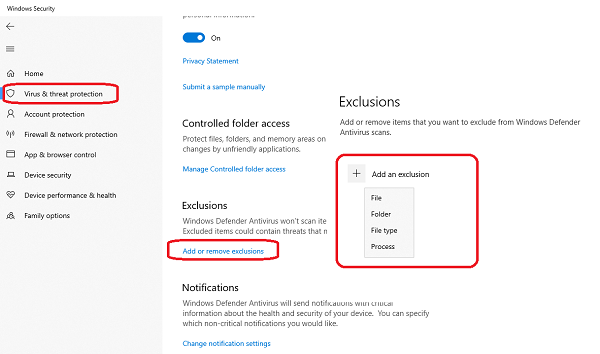
To prevent your antivirus from dropping login data without leaving your operating system unprotected, add the game folder as an exception using the standard procedure documented on Microsoft Community:
- Open the Windows Start menu and launch Windows Security.
- Navigate to Virus & threat protection.
- Under the Virus & threat protection settings heading, select Manage settings.
- Scroll down to the Exclusions section and click Add or remove exclusions.
- Click Add an exclusion, choose Folder, and locate your Once Human installation path (for Steam users, this is typically inside
steamapps\common\Once Human).
If you use third-party security software, temporarily pause real-time scanning to confirm if the handshake succeeds while protection is disengaged. Re-enable the suite immediately after testing.
Flushing Corrupt DNS Records and Resetting Winsock
Operating systems store IP address maps in a local DNS cache. When game servers migrate or rebalance login infrastructure, local caches can point to obsolete IP addresses, leading to connection timeouts. Corrupted socket protocols in the Windows network stack cause identical symptoms.
Purge these routing tables by running network commands through an elevated Command Prompt (Microsoft Community):
- Press the Windows key, type
cmd, right-click Command Prompt, and select Run as administrator. - Enter the following commands sequentially, pressing Enter after each line:
-
ipconfig /release-ipconfig /renew-ipconfig /flushdns-netsh int ip reset-netsh winsock reset - Restart your PC to allow the Winsock catalog to reinitialize before launching the client.
This sequence forces Windows to request fresh gateway addresses from your Internet Service Provider and clears stuck network sockets.
Verifying Game Client Integrity on Steam
Missing patch components or corrupt runtime binaries prevent the game client from synchronizing with authentication gateways. Damaged files can also leave the client stuck checking patch file differences rather than connecting to the server world (MiniTool News).
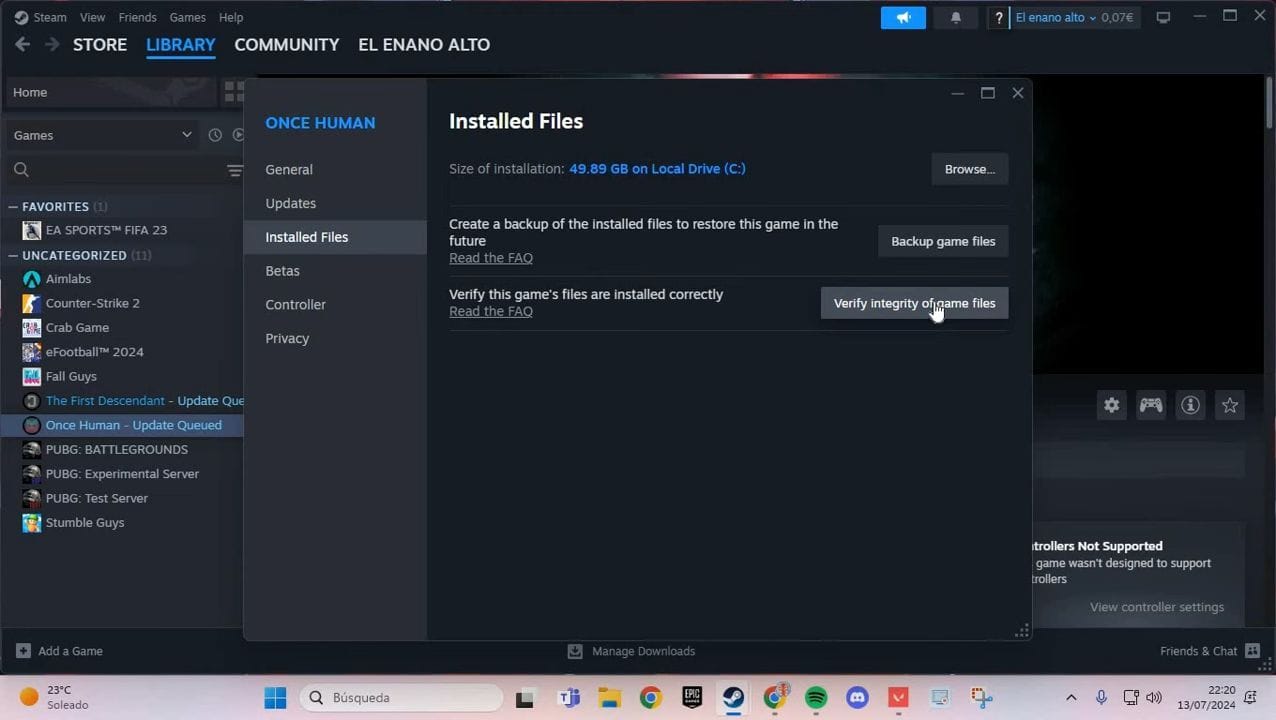
Repair local assets through the Steam interface:
- Open Steam and navigate to your Library.
- Right-click Once Human and select Properties.
- Click the Installed Files tab in the left-hand column.
- Click Verify integrity of game files.
Steam will compare your local installation against official distribution manifests. Any mismatched or corrupt binaries will be automatically downloaded and replaced. Once verification completes, launch the game to test the server handshake.
Synchronizing the Windows System Clock
Authentication protocols rely on cryptographic tokens that are valid only within narrow time windows. If your local system clock drifts out of alignment with universal internet time, the login server will reject client credentials as expired or invalid (Microsoft Community).
Resynchronize your operating system clock:
- Right-click the clock display on the bottom right of the Windows taskbar.
- Select Adjust date and time.
- Under Additional settings, locate the Sync now button and click it.
- Verify that the checkmark appears alongside the current timestamp.
Once the system clock matches network time servers, relaunch Once Human to establish a fresh login session and access the open-world map.
Error Code Documentation Discrepancies
Error 201 carries different definitions across online PC titles. In services like The Elder Scrolls Online, 201 is a standalone authentication protocol code. For Once Human, public developer posts catalog login blockages under general maintenance windows and patch mismatches rather than providing a separate standalone manual for code 201.
Third-party analyses suggest that login failures can also occur when individual server population limits (ranging from 6,000 to 8,000 players) are completely filled. In contrast, Starry Studio dev blogs focus on scheduled patch downtimes and client-side update failures as the primary source of total login refusal. If all local troubleshooting fails while official servers appear active, contact customer support with your client logs to verify if your specific world server has reached population capacity.
Frequently Asked Questions
How can I tell if Once Human failed to connect to server is due to server maintenance or my PC?
Check official Once Human social channels and news boards before changing settings. If the development team has scheduled an update or announced an emergency outage, the problem is server-side and will persist until maintenance concludes. If no service interruption is declared, troubleshoot your local firewall and DNS routing (LagoFast Server Status).
How do I flush the DNS cache on PC to resolve Once Human connection drops?
Open Command Prompt as an administrator, enter ipconfig /flushdns, press Enter, and then execute netsh winsock reset. Reboot your computer to clear cached routing errors and bind clean network sockets (Microsoft Community).
How do I verify game files for Once Human on Steam if files are corrupted?
Open Steam, right-click Once Human in your Library, and choose Properties. Select the Installed Files tab, then click "Verify integrity of game files" to replace missing or damaged game assets (MiniTool News).


Comments