


To hear enemy footsteps clearly in Arena Breakout: Infinite, maintain a single spatial processing layer, boost the 2,000 Hz to 4,000 Hz frequency range in subtle 2 to 3 dB increments, and remove artificial bass boosts that mask subtle movement. Directional clarity in extraction raids depends on stripping away acoustic clutter, preventing phase conflicts between Windows and the game, and keeping tactical callouts audible over background gunfire.
Master Volume and Audio Dynamic Range Configuration
Extraction raids demand quick reaction times when an opponent creeps across wood floors or rustles through foliage. Sound effects must take absolute priority over decorative audio elements.
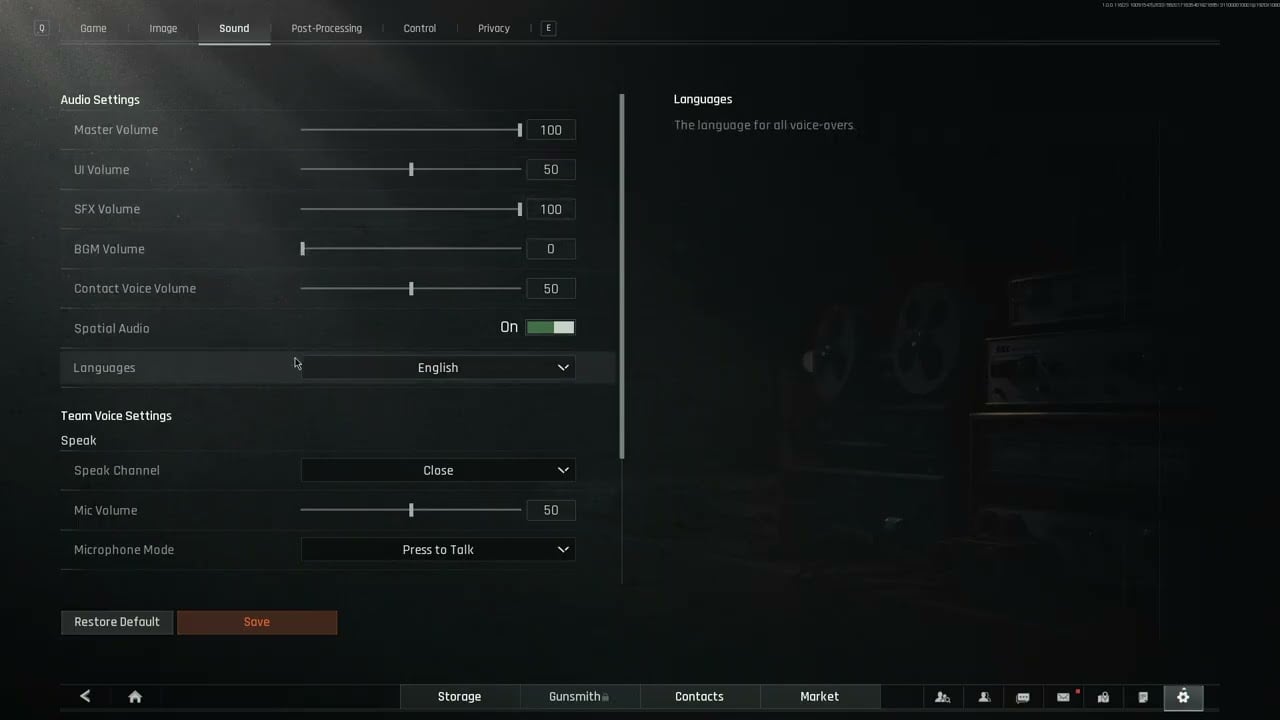
Set your master volume to a comfortable ceiling that does not cause hearing fatigue, and adjust the sub-sliders to isolate mechanical cues:
- Master Volume: Set between 70% and 100% based on your hardware amplifier or Windows output.
- Sound Effects (SFX): 100%. This slider governs movement sounds, reload clicks, and directional weapon discharge.
- Ambient Sound / Environment: Lower this to roughly 40% to 50% if separated in the client menu. Lower ambient levels reduce the drone of wind, rain, and room reverberation.
- Music Volume: 0%. Menu and combat music provide zero tactical value and mask low-decibel movement.
- Voice Chat (VoIP): 50% to 60%. Teammate callouts must remain audible without drowning out subtle flanking steps.
Be cautious with dynamic audio enhancements. Features like aggressive bass boost, heavy dynamic compression, and simulated room ambience introduce harmonic distortion that clutters your headphone soundstage (FxSound). When low frequencies around 62.5 Hz distort, quiet sounds like floorboard creaks disappear under grenade rumbles.


Spatial Audio: On or Off?
Choosing between spatial processing and traditional stereo depends on how your hardware handles directional imaging. Spatial formats reproduce 3D space, elevation, and azimuth entirely via software HRTF filters on standard stereo headphones (Turtle Beach). Dedicated multi-driver surround headsets are unnecessary.
| Spatial Audio Solution | Platform | Licensing Model | Core Benefit |
|---|---|---|---|
| Dolby Atmos | PC, Xbox, Mobile | Paid one-time license | Broad native game support and detailed 3D staging (Turtle Beach) |
| Windows Sonic | PC, Xbox | Free built-in tool | Default OS spatial audio without separate downloads (Turtle Beach) |
| DTS Headphone:X | PC, Xbox | Paid format | Alternative spatial software with select title integration (Turtle Beach) |
| Sony Tempest 3D | PS5 | Free built-in tool | Console-level proprietary HRTF headphone processing (Turtle Beach) |
A critical technical rule applies across PC setups: never stack external spatial audio tools on top of active in-game spatial audio. Running Dolby Atmos or Windows Sonic inside your operating system while an in-game spatial engine processes sound simultaneously produces severe phase conflicts (Turtle Beach). These phase cancellations hollow out audio cues and destroy horizontal accuracy.
If you prefer standard stereo, leave spatial audio toggles disabled everywhere. Pure stereo separation provides razor-sharp left-right panning on flat terrain. If verticality inside multi-story complexes like the Motel on Farm gives you trouble, enable spatial audio inside the game client alone, ensuring your Windows Spatial Sound toggle remains turned off.
Sound Equalization Guide for Pinpoint Footsteps
Default headphone profiles prioritize cinematic bass, which sounds immersive but severely handicaps competitive positioning. Tuning your headset through third-party equalizer software (such as Equalizer APO) reveals hidden sound cues.
Frequency Equalization Curve for Tactical Extraction

Gain (dB)
 +6 dB |                 .--. (2 kHz - 4 kHz Boost)
 +3 dB |                /    \
  0 dB |-----           /      \---------
 -3 dB |     \         /                 \ (Gentle Treble Roll-off)
 -6 dB |      '-------' (Sub-bass Cut)
       +------------------------------------
         31Hz  125Hz  500Hz  2kHz  4kHz  16kHz
Target the 2,000 Hz to 4,000 Hz Range
Tactical shooter movement sounds generate friction cues concentrated in the upper midrange. Boosting the 2,000 Hz to 4,000 Hz band pulls subtle movement above gunfire and background environmental noise (Basn Audio). Heel strikes on wood, gravel crunching, and broken glass fragments all register in this register.
Avoid the V-Curve Trap
A standard mistake among players is applying a dramatic "V-curve" profile, where sub-bass and extreme treble receive massive boosts while mid frequencies are hollowed out (Sonoro). While deep rumble and crisp highs sound exciting, scooped mids swallow teammate callouts and footstep textures entirely.
Instead of sweeping cuts, adjust your bands in gradual increments:
- Apply adjustments in subtle steps of 2 to 3 dB rather than extreme spikes (Sonoro). Extreme adjustments force drivers into distortion and accelerate ear fatigue over long raids.
- Reduce sub-bass frequencies below 100 Hz by 2 to 4 dB. This keeps grenade impacts and heavy machine gun fire from completely blanketing movement sounds.
- Dedicated competitive setups sometimes take this further by carving low-end frequencies down by -6 dB at 31 Hz while applying a sharp +6 dB push at 2 kHz. If you prefer natural timbre, stick to conservative 2 to 3 dB steps.
Voice Chat Settings and Tactical Communication Balance
VoIP overlap kills situational awareness. In Arena Breakout: Infinite, dying because a teammate spoke over an approaching enemy squad is an easily avoidable mistake.
Balance your communication channels with these adjustments:
- Set Voice Chat Mode to Push-to-Talk: Open microphones transmit mechanical keyboard clatter, breathing, and PC fan noise straight into your earcups. Reserve open mic strictly for premade squads utilizing noise suppression.
- Lower Incoming Voice Volume to 60%: Voice lines should never match the volume of sound effects. If Discord or in-game squad chat overpowers ambient cues, reduce incoming chatter until weapon reloads remain clearly audible during conversation.
- Equip In-Game Tactical Headsets: In-game headsets apply aggressive dynamic compression on top of your Windows output, amplifying distant movement while clamping blast peaks. Because running high-tier headsets raid after raid strains economy, players managing inventory often buy Arena Breakout: Infinite Bonds to expand secure containers and stash space.
Five-Step Audio Optimization Checklist
Before heading into your next raid, verify your system pipeline matches this sequence:
- Open the Windows Sound Control Panel, select your active headphones, and set output to 2-channel 16-bit or 24-bit, 48,000 Hz (DVD or Studio Quality).
- Right-click the speaker icon in your system tray, open Spatial Sound, and toggle it to Off to prevent phase conflicts.
- Open your equalizer software and apply a 2 to 3 dB boost between 2,000 Hz and 4,000 Hz while gently dropping sub-bass below 100 Hz.
- Launch Arena Breakout: Infinite, mute background music entirely, and raise Sound Effects volume to 100%.
- Adjust VoIP output so incoming team communications sit noticeably below gunfire and movement cues.



Comments