


Choosing between direct user ID top-up channels and native in-app billing on StarMaker centers on fee structures, bonus token allocations, and transaction mechanics. In-app purchases via Google Play and Apple App Store pass through platform fee tiers where commission rates run up to 30% on digital goods. Direct StarMaker ID web top-up routes credit coins server-side using only the numeric profile identifier, bypassing operating system payment rails to deliver bonus coin tiers on select packages without requiring account passwords.
Why App Store Fees Shape In-App Coin Bundles
Mobile storefront billing handles checkout through linked cards, mobile carrier billing, or platform gift cards. This convenience carries developer overhead.
According to fee analysis published by SplitMetrics, Google applies a service fee of 15% on initial earnings tiers upon enrollment and 30% on earnings above that threshold for the remainder of the year. Apple enforces a standard 30% rate alongside a 15% rate for qualifying accounts in its Small Business Program.
As reported in an analysis by BuyUcoin, platform commissions of up to 30% taken by Google Play and Apple get built into the base retail pricing structure. Because of this commission overhead, standard in-app purchase tiers typically offer baseline coin allocations without the extra bonus coins found on external channels.

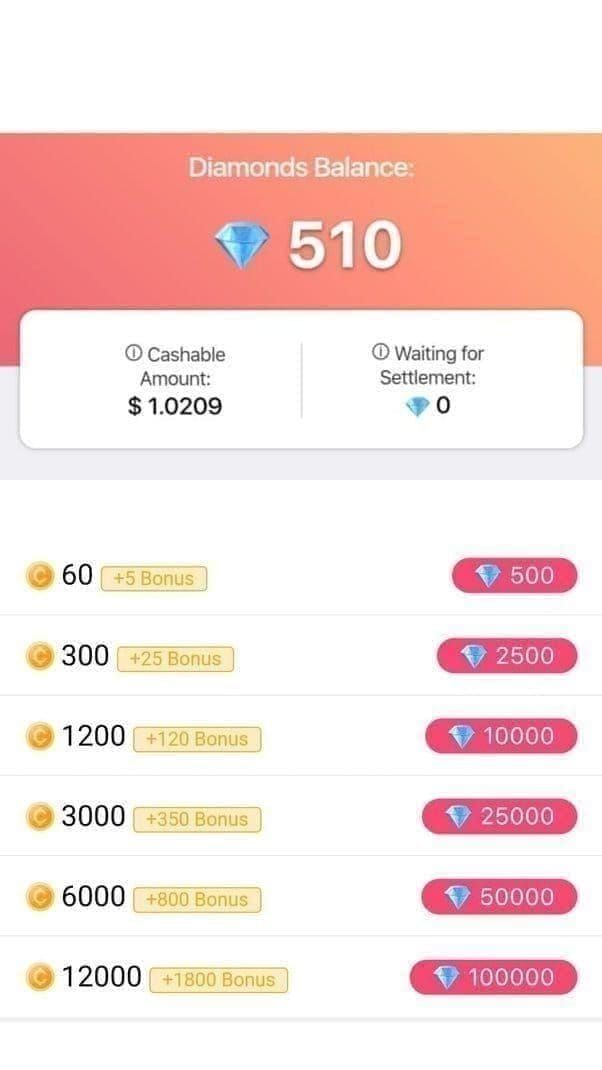
60 + 5 Bonus Coins
 60 + 5 Bonus CoinsUSD 0.63Buy Now
300 + 25 Bonus Coins
300 + 25 Bonus CoinsUSD 3.15Buy Now1,000 + 110 Bonus Coins
1,000 + 110 Bonus CoinsUSD 10.74Buy Now1,200 + 150 Bonus Coins
1,200 + 150 Bonus CoinsUSD 13.06Buy Now1,600 + 200 Bonus Coins
1,600 + 200 Bonus CoinsUSD 17.42Buy Now2,100 + 300 Bonus Coins
2,100 + 300 Bonus CoinsUSD 23.23Buy Now2,700 + 400 Bonus Coins
2,700 + 400 Bonus CoinsUSD 30.00Buy Now3,000 + 450 Bonus Coins
3,000 + 450 Bonus CoinsUSD 33.39Buy Now3,400 + 550 Bonus Coins
3,400 + 550 Bonus CoinsUSD 38.22Buy Now5,000 + 850 Bonus Coins
5,000 + 850 Bonus CoinsUSD 56.61Buy Now6,000 + 1,100 Bonus Coins
6,000 + 1,100 Bonus CoinsUSD 68.71Buy Now6,500 + 1,200 Bonus Coins
6,500 + 1,200 Bonus CoinsUSD 74.51Buy Now7,000 + 1,300 Bonus Coins
7,000 + 1,300 Bonus CoinsUSD 80.32Buy Now10,000 + 1,900 Bonus Coins
10,000 + 1,900 Bonus CoinsUSD 115.16Buy Now14,000 + 2,800 Bonus Coins
14,000 + 2,800 Bonus CoinsUSD 162.58Buy Now
How Direct SID Web Top-Ups Process Your Account
Direct ID recharge services rely on your numeric StarMaker account identifier, known as the SID, rather than an operating system checkout account.
Third-party web top-up platforms like XPTopup deliver credits server-side. You provide only the public numeric SID displayed on your profile. Authentic UID recharge services operate without requesting account passwords, social media logins, or one-time verification codes.
Isolating login credentials protects account security, as external top-up platforms only transmit the numeric identifier to StarMaker's servers to deposit funds.
Because direct top-ups settle immediately against the supplied identifier, transactions sent to a wrong SID cannot be recalled or refunded. A single mistyped digit permanently credits another user's account.
Step-by-Step: Locating Your StarMaker SID
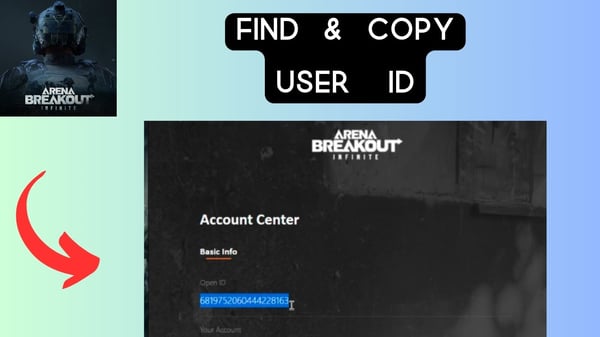
Locate your SID directly within the mobile app before starting an external purchase.
- Open the StarMaker or StarMaker Lite application on your device.
- Tap the profile tab in the bottom-right corner of the interface.
- Look directly beneath your profile image and display name.
- Copy or write down the numeric string labeled as your ID or SID.
Always double-check every digit before pasting the identifier into a web top-up field.
Package Bundles and Bonus Coin Variations
StarMaker Coins act as the prepaid spending currency in the application, used to send virtual gifts to broadcasters, enter singing contests, and unlock VIP privileges. The number of coins received per order depends heavily on whether a bundle includes bonus tokens.
Direct ID platforms often structure packages with tiered bonus coins that are not attached to standard in-app store tiers. For example, documented package tiers on XPTopup include:
- 60 base coins + 5 bonus coins
- 300 base coins + 25 bonus coins
- 1,000 base coins + 110 bonus coins
- 1,200 base coins + 150 bonus coins
- 2,700 base coins + 400 bonus coins
- 6,000 base coins + 1,100 bonus coins
- 14,000 base coins + 2,800 bonus coins
Package allocations differ across third-party storefronts. For instance, the 60 base coin pack includes 5 bonus coins on platforms like Gyftwala and Enjoygm, whereas storefront listings on TOPUPlive document 60 base coins with 10 bonus coins. Base tiers inside the mobile app store listings do not include bonus tokens. Review the live catalog when selecting a StarMaker Coins Recharge to verify exact token distributions.
| Package Tier | Web Bonus Allocation | In-App Store Baseline |
|---|---|---|
| 60 Coins | 5 Bonus Coins | Base pack only (0 bonus) |
| 300 Coins | 25 Bonus Coins | Base pack only (0 bonus) |
| 1,000 Coins | 110 Bonus Coins | Base pack only (0 bonus) |
| 1,200 Coins | 150 Bonus Coins | Base pack only (0 bonus) |
| 2,700 Coins | 400 Bonus Coins | Base pack only (0 bonus) |
| 6,000 Coins | 1,100 Bonus Coins | Base pack only (0 bonus) |
| 14,000 Coins | 2,800 Bonus Coins | Base pack only (0 bonus) |
Note: Web tier data sourced from XPTopup. Specific allocations vary by distributor, and figures exclude local payment fees and taxes.
Token Utility: Spending Coins vs Withdrawing Beans and Diamonds
Before ordering, clarify what you need your balance to do. StarMaker maintains two separate economies: consumer spending tokens and creator earnings tokens.
Purchased coins cannot be converted back into fiat currency or cashed out. They exist exclusively for spending on gifts, room tools, and profile badges.
According to creator reward breakdowns documented by Enjoygm, when a singer receives virtual gifts during a performance, roughly half the value converts to creator tokens called Stars, Beans, or Diamonds. Broadcasters can withdraw their accumulated earnings once they reach an account threshold of at least 6,700 Beans, converted at a standard rate of 210 Beans per withdrawal unit via supported payment options like PayPal or bank transfers. If your goal is withdrawing earnings from performance activity, purchasing coins through direct ID channels does not add to your withdrawable Bean balance.

Managing Account Security, Delivery Delays, and Recurring VIP Subscriptions
Transaction issues and membership renewals require different handling depending on whether checkout ran through an app store or a third-party seller.
Handling Uncredited Transactions
If you purchase coins and your in-app balance does not update right away, follow these checks: - Completely close the StarMaker app from your active multitasking tray and relaunch it to trigger a server refresh. - Open your in-app notification center and review system messages for a recharge notice. - Check your payment method receipt to confirm the transaction went through successfully. - Verify that the SID provided during checkout matches your active account.
Cancelling Subscriptions Correctly
Managing or canceling a recurring VIP membership depends on where the initial subscription was billed.
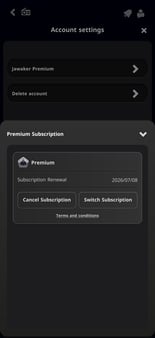
Guidance from Topuplist cautions that simply deleting the StarMaker mobile application does not cancel auto-renewing VIP subscriptions. Subscriptions initiated through Apple App Store or Google Play must be cancelled manually inside your operating system account settings under active subscriptions. If you set up recurring payments through an external web portal, manage cancellation through that provider's instructions to prevent future billing cycles.



Comments