


Tarisland login issues cross play usually occur when a player logs into a different server cluster than the one where their character was created, or when they attempt to log in using mismatched third-party credentials rather than a verified Level Infinite Pass (LI PASS). Tarisland features cross-platform progression between PC and mobile, but characters remain locked to their specific regional server ID, meaning your profile will not display if you select an incorrect server upon switching devices (Escapist Magazine).
Root causes of missing characters and cross-platform errors
When you move between PC, iOS, or Android, the game client does not always default to your previous server. The game engine often auto-selects a regional server based on your immediate network geolocation. If you created your hero on NA-1 and the mobile client defaults to NA-2 or EU-1, your character selection screen appears completely blank.
Account dissociation is the second primary cause. Level Infinite Pass serves as the central identity system for the game. If you created an account as a guest on mobile or logged in via Google or Apple without binding your profile directly to an LI PASS email, the PC client cannot recognize that third-party authorization. The PC client requires an authenticated LI PASS email and password.

60 Crystals
 60 CrystalsUSD 0.71Buy Now
Weekly Ticket
Weekly TicketUSD 0.87Buy NowMonthly Ticket
Monthly TicketUSD 2.57Buy Now330 Crystals
330 CrystalsUSD 3.45Buy Now700 Crystals
700 CrystalsUSD 7.01Buy NowSemiannual Ticket
Semiannual TicketUSD 14.47Buy Now1800 Crystals
1800 CrystalsUSD 16.54Buy Now3600 Crystals
3600 CrystalsUSD 33.12Buy Now7250 Crystals
7250 CrystalsUSD 70.43Buy Now
Step-by-step walkthrough to resolve login failures
Follow these steps to restore character access and clear authentication errors across PC and mobile.
1. Verify your active server cluster and User ID
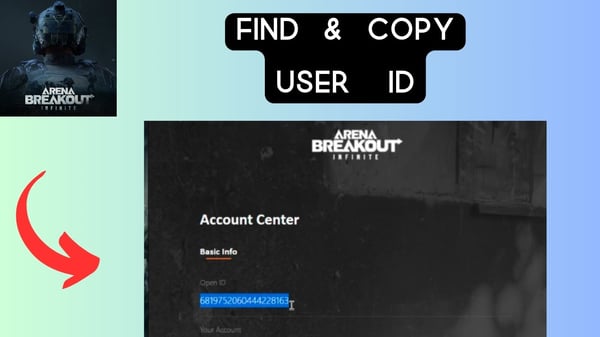
If you still have access on your original device, do not log out immediately. Confirm where your data actually lives: 1. Open the game on your working device. 2. Tap or click the Settings gear icon located in the bottom right corner. 3. Open the User Center or Account tab. 4. Write down your numeric User ID and check the active server name displayed on the initial login screen (XPtopup Server Reference).
2. Match your server manually on the new device
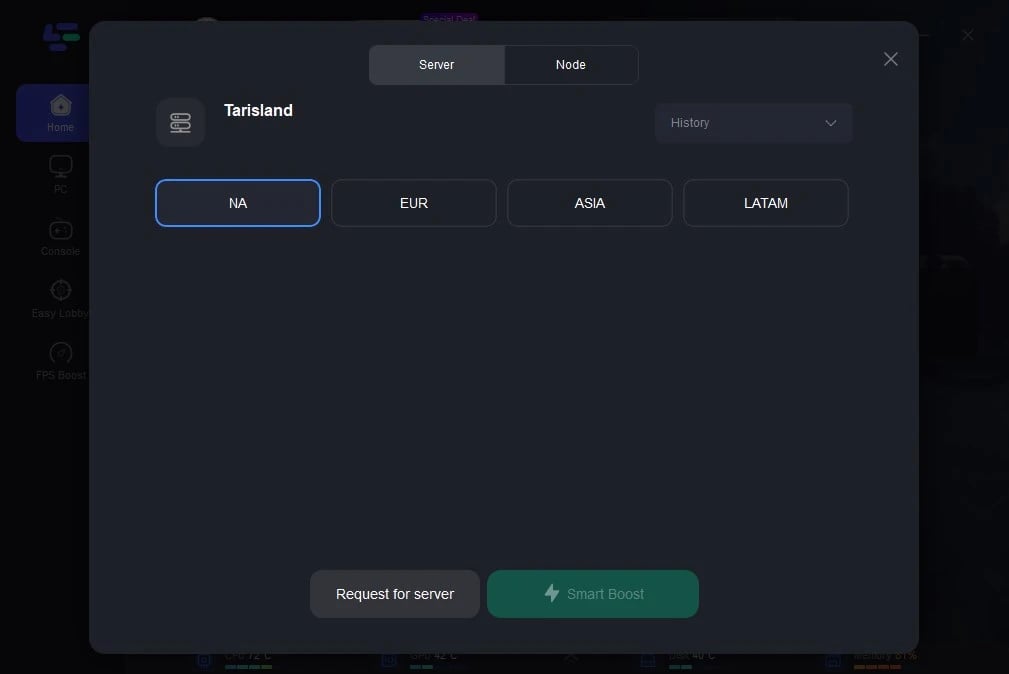
Do not rely on the client's automated recommendation. On your new device's login screen, select the server browser manually. Choose the exact server matching your original profile. Compare the target name against the documented global server IDs:
| Server Name | Server ID | Region Coverage | Source |
|---|---|---|---|
| ASIA-1 | 30001 | Asia Pacific | XPtopup Server Directory |
| ASIA-2 | 30002 | Asia Pacific | XPtopup Server Directory |
| ASIA-3 | 30003 | Asia Pacific | XPtopup Server Directory |
| NA-1 | 35001 | North America | XPtopup Server Directory |
| LATAM-1 | 40001 | Latin America | XPtopup Server Directory |
| LATAM-2 | 40002 | Latin America | XPtopup Server Directory |
| EU-1 | 45001 | Europe | XPtopup Server Directory |
| EU-2 | 45002 | Europe | XPtopup Server Directory |
| EU-3 | 45003 | Europe | XPtopup Server Directory |
| EE-1 | 50001 | Eastern Europe | XPtopup Server Directory |
3. Bind your guest or third-party account to Level Infinite Pass
If you started playing as a guest or used a single-click mobile login (such as Apple ID or Google Play), you must establish a primary LI PASS credential before attempting to log in on PC (Level Infinite Pass Documentation): 1. Launch the game on the mobile device containing your character. 2. Open the Account Center through the in-game settings. 3. Initiate the Link Account process to create or attach an LI PASS. 4. Enter a valid email address and complete the email verification code sequence. 5. Once the LI PASS is linked and verified, you can bind additional third-party channels if desired.
Now, open your PC client and log in using the verified LI PASS email and password instead of a third-party shortcut.
4. Handle two-factor authentication (2FA) prompts
When Two-Factor Authentication is enabled in your Account Center, logging in from a newly installed PC or unfamiliar phone flags the device as unrecognized. If you use a password login, the client will demand a security code sent to your registered email (Level Infinite Pass Documentation). Check your spam folder if the code does not arrive within two minutes.
Troubleshooting connection hangs and client crashes
If you encounter a tarisland login failed authentication error or the game freezes on the startup loading screen, the issue may stem from local network routing or maintenance windows:
- Check maintenance windows: The development team occasionally takes server clusters offline for maintenance. Check official community channels or service alerts before altering local files (LagoFast Report).
- Clear firewall and antivirus blocks: On PC, ensure that both the launcher and the main executable have inbound and outbound permissions in Windows Defender Firewall.
- Power cycle network hardware: Local DNS cache corruption can prevent authentication servers from completing handshakes. Restart your modem and router to establish fresh routing (LagoFast Report).
Managing active sessions and security conflicts
If the client reports an active session error or you suspect someone else has accessed your account, use the remote session management tool:
- Log in to the Level Infinite Pass Account Center.
- Review your recent login history for unrecognized IP locations or devices.
- Select Log Out Of All Devices.
This function invalidates active authentication tokens across every platform except your current client session. After clearing remote sessions, update your password and verify your server selection before logging back in.


Comments