


When Jawaker keeps crashing on Android right at launch or freezes on a black screen, the failure typically stems from cached asset corruption, an outdated Android System WebView component, or system battery optimization prematurely terminating the game process. Resolving the crash requires verifying that your device runs Android 6.0 or higher, performing a system power cycle, clearing the app cache, and updating core web runtimes before attempting a full reinstallation.
1. Verify Android system requirements
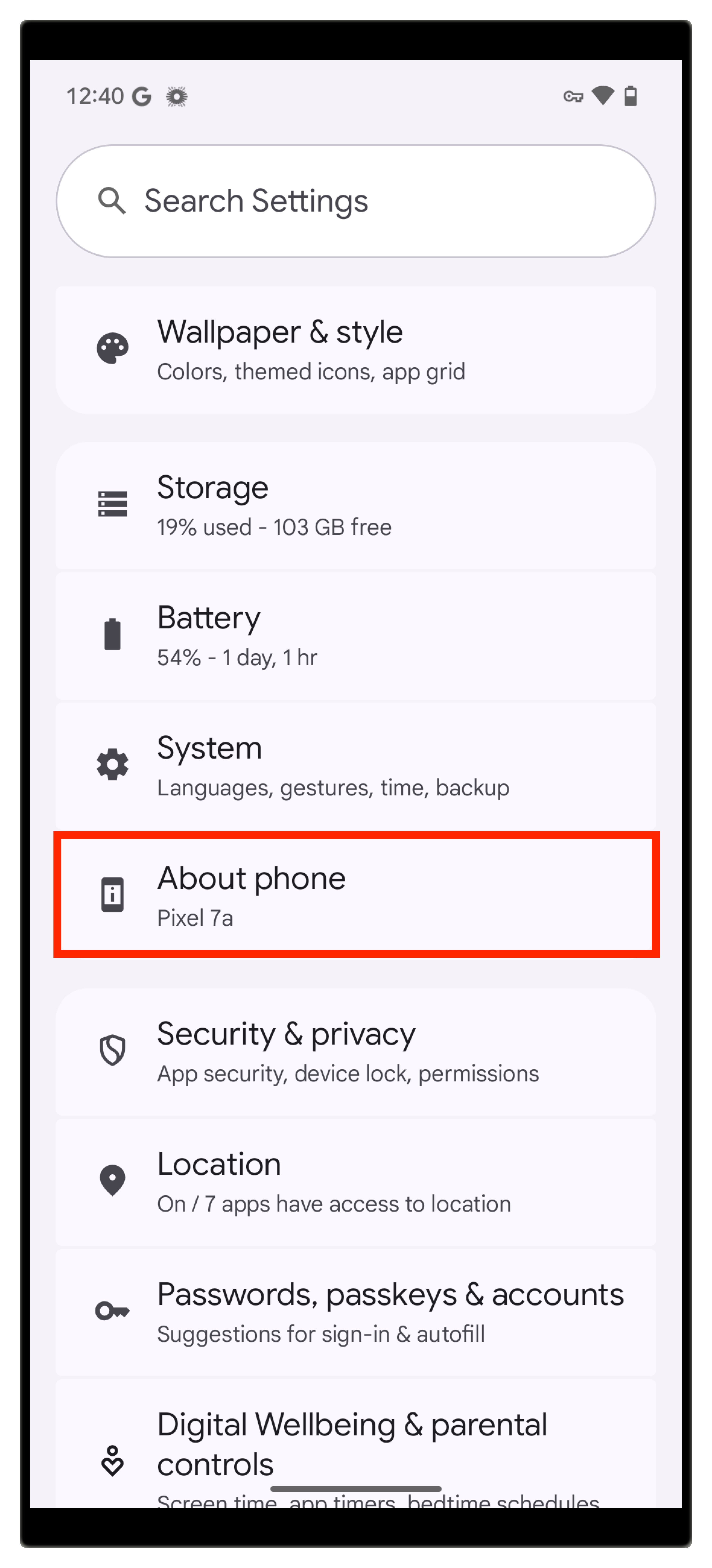
Before troubleshooting software conflicts, confirm your device meets the base operating system threshold. Jawaker requires Android 6.0 or higher according to Uptodown's Jawaker Android specifications.
Devices running versions below Android 6.0 lack compatible system libraries required by the game's newer builds. Attempting to run the app on unsupported operating systems leads to immediate startup crashes, unresponsive black screens, or instant force-closes back to the home launcher.

4,250 Tokens
 4,250 TokensUSD 0.81Buy Now
32,500 Tokens
32,500 TokensUSD 4.03Buy Now70,000 Tokens
70,000 TokensUSD 8.06Buy Now150,000 Tokens
150,000 TokensUSD 15.41Buy Now230,000 Tokens
230,000 TokensUSD 23.63Buy Now400,000 Tokens
400,000 TokensUSD 40.72Buy Now525,000 Tokens
525,000 TokensUSD 53.05Buy Now805,000 Tokens
805,000 TokensUSD 81.44Buy Now
2. Perform a power cycle restart
A standard software glitch in background memory allocation can lock the application out of necessary runtime resources. Restarting the phone clears volatile memory and system hang-ups.
According to troubleshooting documentation from Asurion, standard devices can be hard-restarted by pressing and holding the Power button for approximately 30 seconds until the device reboots. If you are using a Samsung device, press and hold both the Power button and the Volume Down button simultaneously for a few seconds until the screen lights up.
Once the operating system finishes rebooting, launch Jawaker again before opening other background apps.
3. Force stop and clear app cache
Corrupt temporary files, such as cached web views, banner ads, and thumbnail assets, can cause a force close on startup. Android separates temporary cache from permanent user data.
To clear temporary files without disturbing your account:
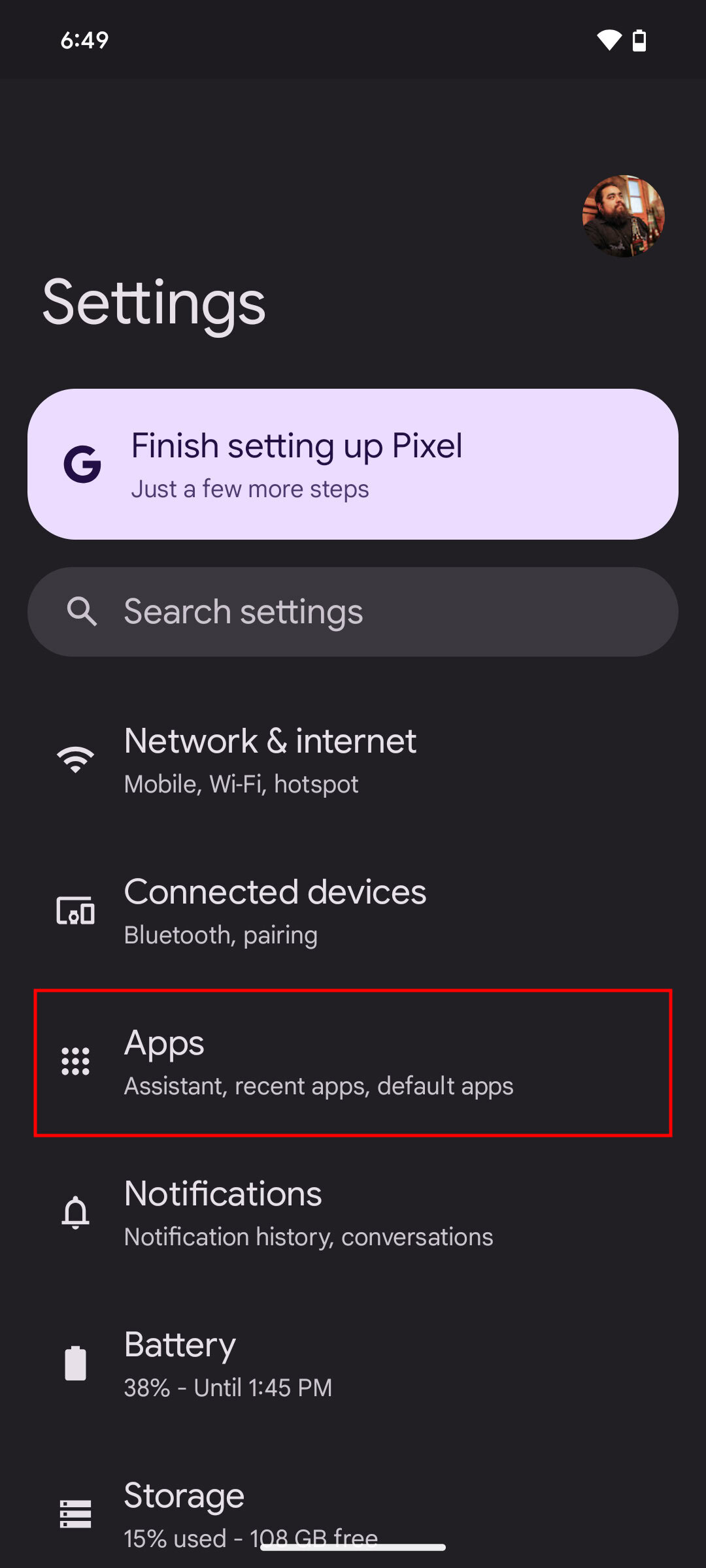
- Open your phone's Settings menu.
- Tap Apps (or Apps & notifications).
- Locate and select Jawaker from the application list.
- Tap Force stop to terminate any frozen background threads.
- Tap Storage (or Storage & cache).
- Tap Clear cache.
Clearing cache removes stored image previews and temporary files. It does not erase your login credentials, token balances, or preferences.
| Action | Stored files affected | Impact on account & progress |
|---|---|---|
| Clear cache | Removes temporary files such as thumbnails and previews | Reversible and safe; leaves login sessions and Jawaker Tokens intact per Cleanor |
| Clear data / Clear storage | Deletes all local app data including logins, settings, drafts, and downloads | Resets the app to a fresh install; unlinked guest accounts lose progress per Cleanor |
If you select Clear data or Clear storage, the app reverts to its factory state. If you play on a guest account that has not been linked to an external login, local progress may be lost permanently.
4. Update Android System WebView and Google Chrome
Jawaker relies on system web components to handle authentication prompts, announcements, and in-game web interfaces. When the system's web engine encounters bugs, applications relying on it crash instantaneously upon launch.
As documented by Microsoft Support, startup crash loops across Android apps often trace back to outdated or corrupted builds of Android System WebView. Updating both WebView and Google Chrome resolves this conflict:
- Open the Google Play Store.
- Search for Android System WebView.
- If an Update button appears, tap it.
- Search for Google Chrome.
- Tap Update if a newer release is pending.
- Restart your device after both updates complete.
Keeping both packages updated prevents rendering crashes during the initial connection handshake.
5. Disable aggressive battery optimization
Manufacturer-specific power managers can misidentify a game's startup sequence as excessive background drain, killing the process before the title screen renders.
Guidelines from Honor Support outline how to exempt apps from automatic task termination:
- Open device Settings.
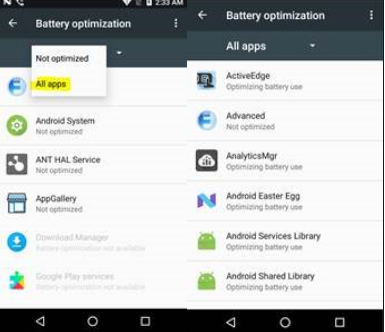
- Search for and open Battery optimization.
- Tap the dropdown filter and choose All apps.
- Scroll to Jawaker.
- Select Don't allow (or set background activity to Unrestricted / disable automatic launch management).
This prevents the operating system from terminating Jawaker during startup memory spikes.
6. Reinstall from the Google Play Store
If clearing cache and updating system components fails to resolve startup crashing, core installation packages or game assets may be corrupted.
Follow the clean reinstallation sequence outlined by Asurion:
- Open the Google Play Store app.
- Tap your Profile icon in the top-right corner.
- Tap Manage apps & devices, then select the Manage tab.
- Tap Jawaker in the list.
- Tap Uninstall.
- Once uninstalled, search for Jawaker in the Play Store and install a fresh copy.
A complete reinstallation downloads fresh application packages, replacing broken local files.
Frequently asked questions
Will clearing Jawaker's app cache log me out or erase my progress?
No. Clearing the app cache removes only temporary operational files, like thumbnail data and cached graphics. Your login credentials, tournament standings, and currency balances remain intact, as detailed by Cleanor's Android storage guide.
What happens if I tap "Clear data" or "Clear storage" on Jawaker?
Selecting "Clear data" resets the game back to its original post-installation state. It wipes saved settings, preferences, and stored login tokens. If your account is tied to an email or social login, you can log back in without losing account data. Players using an unlinked guest account risk losing unsaved local progress.
Why does Android System WebView cause apps to crash on startup?
Android System WebView provides the embedded browser engine used by mobile apps to display web content, payment interfaces, and notice boards. When an installed WebView update contains software bugs or file corruption, any app attempting to initialize that web component crashes immediately, as explained by Microsoft Support and Embrace's technical analysis.



Comments