PSN Gift Card Top Up: How PlayStation Wallet Reloads Work
A PlayStation Network (PSN) gift card is a prepaid digital voucher containing a unique 12-digit alphanumeric code. When you redeem this code on your Sony account, the face value is credited directly to your PlayStation Store wallet. This digital balance allows you to purchase full digital games, downloadable content (DLC), season passes, in-game microtransactions, and recurring service memberships without linking a personal credit card or bank account directly to your console.
PlayStation wallet funds operate on a stored-value model. Once credited, your balance remains associated with your account until spent. You can use your wallet funds across any PlayStation hardware tied to your account, including PlayStation 5, PlayStation 4, and the web-based PlayStation Store.
How to Recharge PSN Balance via Digital Email Code
To complete a PSN Gift Card recharge through XPTopup, you only need to provide a valid delivery email address. We do not ask for your PlayStation Network password, two-factor authentication codes, or account login credentials.
Follow these steps to complete your purchase on XPTopup:
- Select Region and Denomination: Choose the exact country and currency that matches your PlayStation Network account.
- Enter Delivery Details: Type your active email address into the player account field so the digital code reaches your inbox without delay.
- Proceed to Checkout: Review your order summary and finalize payment. Current rates and promotional discounts are displayed directly on the live checkout interface.
- Receive Your Code: Your 12-digit voucher code is delivered directly to your verified email address for immediate redemption.
Supported Regions, Currencies, and Account Compatibility
Sony enforces strict regional boundaries on all PlayStation Network accounts. A gift card issued for one specific country or currency cannot be redeemed on an account registered to a different region. For example, a US Dollar (USD) gift card will only redeem on a United States PSN account, while a Euro (EUR) card requires an account registered to a Eurozone member country.
| Region / Currency | Store Compatibility | Cross-Region Redemption |
|---|---|---|
| United States (USD) | US PlayStation Store | Not Supported |
| United Kingdom (GBP) | UK PlayStation Store | Not Supported |
| Eurozone (EUR) | Specific European PSN Country | Country-Specific Only |
| Japan (JPY) | Japan PlayStation Store | Not Supported |
| Australia (AUD) | Australia PlayStation Store | Not Supported |
| Canada (CAD) | Canada PlayStation Store | Not Supported |
How to Verify Your PSN Account Country and Region
Before ordering a digital card, confirm your account country to avoid purchasing an incompatible code:
- Sign in to your account at
store.playstation.comon any web browser. - Click on your profile avatar in the top-right corner and select Account Settings.
- Open the Basic Information or Location tab under your Account profile.
- Check the Country/Region listed on your profile. Match this exact country when selecting your voucher on XPTopup.
PlayStation Plus Subscription Tiers and In-Game Purchases in 2026
Your PlayStation wallet balance can be used for more than standalone game purchases. In 2026, PlayStation Plus continues to operate under a three-tier membership system, and you can pay for all recurring memberships using wallet funds loaded from digital gift cards:
- PlayStation Plus Essential: Includes online multiplayer access, cloud saves, exclusive store discounts, and monthly downloadable games.
- PlayStation Plus Extra: Includes all Essential benefits plus access to the downloadable Game Catalog containing hundreds of PS4 and PS5 titles.
- PlayStation Plus Premium / Deluxe: Includes all Extra benefits, time-limited game trials, the Classics Catalog (covering PS1, PS2, PSP, and remastered PS3 games), and cloud streaming where supported.
In-Game Currencies and Add-Ons
Wallet funds redeemed from PSN cards also apply directly toward microtransactions and seasonal passes within popular online games. You can purchase:
- Fortnite V-Bucks
- EA Sports FC Points
- Call of Duty Points (CP)
- Apex Legends Coins
- Genshin Impact Genesis Crystals and Welkin Moon
- Honkai: Star Rail Oneiric Shards
When purchasing in-game content through the PlayStation interface, the console automatically deducts the necessary amount from your redeemed wallet balance first.
Step-by-Step Redemption Guide for PS5, PS4, and Web Browser
Once you receive your 12-digit code via email, redeem it using any of the official methods outlined below.
Redeeming on PlayStation 5
- Turn on your PS5 and log in to the user account matching the gift card region.
- Go to Settings (gear icon in the top-right corner).
- Select Users and Accounts > Account.
- Select Payment and Subscriptions > Redeem Codes.
- Carefully type the 12-digit code and select Redeem.
- Confirm the prompt to add the funds to your wallet.
Redeeming on PlayStation 4
- Power on your PS4 and log in to your account.
- Open the PlayStation Store from the main home screen.
- Scroll down the left sidebar menu to the bottom and select Redeem Codes.
- Enter your 12-digit voucher code using the on-screen keyboard.
- Select Continue and confirm the addition of funds.
Redeeming via Web Browser
- Open your browser and navigate to
store.playstation.com. - Sign in with your PlayStation Network account.
- Click your Profile Icon in the top-right corner of the screen.
- Select Redeem Code from the drop-down menu.
- Enter the 12-character alphanumeric code and click Next to finalize.
Troubleshooting Common PSN Voucher Errors and Account Balance Limits
If you run into an error message while redeeming your voucher, use this reference guide to identify and resolve the issue.
Common Error Codes and Fixes
- Error WC-40371-5 or WS-45485-6 (Invalid or Incompatible Code): This error indicates that the code is entered incorrectly, has already been redeemed, or belongs to a region different from your account. Check your code characters carefully (distinguish between letters and numbers such as 0 and O, 1 and I). Verify that your account region matches the purchase region.
- Current package prices are shown below. Prices exclude Tax. Tax, payment fees and applicable coupons are shown at checkout.
- Error E-8210604A (General Store Connection Error): This temporary communication error occurs during high network traffic. Sign out of your PlayStation account, restart the console or router, or attempt redemption via a desktop web browser.
Code Formatting Tips
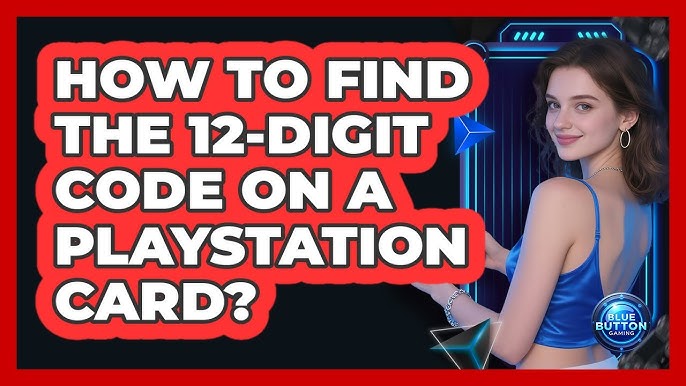
- PSN codes are exactly 12 characters long.
- Codes contain letters and numbers, but do not contain hyphens or spaces when typed into the redemption box.
- Ensure you do not add trailing spaces when copying and pasting from your delivery email.
Why Choose XPTopup for PlayStation Digital Vouchers
- Zero Account Sharing: We never ask for your account password or console login details. Your account security remains in your hands.
- Direct Email Delivery: Codes are generated and dispatched straight to your verified email address.
- Multiple Regional Options: Select from a broad selection of regional storefront currencies to match your specific PSN account.
- Clear Pricing: All available denominations and pricing structures are clearly presented on the checkout page before you make a payment.
Frequently Asked Questions
How do I add money to my PSN balance with a digital gift card?
To add money to your balance, purchase a gift card matching your account region on XPTopup. Once the 12-digit code arrives in your email, go to the PlayStation Store on your PS5, PS4, or web browser, select Redeem Code, type in the 12 digits, and confirm. The funds will reflect immediately in your account wallet.
Are PlayStation gift cards region-locked?
Yes. PlayStation gift cards are strictly region-locked and currency-locked. A gift card denominated in USD can only be redeemed on a US PSN account, a GBP card on a UK account, and so on. Always verify your account country before purchasing a digital voucher.
How to check PSN gift card balance?
Before redemption, an unused digital voucher holds the exact face value indicated on the product listing. Once redeemed, you can view your total wallet balance by opening the PlayStation Store on your console (displayed at the top of the menu) or by checking the Payment Management section under your Account Settings online.
Can I use a PSN gift card to purchase PlayStation Plus subscriptions?
Yes. When you redeem a PSN gift card, the funds enter your account wallet. You can use this balance to pay for monthly, quarterly, or annual tiers of PlayStation Plus Essential, Extra, or Premium / Deluxe. If your wallet balance covers the cost, Sony deducts the subscription fee directly from your wallet balance.
Do PlayStation Store gift cards have an expiration date?
Digital PlayStation Network voucher codes do not have a strict expiration date prior to redemption, though prompt redemption is recommended. Once redeemed, the funds credited to your PSN wallet balance do not expire and remain available until you spend them.
Can I convert a PlayStation gift card balance into cash?
No. Once a PSN gift card code is redeemed, the funds are permanently tied to that PlayStation Network account. Sony does not permit transferring wallet funds between different PSN accounts, nor can the balance be refunded or converted into physical cash.
Current package prices
Current package prices are shown below. Prices exclude Tax. Tax, payment fees and applicable coupons are shown at checkout.
| Package | Price |
|---|---|
| PSN USA 10$-PSN USA 10$ | USD 8.72 |
| PSN USA 25$-PSN USA 25$ | USD 21.27 |
| PSN USA 50$-PSN USA 50$ | USD 40.06 |
| PSN USA 100$-PSN USA 100$ | USD 80.12 |